Designing Tunnel Paths Overview
-
Navigate to
Design > TE Tunnels > Path Design to open the Tune
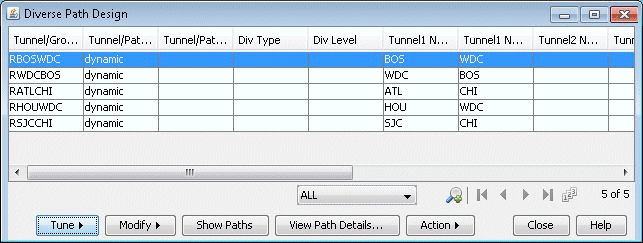
Paths window. This window lists all of the tunnels whose paths can be designed
for. For each tunnel or group, the details of the first, second, and third path
are provided in this window. The Div Level column indicates the current level of
diversity satisfied between the 2 or 3 paths that belong to this tunnel or
group
Figure 1: Diverse Paths Table
-
Select the tunnels to design and select Tune > Selected
Paths. Alternatively, select Tune > All Paths to
design all tunnels for diversity. This will open up the following
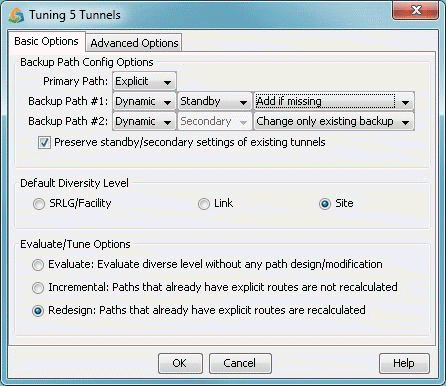
window.
Figure 2: Tuning Options