Set the Two P2MP Trees of Interest to be in the Same Diversity Group
After opening an existing specification file or creating a new specification file after configuration file import, you are ready to perform Diverse Multicast Tree design on two P2MP trees. The tool allows you to easily select the sub-LSPs that belong to a particular P2MP tree and then specify its Diversity Group. Two trees belong to the same Diversity Group if all the corresponding sub-LSPs have been marked with the same Diversity Group name.
-
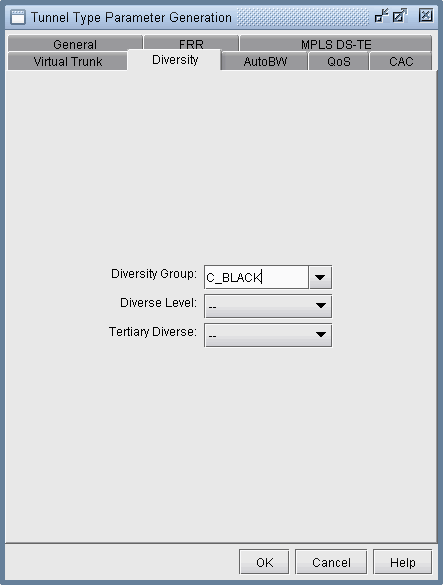
Next, click on the Diversity tab and fill in a name inside
the Diversity Group fill-in/dropdown combo button, as shown in the
following figure.
Figure 1: Specify Diversity Group for Each Sub-LSP for the Two P2MP Trees
-
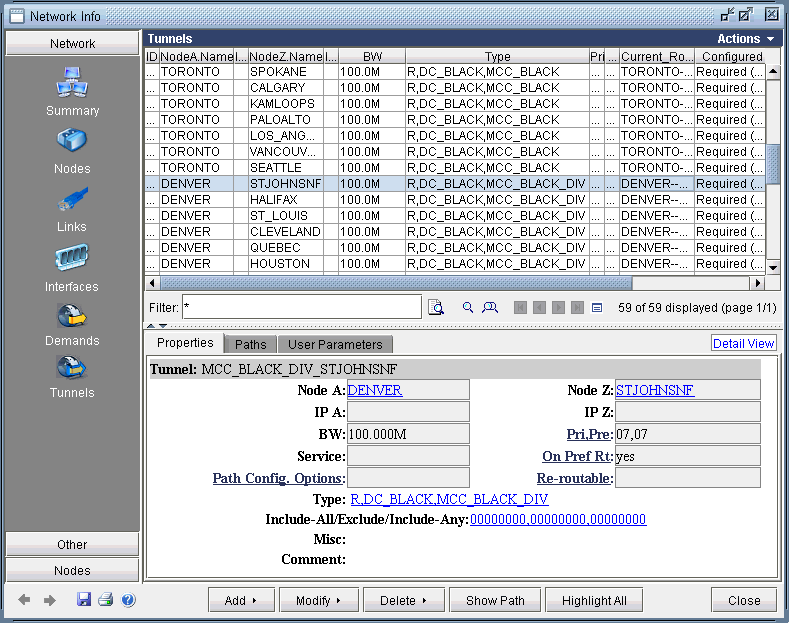
After clicking OK, the Type field for each tunnel modified
should contain the DC_BLACK flag in it, as shown in the following
figure. In NorthStar Planner, the sub-LSPs for a particular Diversity
Group are marked with D followed by the Diversity Group name in the
type field.
Figure 2: Type Field Containing DC_BLACK.