Additional Methods to Access VPN Information
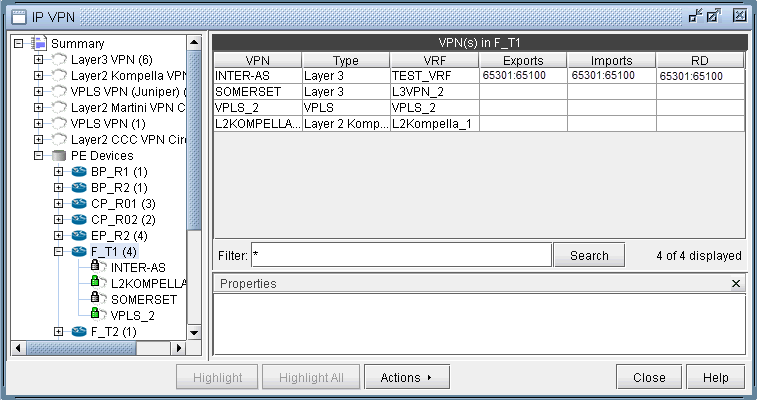
There are multiple ways of accessing VPN information. To access it for a specific VPN or a specific router, you can select an option from the relevant map’s right-click menu. For instance, from the IP VPN map, you can right-click on a VPN and select View VPN. From the Standard map, you can right-click on a router and select View > IP VPN at Node to bring up the IP VPN window, with the selected router in expanded view. For instance, the following figure shows the window view displayed when you right-click on the router F_T1 and then select View > IP VPN at Node.
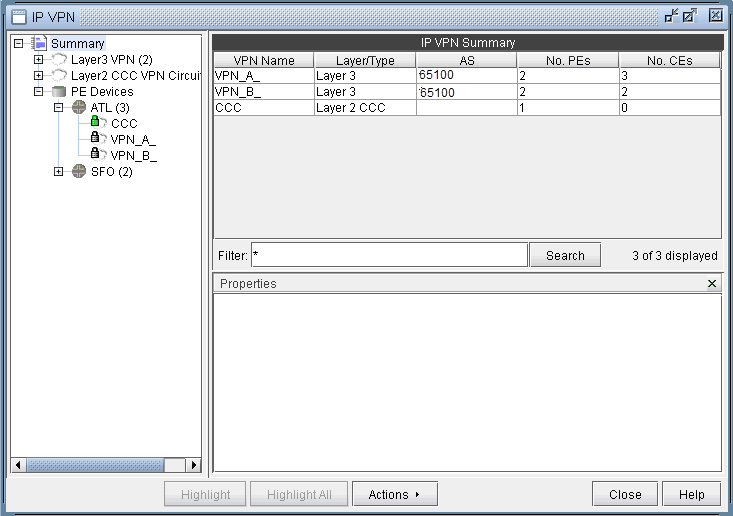
Another way to view all of the associated VPNs for a particular router is to expand on the router by clicking on the + box from the tree view in the IP VPN window. The following picture shows that router ATL is associated with three different VPNs (CCC, VPN_A_, and VPN_B_).