
Network Cleanup Task
You can run a task from the Task Scheduler (Administration > Task Scheduler) to clean up the network. Automating this process by scheduling the cleanup task to run periodically can be especially time-saving in large networks. The following options are available:
-
Purge links that are down
-
Purge links with user attributes that are down (having user attributes would otherwise protect them from removal)
-
Purge nodes that are down
To create a network cleanup task:
-
In the Task Scheduler, click Add to bring up the Create New Task Window, and select Network Cleanup from the Task Type drop-down menu as shown in Figure 1.
Figure 1: Create New Task Window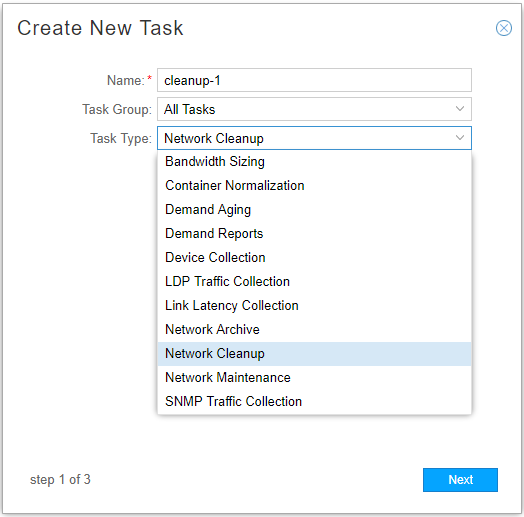
Click Next to proceed to the options window.
-
As shown in Figure 2, all the available options are selected by default except to force the removal of links with user attributes.
Figure 2: Create New Cleanup Task Options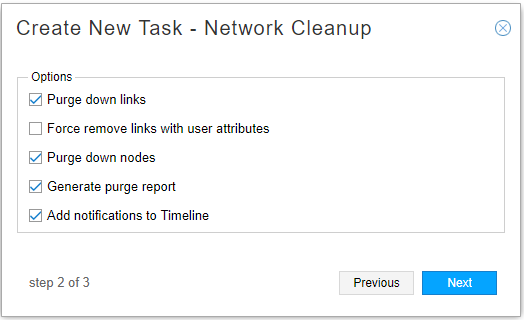
If you opt to generate purge reports, a report is generated every time the task executes. The report details the actions taken as a result of the cleanup. Purge reports, identified with a timestamp, are stored in /opt/northstar/data/.network_plan/Report/purge_reports/.
If you opt to add notifications to the timeline, you can see notifications relevant to the execution of the task in the Timeline view. To get there, click Topology in the top navigation bar and then Timeline in the left panel drop-down menu. An example is shown in Figure 3.
Figure 3: Cleanup Notifications in the Timeline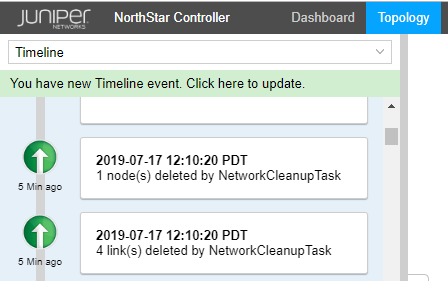
In the Create New Cleanup Task options window, select or deselect the options you want. Click Next to proceed to the scheduling window.
-
Like other tasks in the Task Scheduler, you can schedule the cleanup task for periodic execution, automating the cleanup effort. As an alternative to scheduling recurrence, you can select to have the cleanup task “chained” after an already-recurring task of another type so that it executes as soon as the other task completes. See Introduction to the Task Scheduler for information about scheduling and chaining.
-
To ensure you see the post-cleanup topology in the UI, click Topology in the top navigation bar to display the topology map and network information table. Right-click in a blank spot on the topology map and select Reload Network. The updated network is displayed.