Splitting a Flow into Sub-Flows
-
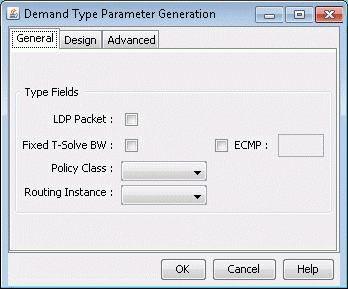
Click the Type button to bring up the Demand Type Parameter
Generation Window as shown in Figure 1. Select the ECMP
checkbox and enter the number of sub-flows desired. The default number
of sub-flows is 6 if no value is entered, or it can be set based on
the bandwidth using the ECMPcntByBW parameter. Then click OK.
Figure 1: Demand Type Parameter Generation Window
-
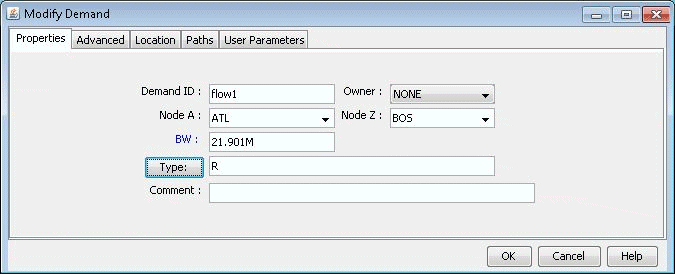
Notice the new value in the Type field in Figure 2.
Figure 2: Modify Demand Window
-
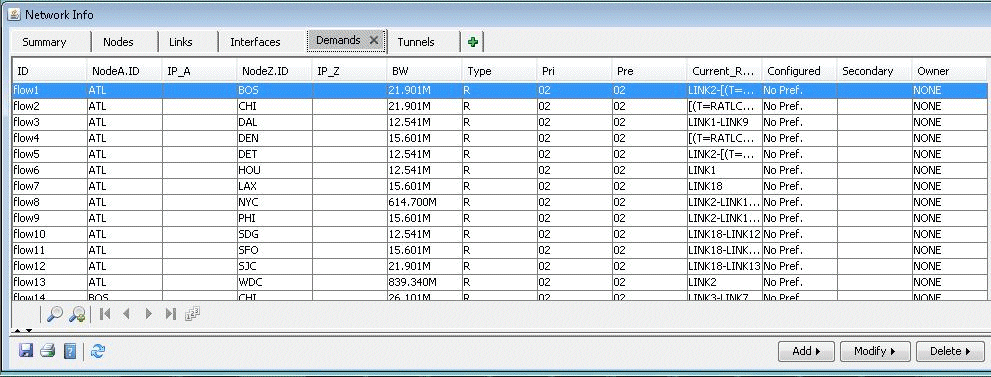
Switch back to View mode and select Network > Elements
> Demands to bring up the Demands window. Sub-flows are displayed
differently in the Type column in View mode, as shown in Figure 3. Rn means
that n sub-flows share the same routing path. In this example, the
original flow called flow10 was divided into 3 flows on the first
ECMP and 2 flows on the second ECMP. The first entry for flow10 also
says “ECMP=5”, to indicate that 5 subflows were created
from the original flow. The second entry for flow10 also contains
a special keyword, “ECMPN” or “ECMP2”. “ECMPN”
is simply a reserved keyword used by the program to identify subflows
that are associated with another “original” flow but whose
routing path is different. To elaborate, if there were three different
ECMP’s, then there would be three entries for flow10; the first
would indicate “ECMP=n” and the latter two would show
special keyword “ECMPN”. This simply helps the program
associate these subflows with one another.
Figure 3: Demand Window in View mode
-
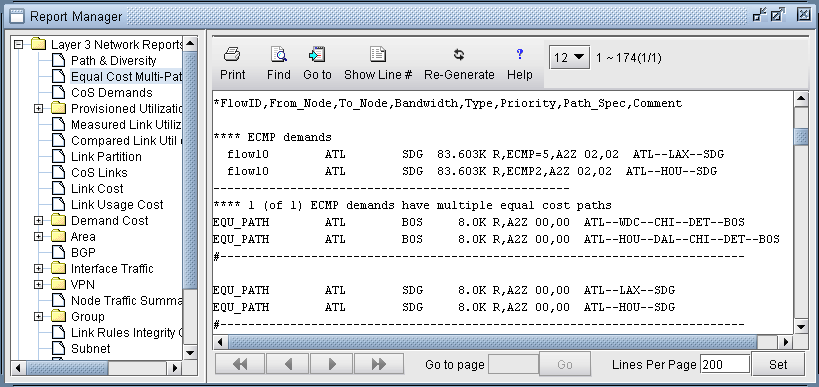
Open the ECMP Report again in the Report Manager. This
time it will display the newly created ECMP demands in the report.
Note:
Although there are several discrete ECMP subflows (i.e. 5 in this example, 2 routing one way and 3 routing another), and technically the program could report an ECMP comparing each of the 2 with each of the 3, such information is not very useful. Therefore, the ECMP report only reports a single entry for flow10, comparing the two different routing paths.
Figure 4: Equal Cost Multiple-Paths Demand Report