
Scheduling Configuration Checking in Task Manager
Compliance Assessment and integrity checks can be automatically performed at a designated time interval, using the Configuration Check Report task of the Task Manager. Go to Admin > Task Manager. In the Task Manager, press the “New Task” button. Select the Configuration Check Report task, enter a name for the task, and then press “Next”.
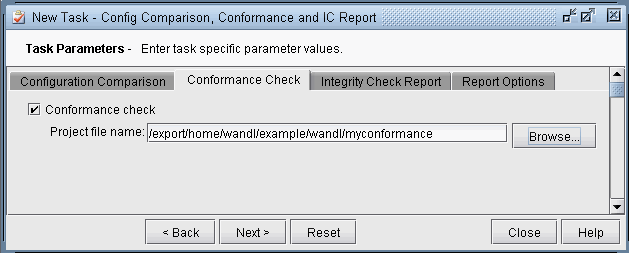
Figure 1: Configuration Check Report Task
-
On the Conformance Check tab, select the checkmark for Conformance check and browse for the conformance project file.
-
On the Report Options tab, indicate where the task results should be saved and whether or not to e-mail the test results.
Figure 2: Compliance Assessment Report Options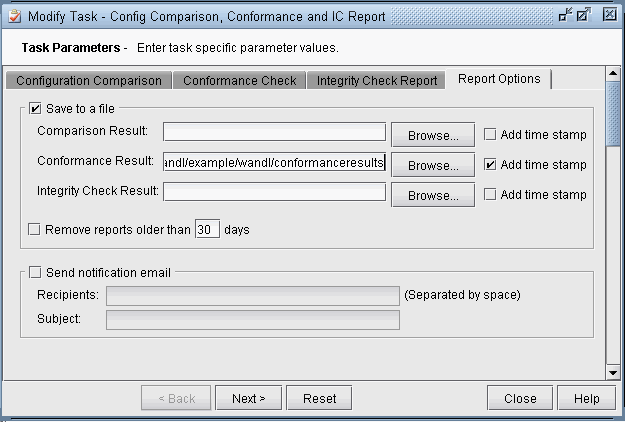
-
Click “Next” and then specify the scheduling parameters, such as the interval at which to run this task.
-
Click “Finish” to submit the task.