Using The Compliance Assessment Tool
To open the Compliance Assessment window, select Tools > Compliance Assessment. This window is used primarily by network operators to run CAT scans on the network configuration files. The CAT scans are a collection of test cases or rules that search the configuration files for keywords, strings, and statement matches or non-matches to determine configuration compliance. These test cases are created using CAT template syntax by template designers. The templates syntax can use logical operators, conditional expressions, and variables to support more complex searches.
-
The Choose screen allows for selection of the test case(s) and network for the CAT scan. Initially this screen will have no test cases displayed until the test cases are created and published from the CAT Testcase Design window. The CAT Testcase Design window is opened by clicking Manage Templates.
Figure 1: Compliance Assessment Choose screen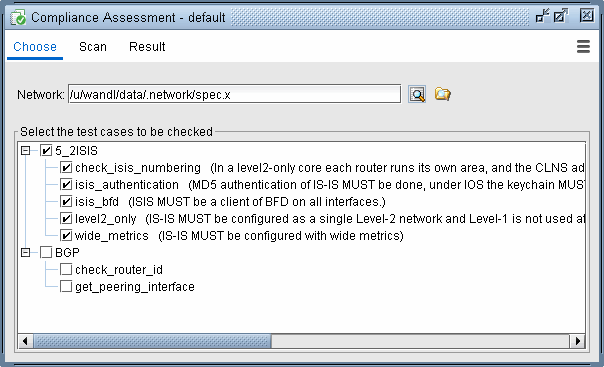
-
The Scan screen allows for selection of the device(s) and their configuration files for the CAT scan. Press the green button to start the scan.
Figure 2: Compliance Assessment Scan screen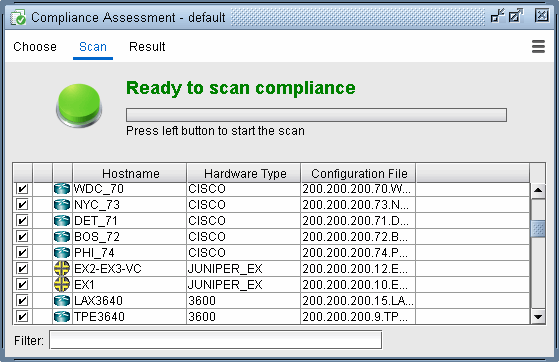
-
The Result screen displays the results of the CAT scan. The results can be viewed in detailed, summarized by device, or summarized by rule name. The summary reports also calculate a Score which represents the device’s configuration compliance to the test cases. A higher score means better compliance, and a lower score means worse compliance comparatively. The Score Weights can be defined under Settings.
Figure 3: Compliance Assessment Result screen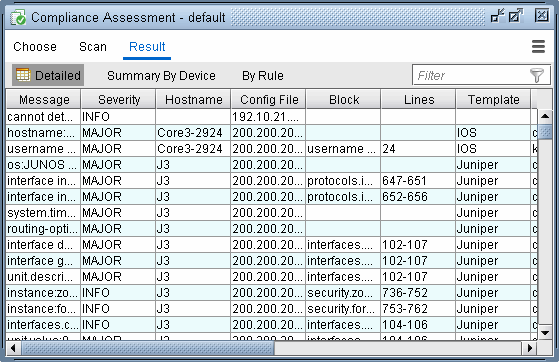
-
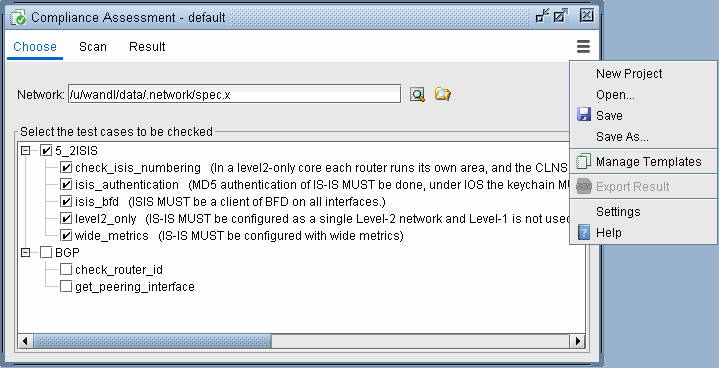
The Actions button provides options to save and open projects, manage templates, and change the Results Score Weight. Saving projects in this CAT window saves the selected test cases in the Choose screen.
Figure 4: Compliance Assessment Actions options