
Report Manager: Configuration Reports
Integrity Checks Reports
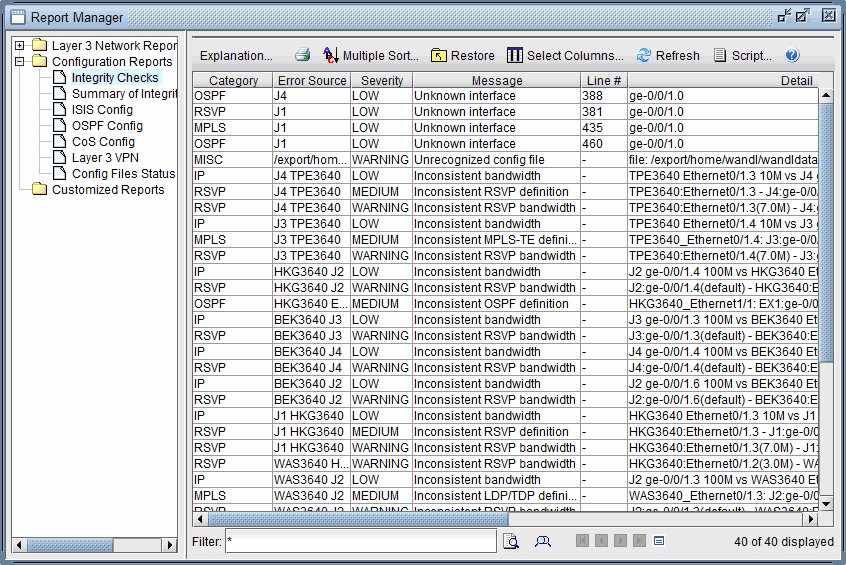
When router configuration files are read into NorthStar Planner, a configuration integrity checks report is generated which lists possible errors found by the program while parsing the router configuration files. To access this report, you must first import configurations files using the Import Data Wizard from File > Import Data. Once the configuration files have been imported, you can bring up the Configuration Reports in Report Manager.
Field |
Description |
|---|---|
Error Source |
This field indicates the source of the error. This will usually be a configuration file name, or may sometimes be a description when more than one configuration file is involved. |
Line |
This field gives the line in the configuration file where the error was found. |
Severity |
This field indicates the severity of the error. The levels include High, Medium, Low, and Warning. |
Message |
This field provides a description of the error and may contain references to specific configuration files or host names when more than one configuration file is involved. |
Config Files Status Reports
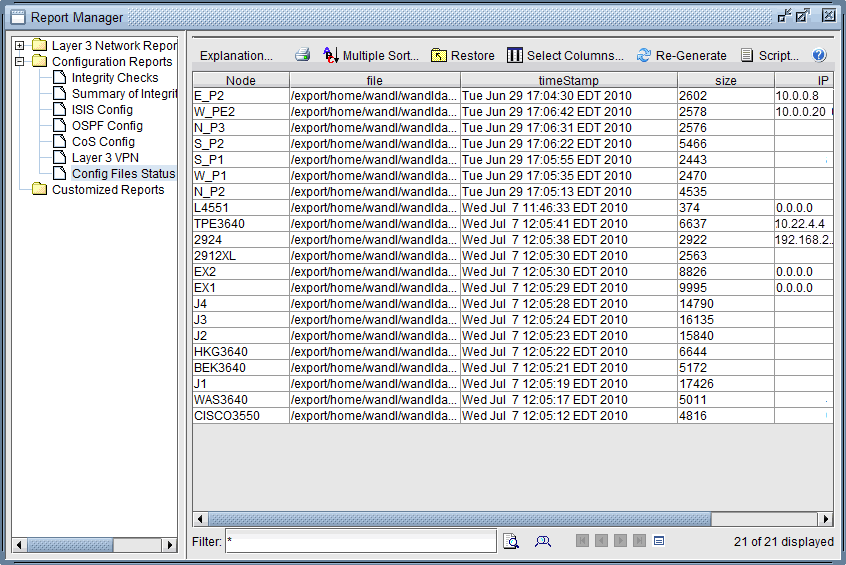
This report displays the config files used for the configuration integrity check reports.
Field |
Description |
|---|---|
file |
This field specifies the directory path and filename of the node’s configuration. |
timeStamp |
This field is the last modified date and time of the config file. |
size |
This field is the Byte size of the config file. |
ISIS Reports
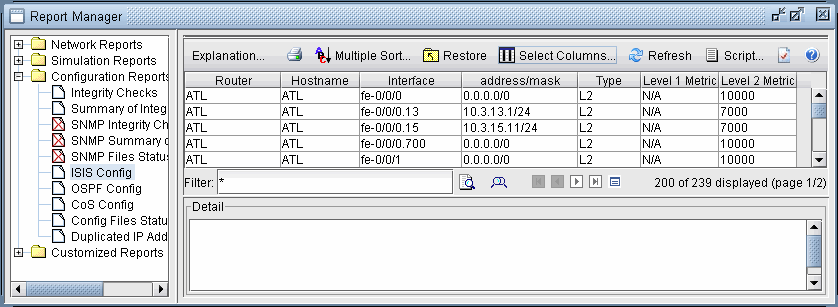
The ISIS Report displays the details of IS-IS configuration as a result of parsing a set of configuration files from a network. Click on a row to see the ISIS attributes associated with the router. The output file that is written to the output directory is called “ISISReport.runcode”.
Field |
Description |
|---|---|
Router |
The router name. |
Interface |
The interface of the router. |
address/mask |
The IP address and mask of the interface. |
Type |
The IS-IS router type. |
Level 1 Metric |
The IS-IS cost for this interface in level 1. |
Level 2 Metric |
The IS-IS cost for this interface in level 2. |
Detail |
A portion of the configuration file that applies to its IS-IS configuration. |