
Reviewing and Saving the Template
After you have added your rules, right-click in the right panel and select Save to save the template, or use the shortcut <Ctrl>-s.
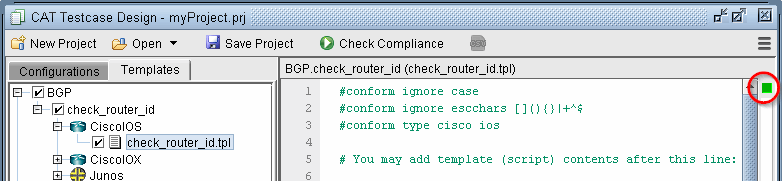
If the box in the upper right corner of the CAT Testcase Design window is green, it indicates that no errors have been found in the template.
Figure 1: Template with green box indicates no errors
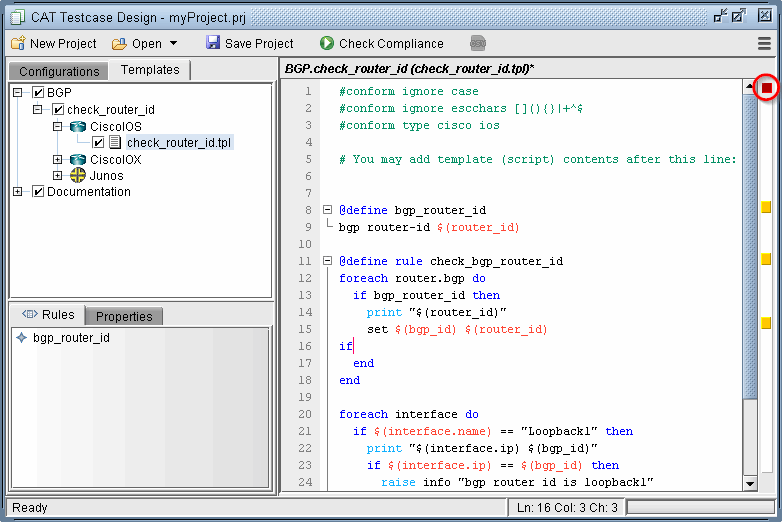
Otherwise, if an error has been found, the box in the upper right corner will be red. Double-click on the orange-colored segment on the right hand side bar to jump to the line with the error. For example, the error could be related to an incomplete if statement (with no matching “end” statement).
Figure 2: Template with red box indicates errors
Clicking Save Project will also save any changes to the template.