
Network Menu: Links
Link information can be displayed from the main menu by selecting Network > Elements > Link. Or select the link(s) from the map and right-click select View> Selected Links from the popup menu to open the Links window.
The number of tabs and type of information displayed in the Link window depend on the hardware type of the network model. Click on the up and down arrow to view the additional tabs
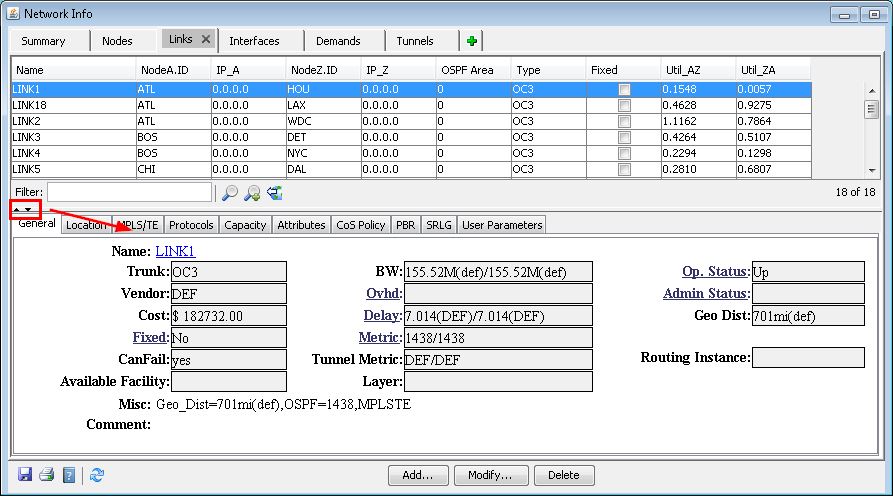
The following sections provide additional information about the options available.
Links: General Tab
Field |
Description |
|---|---|
Name |
The user-assigned name for a link. If a name is not assigned, references to that link are made using the node pair representing its origination and termination ends. |
Trunk |
This field specifies the type of trunk being used. The trunk type is subsequently used in determining link pricing and bandwidth availability. |
Vendor |
The vendor field allows you to specify the vendor to be associated with the particular link. Possible values for vendors include those that are specific to a certain country or region, and are listed in the tariff database. If a vendor is not specified, the vendor is set to the default DEF. To represent in-house fiber links with zero cost, the vendor should be set to NET. |
Cost |
This field allows you to specify the cost for a particular link. If this field is specified, the link price is based on this value, rather than one from the tariff database. |
Fixed |
This field allows you to specify whether a link is to be considered permanent in the backbone topology. If this field is checked, the particular link will not be considered for removal during the optimization phases of design and/or diversity design. |
CanFail |
Indicates if the element can fail during exhaustive failure simulation. |
BW |
Defines the bandwidth in each direction if it is different from the default bandwidth. |
Ovhd |
Defines the bandwidth reserved for signaling. The default value is used if not specified. |
Delay |
This field is used only if the routing method is set to Delay Metric. When the program performs path placement and is trying to find the best route for a call, delay metrics are examined to determine the desirability/undesirability of a link. Two delay metrics are supported, one for each direction of the trunk. If asymmetric delay metrics are not supported by the hardware, the second delay is marked as '-'. If a delay metric is not defined for a trunk, a default delay is calculated based on propagation delay and serialization delay. Units are in milliseconds. |
Metric |
When the program performs path placement, link metrics are examined to determine the least cost path. Two metrics are supported, one for each direction of the trunk. If asymmetric metrics are not supported by the hardware, the second metric is marked as '-'. For the metric to be used, an appropriate routing method should be set in the Tools > Options > Design, Path Placement options pane. DIST= number DISTA2Z= number DISTZ2A= number |
Tunnel Metric |
(IP/MPLS only) Link metric as seen by tunnels. Defaults to IGP metric if not specified. TDIST= number TDISTA2Z= number TDISTZ2A= number |
Op Status |
Indicates the operating status of the link. This field reflects the current status of the link. Valid status include: Unknown, Install, Live, Active, Order, Planned. |
Admin Status |
This parameter reflects the current status of the link. Valid states include: Unknown, Install, Active, Live, Order, and Planned. |
Service |
This field specifies the service type of the trunk. Current service types include ATM and Frame. This field specifies the type of traffic switches support, either frame or cell. If a service type is not explicitly set by you, a default value will automatically be set based on the hardware switch being used. |
Media |
The media field allows you to assign attributes to a link. Valid media attributes include: TERRES (terrestrial), SAT (satellite), MCWAVE (microwave), FIBER, and ENCRYPT (encrypted). These media descriptors are used in route biasing of calls using criteria such as preferred, preferred not, and required. |
Misc |
This field is used to display special characteristics of a link. The miscellaneous field contains media and link overhead, distance, cost, delay specifications for links. If more than one specification qualifier is needed for a link in the media type field, these specifications should be separated by commas (,) without any spaces. |
Comments |
Comments attached to the trunk definition. You should note that comments are not used in any part of the modification, design, or simulation of the program and are merely provided as a convenience. |
Links: Location Tab
Field |
Description |
|---|---|
Area/Domain |
The “Area” field will appear only when the OSPF protocol is used. The “Domain” field will appear only for networks with multiple domains. |
Node A, Node Z |
Displays the source and destination of the link. It is important that you be able to clearly distinguish between Node A and Node Z, especially in defining one-way demands. |
Card A, Port A, Shelf A, Card Z, Port Z, Shelf Z |
These indicate the card, port, and shelf numbers of the originating and destination nodes. These fields are useful for identifying the source and destination of the link. These fields are only available for certain hardware types. |
Interface A, Z |
This indicates the interface at node A and node Z that this link comes out of. |
IP/Mask A, Z |
This indicates the IP address and mask of node A and node Z. |
Links: Capacity Tab
In general, the Capacity tab of the Links windows is used to display link utilization information, derived from the bandwidth of demands (for example, PVCs or flows) routed over the link and the link’s total bandwidth. The upper half shows summary information and the lower half gives a breakdown by partition.
Field |
Description |
|---|---|
Dir |
The Direction of the link, either “A2Z” or “Z2A”. |
Total BW |
The total bandwidth of the link. |
Avail |
The amount of bandwidth still available on the link. |
Used |
The amount of bandwidth used on the link by demands (or tunnels) |
Util |
The utilization percentage of the link, as calculated from the Used and Total BW values. |
Rsv |
The amount of reserved bandwidth on the link. This affects routing design. Reserved bandwidth is often used to let you “save” bandwidth for scenarios such as network growth or potential outage. Note that the maximum usable bandwidth for routing is set to Total BW - Rsv. To change the reserved bandwidth value, select Tools > Options > Design and switch to the Design>Reserved Bandwidth options pane. For more information, see Reserved Bandwidth. |
Links: MPLS/TE Tab
Field |
Description |
File Format |
|---|---|---|
FRR A |
no/yes: specifies if there is a fast reroute backup tunnel for the Node A to Node Z direction. If yes, specify the fast reroute backup tunnel. |
bblink file FRR_A= backuptunnel |
FRR Z |
no/yes: specifies if there is a fast reroute backup tunnel for the Node A to Node Z direction. If yes, specify the fast reroute backup tunnel. |
bblink file FRR_Z= backuptunnel |
GLB Pool / RSVP |
Tunnels cannot route over a link unless there is available bandwidth in the global pool. |
bblink file (for Cisco) GLBPOOL= bw GLBPOOLA2Z= bw GLBPOOLZ2A= bw (for Juniper Networks) RSVP= bw RSVPA2Z= bw RSVPZ2A= bw |
SUB Pool / GB |
“Guaranteed bandwidth” tunnels cannot route over a link unless there is available bandwidth in the subpool. |
bblink file (for Cisco) SUBPOOL= bw SUPOOLA2Z= bw SUBPOOLZ2A= bw (for Juniper Networks) GB= bw GBA2Z= bw GBZ2A= bw |
Links: Protocols Tab
The following protocols can be viewed in the Protocol tab: MPLS, OSPF, ISIS, EIGRP, IGRP, RIP, LDP, TDP. The corresponding metric (if applicable) is displayed underneath the A-Z Metric and Z-A Metric columns, such as the tunnel metric for MPLS-TE and the cost for OSPF, ISIS1 and ISIS2. The metric for a given IGP protocol is used for routing the demands if the default routing protocol is set to that protocol.
Note that there are two additional entries, Metric Bandwidth and (E)IGRP delay that can also used to influence the routing metric. The Metric Bandwidth is an informational and routing parameter corresponding to the “bandwidth” statements for Cisco and Juniper Networks interfaces. The (E)IGRP delay corresponds to the “delay” statement for Cisco interfaces.
EIGRP and IGRP metrics can be influenced by changing the Metric Bandwidth or EIGRP Delay fields. To change the K-values from the text file before opening the network, the following line can be added to or edited in the dparam file: IGRP_param1= TOS:0,K1:1,K2:0,K3:1,K4:0,K5:0
For OSPF, the Metric Bandwidth is used to calculate the routing metric only if no cost is specified. The reference bandwidth can be changed by modifying the Node.
Links: Attributes Tab
Tunnels can be prevented from routing over particular links if the link attributes, tunnel mask, and tunnel affinity are set.
Links: CoS Policy Tab
Specify the CoS policy attached to the interface of node A (source) or node Z (destination).
Adding Links
Click the Add button in the Links window to open the Add Link window. The required information (in blue) includes the trunk type (T3, OC3, etc.) and the link’s end nodes (on the Location tab.) The end nodes of the link may be chosen by referencing the Node ID or by using the mouse.
By Mouse: Select node A and node B from the display map by using the mouse. When the nodes are selected, the node IDs are displayed in the node A and node B fields of the Location tab.
Node ID: Select node A and node B by browsing through the node list by each field.
For router networks the interface and IP address can be specified. To specify an interface, click the search icon to see available choices. Other hardware types may have fields for the card and port number instead of the interface and IP address.
Clicking Add submits the new link to the network model. The Add Link window remains open to allow adding additional links if desired.
Apply Template
This pull-down selection allows you to apply a link template that was created by selecting the “Link Template” window as detailed in Link Templates. This can serve as a shortcut to automatically filling in fields that are in common amongst many links.
Auto Add on Mouse Clicks
When this checkbox is selected, you may automatically add new links from the map by choosing node A and node Z. The properties of the new link should be specified on the properties tab of the “Add Link” window before adding the link with the mouse.
Modifying Links
To modify one or more link, first select or highlight these links in the Links window. Then, click the Modify button. In the Modify Links window, current values can be modified by changing the corresponding text field.
When more than one link is selected for modification, certain fields are disabled and cannot be modified. If no change is made to a particular field (i.e. the field is left blank), then that property will not be touched or modified for any of the selected links.
Right-Click Menu Options
Traffic Chart: Traffic charts include the traffic load per period derived from the trafficload file and measured interface traffic from the interfaceLoad_in(ingress) and interfaceLoad_out (egress) files. For router hardware, options vary depending upon the chosen layer (Layer 2 or Layer 3) indicated in the toolbar.
Node Detail A, Node Detail Z: Switches to a view displaying information on the source node (Node A) or destination node (Node Z)
Show Config A, Show Config Z: (Router only). Displays the configuration file for the source node (Node A) or destination node (Node Z)
Demands on/thru Link: Displays a list of demands routed over this link.
SRLGs on Link: Displays a list of facilities containing the selected link
Interfaces on Link: View the interfaces used for the selected link.
Nodes on Link: Displays NodeA and NodeZ on the link.
Tunnels on/thru Link: Displays a list of tunnels that routes through the link.
Tunnel Table on/thru Link: Displays a list of tunnels that routes through the link in a table.
CLI - Show Interfaces: (Live Network only). Opens the Run CLI window and runs the show interface command on the interfaces of the link.
Live Link Status Check: (Live Network only). Opens the Live Status window and runs queries to check the operation and admin status of the link.