
Help us improve your experience.
Let us know what you think.
Do you have time for a two-minute survey?
Help us improve your experience.
Let us know what you think.
Do you have time for a two-minute survey?
Juniper Mist Government Cloud (GovCloud) operates within the AWS GovCloud (US) Regions. These regions are designed to host sensitive data and regulated workloads, ensuring compliance with stringent U.S. government security and compliance requirements. By leveraging AWS Government Cloud (US), Juniper Mist provides a secure and compliant environment tailored for U.S. government agencies, contractors, educational institutions, and other organizations handling sensitive workloads in the cloud. Currently, this environment is “Authorized” on FedRAMP and GovRAMP (previously known as StateRAMP) marketplace for Impact level “Moderate”.
This page lists the Juniper Mist updates released on US GovCloud in July 2026.
We are excited to introduce NAC Client Insights, which provides a quick overview of potential issues that affect the NAC clients' network experience. You can access this page by navigating to Monitor > Service Levels > Insights. Click the context menu at the top of the page, then click NAC Client on the left, and then select the client to view insights.
The page shows NAC Client Events with tabs: Total, Good, Neutral, and Bad. You can also click the Settings button at the upper-right corner to select the event types to include. The Current Values section at the end of the Insights page shows:
Properties—details such as User, MAC address, Auth Type, Client Type, and VLAN ID
Connection Status—details such as State, Client Type, and NAS Vendor
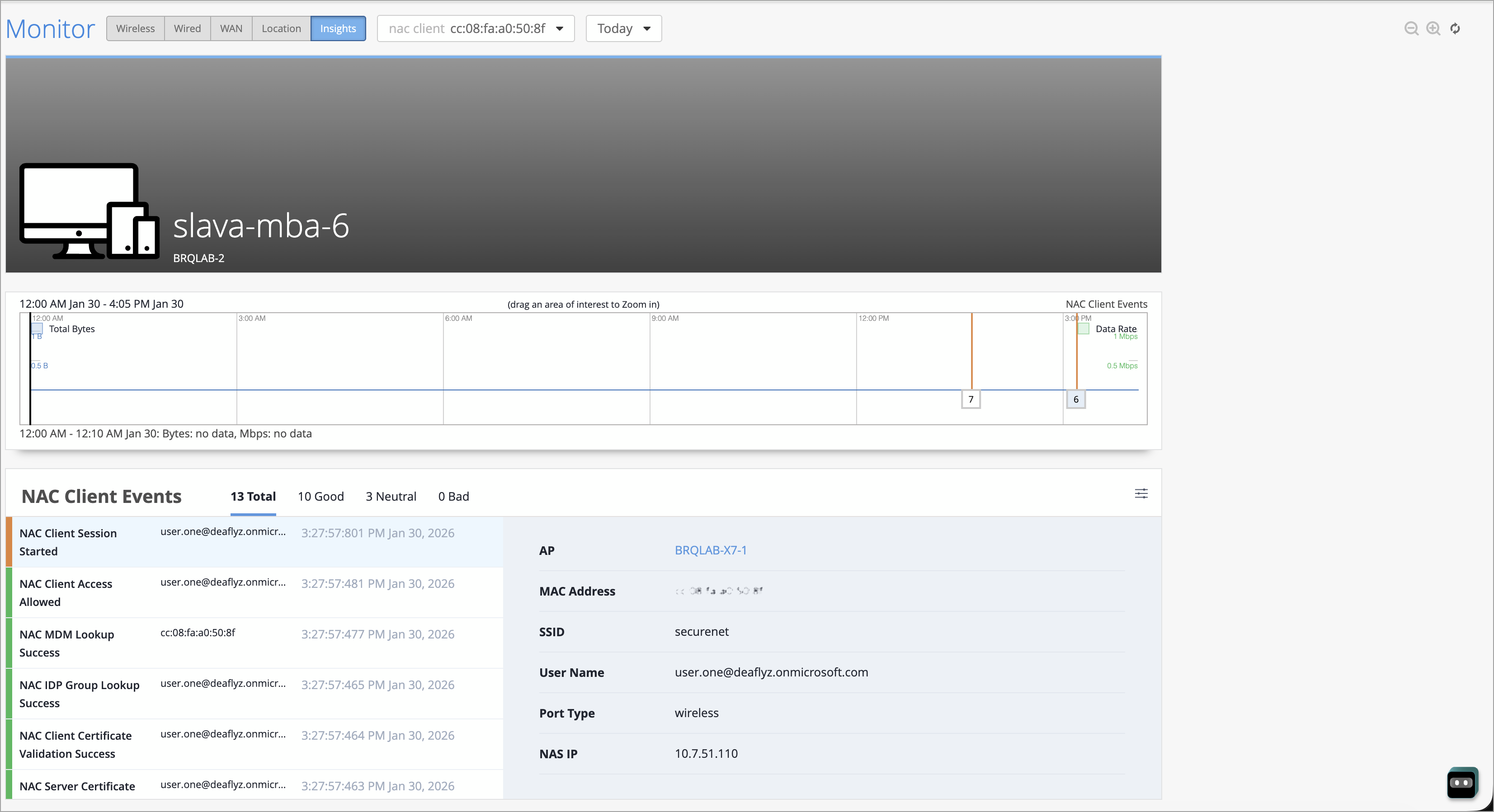
We have added several features to the Auth Policies page to make it easier for you to create, manage, and monitor your policies. You can see the new features by going to Organization > Access > Auth Policies.
Now you can:
Drag and drop labels onto your rule from the new Assign Labels window.
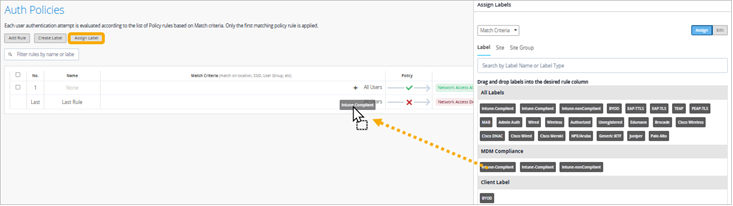
Batch-assign a label to multiple rules. In the new Assign Labels window, double-click a label, and then select the rules that you want to assign it to.
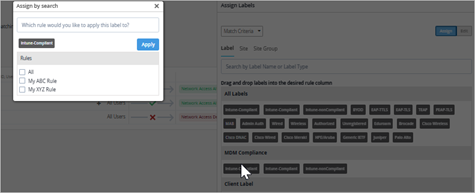
Edit labels quickly and easily. In the new Assign Labels window, click the Edit button, then click the pencil icon for the label to modify. You can change the label name and properties.
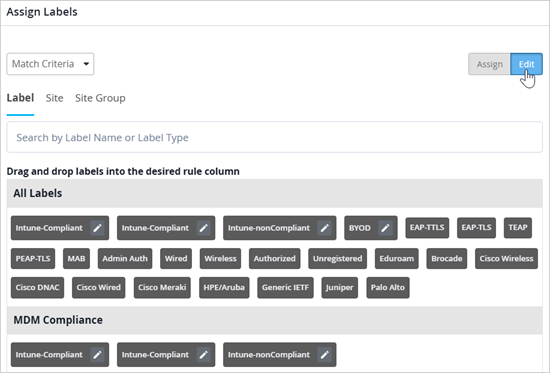
Assign policies. In addition to the match criteria as shown in the previous examples, you can change the selector to Policies, and then assign policies to your rules.

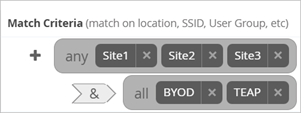
Interpret nested rules more easily. Visual cues indicate which labels are “match any” or “match all.”
View NAC events for your policies without navigating away from the Auth Policies page. Click a number in the Hit Count column to see NAC events for a particular rule, or click the new Show NAC Events button to see all events in an overlay window. Close the overlay window to see your rules again.