Help us improve your experience.

Let us know what you think.

Do you have time for a two-minute survey?


Configure a WLAN Template

Configure and use WLAN templates to streamline the configuration process and ensure consistency across various WLANs in your organization.

In the Juniper Mist portal, WLAN templates (Organization > Wireless > WLAN Template) give you a way to configure uniform user policies, and to selectively apply them to your organization, selected sites, and/or selected WLANs. Policies created in a WLAN template allow you to manage users' access to specified resources, such as social media sites. You can also use them for network segmentation, for example to keep IoT devices off the private network and thus limit exposure in the event of malicious actors gaining access to a device.

In large deployments, we recommend that you create one WLAN template for each WLAN (SSID). To assist with automation, we also recommend that you define all WLANs within WLAN templates. WLAN templates are useful for automation and ensuring policy application to:

  • multiple sites
  • site groups
  • entire organization
  • exclude specific sites
  • APs within specifi device profiles.
  • any combination of the above

See WxLAN Access Policies for details about how to create and use policies.
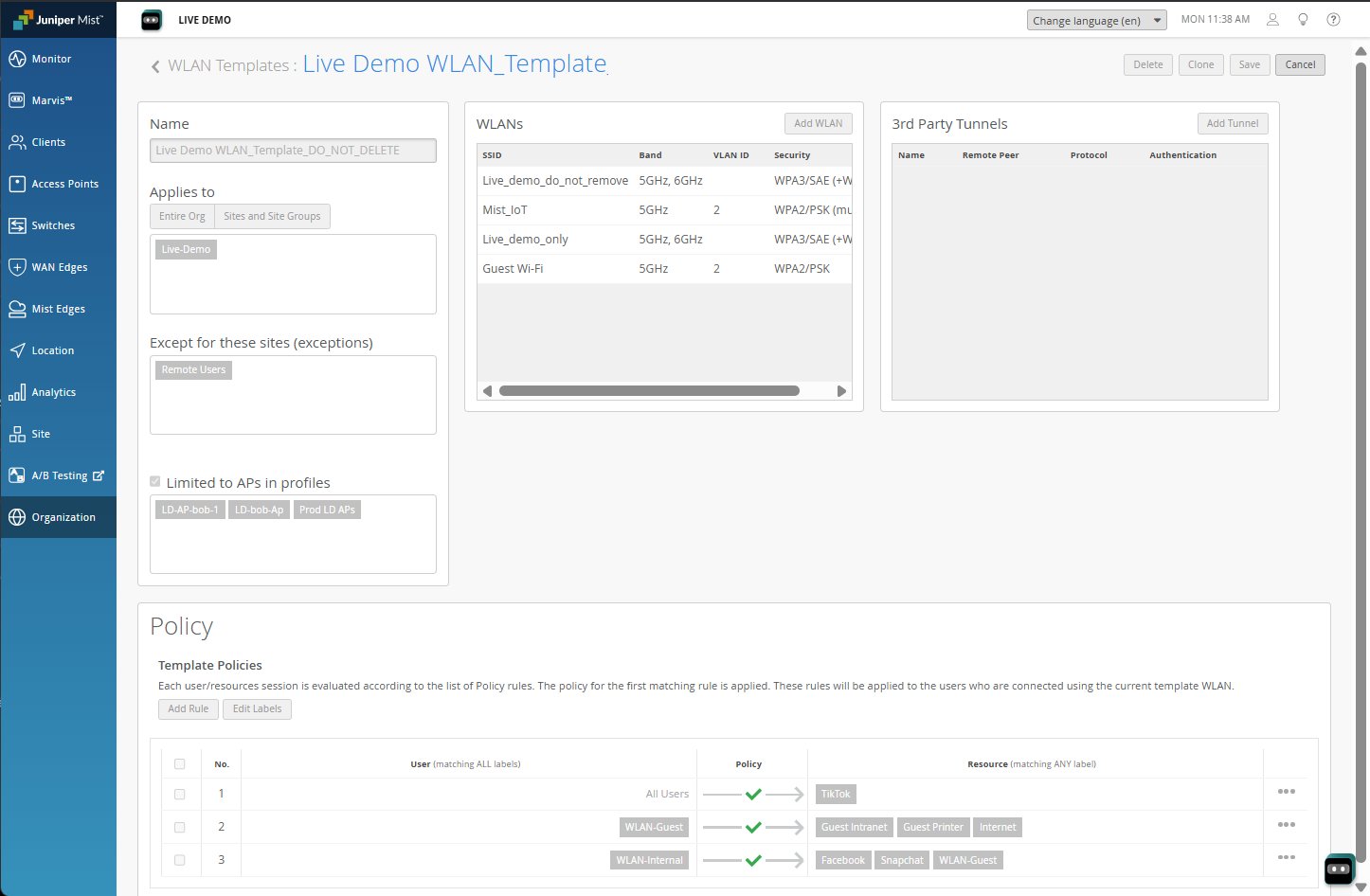
Figure 1: User Policy in a WLAN Template User Policy in a WLAN Template

Note that you can also create site-specific user access policies at the site level: Site > Wireless | Policy.

From the site policy page, you can see a policy's usage statistics, that is the hit count, or how many times the policy has been applied, for both site policies and those created as part of a WLAN template.
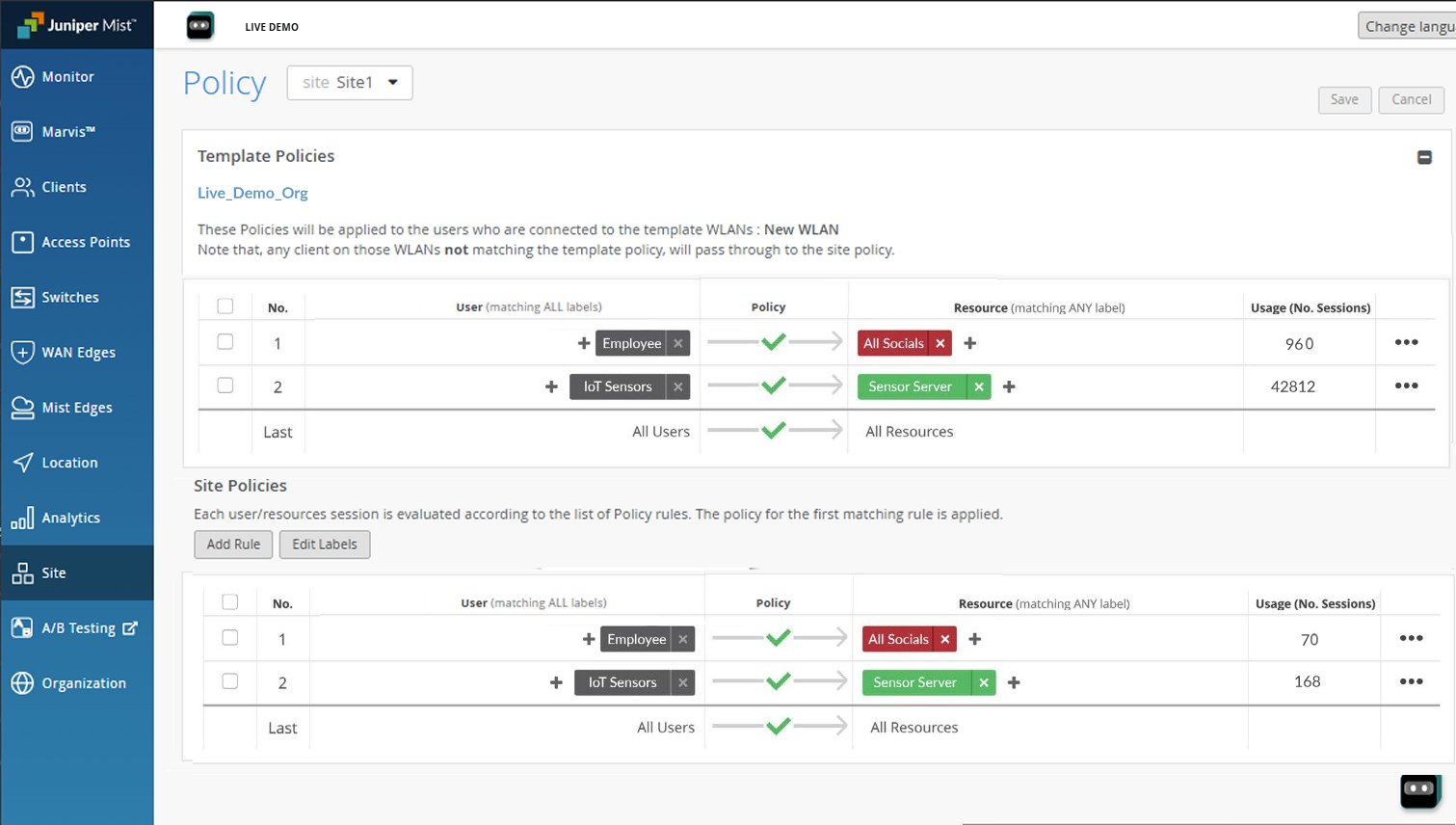
Figure 2: User Access Policy Summary User Access Policy Summary

To create a WLAN template:

  1. From the left menu of the Juniper Mist portal, select Organization > Wireless | WLAN Templates.
  2. Click Create Template at the top-right corner of the WLAN Templates page.
  3. In the New Template window, enter a Template Name, and then click Create.

    The name will appear in the WLAN Template list. It's generally most convenient to use the same name as the SSID, although it can be unique.

  4. Add at least one WLAN:
    1. Click Add WLAN.
    2. At minimum, enter an SSID name, select a Security Type, and set up VLAN(s).
    3. Enter other settings, as needed. See WLAN Options for additional information.
    4. Click Create at the bottom of the Create WLAN window.
      Juniper Mist generates a WLAN ID. Anytime that you need to look up this ID or edit your WLAN settings, simply click the WLAN in the WLAN list.
    5. If needed, repeat these steps to add more WLANs to this template.
      We recommend having only one WLAN in each WLAN Template. This makes management and changes easier.
  5. Specify the scope for this template by completing one or more of these sections:
    • Applies to—If you complete this section, the template is available only to the sites and site groups that you specify here. Click the add icon (+), and then select an option from the list. Repeat as needed to add more sites and site groups.
    • Except for—If you complete this section, the template is available to all sites except those that you specify here. Click the add icon (+), and then select an option from the list. Repeat as needed to add more sites.
    • Limited to—If you complete this section, the template is available only to APs with the device profiles that you specify here.
  6. As needed, define one or more policies, and/or include a third-party tunnel (uncommon).
  7. Click Save at the top right-corner of the template page.