Configure IP Settings
Configure the IP settings for your access points (APs) individually (for special use cases) or in the device profiles (for consistent settings across similar devices).
Juniper Mist APs support both native and tagged VLANs, and for each Ethernet interface on the AP you can specify multiple VLAN IDs.
When powered on for the first time, Juniper Mist APs send a DHCP request through the Eth0 interface. The switch port connected to the AP must be a trunked port, or be configured with a native VLAN where VLAN ID is 1. This connection provides the path to the cloud, where you can configure the AP from the Juniper Mist portal.
When setting up Eth0 on the AP, you can use any VLAN you like. However, note that if it is misconfigured, the AP cannot connect to the network using the specified VLAN. If this process fails, you will have to do a factory reset on the AP to get back to VLAN=1.
If the AP cannot obtain an IP address, the LED will blink three times. See What Does the AP Status LED Indicate?.
You can also assign a static IP address to the AP.
You can set up IP settings for each AP on the AP configuration page. Alternatively, you can use a device profile to configure these settings and apply them to multiple APs at once. If there are conflicting settings between the device profile and the individual AP settings, the AP will keep using its own settings until you choose to disable the Override Profile option on the individual AP configuration page.
To configure IP settings in a device profile:
-
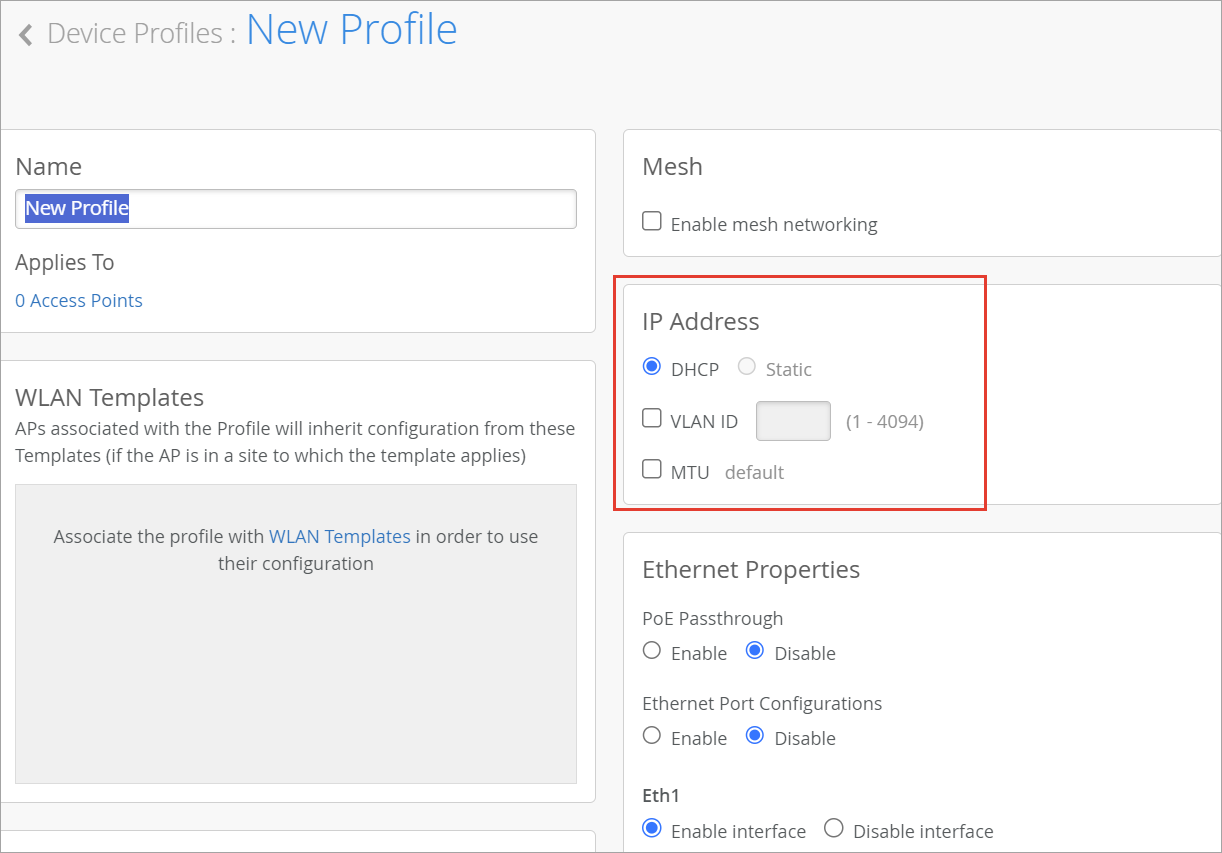
Configure the IP address settings.
Table 1: IP Address Settings Field Description DHCP Select this option if you're using a DHCP service to assign IP addresses to the APs in the profile. Static Not configurable from the Organization > Device Profiles page. Use the AP configuration page instead. VLAN ID Specify the VLAN ID that the AP will connect to. MTU Enable this option to change the default MTU from 1500 to the value you specify. The AP uses this MTU with the switch.