
Device Profiles Overview
Device profiles provide uniformity and scale when onboarding and managing Juniper APs at the organization level.
You can use device profiles in the same way as a template to configure and save a collection of settings that will apply to Juniper AP attached to the profile. These including settings such enabling the Bluetooth radio, configuring the default VLAN that the AP will connect to, and various Ethernet port properties for the hardware itself. In addition, you can include one or more WLAN Templates in the profile (which can include user access policies and a further subset of APs), and by extension, WLAN-specific configurations for the SSID such as a security policy.
Device profiles are especially convenient when onboarding new Juniper APs because you can include the APs in the profile and they will automatically receive the configuration when they come online, which is great for scale and uniformity.
To see which APs are included in a given device profile, can click the Applies To link in the settings page of the device profile. This gives you a granular view of the APs included in the profile, and you can also add or remove individual APs as desired.
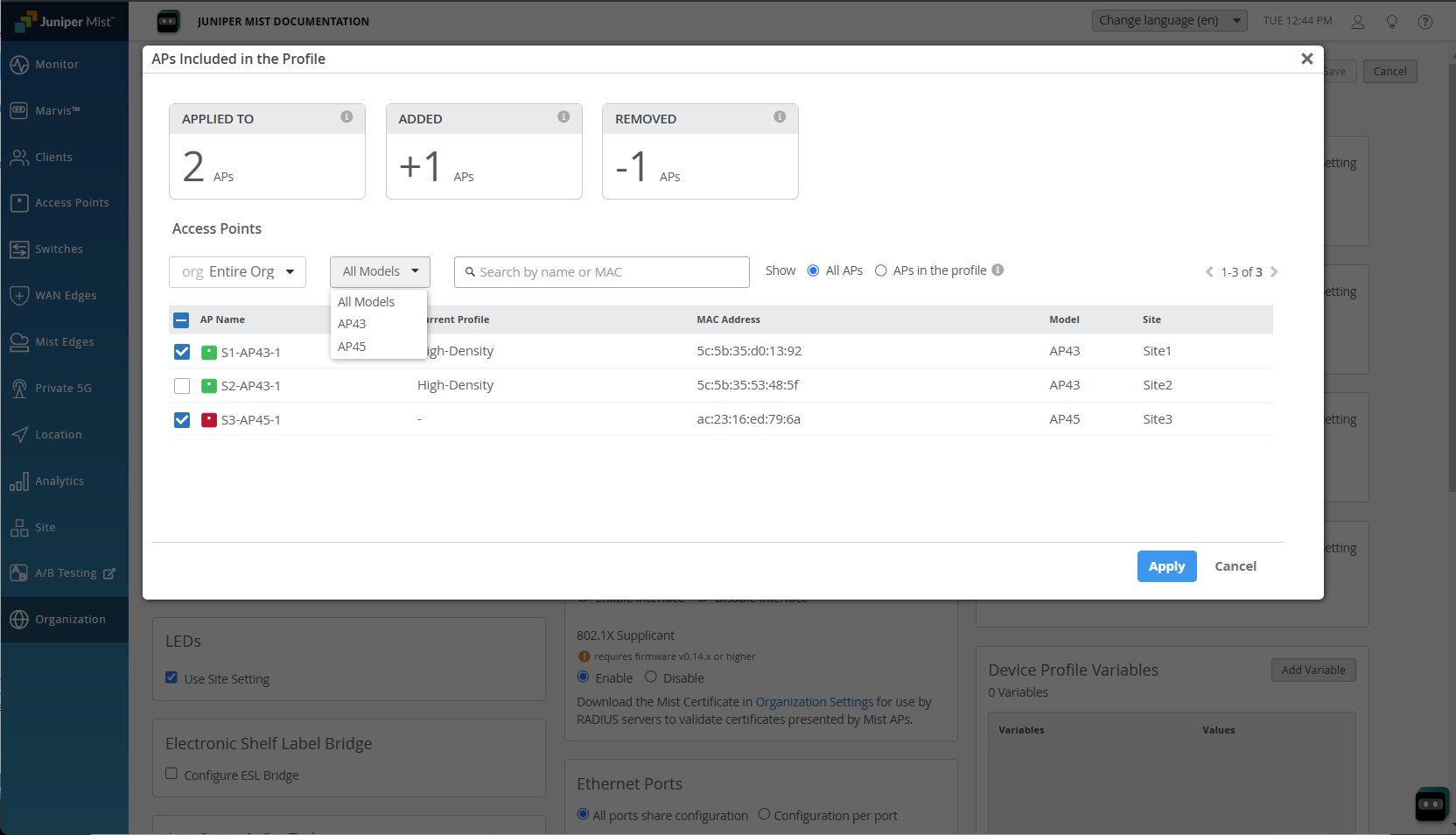
When you add or remove a Juniper AP from a device profile, the change takes effect immediately; that is, the configuration settings defined in the profile will be removed from the AP and whatever default or AP-specific settings remain in place will take effect instead.
When you change a configuration setting in the device profile, you can push the change to the Juniper APs immediately by clicking the Optimize Now button in the Radio Management page. Alternatively, you can wait a few minutes and the update will propagate automatically.
By default, settings made on an individual AP take precedence over conflicting settings configured in a device profile. When creating a device profile, if such a conflict occurs, you will be notified and can choose whether to override the APs settings with those from the device profile.