Configure LAG with Wired Assurance
IEEE 802.3ad link aggregation enables you to group Ethernet interfaces to form a single link layer interface, also known as a link aggregation group (LAG) or bundle.
A LAG combines multiple physical links to form a single logical point‑to‑point trunk that distributes traffic across all member interfaces within the aggregated Ethernet (ae) bundle. A LAG improves uplink bandwidth network availability. Because it contains multiple member links, the aggregated connection remains operational even if one of the links fails.
To configure LAG on a switch through Mist:
-
Navigate to the switch configuration where you want to configure LAG.
To configure at the organization level, go to Organization > Wired > Switch Templates > Template Name.
To configure at the site level, go to Site > Wired > Switch Configuration > Template Name.
To configure LAG on individual switch (from the switch details page), click Switches > Switch Name.
-
This step applies only to the organization-level or site-level configuration.
On the switch template, navigate to the Select Switches Configuration section and then click Add Rule.
-
Go to the Select Switches Configuration section and then click Add
Rule.
If you want to modify an existing switch rule, click the rule from he left menu of the Select Switches Configuration section.
-
Navigate to the Port Config tab and then click
Add Port Configuration.
The New Port Configuration window appears.
-
Go to the Select Switches Configuration section and then click Add
Rule.
-
This step applies only to the switch-level configuration.
Navigate to the Port tile on the switch details page and then click Add Port Configuration.
The New Port Configuration window appears.
-
In the Port IDs field, specify the interface names (for example,
ge-0/0/1, ge-0/0/4) that you want to include in the LAG configuration.
Note:
The number of interfaces that you can group into a LAG and the total number of LAGs that a switch supports vary depending on switch model.
-
Select a port profile from the Configuration Profile drop-down
list.
Note:
-
The Q-in-Q profile does not support link aggregation.
-
A port does not support port aggregation if the port profile associated with it has the Dot1x option enabled.
-
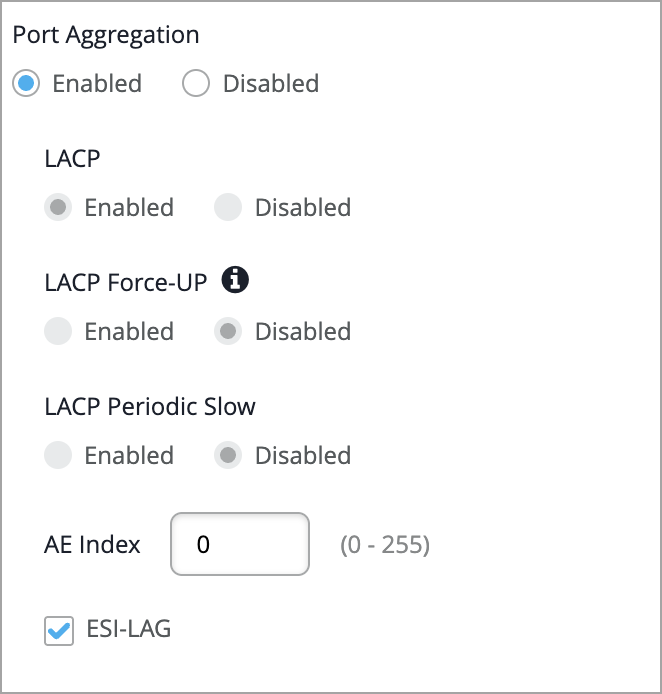
- Select Enabled under Port Aggregation.
-
Specify an AE index for the aggregated port.
Note:
-
Ensure that the AE index does not overlap across different ports between device, site and organization level template, and campus fabric configurations.
-
When a device is part of a campus fabric, the 'ESI-LAG' option appears in the Port Aggregation section. Enable this option on both switches in the pair, using the same AE index. Doing so configures a common ESI on both switches. For more information, refer to Ethernet Segment Identifiers, ESI Types, and LACP in EVPN LAGs.
-
-
Configure other settings such as the following:
-
LACP: You can use LAG with or without LACP enabled. If the device on the other end doesn't support LACP, disable LACP here.
-
The LACP force-up state for the switch. This configuration sets the state of the interface as up when the peer has limited LACP capability.
-
An LACP packet transmission interval. If you configure the LACP Periodic Slow option on an AE interface, the LACP packets are transmitted every 30 seconds. By default, the interval is set to fast in which the packets are transmitted every second.
-
- Click the check mark on the upper right of the New Port Configuration window to save the port configuration.
- If you are configuring LAG at the template level, click the check mark on the right side of the switch rules section.
- Save the configuration.
-
To verify the configuration:
- Navigate to the switch details page by clicking Switches > Switch Name.
-
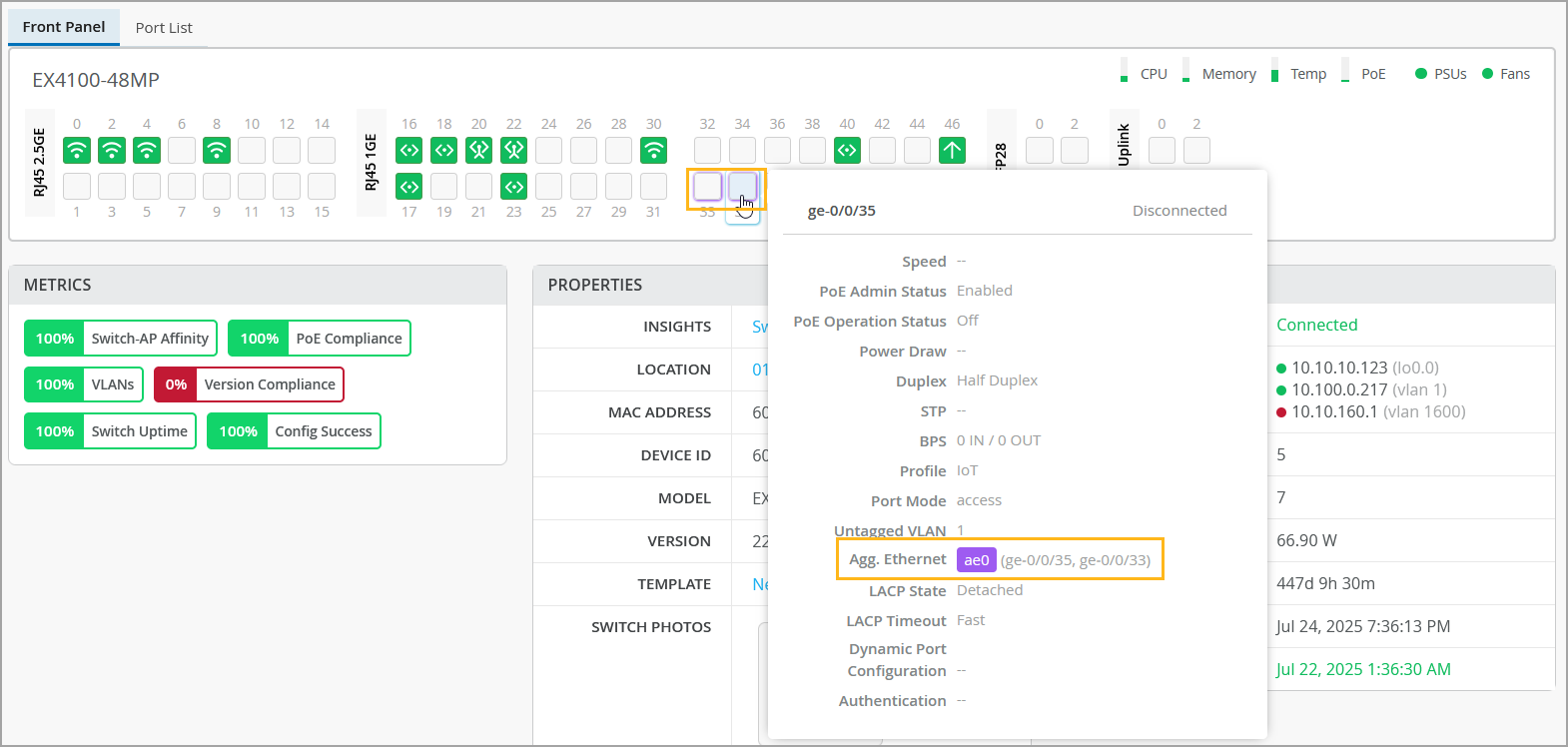
On the Front Panel tab, hover over the ports on which you configured port
aggregation.
The ae ports will appear with a purple halo around it.