
Use Speed Tests for WAN Edge Devices
Follow these steps to perform speed tests on your WAN Edge devices.
Service Providers (SPs) as well as their end customers install and deploy telecommunication circuits (or paths) to offices, branches, and so on. As WAN Edge devices are deployed at the edge of the customer premise, SPs and customers need to generate traffic to test the speed and performance of these circuits to ensure the quality is being maintained.
You can test the speed of WAN links on your WAN Edge devices deployed in Juniper Mist WAN Assurance to ensure optimal performance. This feature allows for new link qualification and on-demand speed tests if a low link speed is suspected.
From the Juniper Mist™ portal, you can use speed tests to:
- Test the speed and performance of the circuit being delivered to the customer.
- Perform new link qualification to verify that speeds are what the service provider and customer have agreed upon.
- Perform on-demand speed tests when you suspect a low link speed is causing link issues.
- Run scheduled speed tests to re-test link speeds and ensure performance continues to meet expectations on an ongoing basis.
The WAN Edge Speed Test tool can reliably validate circuits speeds of 1 megabit per second (Mbps) to 1 gigabit per second (Gbps). Circuits exceeding 1Gbps must rely on other tools for validation.
The WAN Edge Speed Test tool does not measure or validate jitter or loss.
Perform Speed Test on WAN Edge Device
Use the following steps to perform an on-demand Speed Test:
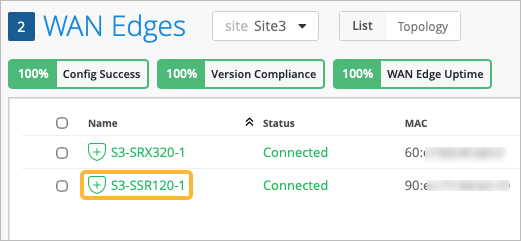
- From the left menu of the Juniper Mist portal, click WAN Edges > WAN Edges.
- Select the WAN Edge name.
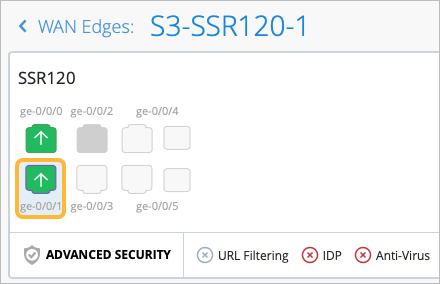
- Select the WAN port from the port panel.
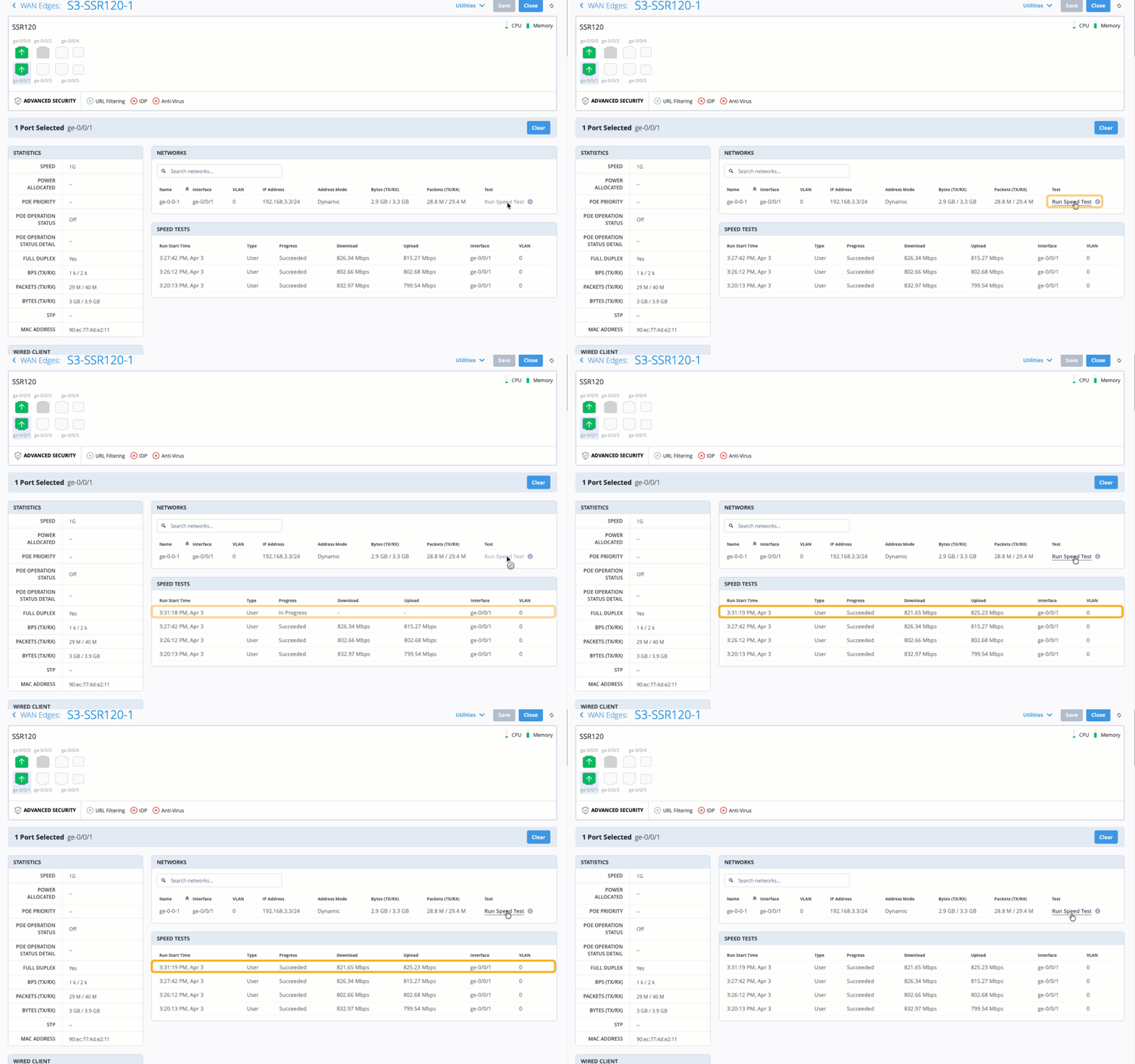
- From the Networks section, under the Test column, click Run Speed Test for SSRs, or Run Connectivity Test for SRX Series Firewalls.
- In the Speed Tests section, the test you are currently running is In Progress.
After a minute or two, the progress of the speed test changes to Succeeded, and the
results populate in the columns. Information such as download speed, upload speed, the
interface the test was run on, and the VLAN number display.
Schedule a Speed Test
If you need to run speed tests on a recurring basis, you can use the WAN Speed Test Scheduler.
- Navigate to Organization > Admin > Settings.
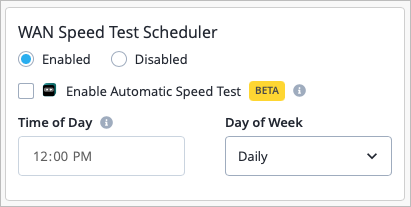
- In the WAN Speed Test Scheduler section, select Enabled.
Uncheck the Enable Automatic Speed Test checkbox.
- Select the Time of Day and Day of Week that you want the speed tests to
recur.
- Click Save in the top-right corner of the page to save your settings.
Enable Automatic Speed Tests (BETA)
To have Marvis automatically run self-driving speed tests on selected WAN interfaces during times of low activity, you can enable automatic WAN speed tests. You can configure this feature in the WAN interface configuration for a WAN Edge template or a standalone device. For Ethernet interfaces, the Enable Scheduled Speed Test check box is selected by default in the Organization Settings. The checkbox applies to both automatic and scheduled speed tests.
- Navigate to Organization > Admin > Settings.
- In the WAN Speed Test Scheduler section, select Enabled.
Select the Enable Automatic Speed Test checkbox.
Click Save in the top-right corner to save your settings.
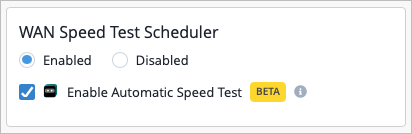
Enable Automatic Speed Tests at the WAN Interface-Level
You can configure this feature in the WAN Edge template or a standalone device.
Note: If you enable the speed test at the template or device-level, you must also select the checkbox at the Org level as outlined in the steps above.Navigate to the appropriate WAN Edge template (Organization > WAN Edge Templates) or WAN Edge device (WAN Edges > WAN Edges).
Scroll down to the WAN section, then select the appropriate WAN interface.
Select or deselect the Enable Scheduled Speed Test checkbox as needed for the necessary interfaces.
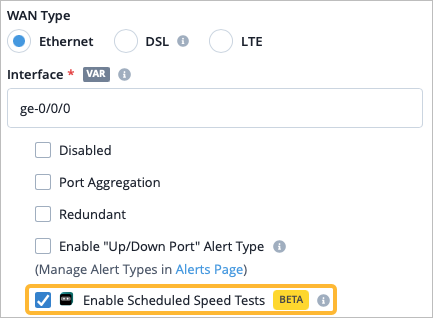 Note: For Ethernet interfaces, the Enable Scheduled Speed Tests checkbox is selected by default. For devices with built-in LTE interfaces, the checkbox is unchecked by default. Automatic speed tests for LTE devices are not enabled by default , as it can result in costliness if you pay for bandwidth usage through a service provider. However, if you have LTE interfaces connected to your Ethernet interfaces, such as on your Cradlepoint devices, you must deselect the checkbox from the Ethernet interface configuration.
- Click Save in the top-right corner to save your settings.
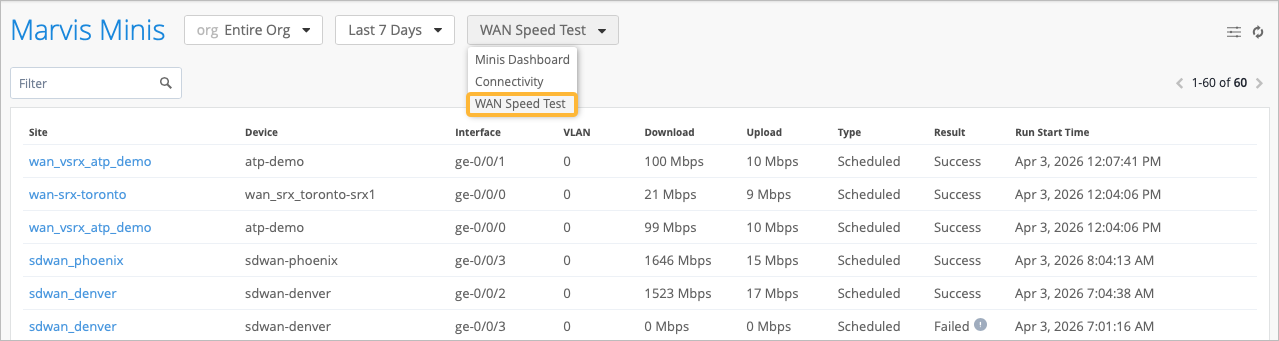
You can view the Speed Test results from the WAN Edge device page or by navigating to Marvis > Marvis Minis, then select WAN Speed Test from the drop-down menu at the top of the page. You will then see a list of completed speed tests for the organization.
Review Speed Tests in Marvis Minis
The Marvis Minis dashboard provides visibility into the validation results. You can schedule speed test and view the results in Marvis Minis. This proactive approach helps in identifying and resolving network issues before they affect users.
To view the speed test results in Marvis Minis, you must:
- Schedule the Speed Test
- Enable Marvis Minis at the organization level (Organization> Settings) or at site level (Organization > Site Configuration).
To view the Marvis Minis dashboard, select Marvis > Marvis Minis from the left menu.
In the Marvis Minis page, you’ll see the major elements of the dashboard including the summary of the speed test.
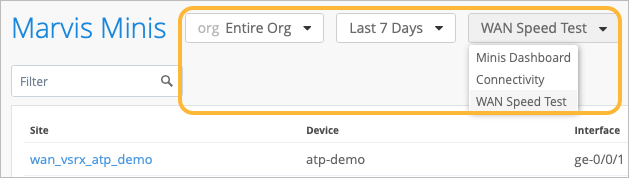
- At the top of the page, use filters to select WAN Speed Test from
the drop-down menu. You can also select to display results at the organization level or
site level, as well as set the time period for the results. Figure 1: Marvis Minis Dashboard
- Speed test results populate in the columns, displaying information such as site, device,
interface, VLAN, download speed, upload speed, type, result of the test, and start time of
the test. Figure 2: Marvis Minis WAN Test Speed Results