Configure a Mesh WAN Topology (SSR Only)
Use a mesh WAN topology when latency is a concern.
Overview
The mesh topology in WAN Assurance lets you form direct peer connections with multiple other Juniper Session Smart Router (SSR) routers. The advantage of forming a mesh is that, because each node is directly connected to every other node in the mesh. (From a topological point of view, you can think of the SSRs as being a node, or a device, or in the terminology of SSR WAN Edge routers, as a being a location.)
Configuration
Building the WAN Mesh in the Mist dashboard is straightforward. You need to have, or create, a WAN Edge Template, and in that template, have, or create, a WAN interface that you will configure for the mesh.
The interface(s) you use must have a static IP address, must not be a part of another topology such as a hub and spoke, and must be reachable by other members of the mesh.
You start by creating what is essentially a label, called the Mesh Overlay Endpoints, that you will use in the WAN Edge template. This is described below.
Set Up A WAN Mesh Topology
-
From the Mist menu, select Organization | .
-
Click the Create button in the WAN Topology page that opens.
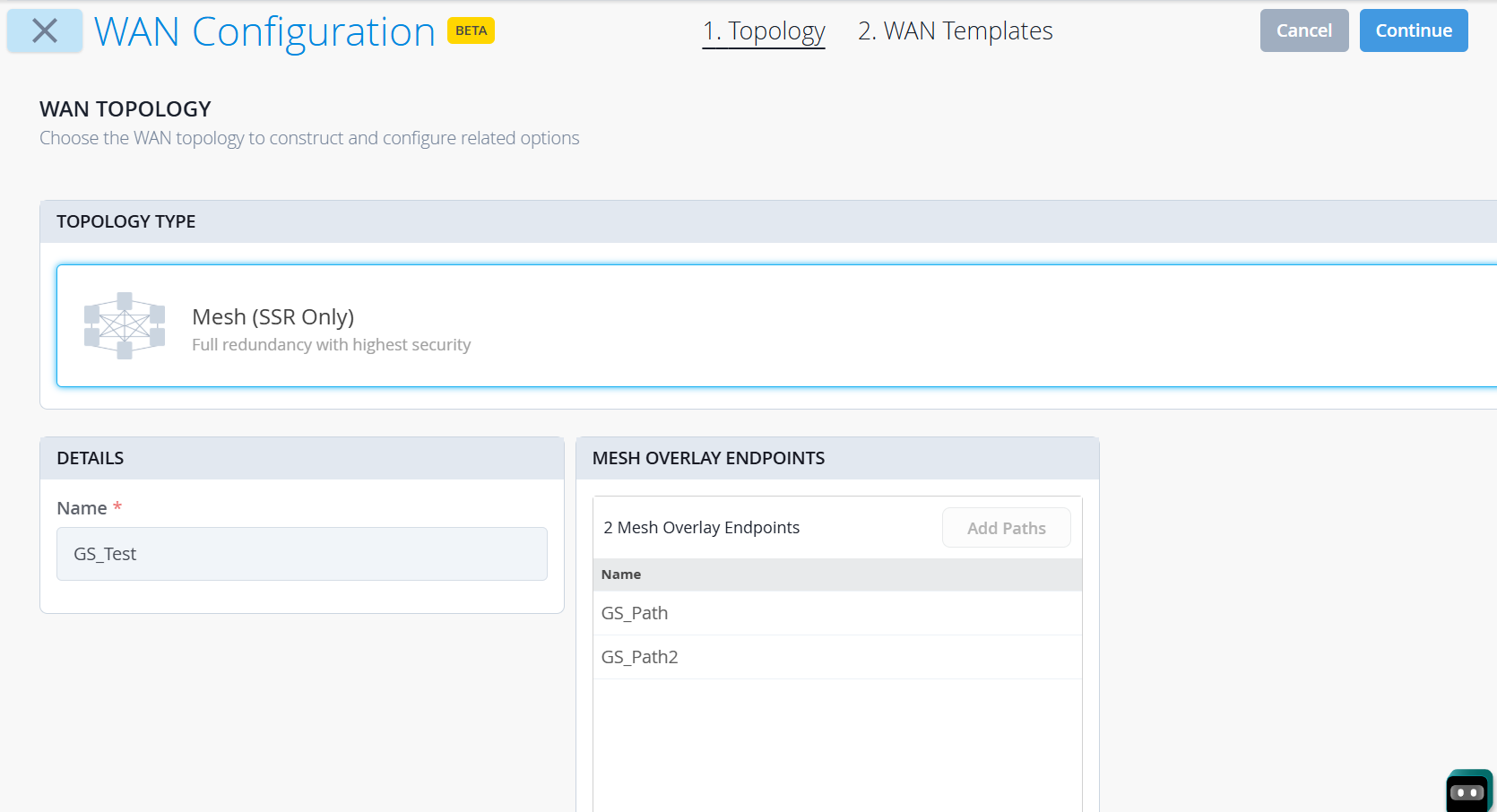
Select the Topology Type as Mesh (SSR Only).
-
Give the mesh a name, typically something that indicates its role in the mesh.
-
Click Add Paths button in the Mesh Overlay Endpoints section and give the path a name. This is essentially a label for the logical overlay of WAN interfaces participating in the mesh. You’ll add this later to the WAN interface configuration of the WAN Edge template or device WAN Edge device page.
-
Post your changes by clicking the blue check mark that appears.
Click Continue to create WAN template for the newly created mesh topology.
A new WAN Templates page opens.
To configure overlay endpoints from an existing active WAN edge template:
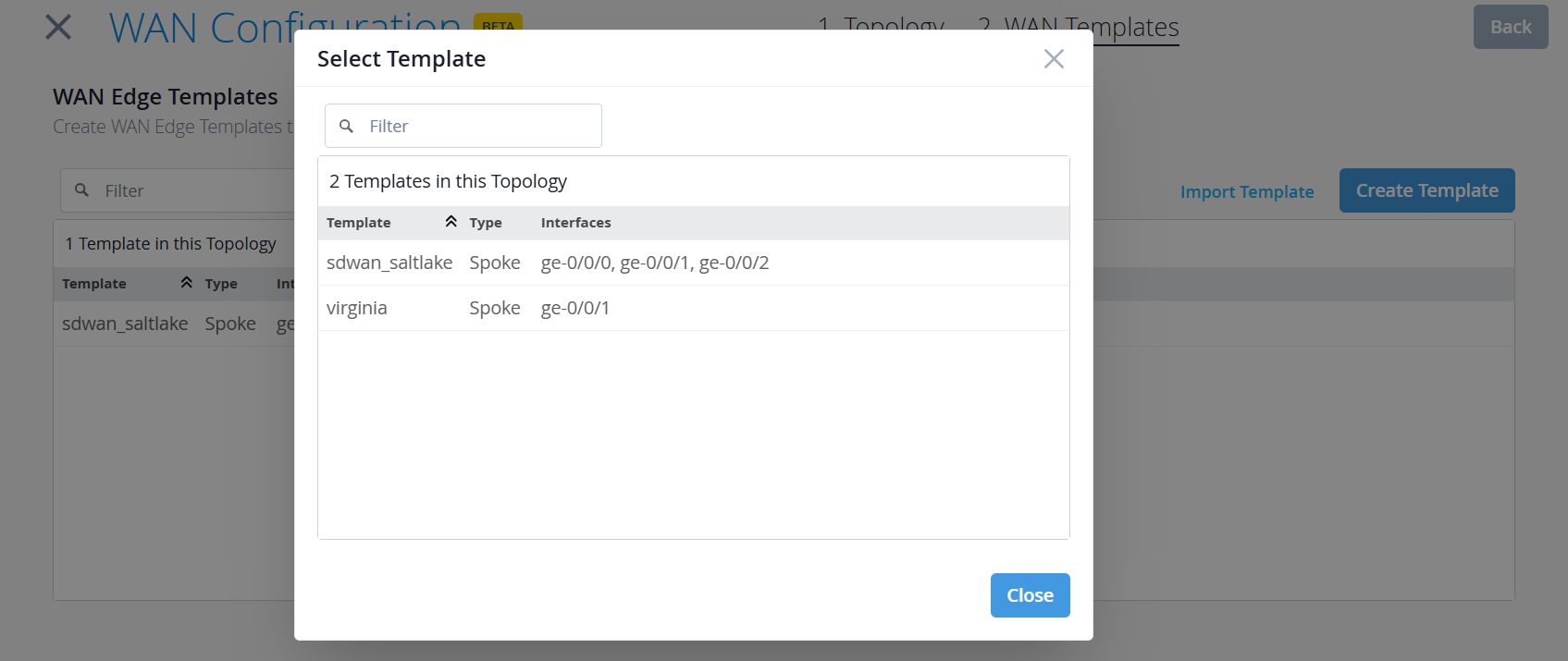
Click Import Template. A Select Template pop-up appears.
Select the template.
A right pane opens with the WAN link details.
Select the WAN link for which you would like to add the Mesh Endpoint.
An Edit WAN Configuration pane opens.
Scroll down to the Overlay Endpoints section.
Click Add Endpoint.
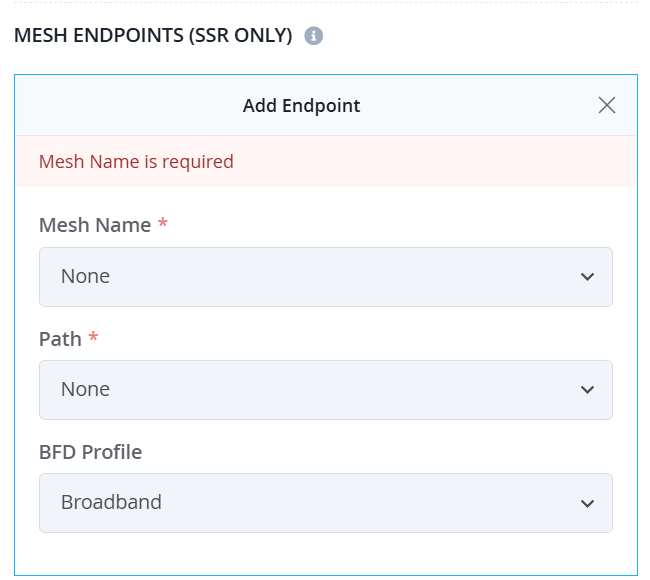
In the Mesh Name field, choose the mesh you have previously created from the drop-down list.
Choose Path and the BFD Profile (Broadband or LTE) you want to use for failure detection on the link.
Click the green tick at the right corner of the section to save the details.
Click Save.
Similarly, click Add WAN Interface again to fill in the details of the WAN link for the non-mesh endpoint.
Click Save.
Or, To create a new WAN edge template with overlay endpoints:
Click Create Template.
A right pane Create WAN Edge Template opens.
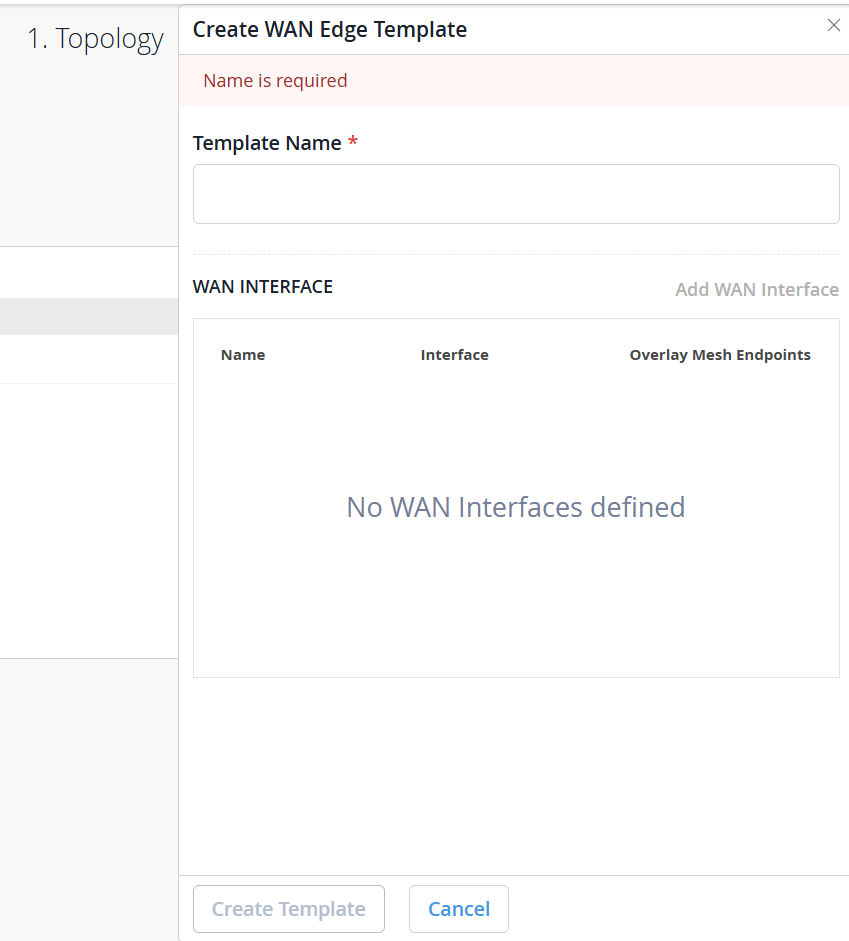
Fill the Template Name field and click Add WAN Interface.
Fill the configuration details. For more information, see WAN Settings.
For the WAN link for which you would like to add the mesh endpoints details:
Scroll down to the Overlay Endpoints section.
Click Add Endpoint.
In the Mesh Name field, choose the mesh you have previously created from the drop-down list.
Choose Path and the BFD Profile you want to use for failure detection on the link, Broadband or LTE.
Click the green tick at the right corner of the section to save the details.
Click Add to add the WAN link.
Similarly, click Add WAN Interface again to fill in the details of the WAN link for the non-mesh endpoint.
Click Create Template.
Click Save.
To fill the missing configuration details like DHCP, LAN, policies, and so on in the newly created template, go to the Mist menu, select Organization | WAN > WAN Edge Templates
. For more information, see Configure a WAN Edge Template.
Complete the missing details.
Verification
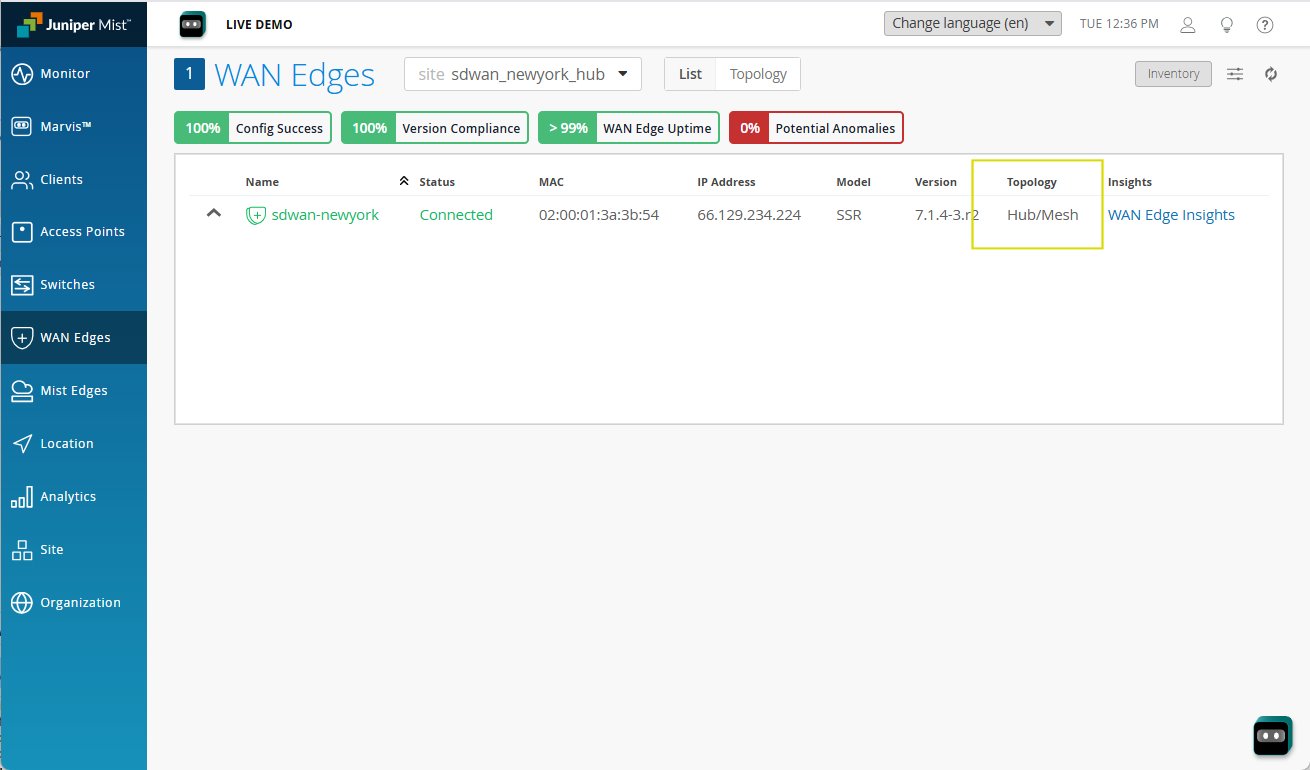
You can see the mesh you just configured on the WAN Edge page. For additional details, open the Topology Details by clicking Hub/Mesh, as shown in Figure 3, or opening the WAN Edge Insights page.