Send log messages to a named file, a remote location, a user, or the console. Configure
the settings to receive the messages that you want to see.
You can enable system logging in a hub profile, WAN Edge
template, or device configuration, in order to receive the messages that you want to see. This
enables you to send log messages to a named file, a remote location, a user, or the
console.
-
Navigate to the hub profile, WAN Edge template, or device configuration.
-
For a WAN Edge template—From the left menu, select
Organization > WAN >
WAN Edge Templates. Click a template, or create a new one.
-
For a hub profile—From the left menu, select Organization
> WAN > Hub Profiles. Click a
profile, or create a new one.
-
For an individually managed WAN Edge device—From the left menu, select
WAN Edges > WAN Edges. Click a
device.
-
Scroll to the Syslog section.
-
Select Enabled.
-
On the first two tabs, identify the resources/recipients that will receive the logs,
and add a certifcate authority.
-
Hosts—Send log messages to a remote location. This could be
an IP address or hostname of a device that will be notified whenever those log
messages are generated.
-
Certificate—Add a Certificate Authority (CA) to a syslog
configuration to ensure secure log transmissions over TLS connections.
-
Under Additional SRX Options, specify the recipients to send the
log messages to and the contents to send, if applicable.
Note: These tabs are only available for SRX Series Firewalls.
These tabs include:
-
Files—Send log messages to a named file.
-
Users—Notify a specific user of the log event.
-
Console—Send log messages of a specified class and severity
to the console. Log messages include priority information, which provides details
about the facility and severity levels of the log messages.
-
On the Archive tab, define parameters for archiving log
messages.
-
On the General tab, specify the settings to use for the log
messages.
-
Configure other settings as needed. When you are done, click
Save at the top-right corner of the page.
-
To add/edit/remove files, hosts, users, or consoles:
-
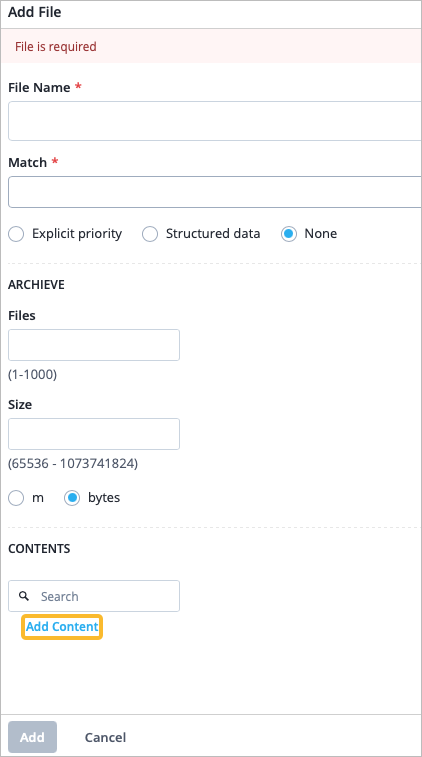
Add—Click the Add button for the appropriate option (Hosts,
Files, Users). Enter the settings, and then click the Add
Content link (near the center of the side panel) to specify the log
contents. You can repeat this step to add additional content types. When finished,
click Add at the bottom of the side panel.
-
Modify—Click the item to modify, and then make your changes in the Edit side panel.
Be sure to save your changes.
-
Remove—Click the item to remove, and then click the Delete
button at the bottom of the Edit side panel.
To gain a deeper understanding of the Syslog configuration elements and how to use
them, see Syslog Options for WAN Edge Devices.
