
Monitor Administrator Activities (Audit Logs)
Use the Audit Logs page to monitor logins and to see what actions were taken by each user.
Overview
On the Audit Logs page, you can see who logged in to the Juniper Mist™ portal, when they logged in, and what they did.
When you first open this page, it shows all logins for all users and all sites on the current date. You can use the drop-down lists at the top of the page to select the time period, filter by users, filter by sites, or search for certain types of activities.
Find the Audit Logs Page
From the left menu, select Organization > Admin > Audit Logs.
Select the Time Period
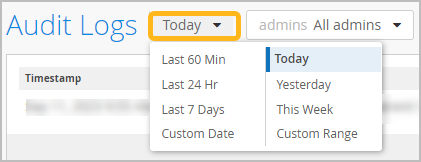
To select the time period: Use the first drop-down menu.
| Time Period | Description |
|---|---|
| Last 60 Min | From 60 minutes ago to the current time. |
| Last 24 Hr | From 24 hours ago to the current time. |
| Last 7 Days | From the midnight 7 days ago to the current date and time. |
| Today | From midnight to the current time today. |
| Yesterday | From midnight to 11:59 PM on the previous day. |
| This Week | From midnight Sunday to the current date and time. |
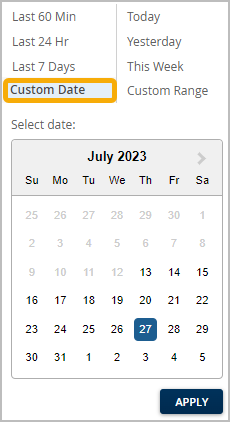
| Custom Date |
Select a date within the past 180 days. The Audit Logs page will show all logs from midnight to 11:59 PM on the selected date. Custom Date Example
|
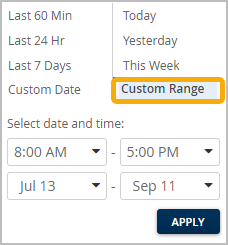
| Custom Range |
Specify a range of dates within the past 180 days. On the left, enter the start time and date. On the right, enter the end time and date. Custom Range Example
|
Filter by Users
-
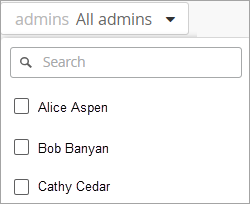
At the top of the page, click the Admins drop-down
menu.
Example
Filter by Sites
Filter by Users' Tasks
Use the Search by Message box to find records for particular tasks, such as accessing the organization or updating the site settings.
To filter by users' tasks:
View Details
If the View details link appears, click it to see more information about the action.
To close the View details window, click X in the top right corner.
Reset the Page to the Defaults
To reset the page, click the Refresh button in the web browser's toolbar.