
Additional Options in the Mist AI Mobile App
Know about the other options that the Mist AI mobile app provides.
Rename a Device
When you first claim a device, Juniper Mist assigns the MAC address of the device as its name by default. To give the device a more recognizable name, you can rename the device.
To rename a device:
- Navigate to the Device Inventory or Site page on the Mist AI mobile app.
- Select the device tab and tap the device to go to the details page.
- Tap the device name.
- Enter the new name you wish to assign to the device and tap OK to save the changes.
Replace a Device Using the Mist AI Mobile App
-
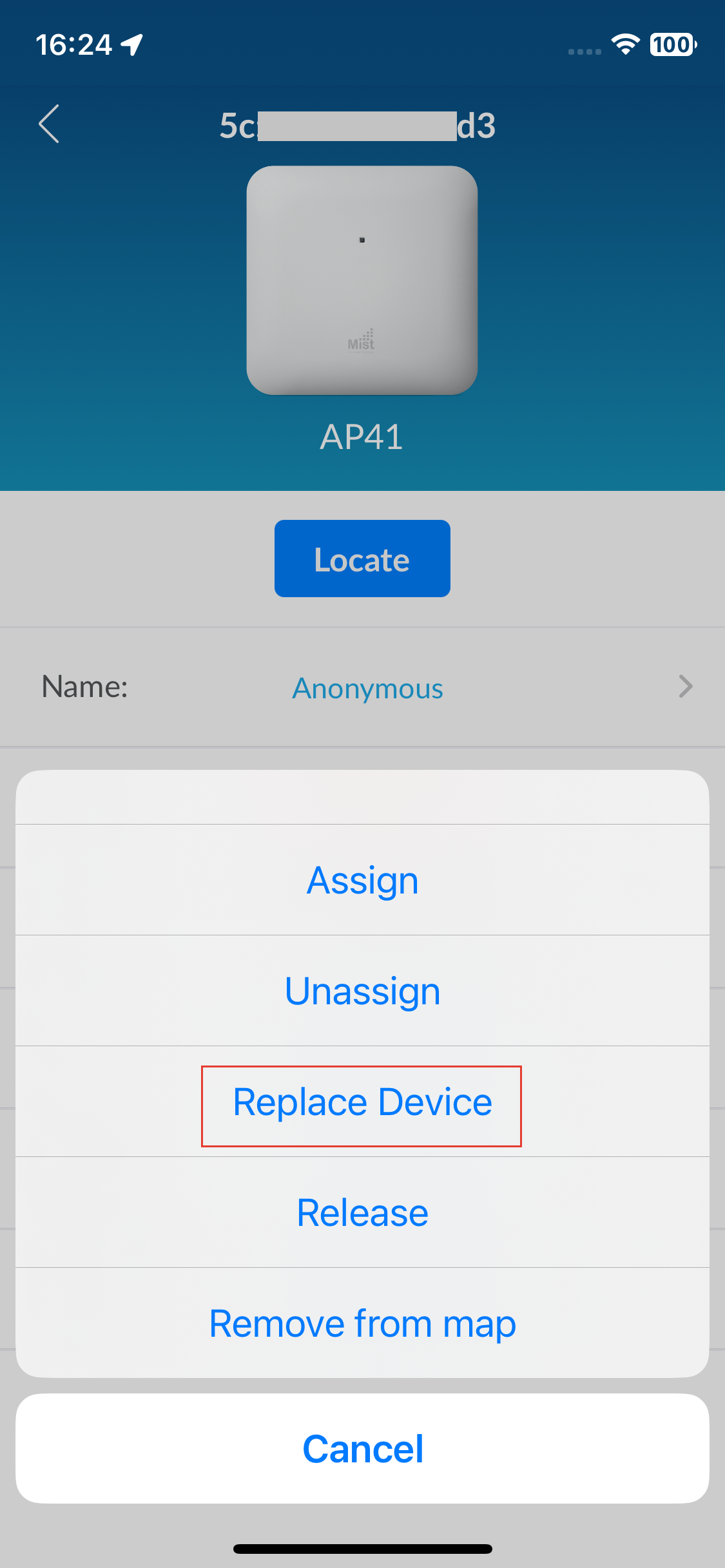
Tap More > Replace Device.
-
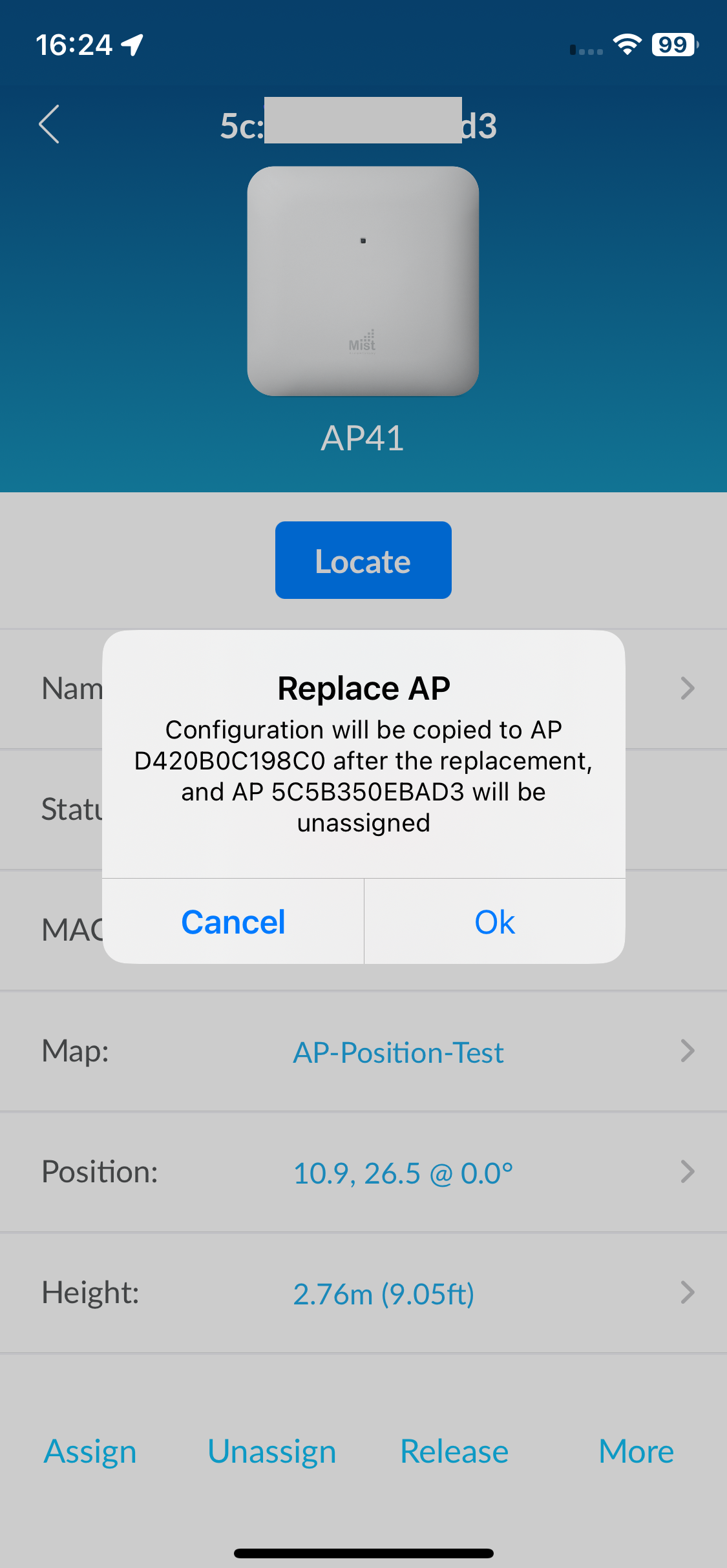
Enter the claim code or scan the QR code of the new device.
If you have not already claimed the device, the application automatically claims the device and assigns the device to the site. The app then prompts you to confirm the replace operation.
Release a Device from Inventory
Releasing a device from your Mist organization's inventory is a useful feature if you no longer need the device to be part of your network or if you need to reallocate it to a different organization. Before you release a device, you must consider whether you need to retain any configuration settings associated with the device. These settings will not be accessible once you release the device.
To release a device:
- Navigate to the Device Inventory or Site page on the Mist AI mobile app.
- Select the device tab and select the device that you want to release.
- Tap More > Release.
Verify AP Placement
-
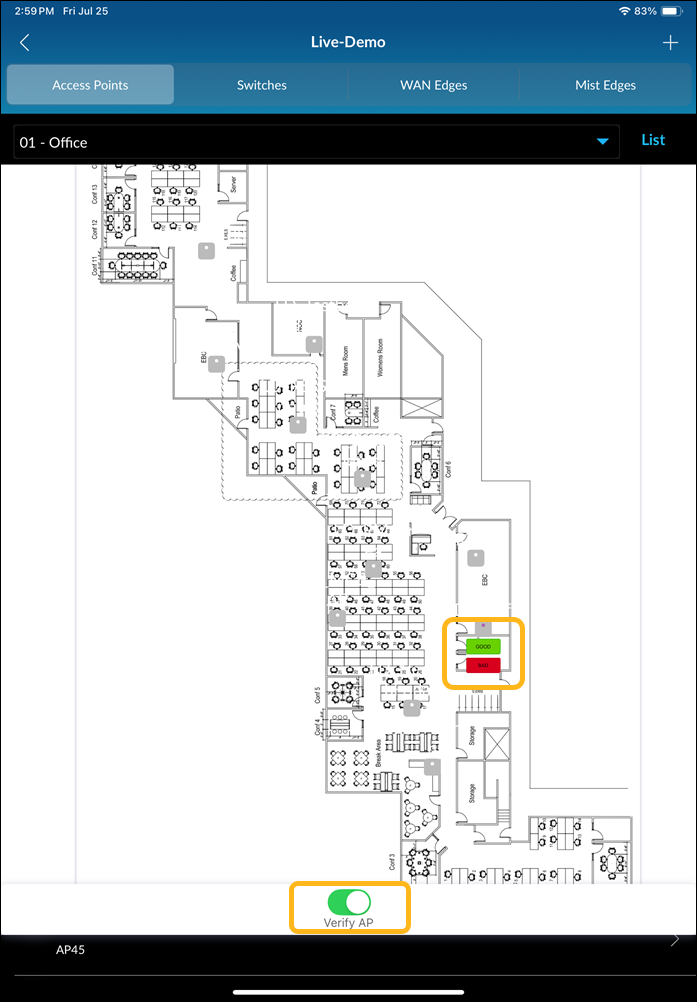
Enable the Verify AP option located at the end of
the page.
Identify APs
Before scanning:
-
Enable Bluetooth on your device.
-
In the Juniper Mist portal, enable vBLE Engagement on the Organization>Site Configuration page.
-
In the Juniper Mist portal, place all APs on a floor plan.
- On the home page, tap Identify AP.
- Tap Scan to start scanning.