
Set Up Occupancy Analytics for a Site
Follow these steps to enable features such as dwell duration, visualizations, and the types of occupants to track at your site.
Occupancy analytics are useful if you need to enforce capacity limits and prevent overcrowding at a Juniper Mist™ site. The Occupancy Analytics page provides real-time data about current conditions.
In the site configuration, set the minimum dwell duration, specify the types of occupants to track, and enable email alerts. You also can add a public occupancy dashboard, which allows anyone, such as contractors, security guards, and others to view real-time occupancy data without having to log into the Juniper Mist portal.
To set up occupancy analytics for a site:
-
Under Occupancy Analytics, enter the settings.
Table 1: Options for Occupancy Analytics Feature Description Minimum Dwell Duration This is the amount of time that someone must be present to be counted as an occupant. For example, if a lobby or waiting area has a lot of passerby traffic, you might want to count people who have been there at least 60 seconds. Enter the time in seconds. The highest value that you can enter is 86,400 seconds (24 hours). Public Occupancy Dashboard Enable or disable this feature and set the visualization mode. When enabled, anyone with the URL can access a public webpage that shows the occupancy data on the floorplan. The Visualization Mode determines how Juniper Mist presents the data on the public dashboard. If you select Zone Occupancy, the zones are color-coded so that you can quickly identify the ratio of occupancy to capacity. For example, zones with low occupancy (below 50 percent of capacity) are green. Zones with excess occupancy (over 100 percent of capacity) are red.
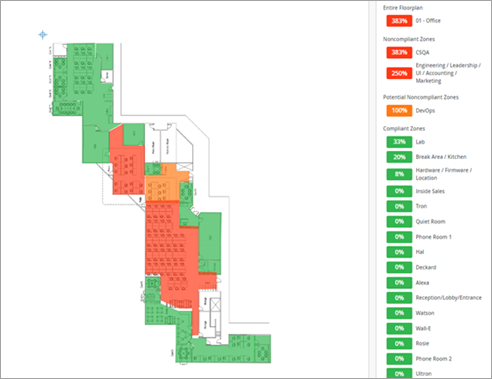
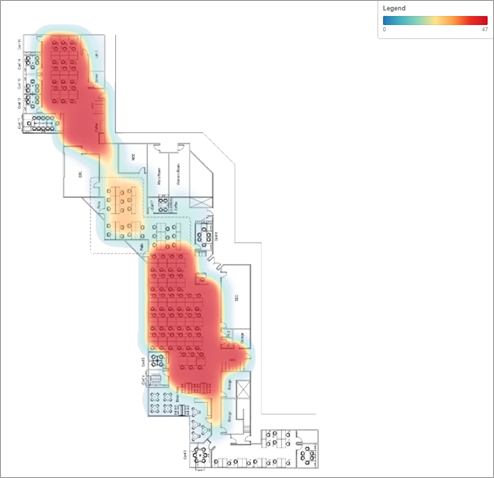
- If you select Client Density, a heat map depicts the current occupancy across
the floorplan. For example, the areas with highest number of occupants are
red, and the areas with the fewest occupants are blue.
Notifications When you enable this feature, Mist notifies you when a zone is over capacity. - Compliance Duration—Mist will notify you immediately or will wait the specified amount of time. For example, if you select 5 min, Mist will send a notification only if a zone's population exceeds its capacity limit for 5 full minutes.
- Email Addresses—Click + to add an email address. Click X to remove an email address.
Occupant Types Select the Occupant Types that you want to collect occupancy data for. - Connected Wi-Fi Clients—Track clients that are currently connected to your Wi-Fi network.
- Mobile Apps—Track clients that are using your Juniper Mist SDK-enabled applications.
- Assets/Badges—Track Bluetooth Low Energy (BLE) tags that you have attached to employee badges and high-value equipment.
Other Setup Tasks for Occupancy Analytics
For full access to all features on the Occupancy Analytics page, also complete these tasks:
-
Set up your floorplans, and add location zones. For help, see the Juniper Mist Location Services Guide.
-
Set the capacity for each zone. To do this, select Analytics > Occupancy Analytics from the left menu, and then select a floorplan. For each zone, click the pencil icon, and then enter the maximum number of occupants.