Configure Session Policies
Set the maximum session length and the inactivity timer.
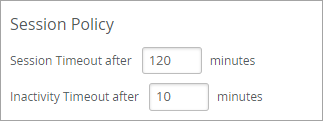
To configure session policies, select Organization > Settings from the left menu of the HPE Mist™ management portal. Then enter the timeout values.
| Feature | Description |
|---|---|
| Session Timeout | Enter the maximum number of minutes that a user can remain logged in to the management portal. When this period elapses, the user must log in to continue working in the portal. |
| Inactivity Timeout | Enter the maximum number of minutes that a user can be inactive in the management portal. When this period elapses, the user must log in to resume working in the portal. |
Note:
The activity timer considers activity across all browser tabs where you're viewing your organization's HPE Mist management portal. The timeout won't be triggered if you're inactive on one tab but active on others.
In this example, users must log in again if their session exceeds 120 minutes or if they are inactive for more than 10 minutes.