
Manage Subscriptions
Use the subscriptions dashboard to activate subscriptions, assign them to sites, renew them when they're close to expiration, and monitor their status to keep them up to date.
Overview of the Subscriptions Page
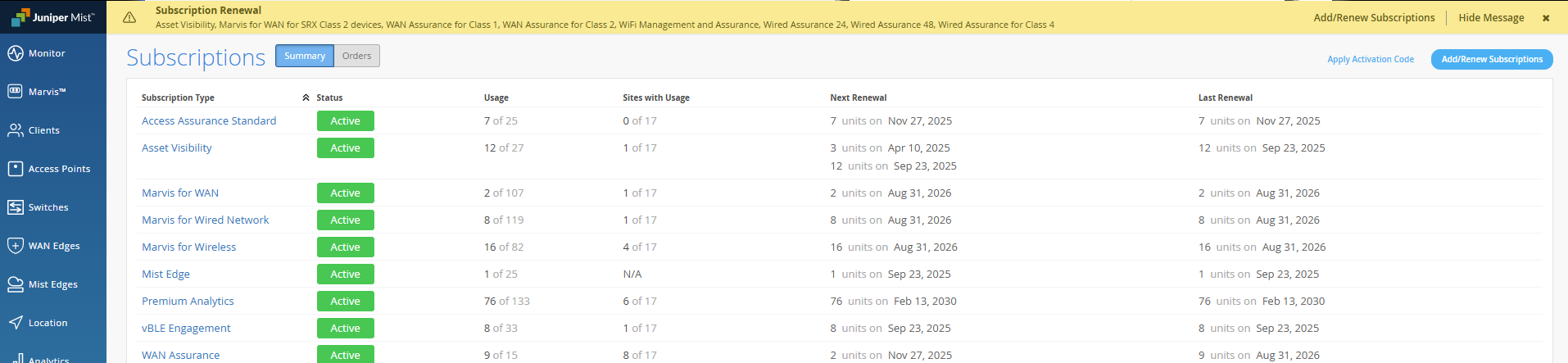
The Subscriptions page provides important information about your subscriptions.
To find this page, select Organization > Admin > Subscriptions from the left menu. The Summary tab is selected by default and displays the subscriptions information.
Use the tips below to get familiar with the features of this page.
-
The status is indicated with a color-coded icon. For more information, see Subscription Status.
-
Use the Next Renewal and Last Renewal columns to ensure that you renew your subscriptions before they expire.
-
If all units in this row have the same subscription cycle, then you'll see the same date in the Next Renewal and Last Renewal columns. Renew all subscriptions in this row by this date.

-
If different units have different subscription cycles, then these two columns represent a date range. Certain units need to be renewed by the Next Renewal date. The remaining expire sometime between Next Renewal and Last Renewal.

-
As you add and renew subscriptions, the number of units and the dates update accordingly.
-
-
To view details, click the subscription. On the details page, you'll can see the assigned sites, usage, and the subscription timeline. You also can add or remove sites.
-
Near the top-right corner of the page, use the buttons to activate, add, or renew a subscription.
Activate a Subscription
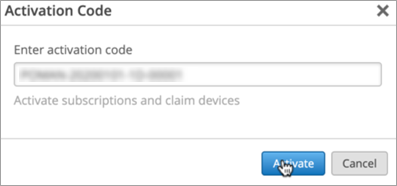
Follow these steps to enter your activation code and apply it to your organization.
Before You Begin
Decide which Juniper Mist™ subscription you need, and then contact MistRenewal@juniper.net to purchase them. We'll email your activation codes to you.
For more information about Juniper Cloud Services, see https://www.juniper.net/us/en/products/cloud-services.html.
To activate a subscription:
-
Click Activate.
 Note:
Note:If you purchased multiple devices and subscriptions, you'll have one activation code for all of them. In this case, all subscriptions will be activated and the devices will be claimed into your organization.
Add or Remove a Site Assignment
-
In the Usage section, click the
Enable/Disable Sites link.
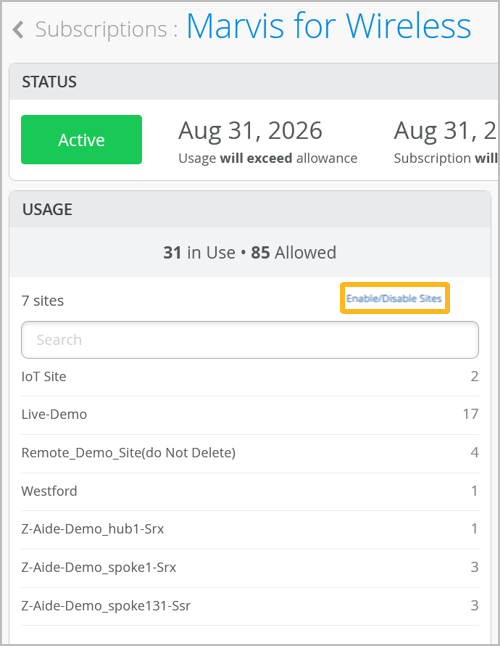 Note: The link is unavailable if the subscription cannot be assigned. For example, this can occur if the usage is exceeded or if the subscription is expired.
Add or Renew a Subscription
Follow these steps to review the status of your subscriptions, add new ones, and request renewals to keep your subscriptions up to date.
Add subscriptions to enable additional Juniper Mist features as your organization's needs change. Renew subscriptions in a timely manner to ensure that they don't expire.
Juniper provides 90 days' notice of subscription expiration so that you can plan renewals accordingly. Reminders also appear in a banner message at the top of the Juniper Mist™ portal.
To add or renew a subscription:
-
Click Add/Renew Subscriptions.
The pop-up window displays recommendations for renewals and additional subscriptions.
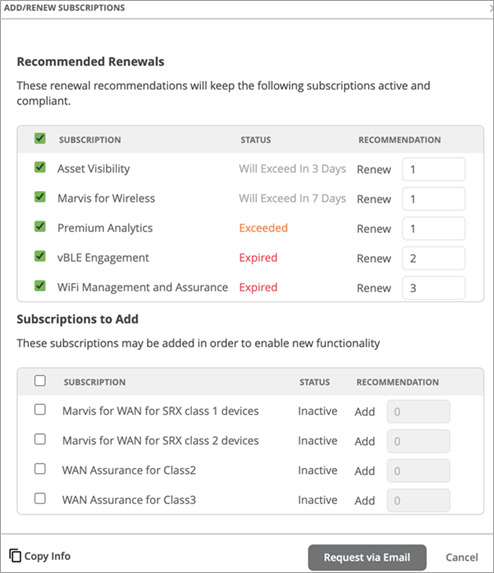 The Recommended Renewals list includes:
-
Expired subscriptions
-
Exceeded subscriptions
-
Active subscriptions that are due to expire within 90 days
-
The recommended number of licenses for each subscription
-