
Firmware Upgrades
Upgrade firmware at specific sites or across your entire organization.
Upgrade Options
You can manage and monitor upgrades on the Organization > Admin > Firmware Upgrades page.
-
To upgrade automatically as new firmware is available—Click Auto Upgrade Settings at the top-right corner of the page. For help with this feature, see Enable Automatic Upgrades.
-
To do a one-time upgrade—Click Schedule Upgrade at the top-right corner of the page. For help with this feature, see Set Up an Ad Hoc Upgrade.
-
To view upcoming and completed upgrades—Click a device tab at the top of the page. For help with this feature, see View the Status or Modify a Scheduled Upgrade.
Enable Automatic Upgrades
Enable HPE Mist to automatically upgrade devices based on certain parameters. You specify the device types, the sites, and the firmware that you want. You can even set it up to select a different firmware version for different device models.
If you enable automatic upgrade for switches or WAN Edges, the upgrade is triggered only when the devices connect to the HPE Mist cloud for the first time.
-
Select the device type, and then select the options for the upgrade.
Depending on the device type, follow these tips:
WAN Edges
-
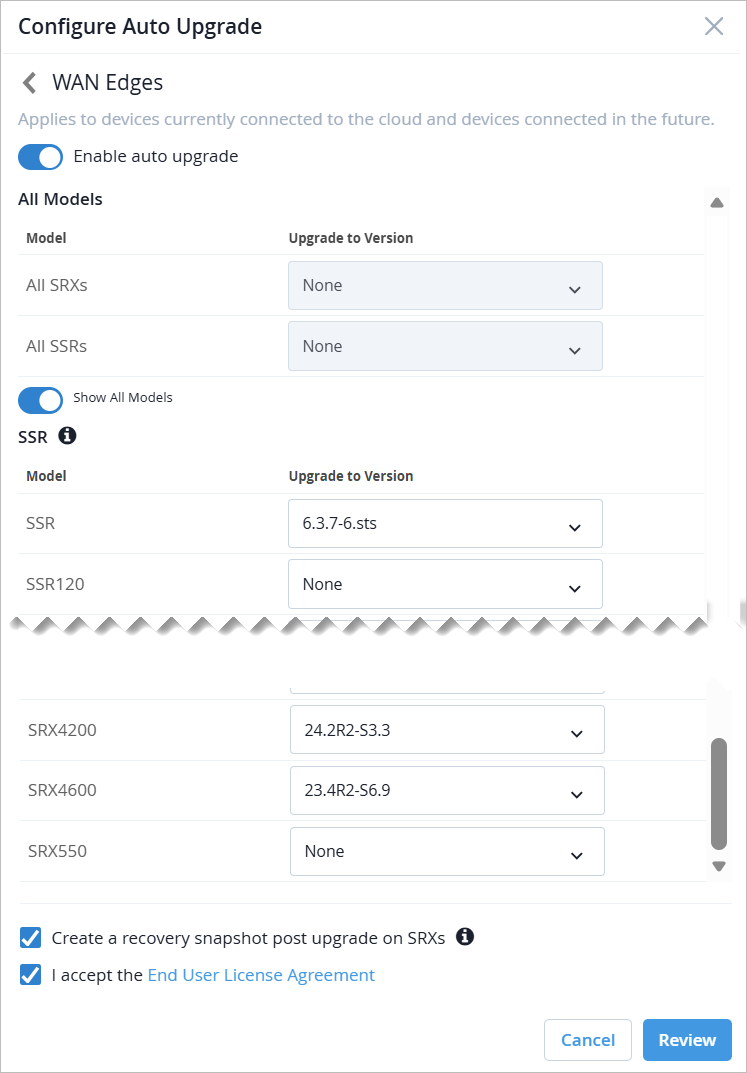
Drag the slider bar to enable Enable auto upgrade.
-
Select the same firmware version for All SRXs and for All SSRs, or select Show All Models and specify different versions for different models. To omit a model from the upgrade, select None from the drop-down list.
-
Create a recovery snapshot—This option is selected by default and is recommended so that you can restore from the backup if needed. You can clear this check box if you don't want to create a snapshot.
-
End User License Agreement—Use the link to read the information, and then select the check box to accept the agreement.
-
Switches
-
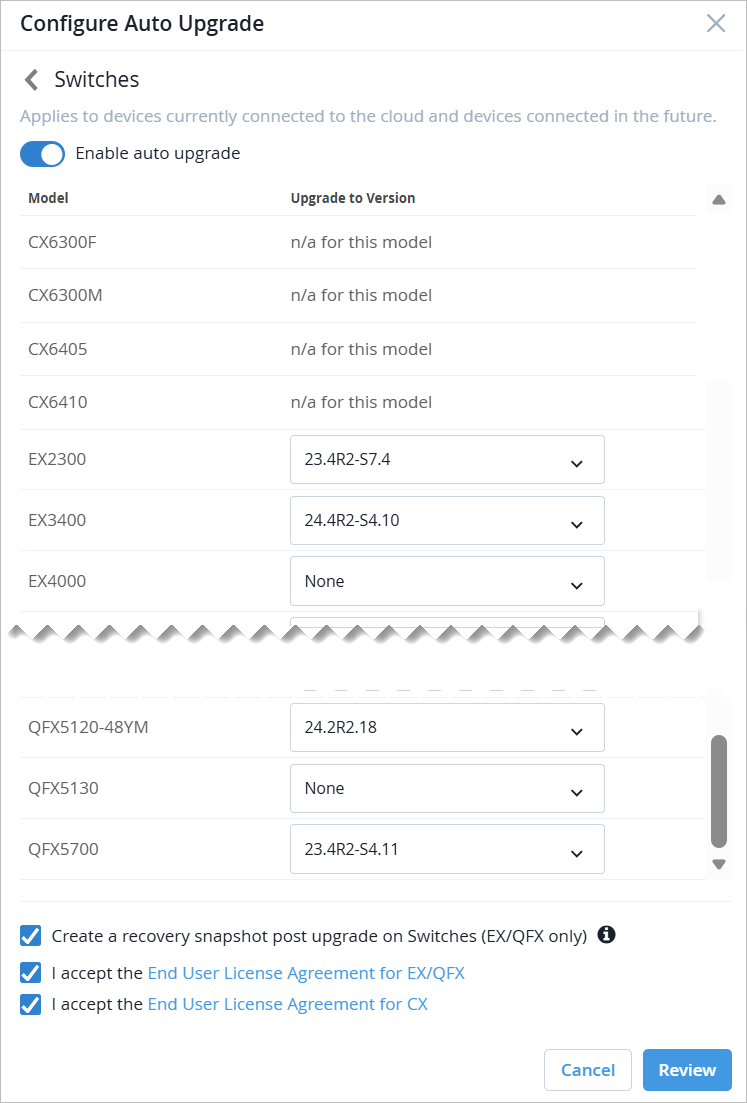
Drag the slider bar to enable Enable auto upgrade.
-
Select the firmware version for each model. To omit a model from the upgrade, select None from the drop-down list. If no upgrade is available, you'll see an indicator such as n/a for this model.
-
Create a recovery snapshot—This option is selected by default and is recommended so that you can restore from the backup if needed. You can clear this check box if you don't want to create a snapshot.
-
End User License Agreement—Use the link to read the information, and then select the check box to accept the agreement.
-
Notifications of upcoming upgrades will appear on device list views and site configuration pages.
Review, Disable, or Modify an Automatic Upgrade
From the left menu, select Organization > Firmware Upgrades. Then click Auto Upgrade Settings.
-
To review the settings—Click the device type for the automation that you want to review. View the on-screen information. When finished, click Cancel.
-
To disable an automation—Click the device type for the automation that you want to disable. Turn off Enable auto upgrade. Click Save.
-
To modify the settings—See Enable Automatic Upgrades.
Set Up an Ad Hoc Upgrade
With this approach, you can run an upgrade whenever you need to. Maybe you have a few new devices that you want to upgrade right away. Maybe you want to install a specific firmware version on a few devices for testing purposes. You can set up this upgrade to run immediately or in a specified maintenance window.
Keep in mind, although the scheduling option is a form of automation, this approach is not the same as "auto upgrades." The auto upgrade process runs repeatedly to regularly check for new firmware. A scheduled upgrade runs once. To set up recurring upgrades, see Enable Automatic Upgrades.
-
Depending on the selected device type, enter the upgrade options that
appear.
-
Version (switches and WAN edges)—Select the firmware version for each model that you want to upgrade. Or select None to omit a model from the upgrade.
Note: To see a list of the devices for each model, hover your mouse over the devices link. Reboot without upgrade (switches only)—Turn on this feature to reboot, not upgrade, switches.

Match Criteria (switches and WAN edges)—Turn on this feature to identify specific devices. Then enter a name to use to find the devices. Also specify an offset number, which indicates where to look for these characters in the specified name. For example, let's say your device names follow the pattern site-usage-device, such as SiteA-IOT-device1. You want to find all your IOT devices. You enter the characters IOT as the match criteria and 7 as the offset. (Look for matching characters in the device name, starting with the 7th character.) To save these options, click Apply.
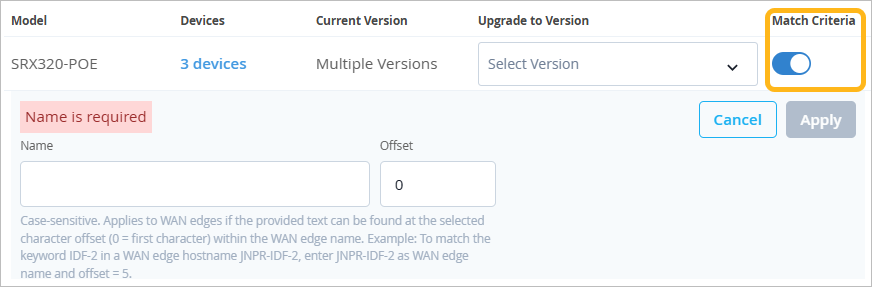 Note: When using this feature for WAN edges, you also can search for role. For switches, you can only search for the device name.
-
SRX or SSR (WAN edges)—If you have both SRX and SSR devices, complete the firmware version sections for all devices by using the SRX and SSR tabs.
-
OS and Service Upgrade or Service Upgrade (HPE Mist Networking Edges only)—Choose whether to do a complete upgrade or to update the tunnel service only.
-
The selected actions are performed according to the schedule that you set.
Notifications of upcoming upgrades will appear on device list views and site configuration pages, alerting administrators.
View the Status or Modify a Scheduled Upgrade
From the left menu, select Organization > Admin > Firmware Upgrades. Then click a device tab at the top of the page.
In the main area of the page, click the tab for Scheduled (upcoming upgrades) or Past(completed upgrades). You'll see high-level information for each upgrade.
-
To see more details—At the left side of the row, click the arrow button to see more details.
-
To change the settings—(not available for past upgrades) At the left side of the row, click the arrow button. On the right side of the screen, click Edit. Make your changes, and then click Save.
-
To cancel—(not available for past upgrades) At the left side of the row, click the arrow button. On the right side of the screen, click Cancel Upgrade. When the confirmation message appears, click Cancel Upgrade.