
Packet Capture Streaming for a Mist Edge Tunnel Interface
Use manual packet captures when investigating issues with the packets passing through a Juniper Mist™ Edge tunnel.
Packet captures are helpful when you are trying to drill down to the root cause of any issue with the traffic passing through a Juniper Mist Edge tunnel. The Juniper Mist™ portal provides an option for manual packet captures, which you can use to determine if packets being sent are reaching their destination or to verify the content of the packets. Juniper Mist allows streaming of both IPv4 and IPv6 packets to the cloud or locally to a host.
Juniper Mist supports real-time streaming packet captures on Mist Edge devices. Packets passing through a Mist Edge tunnel interface are live streamed into the Juniper Mist portal for real-time analysis using organization-level APIs and WebSockets. Packet capture details include source or destination IP addresses, MAC addresses, VLANs, protocols, dropped packets, and port details.
Juniper Mist can capture both upstream packets (packets from the Mist Edge to the tunneled VLANs configured on the switch that enable clients to reach resources such as Dynamic Host Configuration Protocol (DHCP) and Domain Name System (DNS) and downstream packets (packets from the access points (APs) to the Mist Edge). Note that the tunnel port on a Mist Edge can be configured as single arm or dual arm:
-
Single arm—Upstream and downstream traffic passes through the same port
-
Dual arm—Upstream and downstream traffic passes through separate ports
Juniper Mist supports packet captures on port channels . Single-arm ports can be configured as a single Link Aggregation Control Protocol (LACP) and dual-arm ports can be configured as two LACPs.
Juniper Mist also generates a full packet capture file that you can download and open in a packet analysis tool such as Wireshark for detailed analysis.
Packet Capture Options for Mist Edge
By default, Juniper Mist streams the packet capture data to the portal. The Mist Edge receives traffic from multiple clients and APs. Packet capture data can be quite large and can burden the network. To improve troubleshooting efficiency and avoid unnecessary data collection, we recommend using appropriate filters whenever you perform packet captures. Capturing network traffic without filters can generate large packet capture files that are hard to analyze, consume substantial system resources, and include large amounts of irrelevant data. Filters ensure that only the necessary traffic flowing through the Mist Edge tunnel is captured. As a best practice:
-
Apply capture filters whenever possible to narrow down the scope to the relevant host, ports, protocols, or traffic.
-
Run captures for shorter periods and within the time window when the issue can be reproduced. Long-running captures gather unnecessary data and make analysis slower and more difficult.
You can use the following options to customize the packet capture as per your requirements.
-
Canned Filters—You can use a set of pre-defined filters for commonly captured packet types (such as ARP, ICMP, mDNS, RADIUS, and DHCP).
If you select tunnel ports, three additional filters become available: L2TP IP, L2TP UDP, and IPsec. Selecting the OOBM interface disables all these filter options.
-
Advanced Filters—You can create your own packet filters for the capture session using the tcpdump syntax. You can opt to use Expression Builder, an interactive GUI tool, to build custom filters in the tcpdump syntax.
Local Capture
You can opt for a local packet capture if you do not want to send the data to the Juniper Mist cloud or if you want to capture the data for a longer duration. Local capture uses the TZSP protocol and port 37008 by default to stream the packet capture to a remote host over a LAN. For the remote host to receive the locally streamed packet capture, ensure that:
-
Mist Edge can reach the remote host over the OOBM interface by using the hostname (local hostname or FQDN) or IP address (IPv4 or IPv6). The Mist Edge and remote host IP addresses can be on the same subnet or different subnets.
-
The remote host and the local network do not block the port that is used for the TZSP local streaming. You can specify any port or use the default port 37008. The remote endpoint receives the TZSP packets from Mist Edge on this port.
-
Firewall on the local network allows UDP port traffic
-
OS firewall on the remote host allows UDP port traffic
-
The remote host has any of the following software to process the packets encapsulated with TZSP:
-
Wireshark
-
tshark
-
tcpdump
-
tzsp2pcap
-
The streaming using the Local capture option is asynchronous, which means that the streaming from the Mist Edge to the remote host is independent of each other. The Mist Edge can start or stop streaming to the remote host at any time irrespective of the status of the remote host. You can start or stop the capture from the Juniper Mist UI. For the data to flow correctly, both the Mist Edge and the remote host must be active at the same time.
You can also use filters on the packet processing software on the remote host. The filters help to filter the packets or data pertaining to the Mist Edge traffic received on the remote host.
Software Requirements
Ensure that your Mist Edge is running the latest software. See Mist Edge Updates.
Start a Packet Capture for a Mist Edge Tunnel Interface
-
Click Start Capture.
You can see the data starting to populate on the right pane.
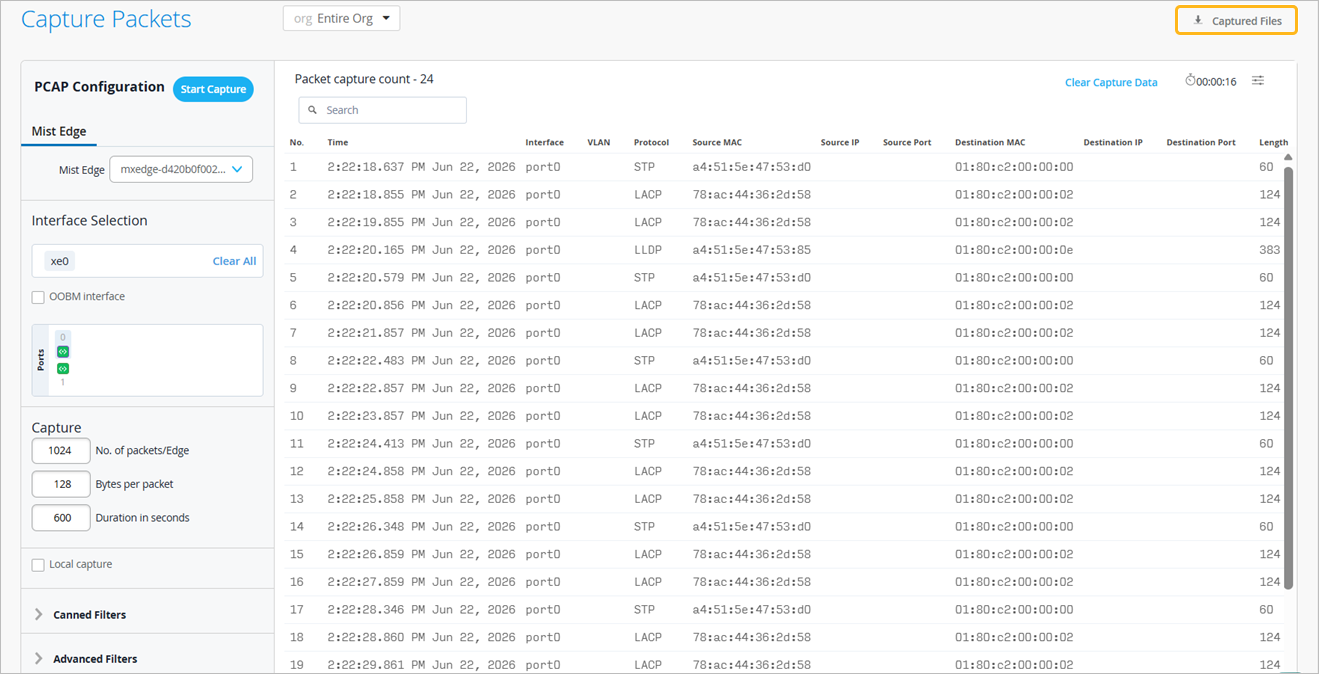
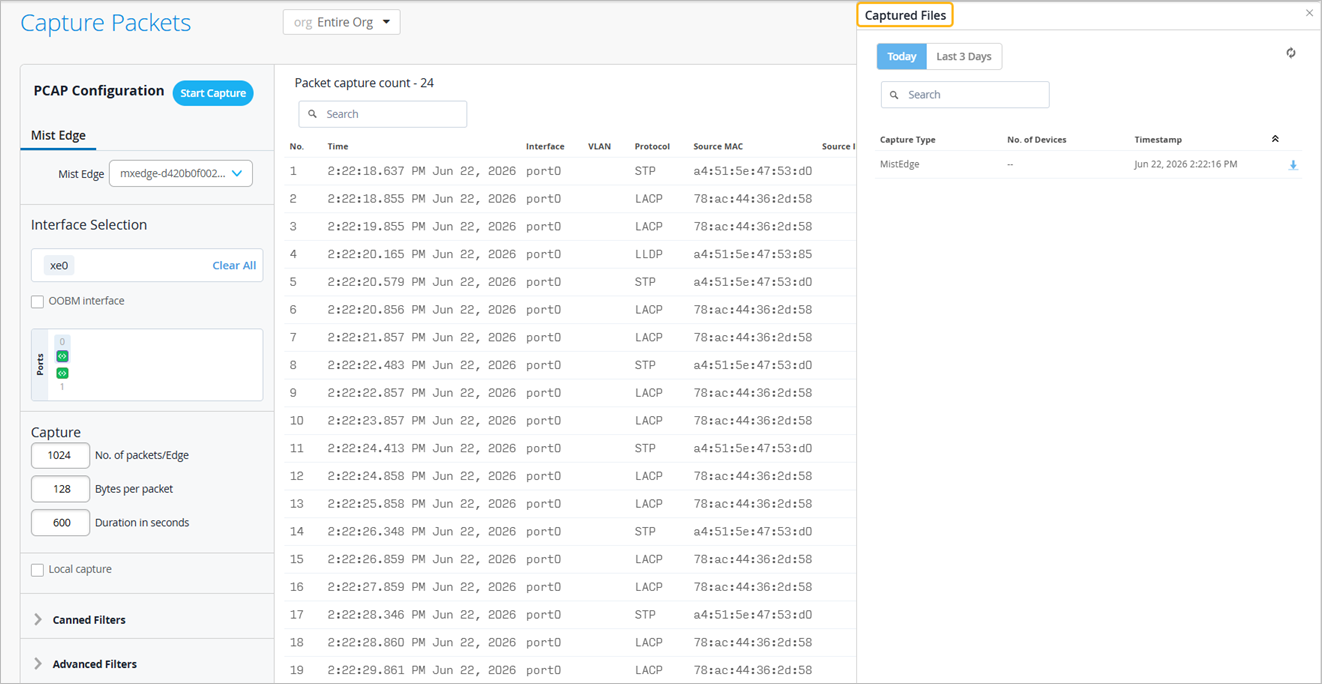
Once the capture is completed, Juniper Mist generates a full packet capture file. You can click the Captured Files button on the top-right corner of the page to download the packet capture file. Juniper Mist stores up to three days of packet capture data.
Local Packet Capture Using Wireshark
-
In the Juniper Mist portal:
Follow steps 1 through 5 in Start a Packet Capture for a Mist Edge Tunnel Interface.
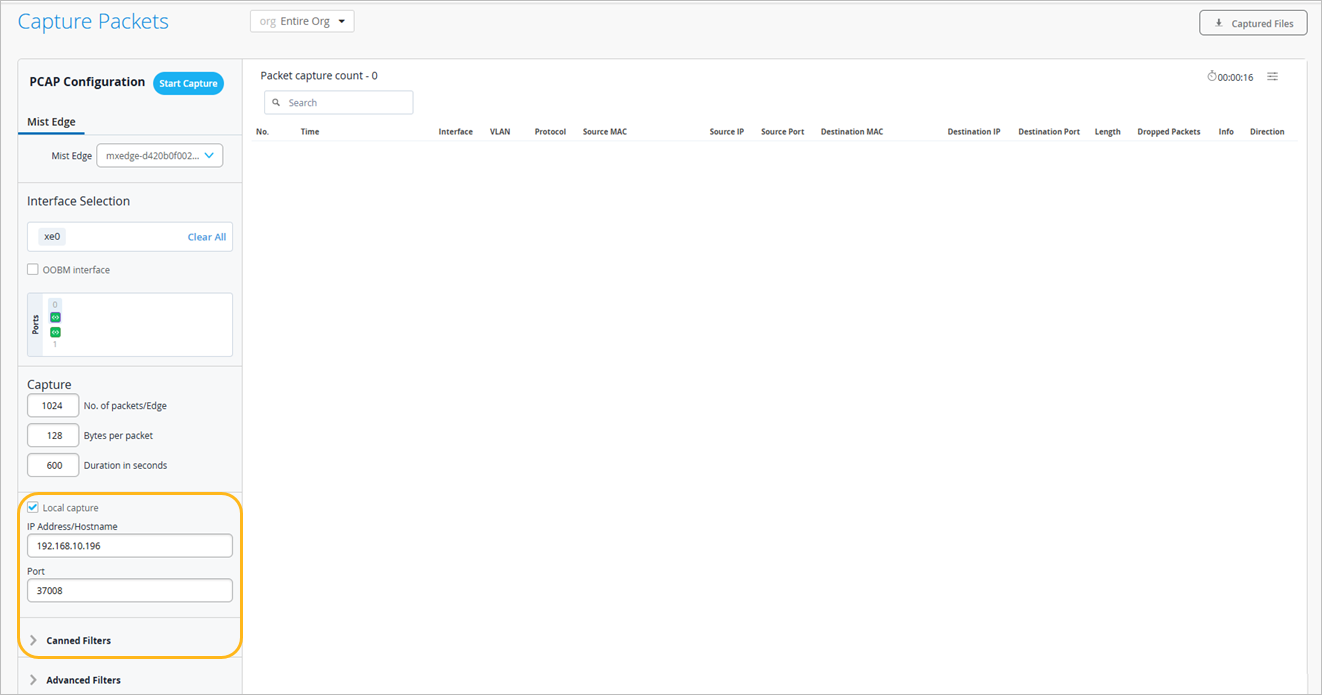
Select the Local Capture check box.
Enter the IP address or hostname of the remote host and the port.
Click Start Capture.
-
On the remote host:
Open the Wireshark application.
Enter the capture filter as UDP and port 37008. Filters help to eliminate packets that are not from the Mist Edge.
You can additionally add the IP address of the Mist Edge that is sending the data. Wireshark decodes the packets automatically if the port is 37008. If you use a different port, Wireshark might not decode the packets properly.
Select the network interface on the remote host that the locally streamed packets will be received on. You can also enter the interface and filter details by selecting Capture > Options.
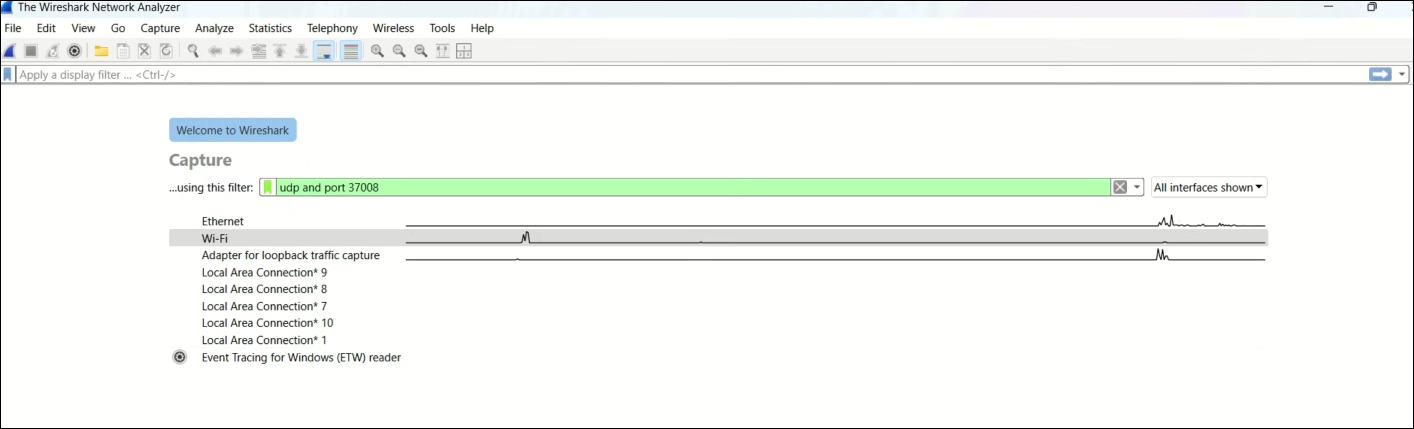
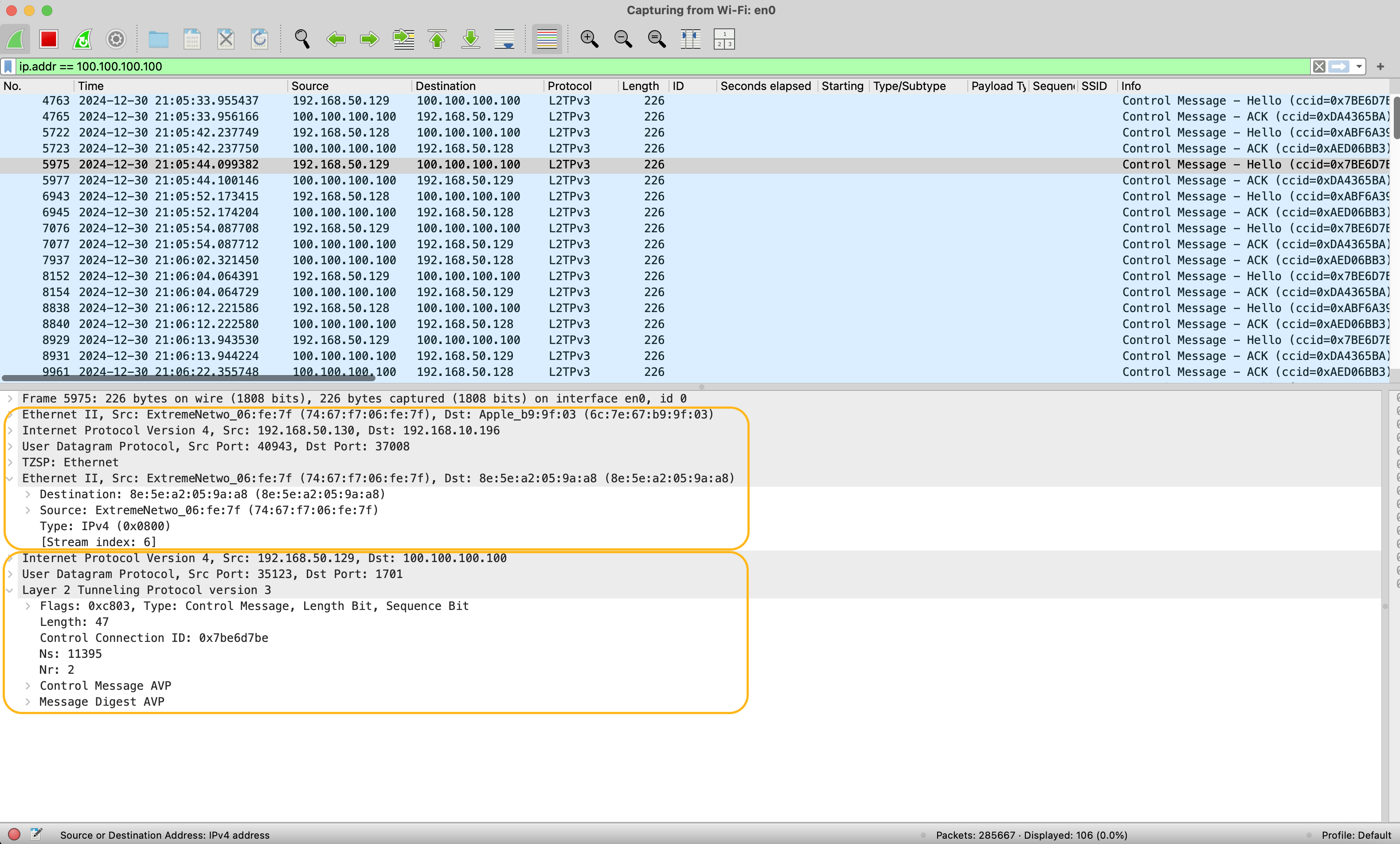
Press Enter to start the capture. Wireshark decodes and displays the packets as it receives them from the Mist Edge as shown in the following example. The first highlighted block shows the TZSP header information. The second block shows the L2TP packets from the selected Mist Edge interface.
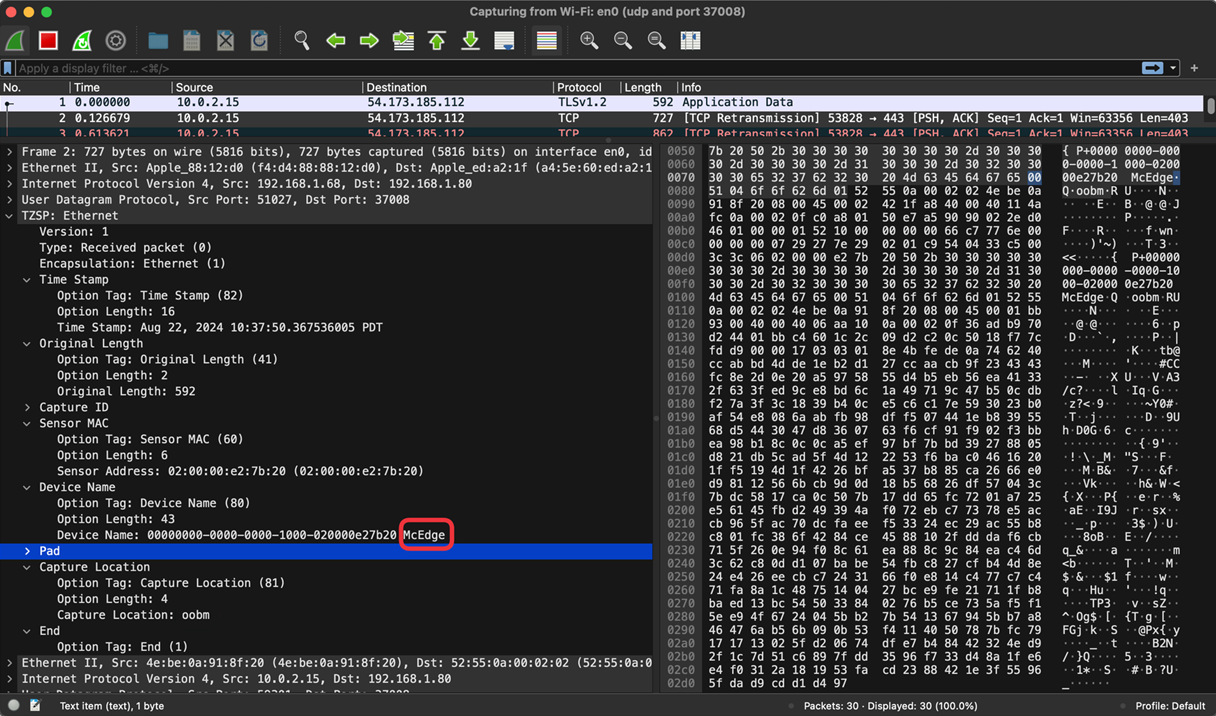
Here’s another example that shows the data received in Wireshark. If the TZSP headers are not stripped off, you can see additional Mist Edge data in the TZSP headers as shown in the below example:
Note that Wireshark provides capture filters and display filters. Capture filters are used to filter packets flowing through a network interface and capture the packets that match the filter. Display filters only filter out the irrelevant captured packets from being displayed in the Wireshark UI.
Another quick way of starting the capture is by using the following CLI command on the remote host to set the capture filters:
wireshark -i interface_name -f "udp and port 37008"
Wireshark launches automatically with the preset filter and starts the capture process.
Local Packet Capture Using tshark
tshark -i interface_name -f "udp and port 37008"
You can customize the capture filter string for a different port or filter by the IP address of the Mist Edge that is sending the traffic or any other relevant filters. The basic filter is by protocol and port. tshark decodes the packets automatically if the port is 37008. If you use a different port, tshark might not decode the packets properly. tshark decodes and displays the packets as it receives them from the Mist Edge. You can stop and start the capture anytime.
You can also include additional parameters to process the received data.
Local Packet Capture Using tcpdump
tcpdump -i interface_name "udp and port 37008"
You can customize the capture filter string for a different port or filter by the IP address of the Mist Edge that is sending the traffic or any other relevant filters. The basic filter is by protocol and port. Unlike Wireshark and tshark, tcpdump does not support decoding of TZSP packets and so you can specify any port.
You can send the packet capture data to a file and then open the file in Wireshark or tshark to view the data. You can also include additional parameters to process the received data.

Mist Edge Packet Capture FAQs
- Why do I see fragmented packets in local packet capture streaming?
- Why do we need to use filters in the Juniper Mist portal and in third-party packet processing tools for local streaming? Is it necessary to set filters in both the portal and the third-party tool?
- Why should I specify a capture filter to receive locally streamed packets in packet processing tools such as Wireshark?
- How can I stop the local or remote packet capture?
- Is there a time duration for the availability of the packet capture files for download?
- What happens if the No. of packets/Edge limit specified in the Capture section is reached before the specified time duration is over?
- Can I use a port other than 37008 for local capture?
Why do I see fragmented packets in local packet capture streaming?
The packet capture might contain packets with an MTU value greater than 1500 bytes. These packets might display as fragmented packets or retransmitted packets in Wireshark.
Why do we need to use filters in the Juniper Mist portal and in third-party packet processing tools for local streaming? Is it necessary to set filters in both the portal and the third-party tool?
We recommend that you use filters so that you can restrict the packet capture size and avoid burdening your network. Given that the OOBM port that connects the Mist Edge to the Juniper Mist cloud is also used for the packet capture process, it is important to ensure that the port is not overloaded with the packet capture data and the traffic from the Juniper Mist cloud. Unfiltered packet capture data can be quite large and can stress the Mist Edge services, which might impact core functions. By using filters, you can restrict the capture to only the relevant data.
You can apply filters in both the Mist portal and the packet processing tool as these filters serve different purposes.
In the Juniper Mist portal, filters ensure that the capture contains only the desired traffic coming through the Mist Edge (tunnel).
In the packet processing tool, the filters ensure that only packets or data for Mist Edge related traffic is received on the remote host.
Wireshark provides capture filters and display filters. Capture filters are used to filter packets flowing through the network interface and capture the ones matching the filter. Display filters ensure that only the relevant captured packets are displayed in the Wireshark UI.
Why should I specify a capture filter to receive locally streamed packets in packet processing tools such as Wireshark?
If you do not apply a filter, the tool captures all packets coming through the specified interface. The filter narrows down the received packet data to only the ones from Mist Edge.
We recommend using a generic filter expression that matches the local streaming protocol (TZSP) used, which is “udp and port 37008”. You can replace the port value if you’re using a non-default (TZSP) port. By using the generic filter expression, the remote host can receive packets from any Mist Edge that is on the same local network. You can further customize the expression as per your requirement.
How can I stop the local or remote packet capture?
To stop streaming the packet capture to the Juniper Mist portal or remote host, click the Stop Capture button on the Capture Packets page.
In the case of local streaming, the capture process in the packet capture tool is not synchronous with the packet capture in the Juniper Mist portal. You can start or stop streaming the capture from the Mist Edge at any time independent of whether the remote host is receiving the packet capture data. If you want the remote host to stop receiving and processing the packet capture data, you’ll need to stop the capture in the packet capture tool.
Is there a time duration for the availability of the packet capture files for download?
The capture file is available approximately 60 seconds after the completion of the capture.
What happens if the No. of packets/Edge limit specified in the Capture section is reached before the specified time duration is over?
You can specify values for three capture filters in the Juniper Mist portal—number of packets, number of bytes per packet, and duration of the capture.
The packet capture stops when the number of the packets matches the value specified in the filter even if the time duration of the packet capture is not over.
In case the time duration is over before the specified number of packets value is reached, Juniper Mist stops the packet capture process.
Can I use a port other than 37008 for local capture?
You can use any port. If you do not specify a port, then Juniper Mist uses the default port 37008. If you use a different port, ensure that the port is not blocked by a firewall.