
Workspace ONE UEM Integration
Follow these steps to link a Workspace ONE account to your organization, and understand how HPE Mist Networking Access Assurance leverages the enrolled device compliance status for policy rule creation.
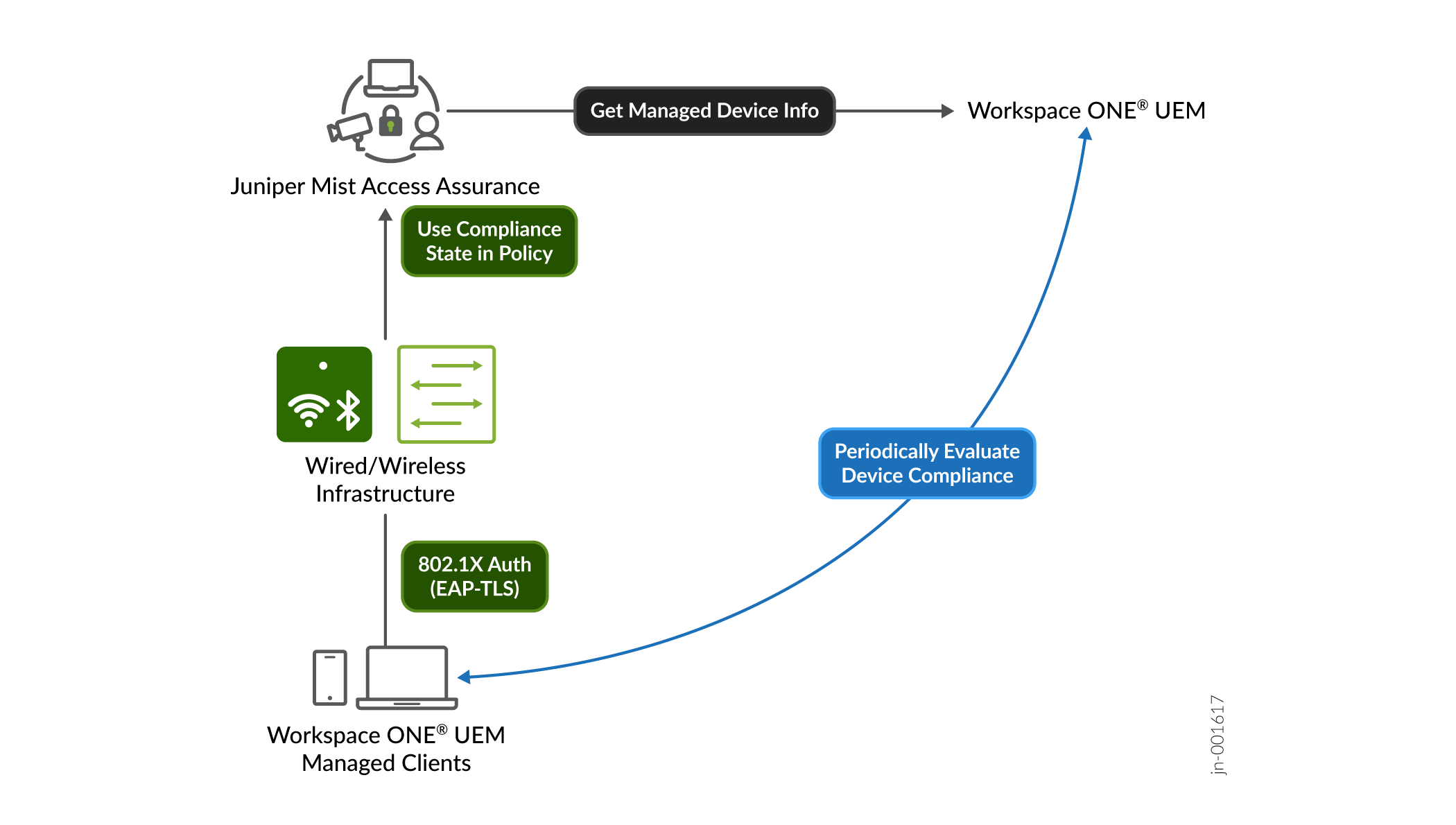
HPE Mist Networking Access Assurance supports native integration with Workspace ONE® UEM, enabling comprehensive evaluation of endpoint compliance across devices such as laptops and mobile phones. Using predefined policies, Workspace ONE assesses device compliance based on security parameters such as antivirus presence, firewall status, and OS patch levels. HPE Mist Networking Access Assurance retrieves the latest device compliance status from Workspace ONE and applies it to authentication policies to enforce access control decisions.
Device Compliance Status Data Retrieval from Workspace ONE
HPE Mist Networking Access Assurance retrieves device compliance information from Workspace ONE using an API-based polling mechanism and webhooks. By default, HPE Mist Networking Access Assurance polls Workspace ONE every 2 hours for each authenticated managed client and caches the compliance status for efficient retrieval. When webhooks are configured, Workspace ONE sends real-time compliance state notifications to HPE Mist Networking Access Assurance whenever a device's compliance status changes, eliminating the need to wait for the next polling interval.
To avoid adding additional latency to authentication, device compliance information is retrieved only after authentication is complete. After a device is initially onboarded, its compliance status is continuously updated through webhook notifications, if configured. If you have not configured webhooks, the compliance status is refreshed every 2 hours using the polling mechanism.
If a device’s compliance state changes, HPE Mist Networking Access Assurance automatically triggers a Change of Authorization (CoA) to re-evaluate the policy and enforce the appropriate access control measures. This automatic triggering of CoA ensures that compliance changes are promptly addressed, maintaining security and policy adherence without requiring manual intervention.
Figure 1 illustrates how HPE Mist Networking Access Assurance retrieves Workspace ONE-managed device compliance data for authentication.
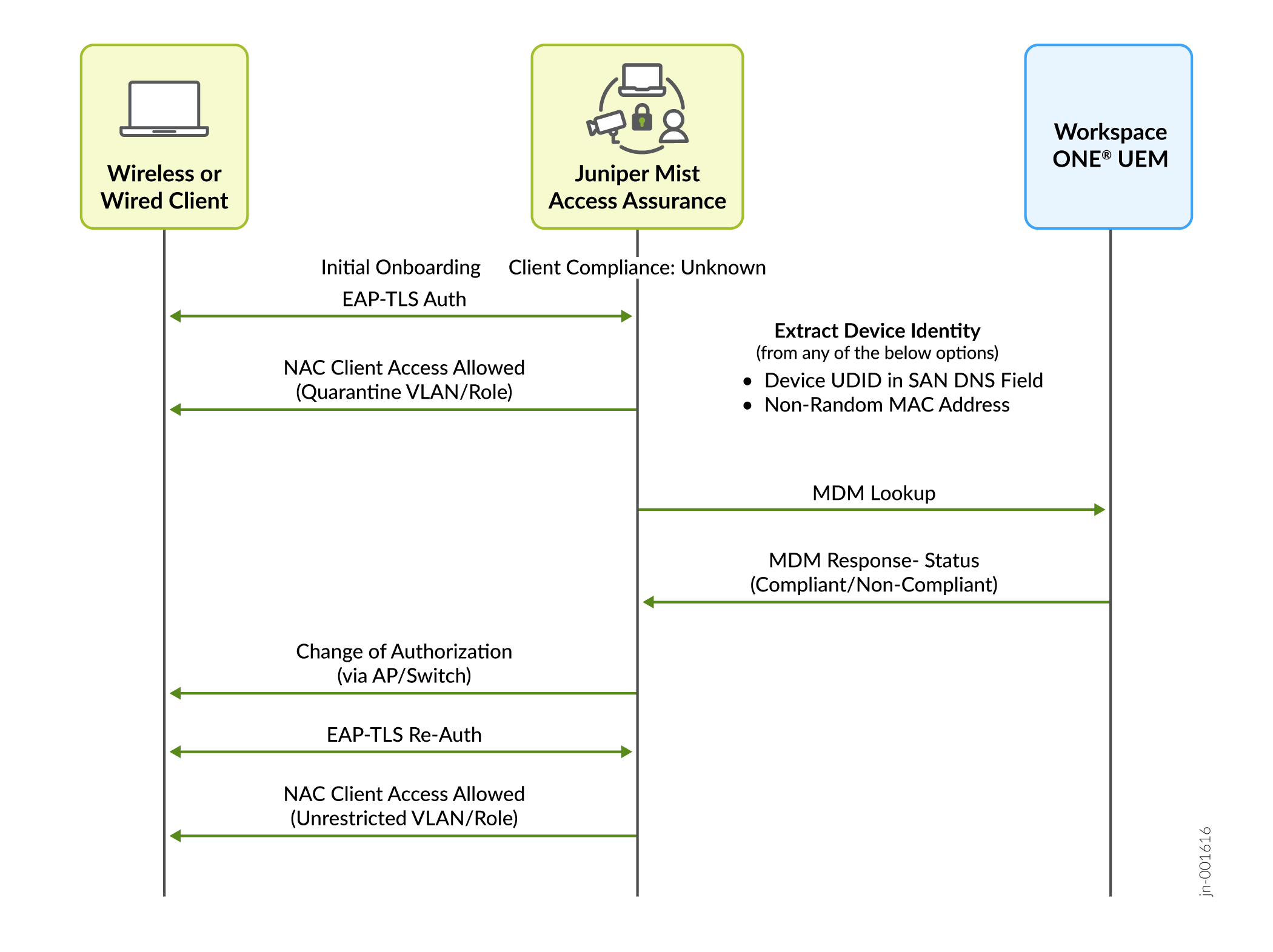
To support the CoA functionality, APs must run firmware version 0.14 or later
HPE Mist Networking Access Assurance uses the following information during client authentication to match a client with a device record in Workspace ONE:
Some of the screenshots included in this topic are sourced from third-party applications. Be aware that these screenshots might change over time and might not always match the current version of the applications.
-
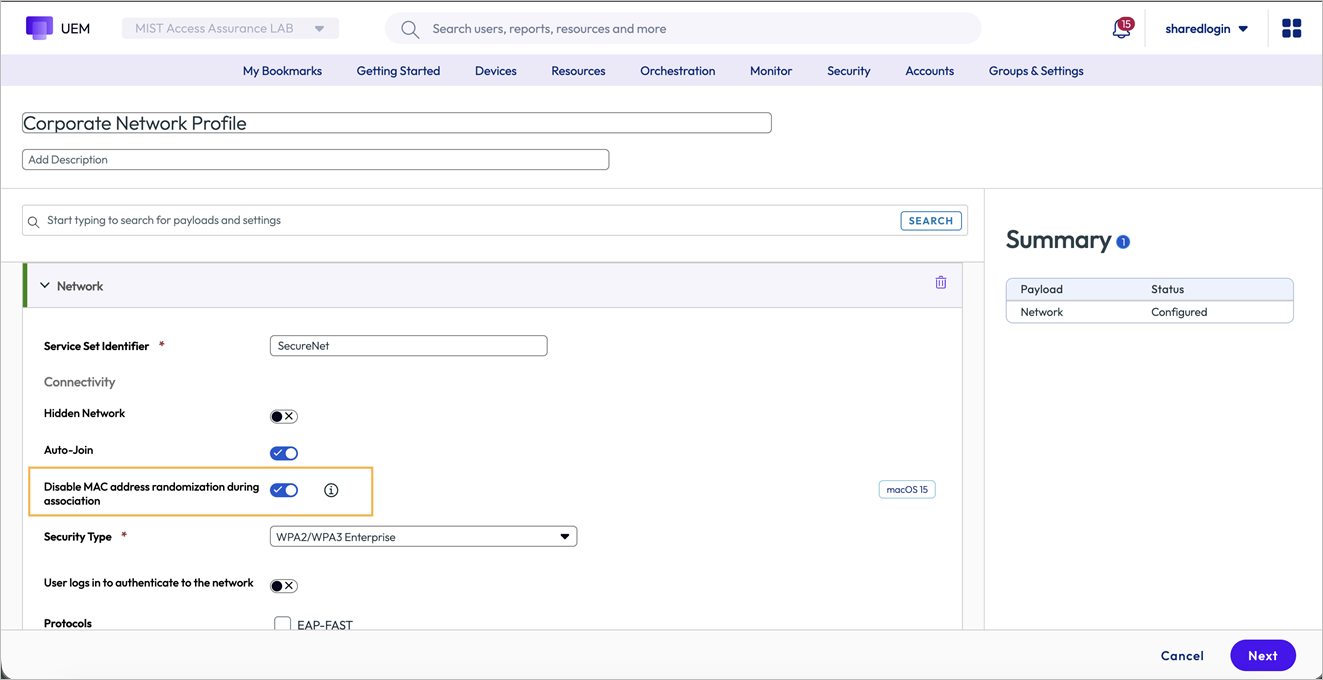
Non-randomized MAC address—For authentication using EAP-TTLS or EAP-TLS, the MAC address of the client device is matched against a managed device record in Workspace ONE. To ensure accurate MAC-based device matching, you must disable MAC address randomization in the Wi-Fi configuration profiles on client devices.
-
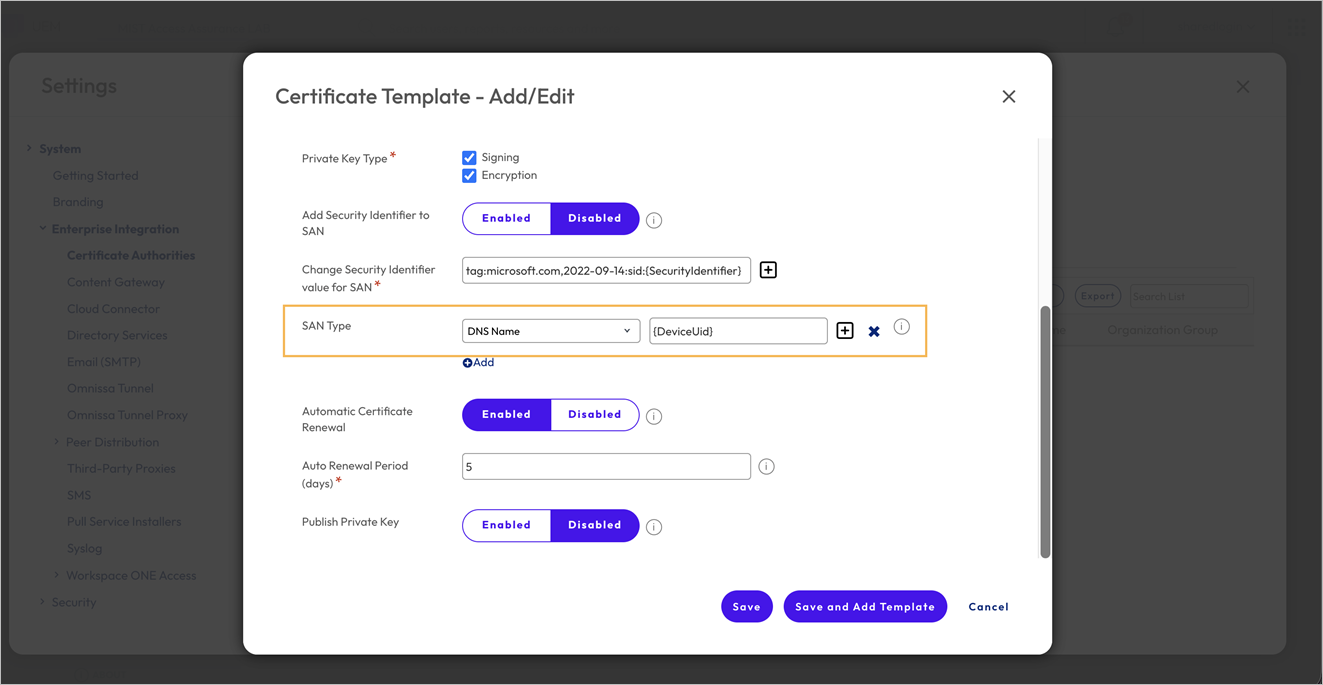
Workspace ONE UDID encoded in SAN:DNS certificate attribute—In Workspace ONE Certificate templates, use the {DeviceUid} variable to encode the Device UDID in the SAN:DNS certificate field.
Configure Client ID and Client Secret in Workspace ONE
To integrate Workspace ONE with HPE Mist Networking Access Assurance, you'll need to set up a Workspace ONE API Client ID and Client Secret.
The screenshots from third-party applications are correct at the time of publishing. We have no way to know when or if the screenshots will be accurate at any future time. Please refer to the third-party website for guidance about changes to these screens or the workflows involved.
-
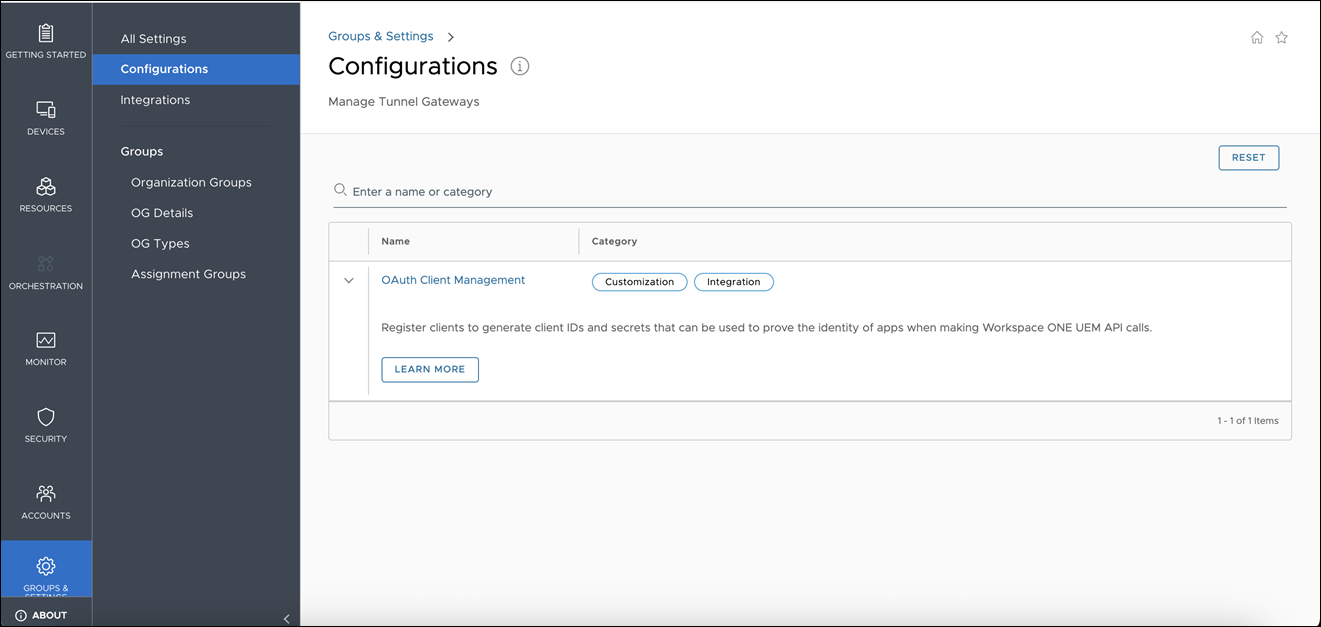
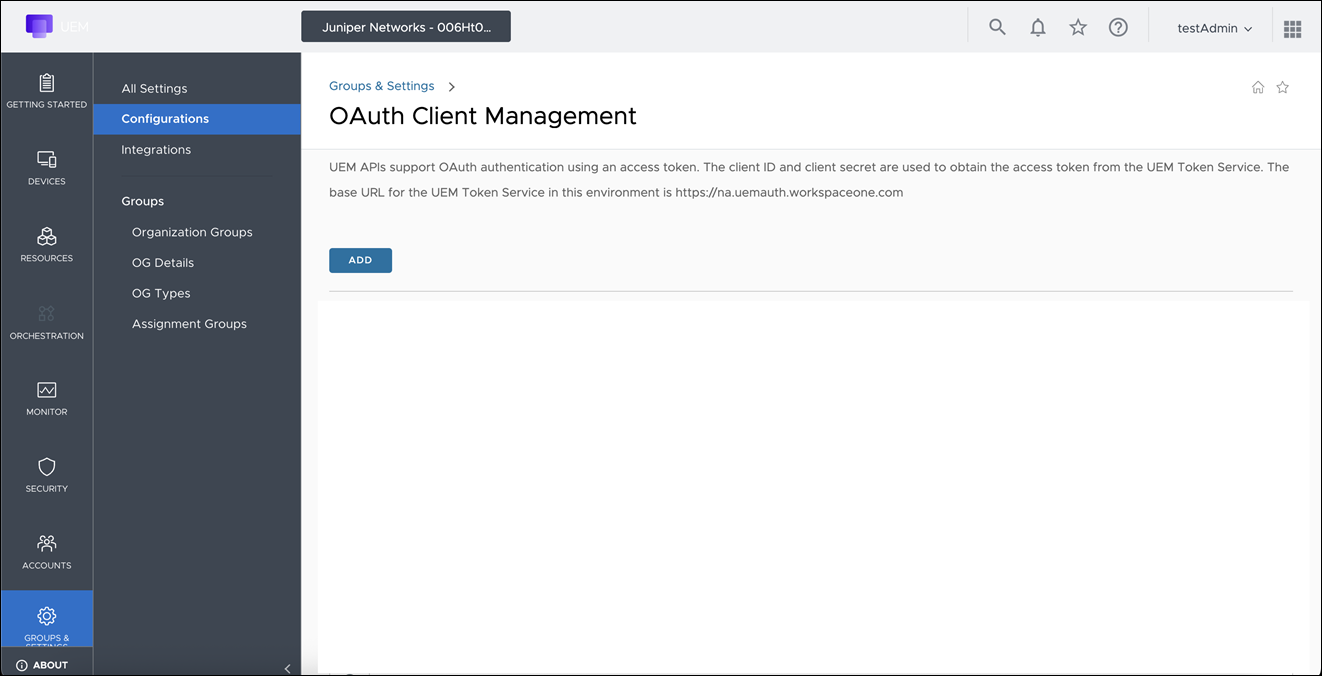
In the Workspace ONE portal, navigate to Groups &
Settings>
Configurations>OAuth Client
Management, then click Add.
-
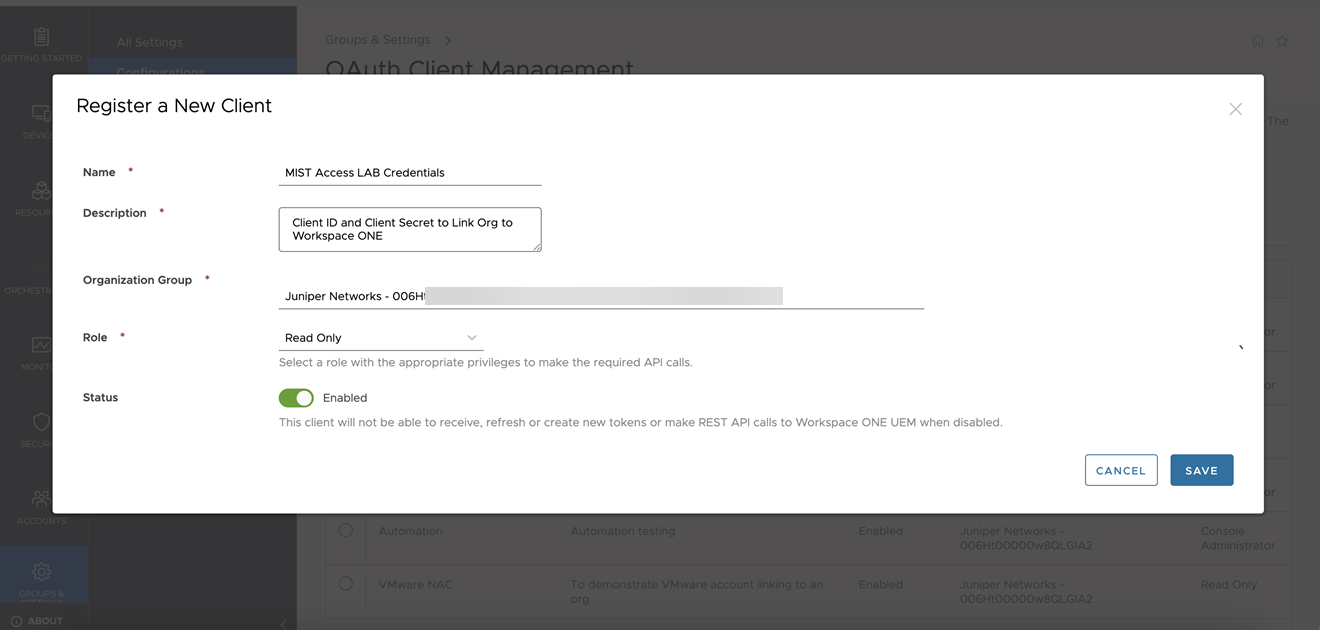
Enter the required details to create a Client ID. Ensure that the role is
set to Read Only and the status is
Enabled, as shown in the following example. Click
Save.
-
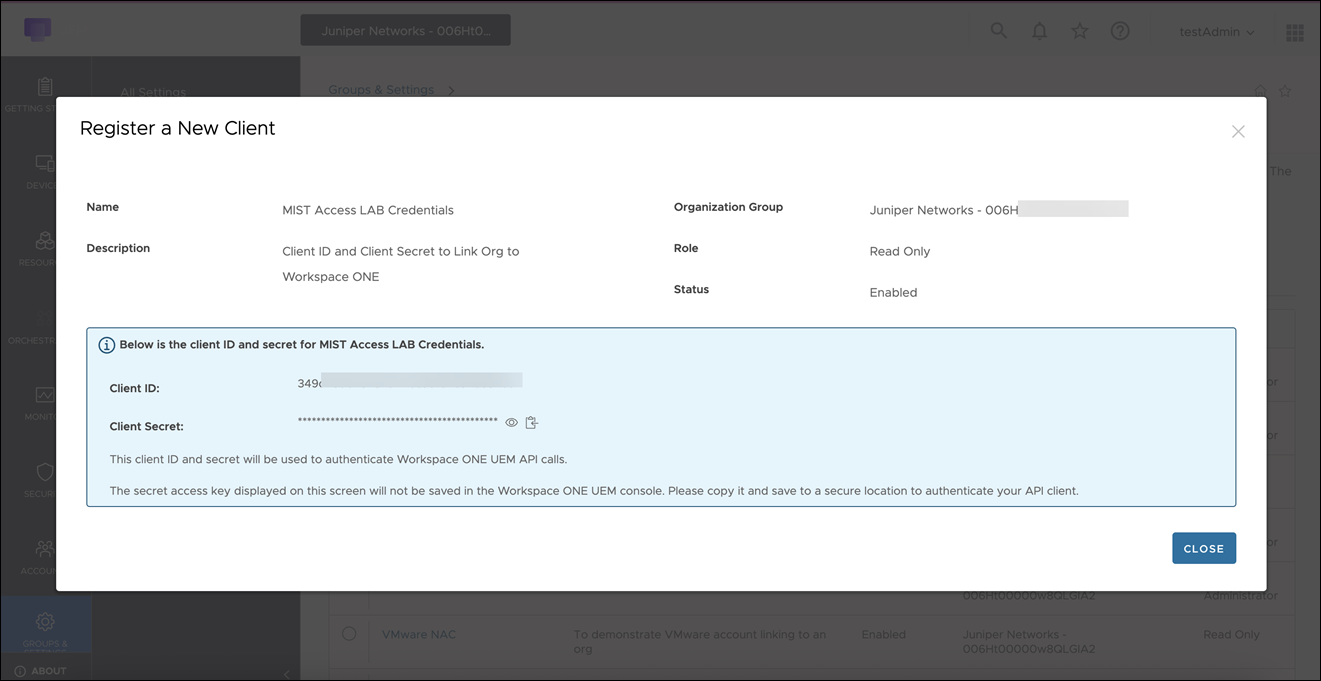
Copy the generated Client ID and Client Secret. These credentials are
required to link your
organization
with Workspace ONE.
Add Workspace ONE as an Identity Provider
-
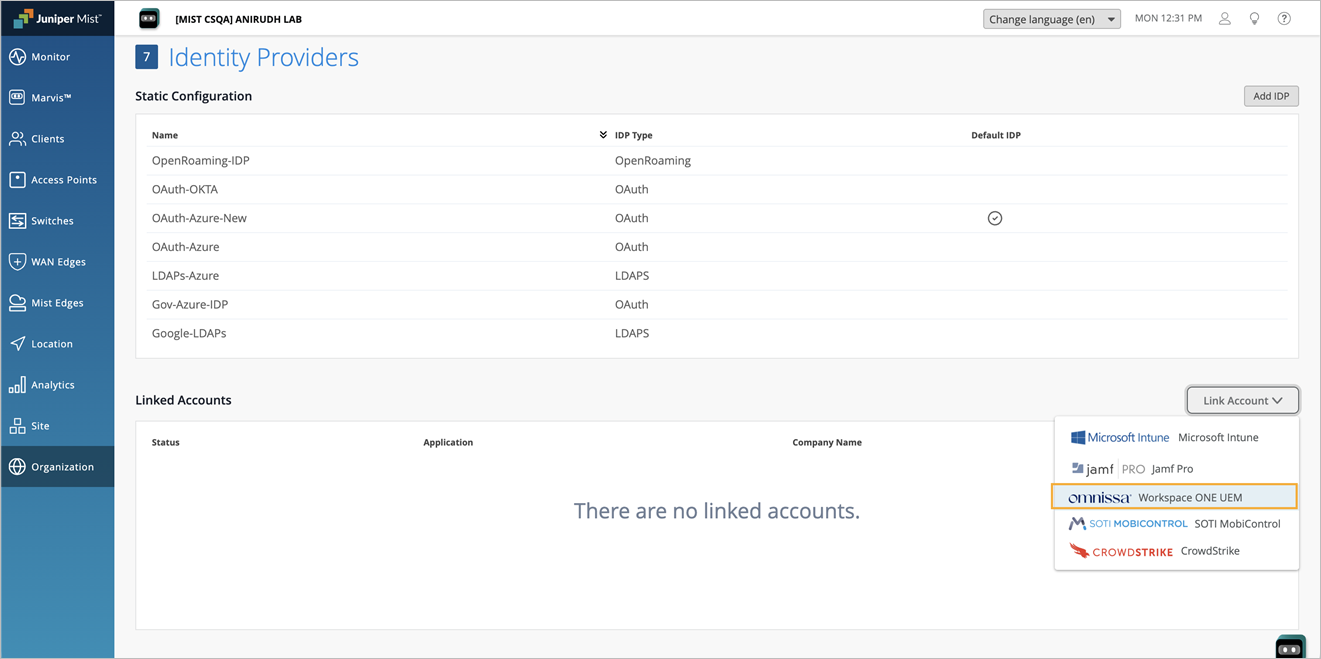
Select
Omnissa
Workspace ONE UEM.
-
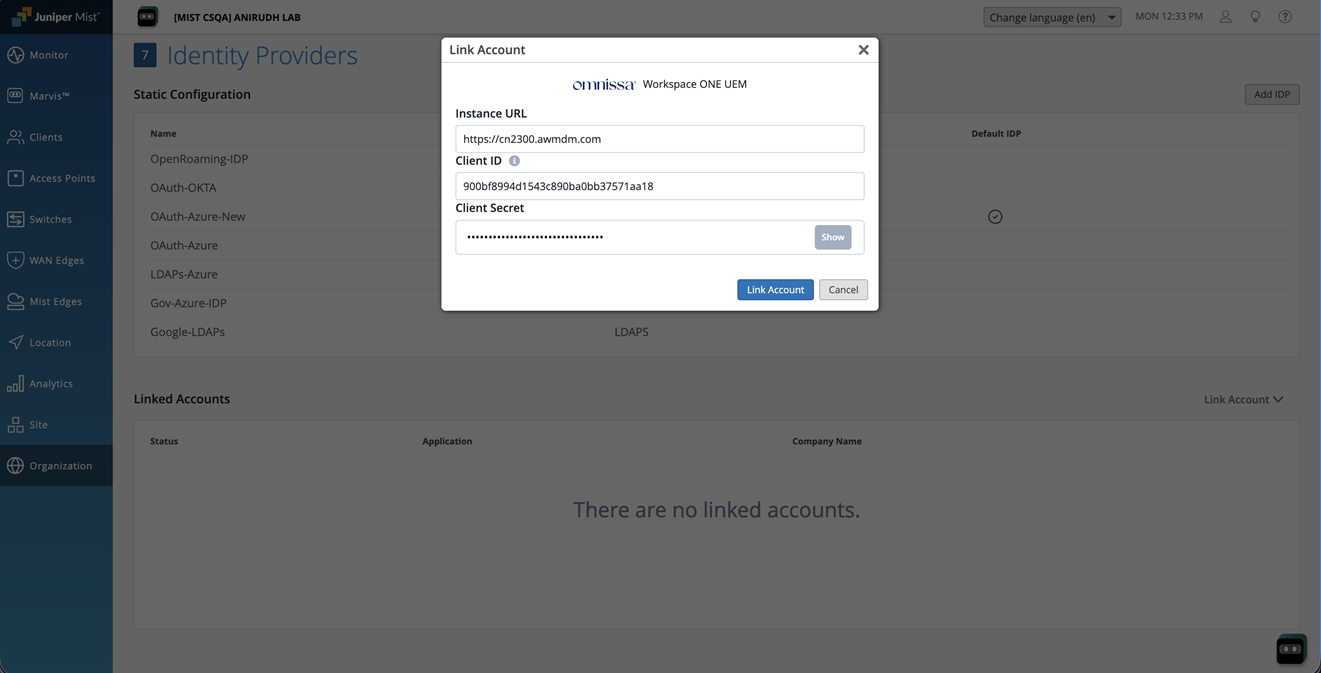
In the Link Account page, provide the Instance URL (for example,
https://ABC.awmdm.com OR https://ABC.airwatchportals.com), Client ID and
Client Secret. Then, click Link Account.
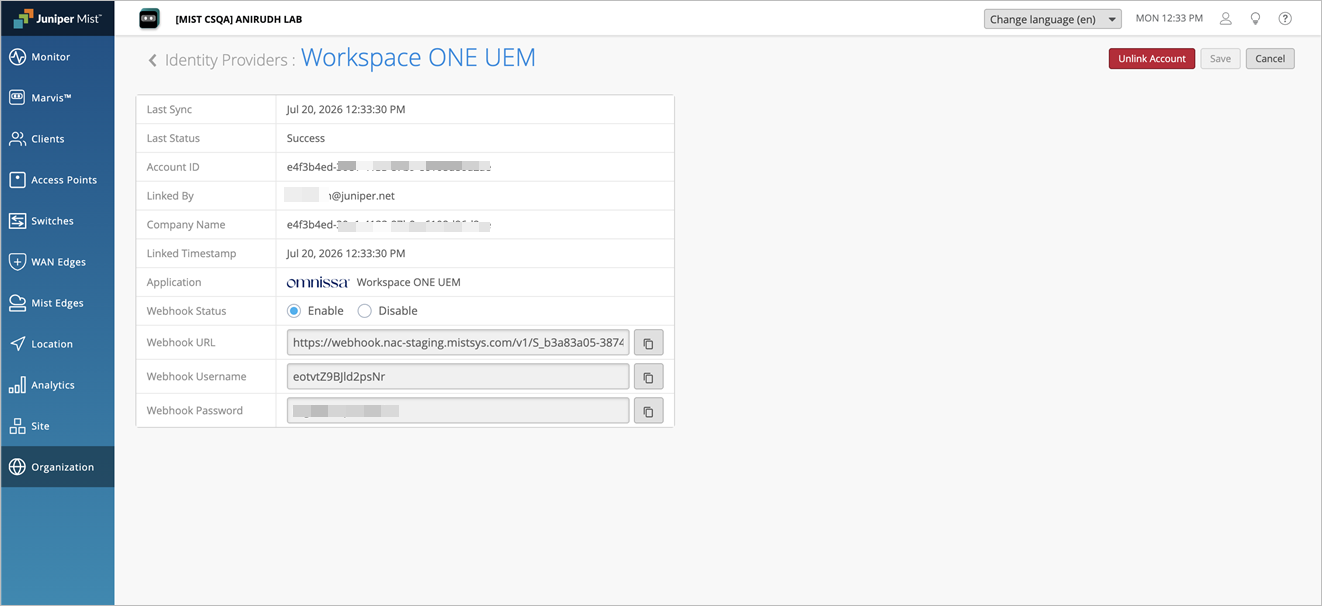
After you link the Workspace ONE account, you can see the account status on the Identity Providers page. You can click the account to view the details of the last sync and the webhook configuration details, including the Webhook URL, Username, and Password.
Configure Webhook Notifications in Workspace ONE UEM
-
Onboard the organization before linking the Workspace ONE account.
Ensure the organization is onboarded to HPE Mist Networking Access Assurance by connecting at least one client to NAC (either through a successful onboarding or a NAC client deny event) before linking the Workspace ONE account. This ensures that the necessary backend configuration is completed before webhook credentials are generated.
-
Reconfigure webhooks after re-linking the Workspace ONE account.
If the Workspace ONE account is unlinked and then linked again, HPE Mist Networking Access Assurance generates a new Webhook URL, Username, and Password. Update the webhook configuration in the Workspace ONE console with these newly generated credentials.
-
Relink the Workspace ONE account when GDPR is enabled after initial linking (applicable only to EU organizations with GDPR enabled).
If the Workspace ONE account was linked before GDPR was enabled, unlink and relink the account after enabling GDPR. This ensures that the backend configuration is updated to reflect the GDPR settings and generates the appropriate webhook configuration.
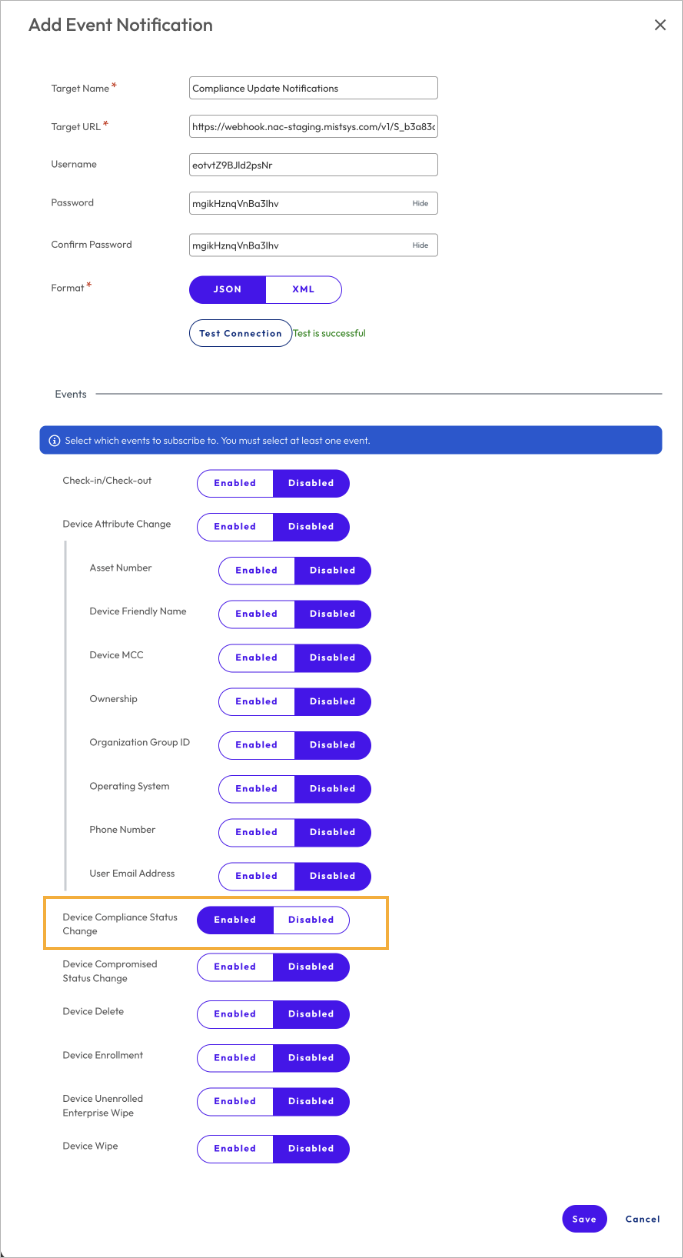
To configure webhooks in Workspace ONE UEM:
-
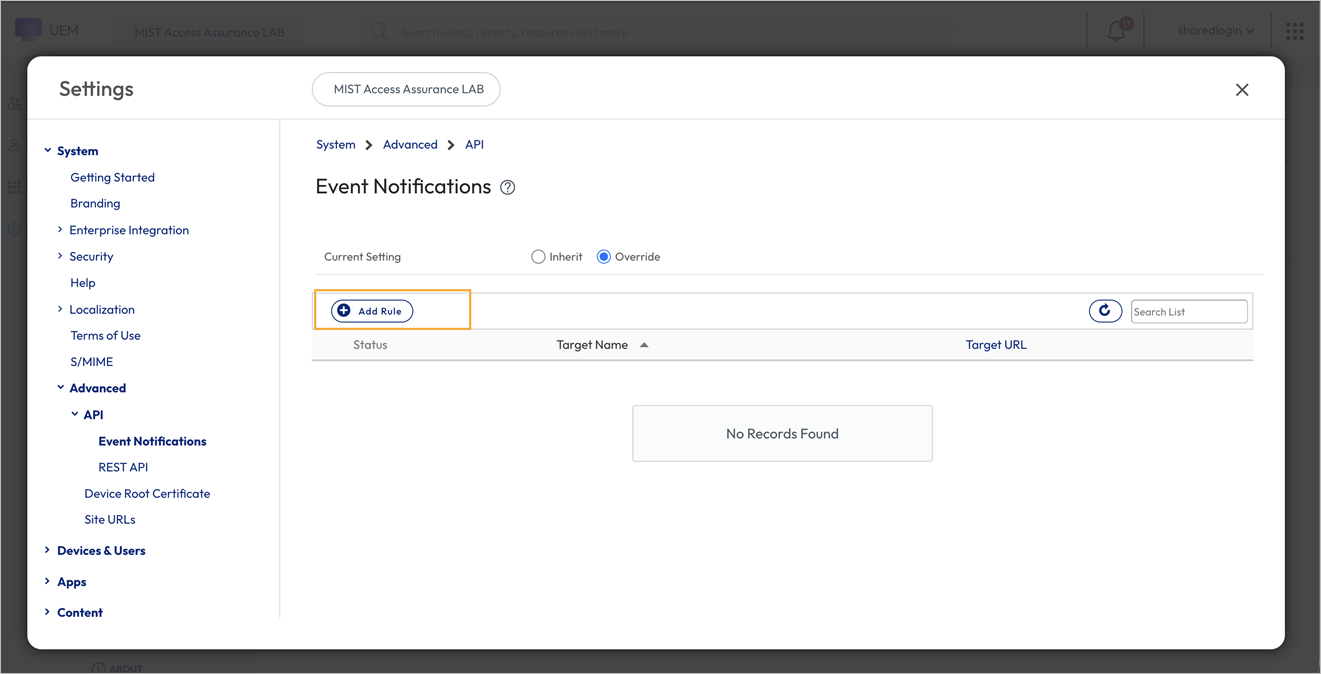
Click Add Rule.
-
Enable Device Compliance Status Change under Events
to subscribe to compliance state notifications. This allows Workspace ONE to
send real-time compliance updates to
HPE
Mist
Networking
Access Assurance whenever a device's compliance status changes. Click
Save.
Verify Client Connection and Device Lookup Status
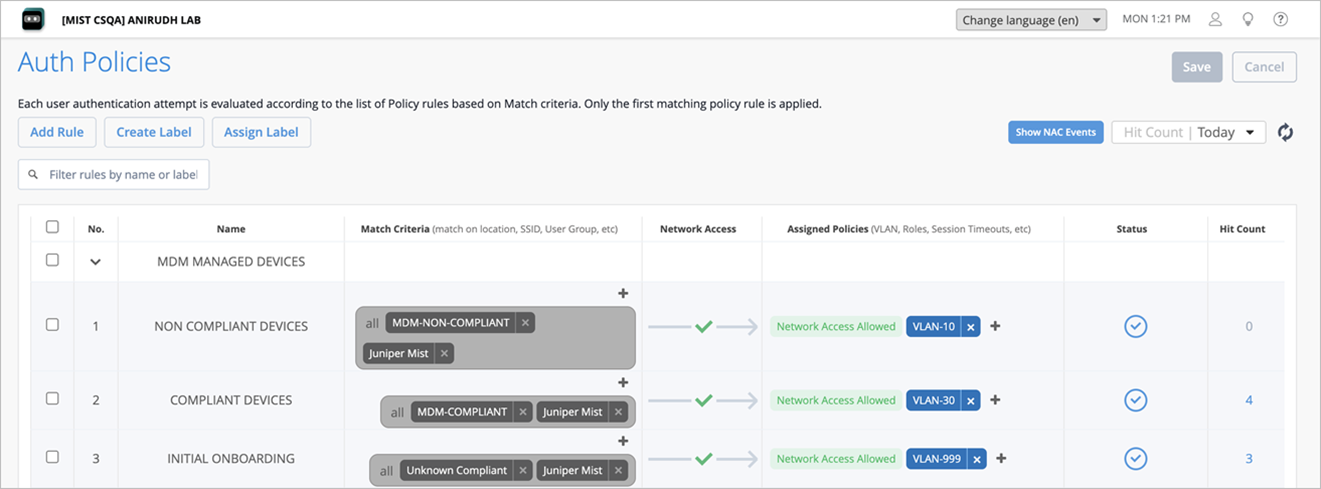
The initial MDM lookup for a new client occurs after the device has been authenticated for the first time. To facilitate this lookup, you'll need to create an auth rule that allows first-time device connections and assigns the devices to a quarantine VLAN.
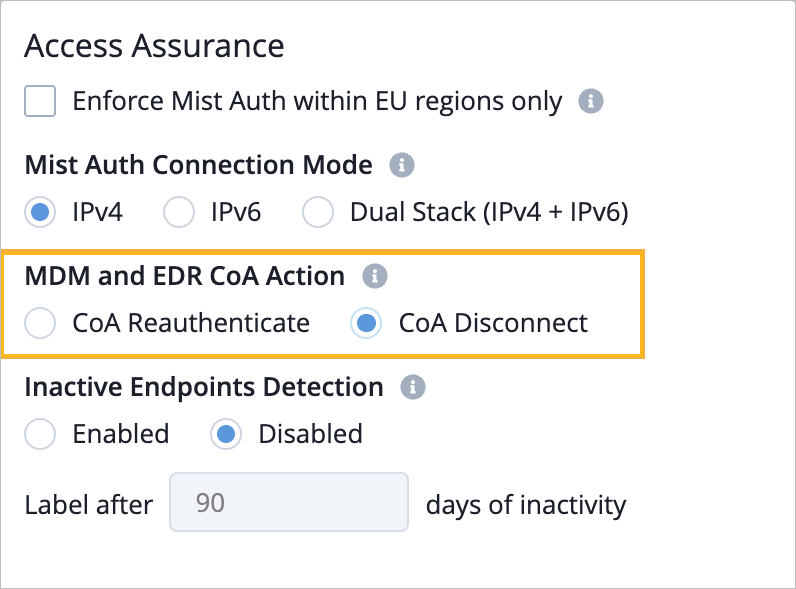
The Change of Authorization (CoA) action specifies the RADIUS CoA operation used to enforce an updated network policy when a device's compliance status changes. By default, CoA action is set as CoA Reauthenticate. You can change the CoA action, if required, to CoA Disconnect by going to the Access Assurance section in the Organization>Settings page.
-
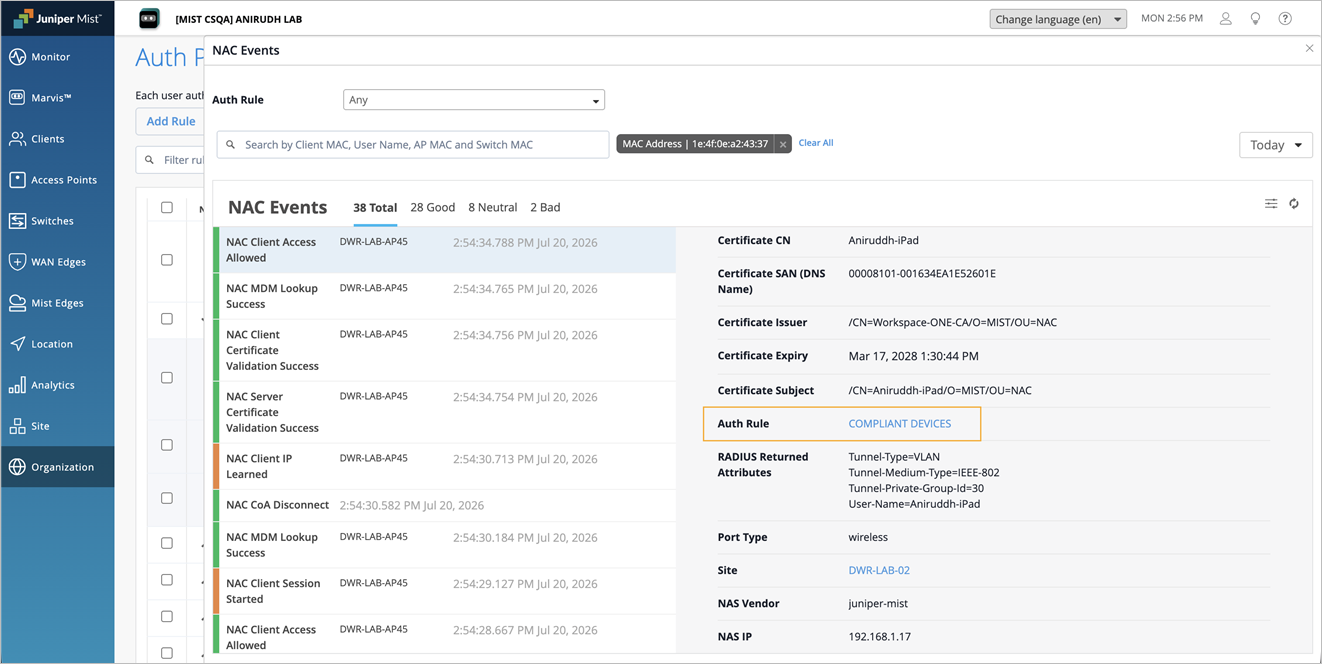
When a device initially connects to the network, its compliance state is not yet known. Hence, it is evaluated against the auth rule that is created to allow devices connecting for the first time. Initial Onboarding is the auth rule in the following example.
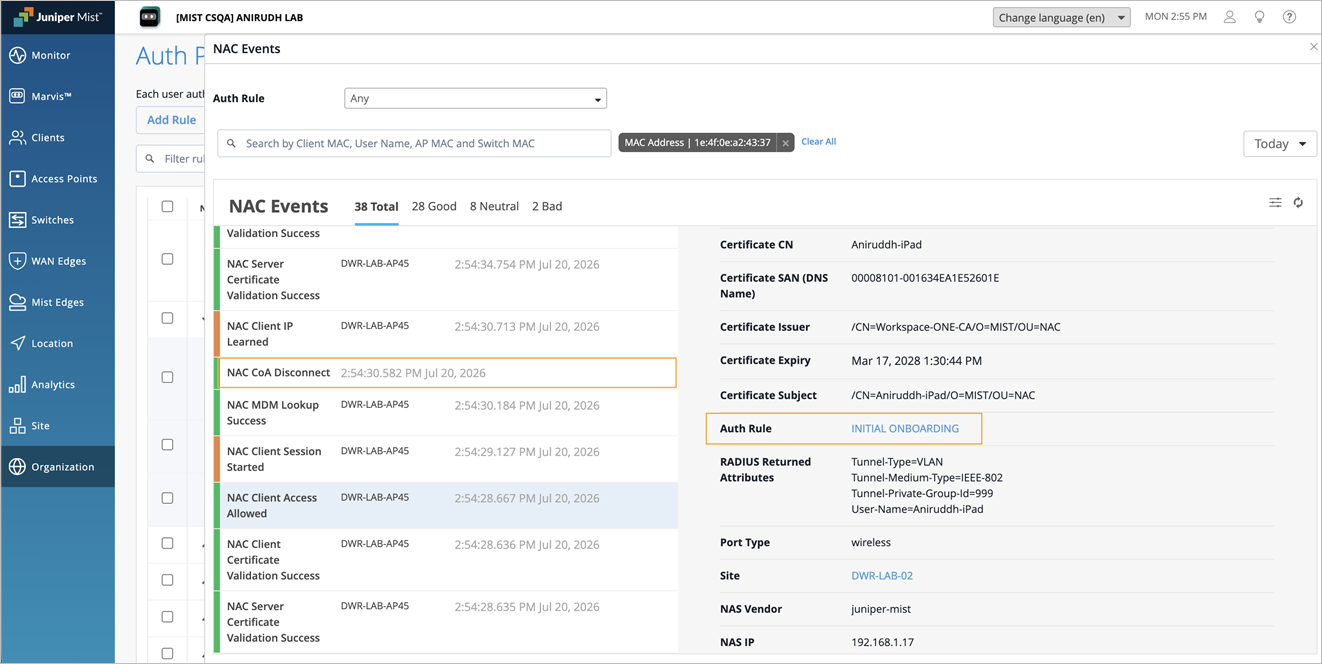
After successful authentication, HPE Mist Networking Access Assurance performs an MDM lookup to retrieve the device's compliance status. Based on the compliance status, a Change of Authorization (CoA) is triggered, causing the client to reconnect and be assigned the appropriate policy (Compliant Devices in this example).
-
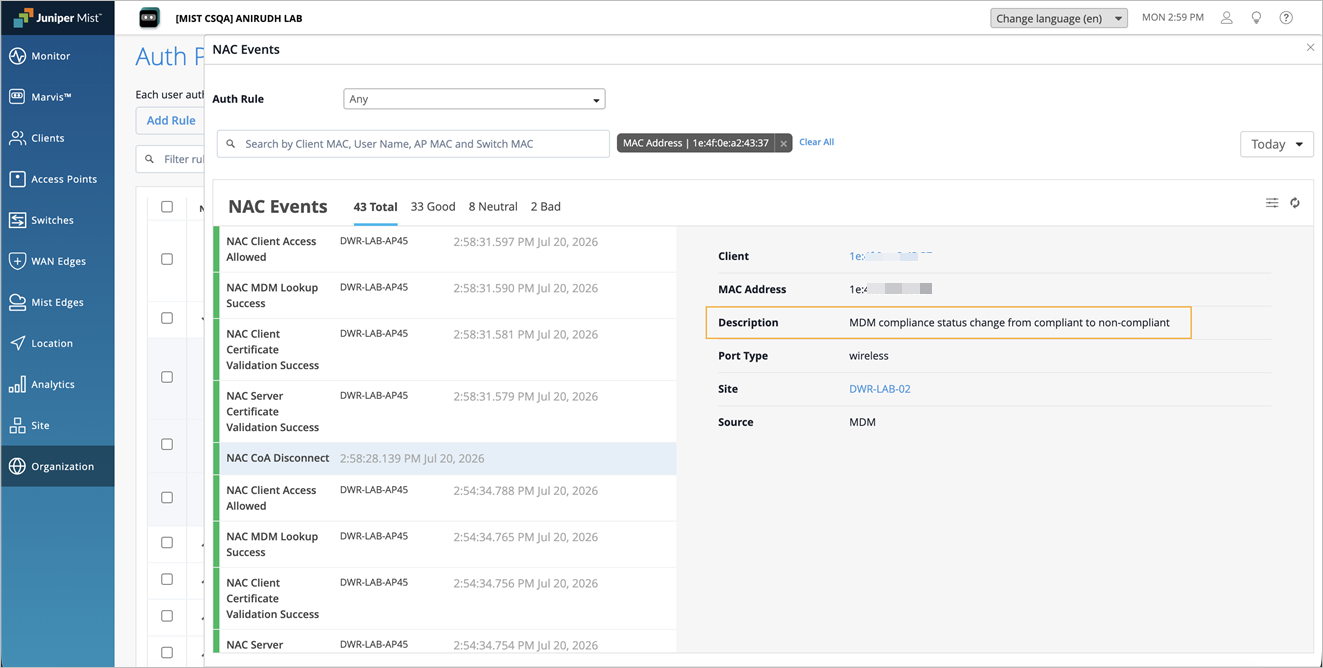
If the compliance status of the device changes, webhooks immediately sends a compliance state update. In this example, the device status has changed to non-compliant.
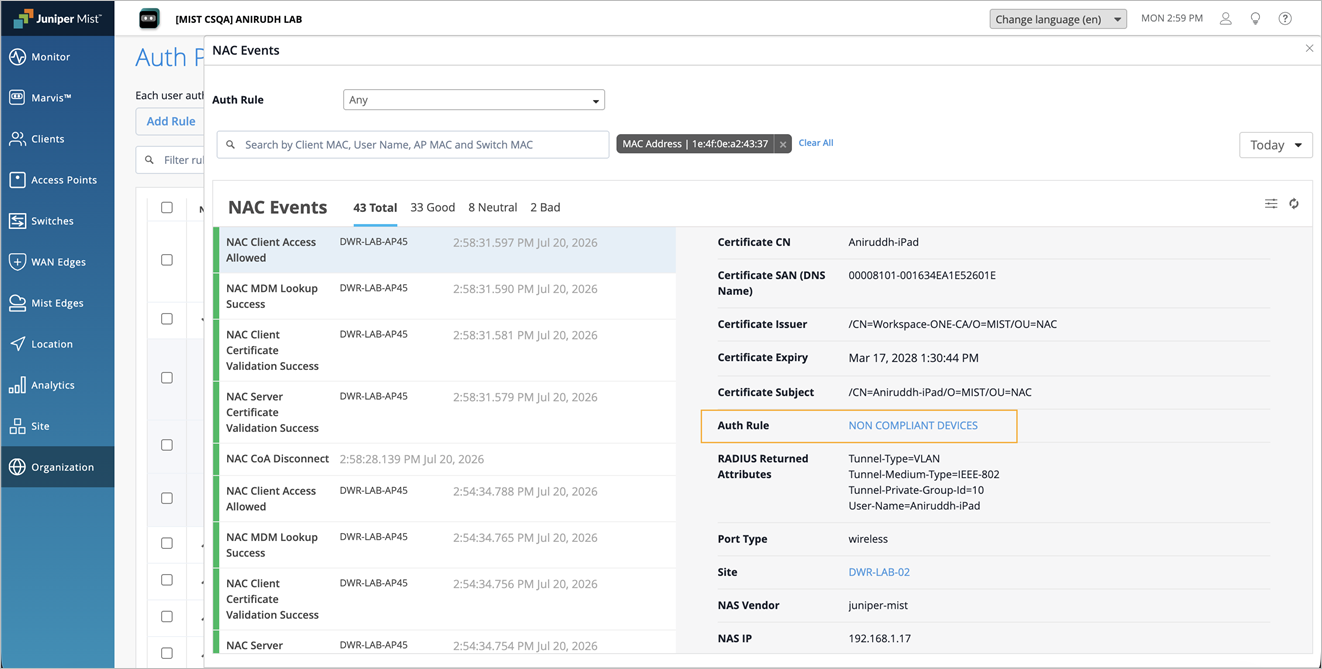
HPE Mist Networking Access Assurance processes the update in real time, triggers a CoA, and reassigns the client to the configured policy and associated VLAN.
-
When the device returns to a compliant state, another real-time webhook notification is received, and HPE Mist Networking Access Assurance immediately triggers a CoA to re-evaluate the client session.
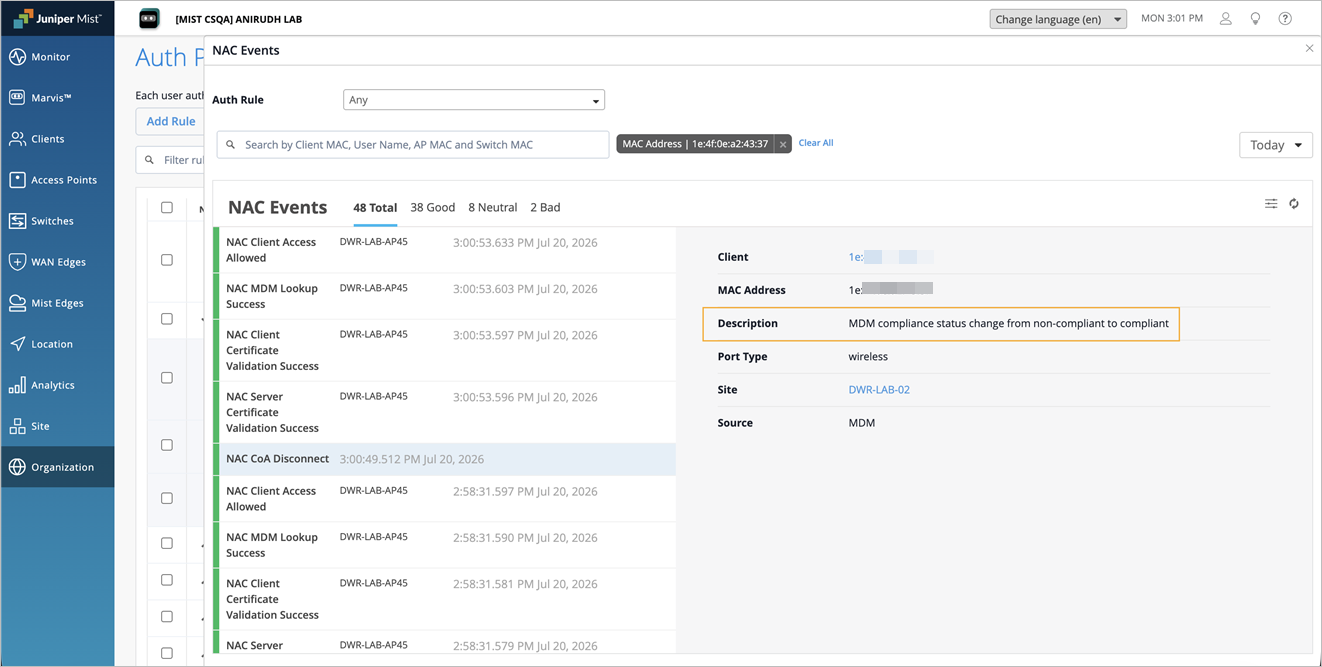
The device is then reassigned to the Compliant Device policy without waiting for the default 2-hour polling interval.
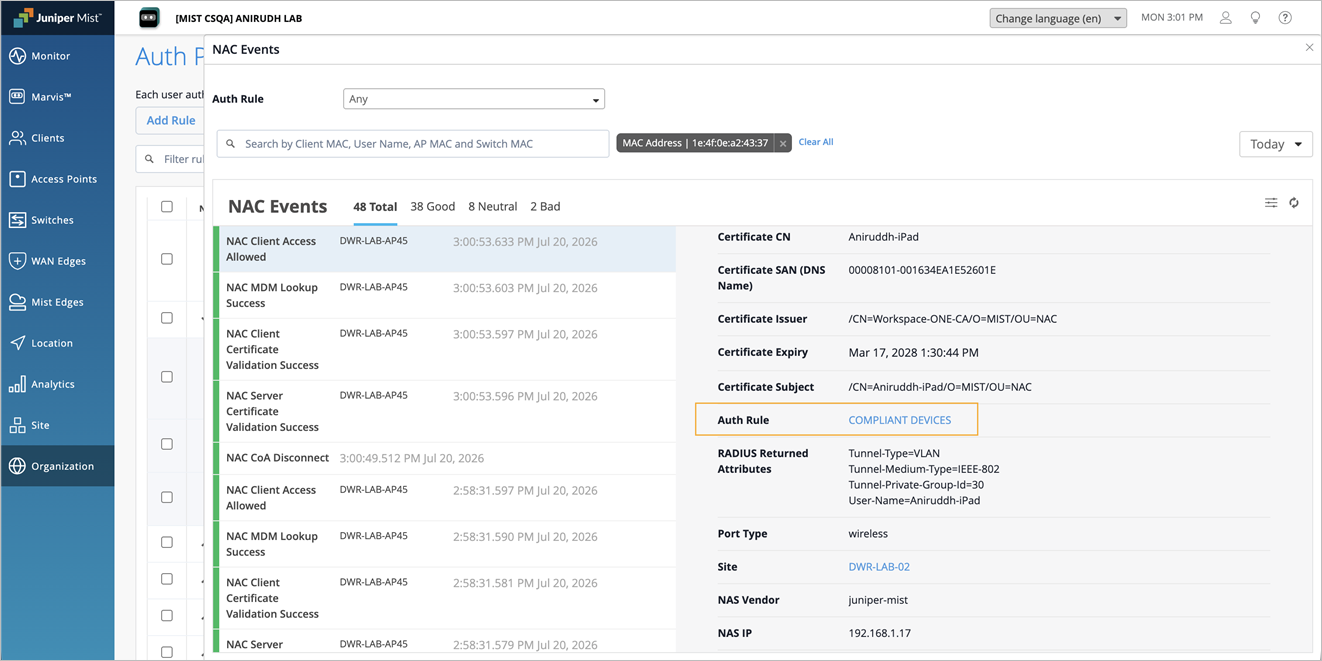
For all subsequent authentications, HPE Mist Networking Access Assurance uses cached MDM data, which is refreshed every 2 hours by default. When webhooks are configured, compliance status updates are processed in real-e time instead of waiting for the next polling interval.