WPA3 Radius PSK Support
Follow these steps to configure a WPA3-Personal SSID with Multiple Passphrases (Multi-PSK) in HPE Mist Networking Access Assurance using MAC-based device registration for secure, role-based client connectivity.
Introduction
HPE Mist Networking Access Assurance supports WPA3 Multiple Passphrases (Multi-PSK), allowing you to deploy a single WPA3-Personal SSID with multiple passphrases through MAC-based device registration. This capability simplifies wireless network management by enabling different device types to securely connect to the same SSID while using unique passphrases for each group.
In WPA2 Multi-PSK deployments, multiple passphrases can be assigned to a single SSID, and any device providing a valid passphrase can authenticate successfully. However, WPA3 uses the Simultaneous Authentication of Equals (SAE) protocol, which enforces a mutual key exchange between the client and the network. As a result, for WPA3 Multi-PSK to function correctly, the client’s MAC address or MAC OUI must be pre-associated with the corresponding passphrase to ensure a proper key match during authentication.
Requirements
To enable and use WPA3 Multiple Passphrases (Multi-PSK) in HPE Mist Networking Access Assurance, ensure the following prerequisites are met:
- AP Firmware: Version 0.14.x or later
- Subscription: Access Assurance Standard (or higher)
- WPA3 Multi-PSK is supported at the organization level only. Both the WLAN and pre-shared keys (PSKs) must be configured at the organization level.
- Client onboarding is not currently supported with WPA3 Multi-PSK. Therefore, all PSK entries must be manually created and associated with the corresponding MAC address or MAC OUI.
WLAN Configuration
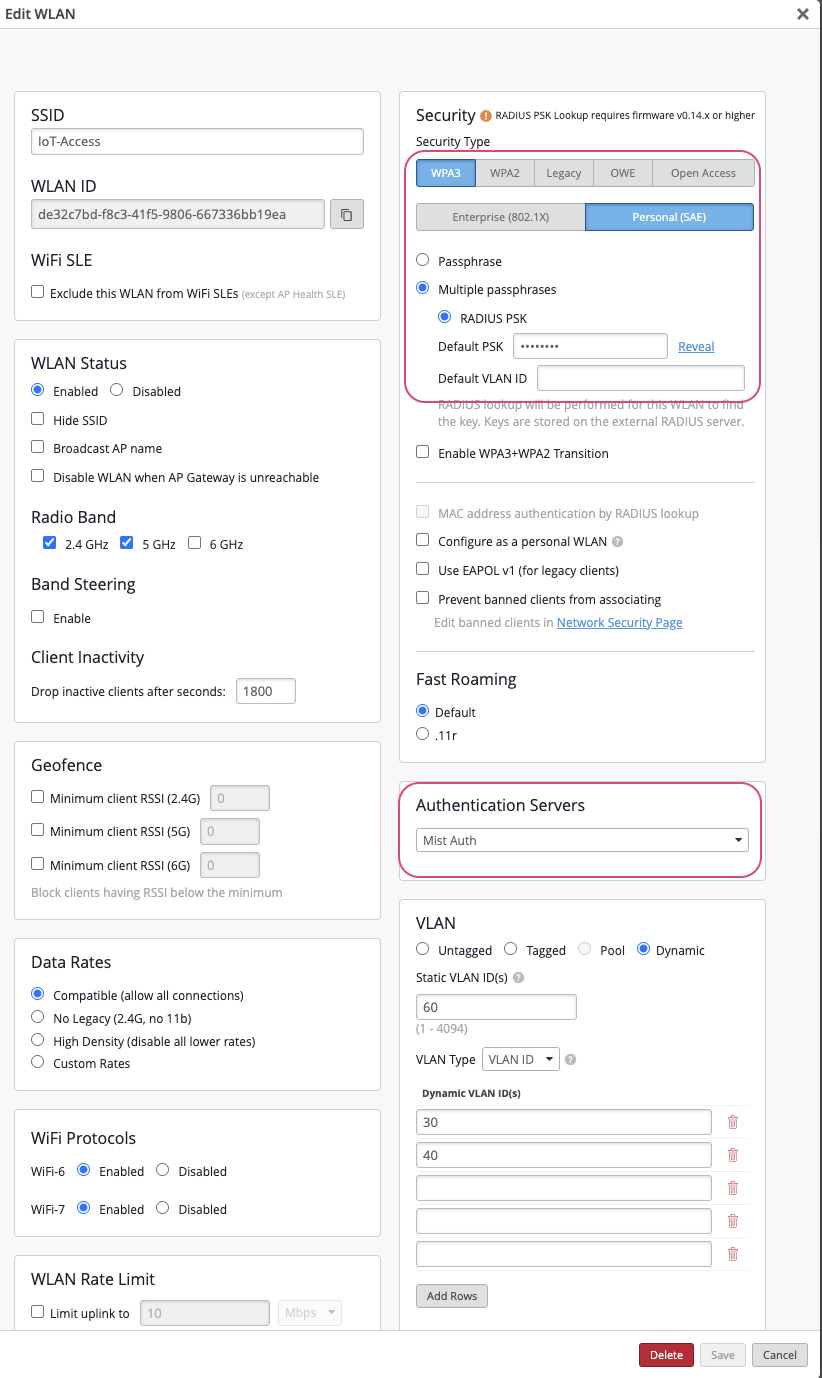
Configure a WPA3-Personal (SAE) WLAN with multiple passphrases.
- From the left menu of the management portal, select Organization > Wireless > WLAN Templates and click Add WLAN.
- Select WPA3 and Personal (SAE) as the security mode.
- Enable Multiple Passphrases and RADIUS PSK.
- Enter the Default PSK and Default VLAN
ID:
- The default PSK is used by clients whose MAC addresses are not registered.
- If no VLAN is specified, unregistered clients are automatically assigned to VLAN 999 by default.
- Scroll down to the Authentication Servers section and select Mist Auth as the authentication server.
- In the VLAN section, enable Dynamic VLANs and include all VLAN IDs that will be used for the WPA3 passphrases.
- Click Save to apply the configuration.
Pre-Shared Key Configuration
After configuring the WLAN, follow these steps to create and register WPA3 RADIUS PSK entries in management portal.
- Navigate to Organization > Wireless > Pre-Shared Keys.
- Click on Add Key.
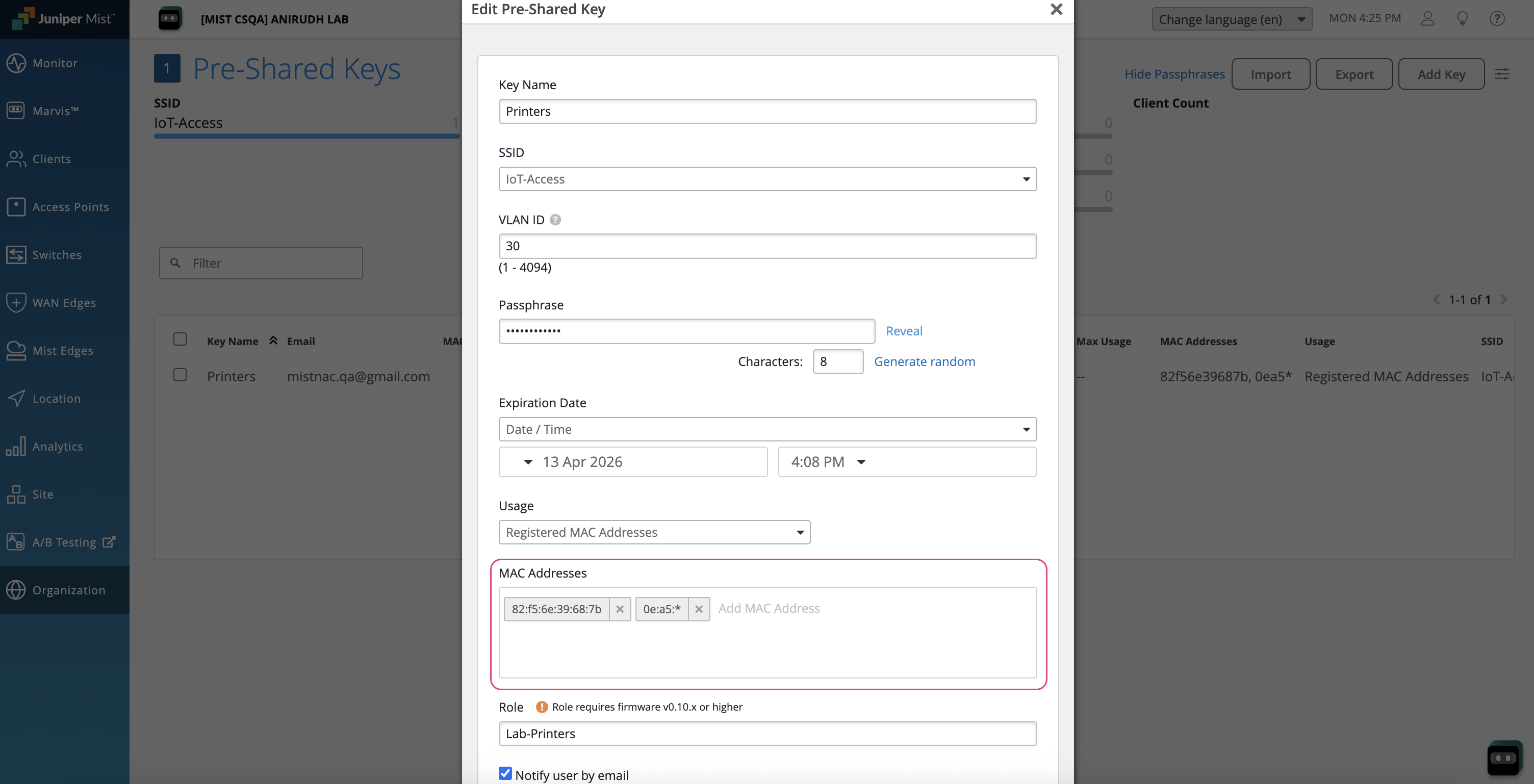
- Select SSID from the list that is configured with WPA3 RADIUS PSK. Provide all the required information, such as Key Name, SSID, VLAN ID, Passphrase, Expiration date, Role, and Usage as Registered MAC Addresses. Enter the MAC Address(es) or MAC OUIs. One or more MAC addresses or OUIs can be associated with this passphrase .
- Click Save.Figure 2: Pre-Shared Key Configuration
Once configured, devices with matching MAC addresses or OUIs can authenticate using the associated passphrase. Devices whose MAC addresses are not registered can authenticate with the default PSK specified in the WLAN configuration.
Client Connection and Verification
Clients with registered MAC addresses or OUIs connect using their assigned WPA3 Multi-PSK passphrase and the corresponding VLAN.
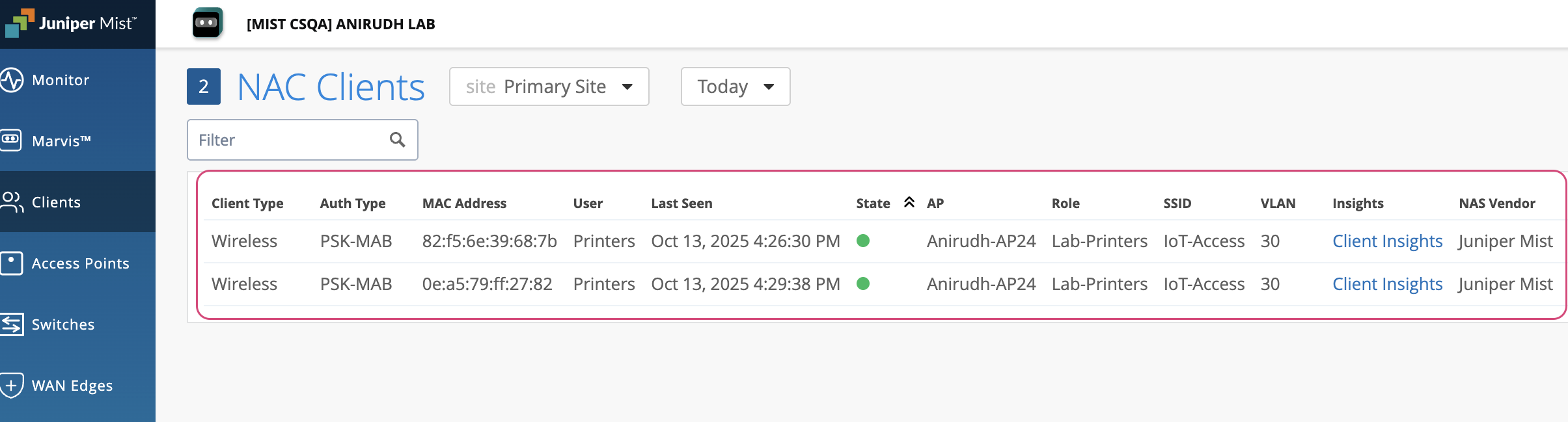
To verify the connection, navigate to Clients > NAC Clients. The Key Name from the PSK configuration will be displayed as the User.
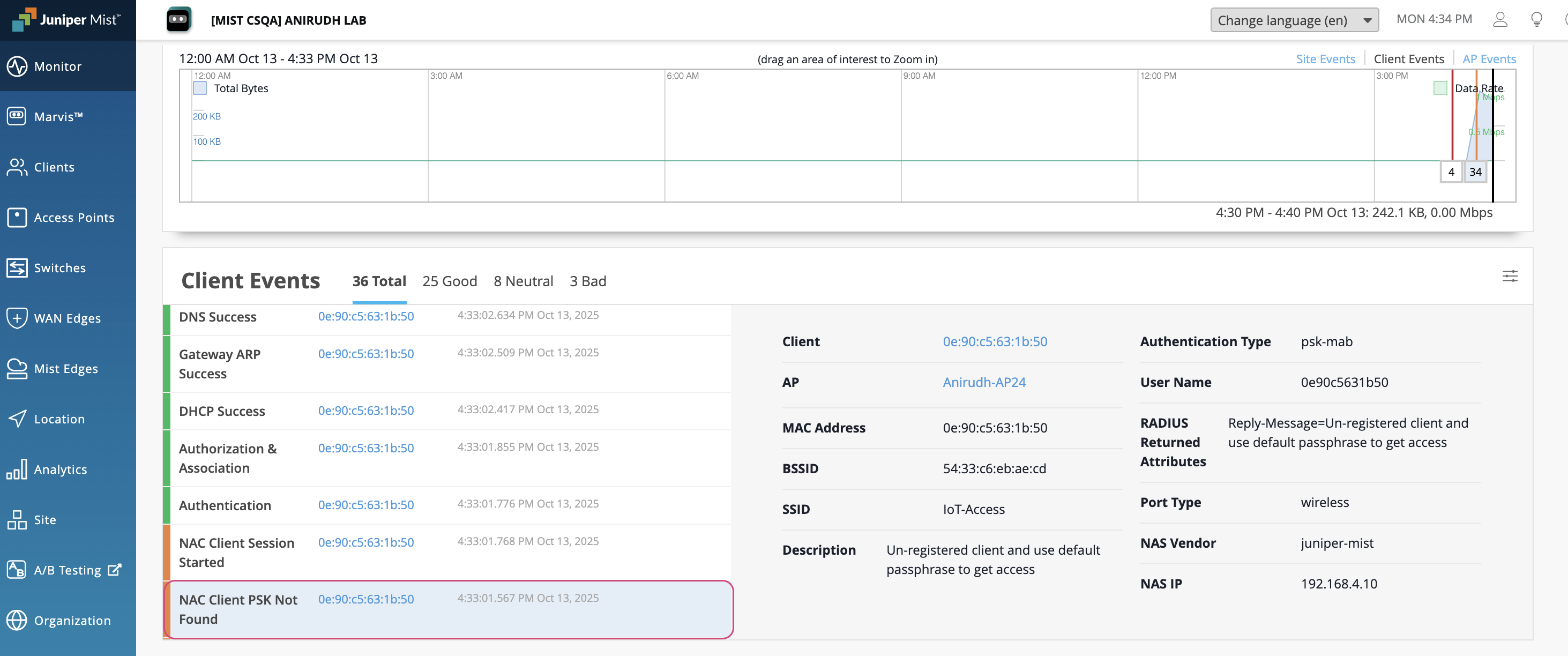
From this view, you can click on Client Insights to review detailed connection events and confirm the key lookup process during authentication.
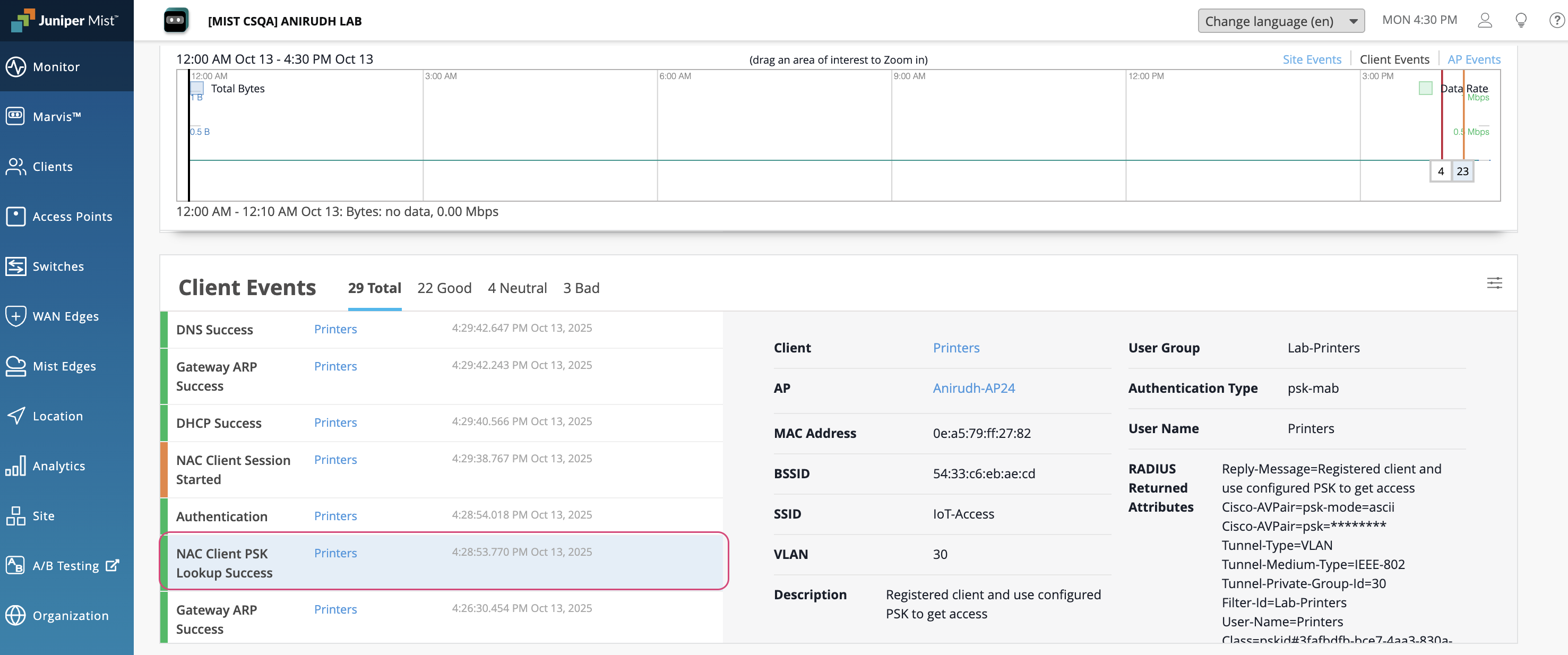
Clients with unregistered MAC addresses will connect using the default PSK and be placed in the default VLAN.