
Explore J-Web
J-Web Launch Pad
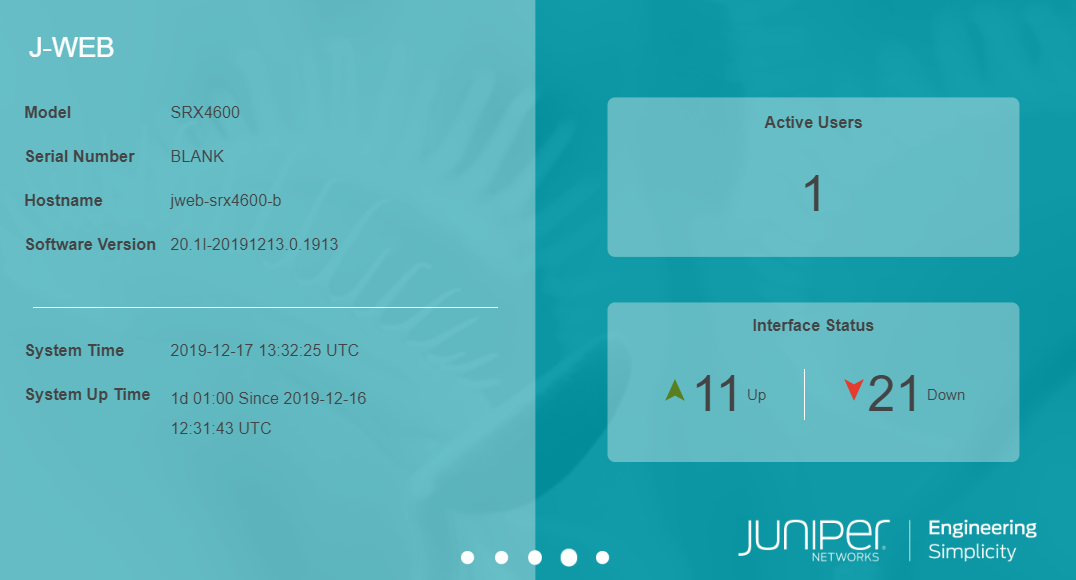
After you successfully login to J-Web GUI, J-Web launch pad appears.
The launch pad provides a quick view of:
Device information such as model number, serial number, hostname, software version, system time, and system up time.
Number of active users using the device.
State of the device physical interfaces: Up or Down.
The launch pad closes automatically once the application is loaded in the background. You do not have the option to manually close or refresh the launch pad.
Launch pad is not displayed in the factory default settings.
Launch pad is displayed for all users.
Figure 1 shows the launch pad screen and its elements.
J-Web Top Pane
For a more personal, helpful, and user experience, Juniper Networks has provided some aids within the J-Web GUI. Table 1 provides the details of the J-Web top pane elements.
Element |
Description |
|---|---|
Banner  |
Location—The gray bar at the top of the screen. You can access device details, feedback button, commit options, a profile management access menu, and a help button. |
Device details  |
Location—To the upper right of the banner. Provides details of the device you have accessed. |
Feedback Button  |
Location—To the right of the device details. You can provide feedback (mailto:jweb-feedback@juniper.net) if you are having an issue with the product. |
Commit Configuration Menu  |
Location—To the right of the Feedback button. Provides options to commit, compare, confirm, discard, or commit the changes in your preferred way. |
User Functions Menu  |
Location—To the right of the Commit Configuration button. A head-and-shoulders icon and a field showing the logged in user type. Clicking your username or the down arrow button, logs you out of J-Web interface. |
Help Button  |
Location—To the right of the User Functions menu. Access to the online Help center and the Getting Started Guide are available by clicking the right-most icon on the banner, shaped like a question mark. The help center includes access to a list of supported web browsers, user interface assistance, as well as links to technical support and full J-Web documentation. |
Mode  |
Location—To the right of the device details. Provides the setup mode details whether your device is in the standard, chassis cluster (HA), or passive mode. |
Tenant or Logical System Username  |
Location—To the left of the device details. Displays the name of the tenant user or logical system user when root user enters as a Tenant or a logical systems. Click on the username and select Exit to go back to the root user role. |
J-Web Side Pane
J-Web presents you a security-focused administrator with a tabbed interface.
The following tabs across the side pane of the J-Web GUI provide workspaces in which an administrator can perform specific tasks:
Dashboard—The Dashboard is the main page for J-Web. You can customize the workspace in your Dashboard by adding widgets from the carousel. The placement of, and settings within, widgets are saved so that anything from device information to firewall event information or from top blocked viruses to live threat maps can be unique for each user. Once you decide on the widgets that you want to see, you can minimize the carousel to regain some screen space.
Note:By default, the selected widgets are displayed every time you login to J-Web.
Figure 2 shows an example of the J-Web Dashboard tab.
Figure 2: J-Web Dashboard Tab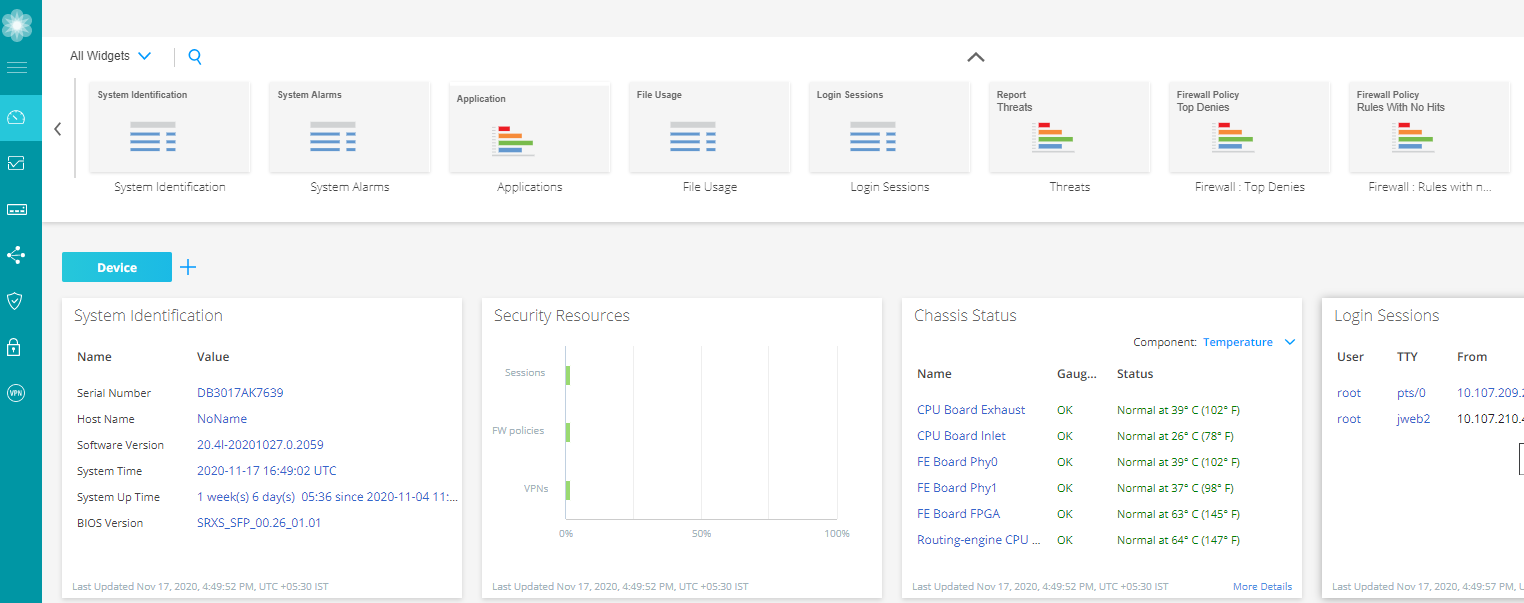
Monitor—The Monitor tab provides a workspace in which graphical representations of network traffic, firewall events, live threats, and network user data are available. There is also detailed data for alerts and alarms information. In this workspace, you can review the detailed information needed to understand what is happening to the managed security devices and traffic in your network.
Figure 3 shows an example of the J-Web Monitor tab.
Figure 3: J-Web Monitor Tab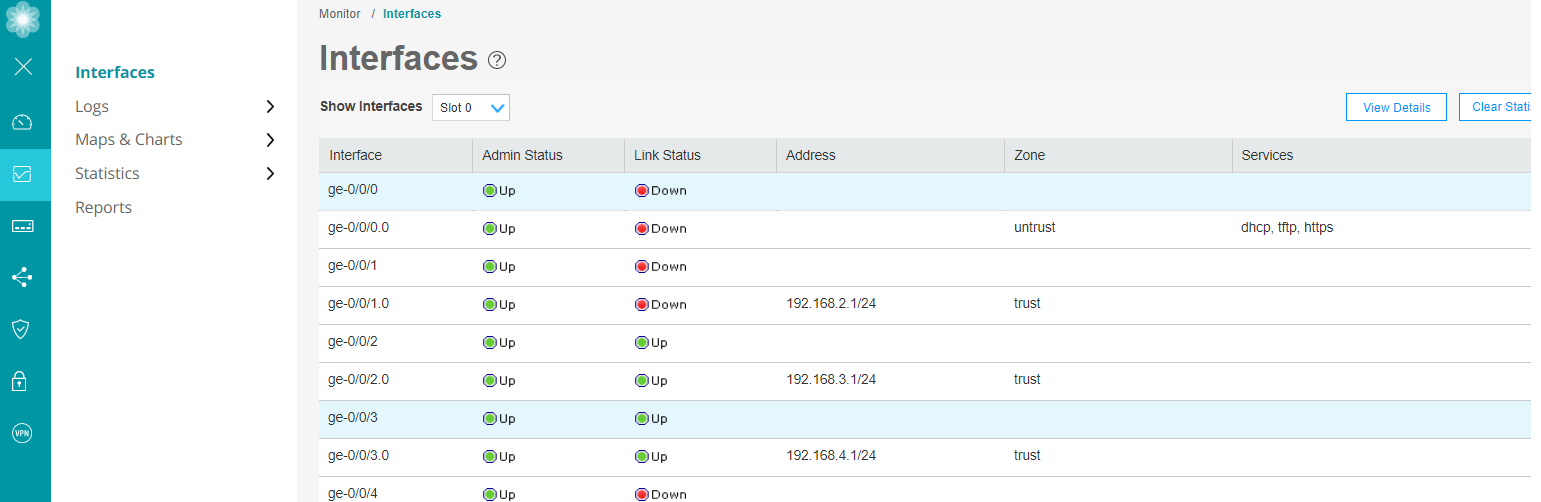
Configure—The highlighted workspace in Figure 4 is where all of the SRX Series device configuration happens. You can configure the following features for managing your network security:
Device Administration—Such as basic settings, user management, certificate management, license management, ATP management, operations, software management, configuration management, alarm management, RPM, tools, and reset configuration.
Network—Such as connectivity, DHCP, firewall filters, NAT, routing, Class of Services (CoS), and Application QoS.
Security policies and objects—Such as security policies, zones/screens, zone and global addresses, services, dynamic applications, application tracking, schedules, and proxy profiles.
Security services—Such as UTM, IPS, ALG, ATP, SSL profiles, firewall authentication, and ICAP redirect.
VPN—Such as IPsec VPN, manual key VPN, and dynamic VPN.
Figure 4 shows an example of the J-Web configuration menus.
Figure 4: J-Web Configure Menus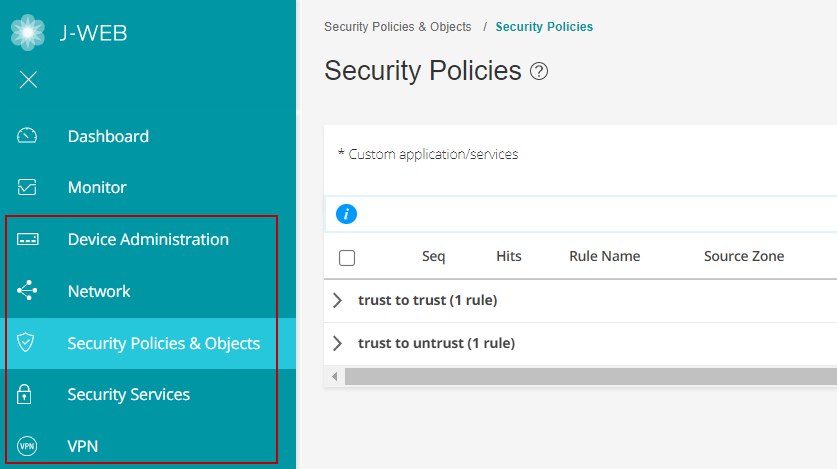
J-Web Main Pane
The main workspace of J-Web takes up the remainder of the browser window just below the Banner and next to the side pane. Table 2 shows a sample of navigation, customization, and help icons in the main pane of the J-Web GUI.
Element |
Description |
|---|---|
Breadcrumbs  |
Location—Upper left part of main screen. Not visible on the Dashboard. Trace your location in the GUI. The breadcrumbs provide a path back to one of the five tabs: Dashboard, Monitor, Configure, Reports, and Administration. |
Info Tips  |
Location—Various places around the GUI. Hover your mouse over any available question mark icon for quick pop-up guidance. |
Show/Hide Columns  |
Location—Upper right corner of some tabular display windows such as the Address Pools tab, Rules tab, and so on. In tabular displays, you can choose which columns are visible by clicking the icon and then selecting the check boxes on the menu. |
Table Search  |
Location—Upper right corner of tabular views. You can click the magnifying glass icon, within large tabular views, to search for specific text within any of the visible fields in the display. |
Item Selector Search 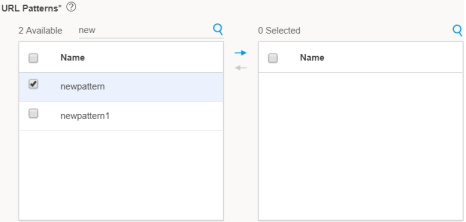 |
Location—Within the fields. You can use a search text box to select items for inclusion in a rule or policy. |
Advanced Search  |
Location—Above the table grid. The search includes the logical operators as part of the filter string. In the search text box, when you hover over the icon, it displays an example filter condition. When you start entering the search string, the icon indicates whether the filter string is valid or not. Note:
Press Spacebar to add an AND operator or OR operator to the search string. Press backspace at any point of time while entering a search criteria, only one character is deleted. |
Filter  |
Location—Upper right corner of tabular views. You can click the filter icon to select any value from a list for category and subcategory columns. The grid is reloaded with the filtered category and subcategory. |
Success message  |
Location—At the top of the main pane. A message is displayed with this icon to state that your task is successful. |
Information message  |
Location—At the top of the main pane. A message is displayed with this icon to state you have some pending actions, but you can continue with the task. |
Alert message  |
Location—At the top of the main pane. A message is displayed with this icon to state you have some pending actions which you must complete to proceed with the required task. |
Warning message  |
Location—At the top of the main pane. A message is displayed with this icon to state you have some pending actions which you must complete else you cannot proceed with the required task. |
J-Web Workflow Wizards
J-Web contains assisting workflow wizards that guide you through some of its security functions. These include Setup wizard, Chassis Cluster wizard, PPPoE wizard, and NAT wizard. These wizards help you with a guided setup and helps you in performing step-by-step configuration of a services gateway that can securely pass traffic.
PPPoE and NAT Wizards are available only in the SRX300 line of devices and SRX550M devices.
Summary
J-Web is a GUI approach that aims to provide a graphical framework to help you visualize and manage your SRX Series devices more easily.