
PQC Signatures for Software Images
Read this topic to learn about PQC-signed Junos OS and Junos OS Evolved software images and how to verify the PQC signatures.
Junos® operating system (Junos OS) and Junos® OS Evolved are operating systems (OS) for Juniper Networks devices. Junos OS runs on FreeBSD, while Junos OS Evolved runs natively on Linux designed for cloud-scale environments. As the first line of defense against quantum threats, Juniper ensures the authenticity of these software images using post-quantum cryptography (PQC) signatures.
See Feature Explorer to confirm platform and release support for specific features.
Overview
Quantum-resilient software image signing uses PQC to protect Junos OS and Junos OS Evolved software images against threats from quantum computing. The Commercial National Security Algorithm Suite 2.0 (CNSA 2.0) recommends using a PQC algorithm, such as ML-DSA-87, for protection against quantum attacks. In line with the guidance, Juniper Networks signs software images by using:
-
ML-DSA-87 PQC algorithm for digital signatures
-
SHA-512 for hashing
While both SHA-384 and SHA-512 are permitted under CNSA 2.0, Juniper Networks adopts SHA-512 for stronger cryptographic protection according to the guidance.
Juniper Networks image signing infrastructure is robust and supports secure PQC signing. You can use the following method to verify the PQC signature when you download the image:
-
Off-box PQC signature verification
This implementation aligns with NIST PQC standards and follows CNSA 2.0 guidance, ensuring compliance with evolving security standards.
Benefits
-
Robust key management—Juniper Networks image signing infrastructure provides robust and secure key management with reinforced public/private keypair for distinct deployment environments.
-
Image integrity adherence—Juniper Networks signs image hashes using the recommended PQC algorithms to prevent tampering, ensure authenticity, and protect against quantum computing threats.
-
Streamlined signature requests—You can request PQC signatures and public keys through customer support for faster and more efficient image verification.
-
Simplified verification process—Using tools of your choice such as OpenSSL enables independent validation for checking the integrity of downloaded images.
Limitations
-
Protection against attacks by cryptographically relevant quantum computers (CRQC) on the device isn't in scope.
-
No support for on-box image validation.
About PQC Signature Verification (Off-Box)
In the off-box PQC signature verification process, you perform the PQC digital signature verification for Junos OS or Junos OS Evolved software images on a local computer. PQC signatures provide additional security beyond the existing legacy signatures. PQC signatures don’t replace legacy signatures. Regardless of the verification success, you can decide whether to use the image. You can verify the image authenticity using PQC signature only if you've downloaded a PQC-signed image.
To use this verification method, check the Technical Support Bulletin for the availability of a PQC signature.
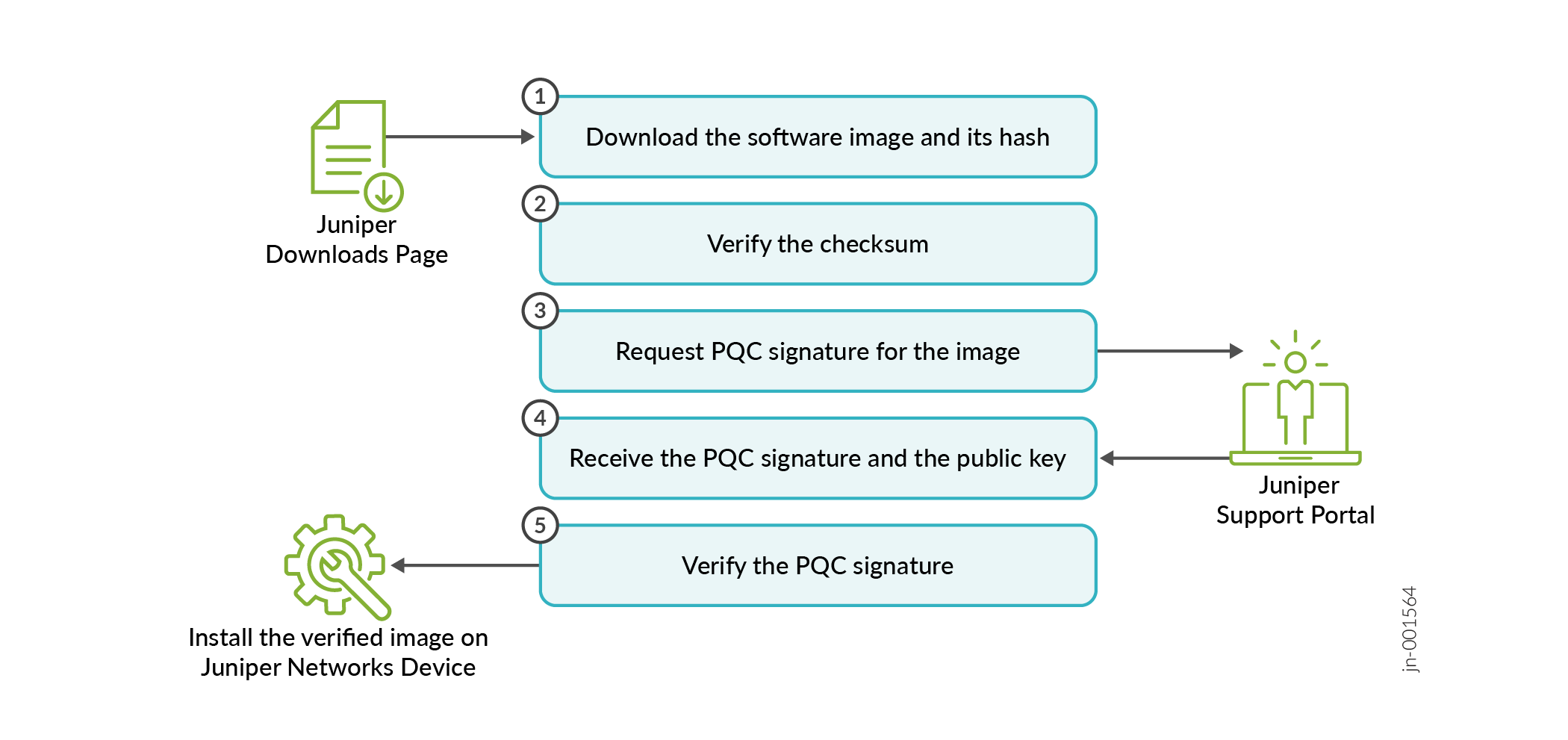
As shown in Figure 1, the PQC signature verification workflow includes the following steps:
Download the software image and its hash from the Juniper Downloads Page to your local machine.
On your local machine, verify the SHA-512 checksum of the downloaded software image before verifying the PQC signature.
Send a request from the Juniper Support Portal to fetch the PQC signature of the software image.
You'll receive a link to download the PQC signature and the associated public key from the Juniper Support Portal.
Use a verifier to confirm the PQC signature to validate the software image. See Verify PQC Signatures (Off-box).
Note that a Juniper Networks device doesn't consume its computational resources for signature verification.
Install the verified image on your Juniper Networks device. See Juniper Networks Software Installation and Upgrade Guide.
Verify PQC Signatures (Off-Box)
Prerequisites
Ensure you complete the following prerequisites before verifying the PQC signature off the box.
Understand the off-box PQC signature verification method. See About PQC Signature Verification (Off-Box).
Ensure you have the following files:
PQC-signed software image
SHA-512 of the software image
PQC signature
Public key associated with the PQC signature
Ensure you have the following tools:
Install a PQC signature verification tool on your local machine to compare the signature with the hash file. We recommend OpenSSL 3.5 or later.
Install a tool such as the sha512sum to generate and validate the SHA-512 checksum of the downloaded software image.
Verification
Perform the following verification steps on your laptop.
Fetch the cryptographic hash of the image to verify its SHA-512 checksum for image integrity. Use one of the following commands.
Retrieve the hash of the image using the sha512sum tool.
user@host:~# sha512sum /data/evo/junos-evo-install-acx-x86-64-25.4R1.8-EVO.iso | cut -d " " -f 1 > image.hash
This example uses the sample image junos-evo-install-acx-x86-64-25.4R1.8-EVO.iso. Replace it with an image that works for your device.
Retrieve the hash of the image using the openssl tool.
user@host:~# /usr/local/openssl/bin/openssl dgst -sha512 /data/evo/junos-evo-install-acx-x86-64-25.4R1.8-EVO.iso | cut -d " " -f 2 > image.hash
Tip: Usecut,awk, orsedto extract the hash. Avoid manual edits to prevent errors.In this example:
junos-evo-install-acx-x86-64-25.4R1.8-EVO.isois the name of the PQC-signed software image.image.hashis the default filename for storing the image hash. You can rename the file.
Compare the SHA-512 checksum in the file with the checksum you received with the downloaded software image. Both checksums must match.
Verify the PQC signature of the image.
user@host:~# /usr/local/openssl/bin/openssl dgst -verify pubkey.pem -signature junos-evo-install-acx-x86-64-25.4R1.8-EVO.sha512mldsa image.hash
In this example:
pubkey.pemis the public key.junos-evo-install-acx-x86-64-25.4R1.8-EVO.sha512mldsais the PQC signature of the image.image.hashis the SHA-512 checksum.
The command displays:
Verified OKif the verification is successful.Verification failureif the verification is invalid. If the signature verification fails:Ensure you're using the appropriate verification tool.
Confirm that you have the correct image, signature, and public key.
Review the verification steps and ensure that the hash generated from the image matches the hash you received.
If the hashes don’t match, download the image again and regenerate the hash for verification.
If you need help, contact Customer Support.
Change History Table
Feature support is determined by the platform and release you are using. Use Feature Explorer to determine if a feature is supported on your platform.