
Understanding Tooltips and Messages
Junos Space Network Management Platform displays tooltips, which are small pop-up windows that provide information about an unlabeled control, such as the information that is displayed automatically when you mouse over an icon on a toolbar (see Figure 1).
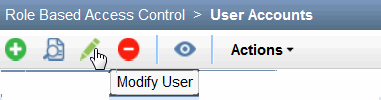
Also, Junos Space sometimes displays pop-up messages to report conditions that require your attention. Depending on the severity level, the icons that are displayed in a message differ. To gain an understanding of the various types of messages and the icons that are displayed in the Junos Space UI, see the following sections:
Error Messages
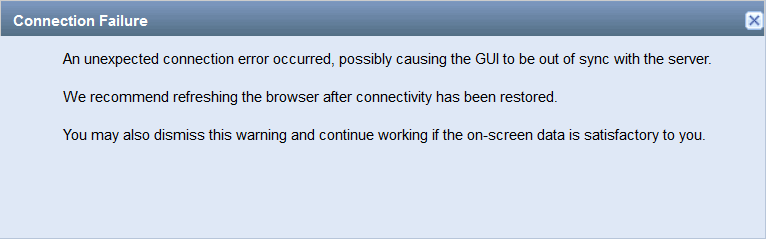
Junos Space displays an error message to alert you about a problem that has already occurred along with a recommendation, if any, to resolve the problem. For example, in Figure 2, the error message alerts you that the Junos Space UI may be out of sync with the Junos Space server and that you need to refresh the browser window (which is likely to resolve the issue).
Confirmation Messages
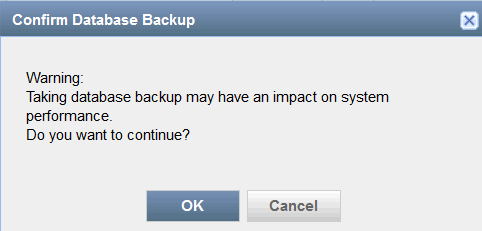
Junos Space often displays a confirmation dialog box, which is a modal dialog box that asks you whether you want to proceed with the action that you initiated from Junos Space Network Management Platform. A confirmation dialog box typically consists of a question and two or more responses. You have to select a response and based on your choice Junos Space completes or cancels the task that you initiated. For example, when you initiate a database backup operation, you are asked to confirm whether you want to perform the backup operation because this operation may have an impact on Junos Space performance. In Figure 3, clicking OK initiates the database backup operation, whereas clicking Cancel closes the current page.
Information Messages
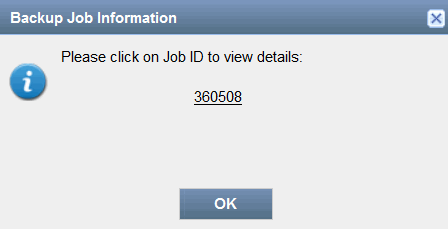
An information message communicates some sort of information to you pertaining to your current activity and appears in a modal dialog box. For example, when you choose to proceed with the database backup operation, Junos Space displays an information message containing a job ID, which you can click to know whether the backup operation is a success or a failure (see Figure 4).
Standard Icons in Messages
Icons that are associated with various messages help you assess the situation at a glance and decide what action to take. If the severity level of the message is high, which is usually indicated by the Error icon, revisit the past action and make suitable corrections (for example, enter missing information in a mandatory field) before you proceed to the next step.
Not all messages that are displayed in Junos Space are associated with icons.
|
Icon |
Description |
Message with the Icon |
|---|---|---|
|
|
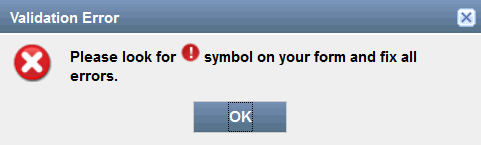
Error icon—Indicates that an error or problem has occurred, which should be resolved before you proceed |
For example, the following error message is displayed if you
try to create a tag without a tag name or a user without a username.
Providing appropriate information in all fields where the Figure 5: Message with the Error Icon
|
|
|
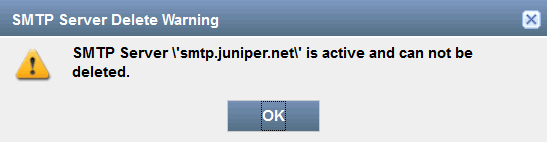
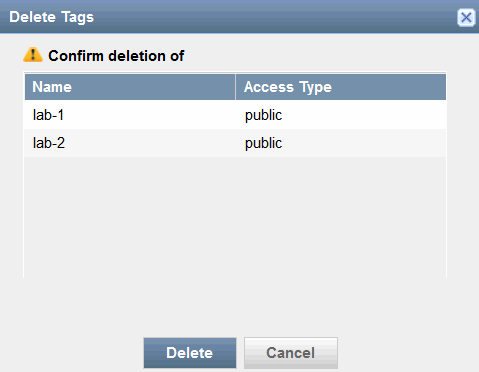
Warning icon—Indicates a condition that might cause a problem in the future These icons come in two different sizes: larger and smaller. A smaller warning icon indicates that you might have to think twice before you proceed with the action. A larger warning icon indicates that the action you initiated cannot be performed because of various constraints. |
For example, the following error is displayed when you try to delete an SMTP server that is active: Figure 6: Message with the Larger Warning Icon
The following message is a warning that you may not be able to retrieve the tags if you confirm the deletion. Figure 7: Message with the Smaller Warning Icon
|
|
|
Information icon—Presents you with useful information. |
The following message indicates that a backup operation is triggered: Figure 8: Message with the Information Icon
|
|
|
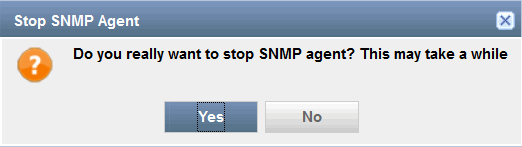
Question mark icon—Normal confirmation message to which you typically respond with a "Yes" or "No" |
Depending on your response to the following message, Junos Space performs a suitable action. Figure 9: Message with the Question Mark Icon
|
|
|
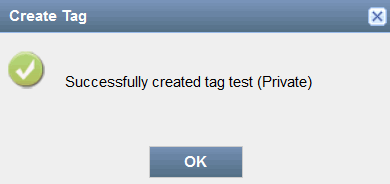
Check mark icon—Indicates that the action you initiated is a success |
The following message indicates that a private tag with the name “test” is successfully created: Figure 10: Message with the Check Mark Icon
|


