
ON THIS PAGE
Understanding Status Indicators
Junos Space Network Management Platform status indicators enable you to monitor the status of an action that you initiated from Junos Space. The following status indicators in Junos Space are the most common:
Progress Bars
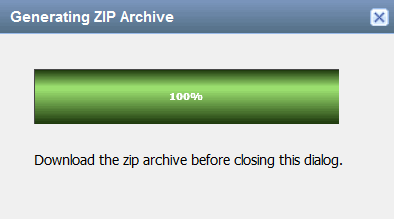
The progress bar shows you the progress of an action that you
initiated from Junos Space. In Junos Space, progress bars are typically
displayed when you export files from Junos Space to your computer,
add an application to Junos Space, and so on. For example, when you
export a configuration file, Junos Space displays the progress of
the export action in a dialog box (see Figure 1). When the action is completed, the progress bar displays 100%.
Status Indicator Icons
Status indicator icons on an inventory landing page indicate the status of a Junos Space object, such as whether a user is in the enabled or disabled state. Status indicators are not displayed for all Junos Space objects.
Status indicators that are displayed for users are listed in Table 1:
User Status Indicator |
Description |
|---|---|
 |
User is in enabled state. |
 |
User is in disabled state. Users in disabled state cannot log in to Junos Space Network Management Platform. For more information about enabling or disabling a user, see Disabling and Enabling Users (in the Junos Space Network Management Platform Workspaces User Guide). |
Status indicators that are displayed for devices are listed in Table 2:
Device Status Indicator |
Description |
|---|---|
 |
Device is up. |
 |
Device is down. Ensure that the status of the device is up before initiating any action on the device. Actions initiated on devices that are down are likely to fail. |
|
Device is in synchronized state. |

Each job has a job status indicator. Table 3 describes these indicators.
| Job Status Indicator | Description |
 |
The job was completed successfully. |
 |
The job failed. |
 |
The job was canceled by a user. |
 |
The job is scheduled. |
 |
The job is in progress. You can cancel only those jobs that are in progress from the Actions menu. |