
Query Routing Director Using MCP
This topic describes how to use Model Context Protocol (MCP) to query Routing Director.
MCP Server Overview and Implementation
Juniper Routing Director leverages the Model Context Protocol (MCP) to establish a secure connection with AI agents such as Microsoft Copilot, ChatGPT, and Claude. By using an MCP server:
-
Network operators can use AI agents to query Routing Director.
-
AI agents can access Routing Director as a data source and provide network operators with accurate, context‑aware responses to queries.
Figure shows an overview of the interaction of a user with Routing Director through the MCP server.
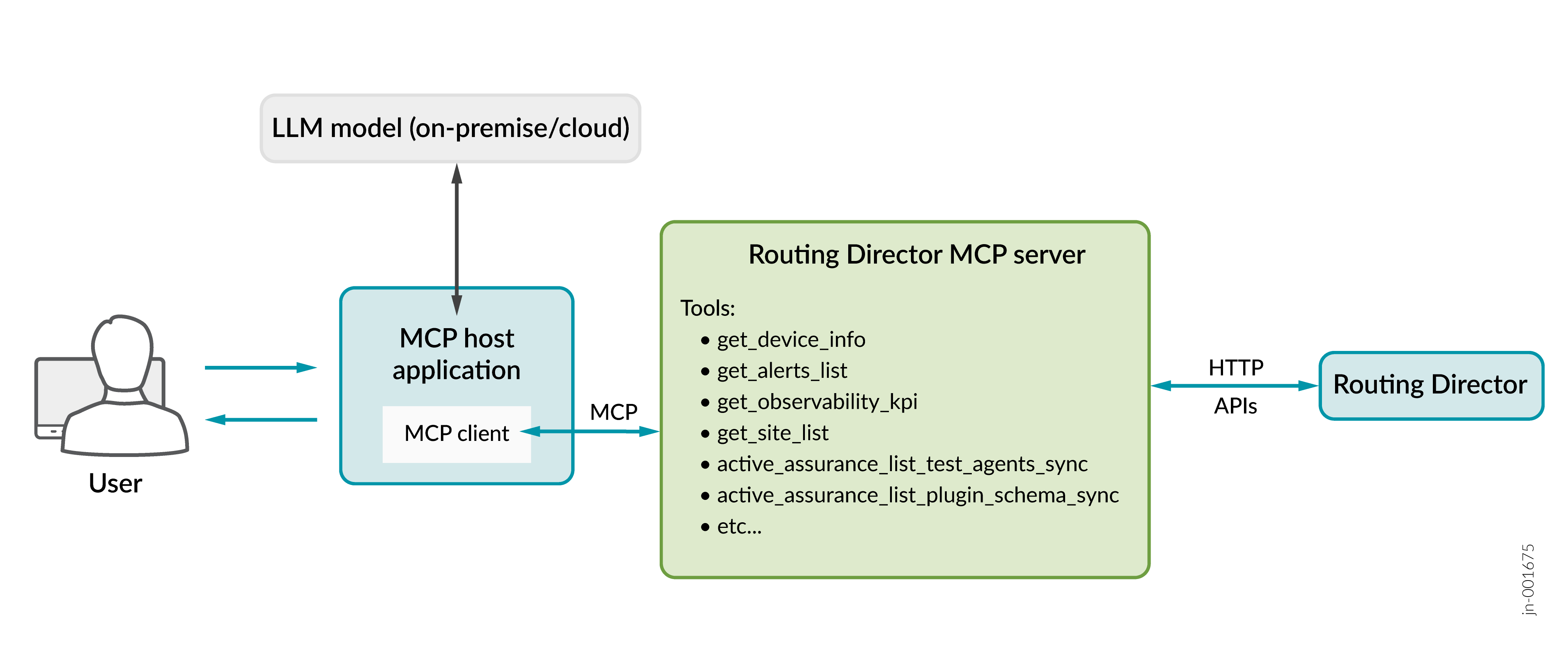
You interact with an MCP host application, which could be an AI-powered interface (for example, Claude, or ChatGPT), where you enter your natural language queries. The MCP host application includes an MCP client that communicates with one or more MCP servers. The MCP servers run independently and provide access to tools, data, or services.
The MCP host application also connects to an LLM which may run either on-premise or in the cloud. The LLM interprets user requests and, through the MCP client present within the host application, communicates with the MCP server. The MCP server acts as a bridge between the MCP host application and Routing Director, exposing various tools and APIs to retrieve device information, alerts, and performance data. The MCP server also executes configuration commands and operational tasks by interfacing with Routing Director through APIs.
The MCP package is stored in the GitHub repository as an open source code under https://github.com/Juniper/routing-director-mcp-server and distributed through the MCP registry.
Benefits
- The MCP server helps network operators to query network data, create dashboards, and access KPIs conversationally instead of writing code or learning complex API syntax.
-
The MCP Server enhances the troubleshooting experience by enabling network administrators to access Troubleshooting guides and execute commands on devices to remediate issues without switching tools.
Deploy an MCP Server
The following are the pre-requisites to deploy an MCP server on a host (for example, your laptop):
-
Python versions 3.10 or 3.11.
-
Access to Routing Director with valid UI authentication credentials (username and password or API token)
-
Reachability to Routing Director API
-
Create a Python virtual environment to install packages required for running the MCP server.
The following are the steps to deploy an MCP Server:
Download the MCP package from the GitHub MCP repository and the official MCP registry.
The source code is maintained in GitHub repository under https://github.com/Juniper/routing-director-mcp-server.
In a Python virtual environment, install all requirements defined in the requirement.txt file from the MCP package by using
pip3 install -r requirements.txt.Create the MCP server configuration file (config.json).
The configuration file specifies how to reach Routing Director, how to authenticate, and which component APIs to expose as tools for querying Routing Director. The following is a sample of the configuration file:
The following is a sample MCP server configuration file:
{

  "http_url": "https://your-routing-director.example.com",
  "org_id": "your-organization-uuid",
  "auth": {
    "type": "basic",
    "username": "your-username@company.com",
    "password": "your-password"
  },

   "components": ["ems", "device-kpi", ...]
}
Where,
http_urlis the base URL of Routing Director.org_idis the unique Identifier of the organization in Routing Director that you want to query.authdefines the authentication. Define the following underauth:type—authentication method to connect to Routing Director. It can take the values—basicortokenIf you enter
basic, enter values for:username—Username to access Routing Director.password—Password for the username.
If you enter
token, enter an API token generated by Routing Director. For example:auth": { "type": "token", "token": "YOUR-TOKEN-HERE" },For generating API tokens in Routing Director, see Manage API Tokens.
componentsis the list of Routing Director components that can be queried.Componentscan take one of the following values:ems—Use theemscomponent to search, acknowledge or unacknowledge alarms reported on Routing Director.juniper-resiliency-interface—Use thejuniper-resiliency-interfacecomponent to fetch forwarding, routing, and OS exception events generated by Juniper Resiliency Interface (JRI) and collected by Routing Director.device-kpi—Use the device-kpi component to retrieve device system log messages that are collected by Routing Director.
componentsis an optional parameter. Ifcomponentsis not defined, all the components are considered.
(Optional) Enable authentication between MCP server and MCP client.
You can use file-based token authentication for communication between an MCP client and MCP server. To generate a token, execute the following command in the virtual environment where the MCP server is deployed:
python utils/mcp/token_cli.py generate --client-id sv@juniper.net --description "Token for SV"
Where, client-id is an ID that you use for generating the authentication token.
The following is a sample of the generated output:Generated new token: ID: my-client Token: apa_CA98sH_VwEBd79aHA6O9NxbhXQN_RqaK Description: Production API
Start the MCP server.
python RoutingDirectorMCP.py -c /path/to/your/config.json
Configure an AI agent within the MCP host application to communicate with the MCP Server through the MCP client. See Configure an AI Agent to Communicate with the MCP Server.
The MCP client can use either
stdioorstreamable-httpas a transport mechanism to communicate with the MCP server.
You can now query data from Routing Director by using an MCP host application such as Microsoft Copilot or ChatGPT.
Configure an AI Agent to Communicate with the MCP Server
After the MCP server is configured, you must configure an AI agent present in the MCP host application to communicate with the MCP server. You can configure the MCP server connection in the MCP host application'ss settings. This section provides the steps to configure connection to the MCP server through Claude and Copilot.
Configure Claude
To configure Claude:
Open the Claude configuration file in a text editor.
On a macOS machine, run the following command in the Terminal:
~vi/Library/Application Support/Claude/claude_desktop_config.jsonOn a Windows machine, open command prompt and enter:
%APPDATA%\Claude\claude_desktop_config.json
Add your MCP server configuration as shown below:
{
  "mcpServers": {
        "RoutingDirector": {
            "command": "/Users/username/path-to-virtual-environment/.mcp_venv/bin/python",
            "args": [
                "/Users/username/path-to-mcp-python-script/RoutingDirectorMCP.py",
                "-c",
                "/Users/username/path-to-config-json/config.json",
                "-t",
                "stdio"
            ]
        }
    }
}
Save the file.
Restart Claude.
Verify the connection of Claude with MCP server.
Claude is connected to the MCP server if the MCP server tools (API Calls) are listed under + > Connectors.
Alternatively, you can view MCP server tools (API calls) listed in VS code Extensions.
To ensure that the MCP server has started correctly, view the MCP server logs. The logs are generated based on the type of communication with the AI agent:
Starting MCP server 'Juniper Routing Directory' with transport 'stdio'ifstdiois used.INFO Starting MCP server 'Juniper Routing Directory' with transport 'http' on http://127.0.0.1:30030/mcpifstreamable-httpis used.
Configure Copilot
To configure Copilot:
Open Virtual Studio (VS) code.
Alternatively, you can use any other Integrated Development Environment (IDE) that supports Copilot and MCP server,
Open the MCP settings file using one of the following methods:
On a macOS, run the following command in the Terminal:
Open ~/Library/Application\ Support/Code/User/mcp.json
Where, user is your username on the macOS machine.
On a Windows machine, open command prompt and enter:
C:/Users/YourUserName/AppData/Roaming/Code/User/mcp.json
Where, user is your username on the Windows machine.
Add the MCP server configuration to the settings file as shown below:
{
  "mcpServers": {
        "RoutingDirector": {
            "command": "/Users/username/path-to-virtual-environment/.mcp_venv/bin/python",
            "args": [
                "/Users/username/path-to-mcp-python-script/RoutingDirectorMCP.py",
                "-c",
                "/Users/username/path-to-config-json/config.json",
                "-t",
                "stdio"
            ]
        }
    }
}
Where,
Save the file.
Close and reopen VS code for the MCP configuration changes to take effect.
Verify that Copilot is connected with the MCP server.
Copilot is connected to the MCP server if you find messages indicating successful connection to the MCP server in the Output panel of VS code.
Alternatively, you can view MCP server tools (API calls) listed in VS code Extensions.
To ensure that the MCP server has started correctly, view the MCP server logs. The logs are generated based on the type of communication with the AI agent:
Starting MCP server 'Juniper Routing Directory' with transport 'stdio'ifstdiois used.INFO Starting MCP server 'Juniper Routing Directory' with transport 'http' on http://127.0.0.1:30030/mcpifstreamable-httpis used.