
Stitch Services using Routing Director
Service stitching is the process of interconnecting distinct network services, typically Layer 2 (L2) or Layer 3 (L3) VPNs, to deliver a unified, end-to-end connectivity experience across multiple domains or technologies. For example, an EVPN service at one site can be stitched to an L3VPN service at another site, enabling for centralized policy enforcement (such as internet breakout or security filtering) at the other site.
-
Service Stitching is a beta feature
-
Service Stitching is qualified only between L2Circuit and L3VPN and between EVPN-VPWS and L2Circuit.
To stitch two services, you must create a logical tunnel (LT) interface. The interface acts as the bridge between the two services, carrying traffic transparently while maintaining separation at the control plane level.
For service stitching, the site network access (SNA) of the two services must use one of the following access types:
- Stitching-endpoint—Used on the creator side of the stitch (for example, EVPN). It exposes a logical interface that can be consumed by another service.
- Service—Used on the connector side of the stitch (for example, L3VPN). It connects to the logical interface exposed by the creator service.
The logical tunnel interface connects the creator and connector SNAs allowing traffic to flow between them. Figure is an illustration of service stitching.
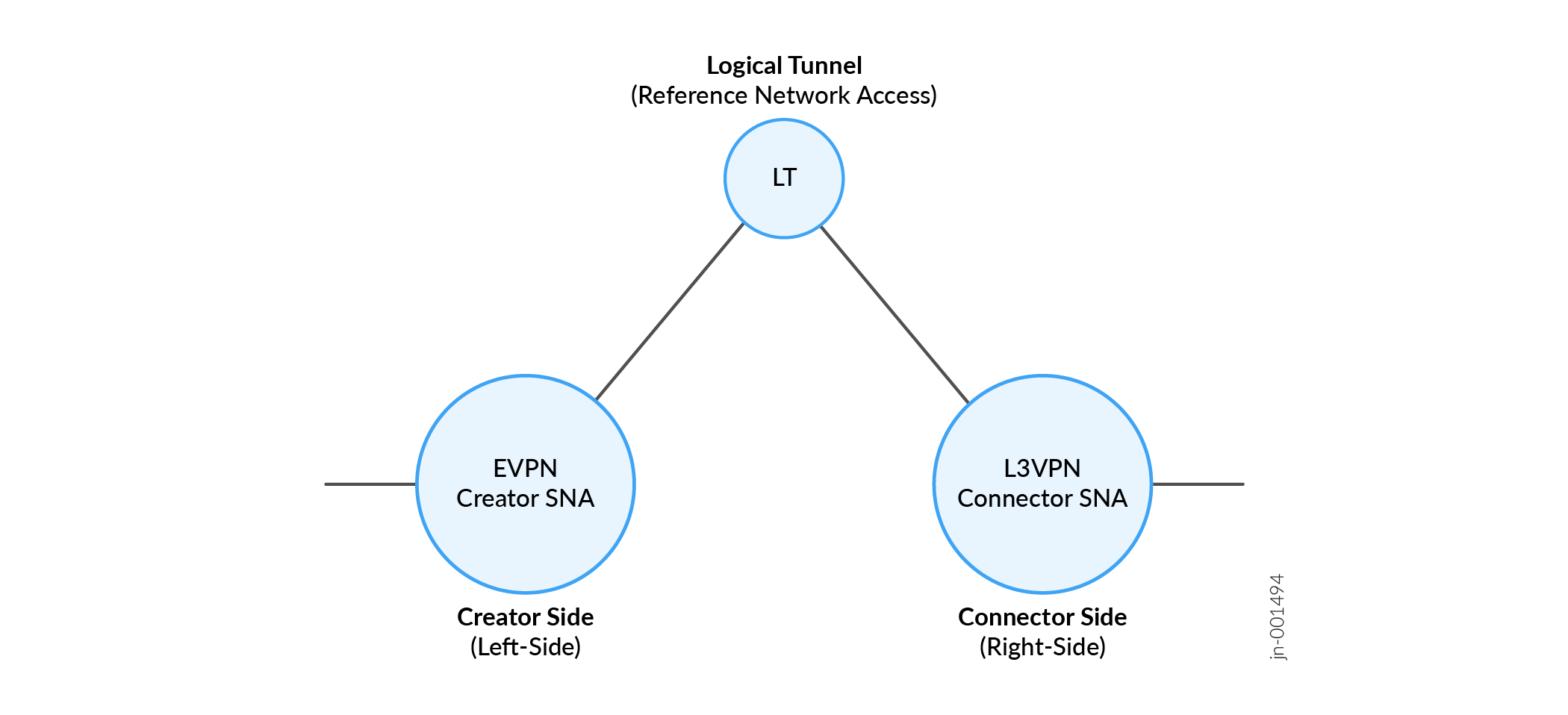
To stitch two services:
In the Topo resource, create LT interfaces on the stitching device on which the services are provisioned.
To create LT interfaces:
Select Orchestration > Service > Resource Instances on the left navigation menu.
The Resource Instance page appears.
Click the + (Add) icon.
The Add New Resource Instance page appears.
In the Name field, enter a name for the resource and for Resource Design, select topo.
Click Create.
The Modify Resource-Instance-Name page appears.
Add all the devices on which services you want to stitch are provisioned.
Configure LT interfaces in the devices you added in step 1.e. For information on configuring a topo resource instance, see Create a Topology Resource Pool.
The following is an example of a logical tunnel interface configuration in the JSON format:
"logical_tunnel": [
    {
      "name": "lt-0/0/0",
      "ranges": [
        {
          "name": "rng1",
          "pinned_reservation": {
            "brownfield": false,
            "instance": ""
          },
          "size": 10,
          "start": 100
        },
        {
          "name": "rng2",
          "pinned_reservation": {
            "brownfield": false,
            "instance": ""
          },
          "size": 10,
          "start": 200
        }
      ]
The configuration shows an LT interface named LT-0/0/0 created in the GUI. The LT interface has two ranges (rng1 and rng2) of interface units created on them. rng1 has ten distinctive LT interface units starting from 100. Similarly, rng2 has ten distinctive LT interface units starting from 200.
In the service that is initiating service stitching (also known as creator service), for example, EVPN, define the connection access type as stitching-endpoint. To set the connection access type as stitching-endpoint:
Select the service and click Edit.
The Modify Service-Instance-Name page appears.
On the Modify Service-Instance-Name page, in the Customer Site Settings tab, create or edit a site network access for referencing the creator SNA (also known as Reference Network Access) and exposing a logical interface for use by the connector SNA (of the connector service). The connector SNA would connect to the creator SNA through the reference network access.
The Add Connection or Edit Connection page appears.
On the Add Connection or Edit Connection page:
Select
stitching-endpointfor Access Type as shown in Figure 2.Figure 2: Edit Connection Page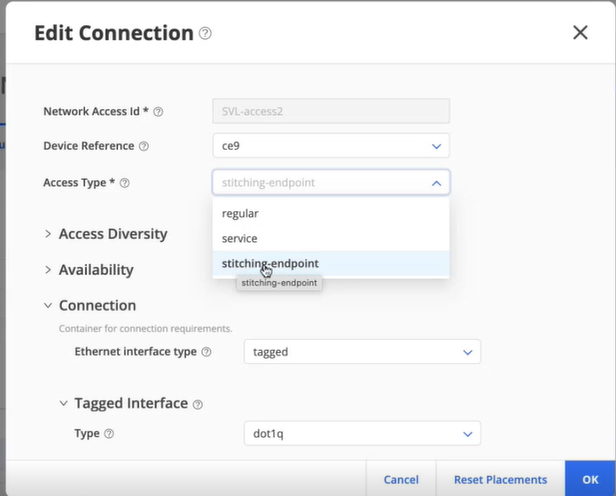
When you select stitching-endpoint, a Stitching section appears on the page.
In the Stitching section, select the creator SNA in the Reference Network Access drop-down list.
For more details, see the Add a Service-Type topic corresponding to the service initiating the service stitching in the Provision VPN Services chapter in this User Guide.
Click OK.
Update placement resources.
To update the placement resources on the service due to changes in the connection configuration, click Update Placements on the Customer Site Settings tab.
An
lt_rightresource is allocated for use by the connector service.You can view the
lt_rightresource on the Resource Instance page (Instance > Services > Resource Instance) by using the More > View Network Resources option. The following is a sample of thelt_rightresource created with one free interface lt-1/0/0/0.101 available for stitching:lt_right:{ instance_uuid:{ 4930bd9a-8fea-11f0-88a9-8e19f3c4acf3:{...} 6c15568e-9a72-11ef-a30c-9eb9a18f087b:{ ne_id:{ 00000000-0000-0000-1000-2c6bf5c23000:{ network_access_id:{ bacs2:{ named:{ available:1 customer:"d21fcee6-8e98-11f0-90b8-0e0898967446" description:"logical tunnel right interface lt-0/0/0.101 for consumption" free: "lt-0/0/0.101" instance:"EVPN-left" properties:{ left_interface:"lt-0/0/0.100" vlan_id:900 } resource_name:"" total:1 use: NULL } ] } } } } } } } }The LT interface assigned for the stitching is displayed in the Stitching Interface section on the Edit Connections page.
(Optional) Edit the range, the sub interface or both of the logical tunnel interfaces assigned, if necessary and click OK.
You are returned to the Modify Service-Instance-Name page.
In the connector service (for example, L3VPN), define the connection access type as service.
On the Service Instances page (Orchestration > Service > Instances), select the service that you want to stitch (connector service) and click Edit.
The Modify Service-Instance-Name page appears.
On the Modify Service-Instance-Name page, in the Customer Site Settings tab, edit or create a site network access.
The Edit Connection page appears.
In the Edit Connection page, select service for Access Type.
For more details, see the Add a Service-Type topic corresponding to the service terminating the service stitch in the Provision VPN Services chapter in this User Guide.
Update placement to view the allocated logical tunnel interfaces for the stitching.
The LT interface assigned for the stitching is displayed in the Interface For Peering Service section on the Edit Connections page.
Edit the logical tunnel interfaces assigned, if necessary, and click OK.
You are returned to the Modify Service-Instance-Name page.
Provision the service initiating the stitching and the service terminating the stitching.
To provision a service, select the service and click Provision.
Routing director pushes the logical tunnel configuration on to the devices to provision service stitching.