
LLM Connector Overview
The LLM Connector tool, embedded in Routing Director, is an advanced AI-driven tool for leveraging your large language models (LLMs) (also known as bring your own LLM) to streamline network monitoring operations.
LLM Connector facilitates the use of natural language to query network status and obtain troubleshooting information, without the need for traditional CLI commands. The natural language interface supports a variety of query types, ranging from simple status checks to more complex troubleshooting commands.
LLM Connector provides a chat window where you can enter your queries. Figure 1 shows the LLM connector chat window when minimized (default).
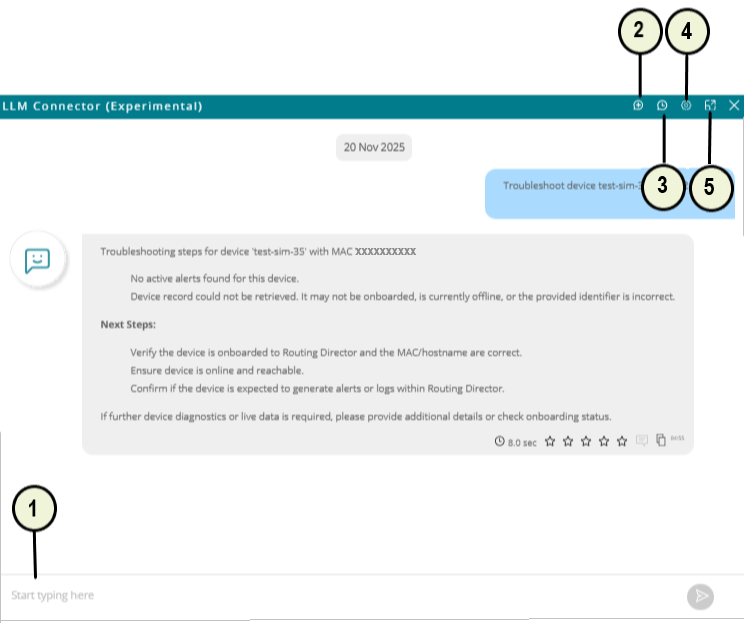
1 — Query input field | 4 — Settings icon |
2 — New Conversation icon | 5 — Maximize icon |
3 — Chat History icon |
LLM Connector retains your queries in a session so that you can continue with the queries after a break, if needed.
A session is active for an hour. If your session is idle for more than an hour, LLM Connector creates a new session for your next set of queries. If you want to go back to any of your older queries, click the Chat History (clock) icon (present on right-corner of the LLM Connector window). The chat history lists all your previous conversations. Click on any conversation to continue the conversation.
When you initiate a query, LLM Connector connects with an LLM (which you configure) to provide contextual assistance. The LLM can answer general questions and also execute operational "read-only" network commands.
LLMs are trained on data up to a certain date. So, an LLM may not include information about the latest Routing Director releases and features.
At the bottom of each response, LLM Connector provides:
-
Response time: Displays the duration taken to generate the answer.
-
Feedback option: Allows you to rate the quality of the response.
-
Copy options: Offers the ability to copy the response displayed on the chat window and the full API response which includes additional metadata.
To use the LLM Connector tool, you need to set up the LLM and provide parameters such as API keys and model details. For information about configuring LLM, see Configure LLM Connector.
Query Examples
LLM Connector can help you with:
-
Retrieving device information. For example:
-
List all routers in the network with hostname, model and OS version.
-
List the major alarms and alerts on device A over the past 24 hrs.
-
-
Executing Junos OS operational commands. For example:
-
List all interfaces on device A that are operationally down; include admin state and description.
-
Show critical and major alarms on device A from the past 24 hours.
-
-
Getting Insights based on the telemetry collected from the device. For example:
-
Analyze the last 6 hours of telemetry for interface et-0/0/0 on device A.
-
Provide insights on health of device A over the last 12 hours: CPU, memory utilization, temperature, and fan RPM.
-
-
Retrieving a list of all VPNs in your network and their details, metrics, and health information. For example:
-
Retrieve a list of all VPNs across my network. For each VPN, include SLA compliance, active alarms and incidents, recent flaps, and last change time in a tabular format.
-
List all VPN tunnels configured on device A.
-
-
Fetching information about customers and service instances associated with customers. For example:
-
Retrieve a list of all customers in my network and the details of the VPNs associated for each customer.
-
List the service instances currently Degraded or Down, grouped by customer.
-
-
Plotting dynamic graphs related to state and metric graphs. For example:
-
Plot interface traffic utilization and operational status of ge-0/1/2 from device X.
-
Plot FPC memory utilization and Routing Engine CPU utilization of device Y.
-
-
Answering aggregation queries. For example:
-
List top 5 and bottom 5 power consuming devices in the inventory.
-
List the average interface utilization on device X.
-
Setup LLM Connector
To use the LLM Connector tool, you need to set up the LLM and provide parameters such as API keys and model details. For information about configuring LLM, see Configure LLM Connector.
Access LLM Connector
You can access LLM Connector by clicking the LLM Connector icon displayed on the right-bottom corner of the GUI as shown in figure. You can move the icon around and anchor it on any of the four corners on the GUI.
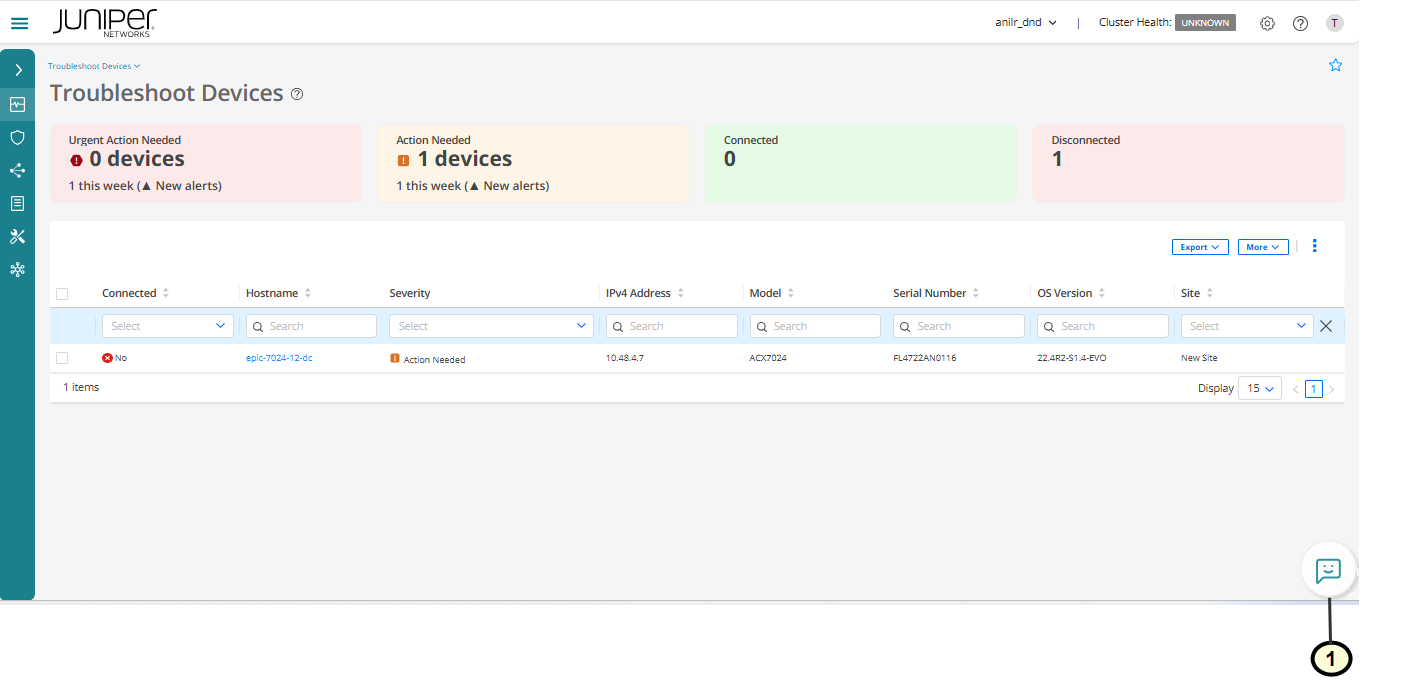
1 — LLM Connector icon |
LLM Connector Actions
LLM Connector provides the following action menu items on the LLM Connector chat window:
-
Chat History—Click the Chat History (clock) icon on the top of the LLM Connector window to view chat history. Click the Chat History icon again to close the chat history.
The chat history is listed, grouped by the time of chat as Today, Yesterday, Last Week, and so on. Chat History is displayed on the left side of the LLM Connector window when the window is maximized.
To open a new conversation, click the New Conversation icon (+).
-
Search—Enter a search text in the Search field to search for conversations and chats. LLM Connector matches the search text that you enter with the your query text in the chat history and fetches the corresponding conversation.
The Search field is present above the Chat History list and displayed when you have maximized the LLM Connector window.
-
Settings—Configure the following settings for the LLM Connector:
-
Model—Select the model for use by LLM Connector.
Available options: Azure OpenAI, and OpenAI
-
Temperature—Set the LLM temperature. LLM Temperature controls the randomness or creativity of the LLM output. At a low temperature, the LLM provides consistent and deterministic output, while at a high value, the output is more creative and diverse.
Range: 0.1 (default) to 1
-
Top P—Set the Top P of the LLM connector. Top-P controls how many word choices the LLM considers when generating text. Low Top-P is more focused and predictable, whereas a high value is more creative and diverse. Use Top-P in combination with Temperature.
-
Range: 0.1 (default) to 1
See Figure 1 for a reference to the LLM Connector menu items.
-
Benefits of LLM Connector
-
Reduces Workload on NOC Teams: By providing clear guidance for troubleshooting tasks, LLM Connector significantly lowers the operational burden on Network Operations Center (NOC) teams, freeing them to focus on more complex issues.
-
Accelerates Problem Resolution: LLM Connector provides rapid, contextually relevant solutions by executing necessary commands and parsing results, which enables you to solve problems quickly.
-
Simplifies Training Requirements: LLM Connector minimizes the learning curve to work with Routing Director for new operators by allowing them to interact with the Routing Director using natural language queries, reducing the time and effort required to become proficient.
-
Enhances Data Privacy and Security: By supporting Cloud, Private Cloud, and On-Premises deployments, LLM Connector offers flexible options that cater to various data privacy and security needs, ensuring secure operations.
-
Improves System Usability: The integration of function calling capabilities with a range of LLM models enables precise and efficient interactions with external systems, enhancing the overall usability of Routing Director as a troubleshooting tool.