ON THIS PAGE
Router Events
Router Events Graph
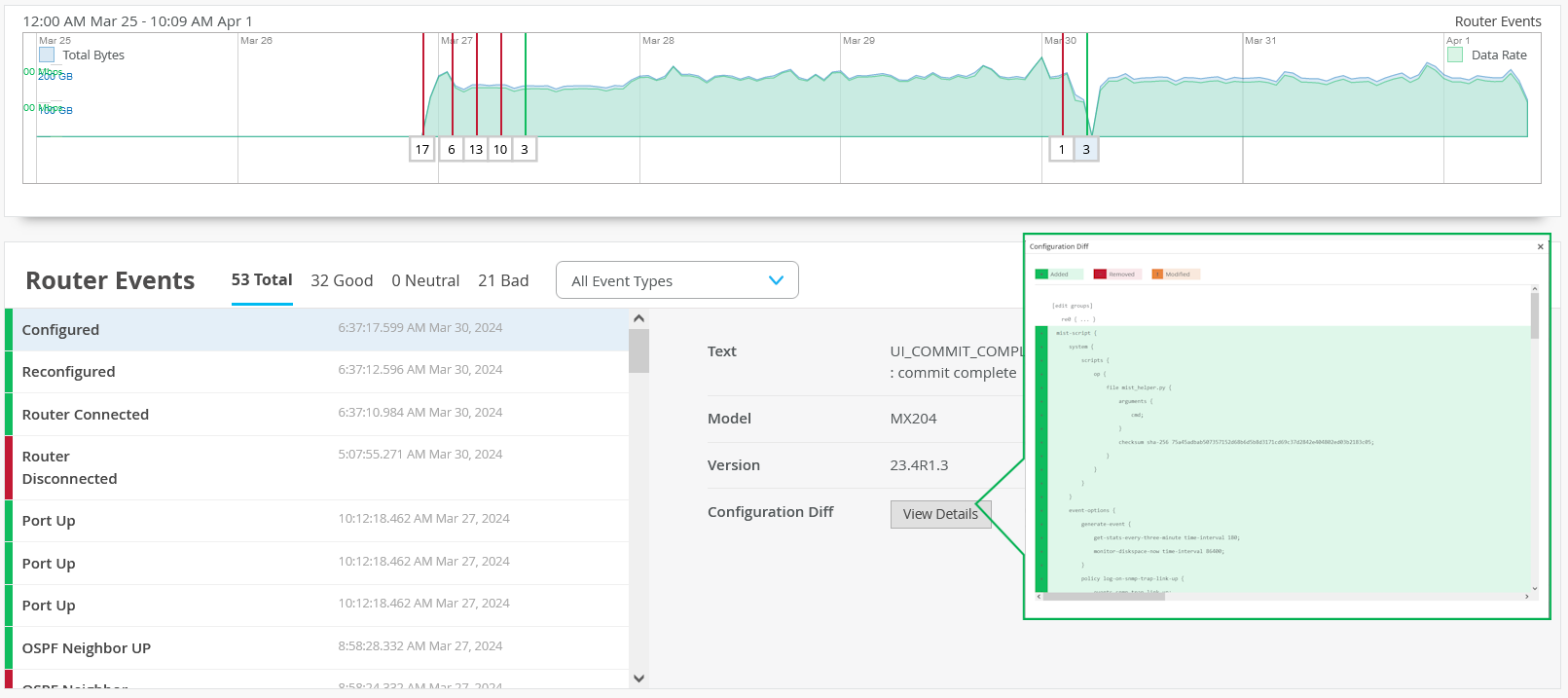
The Router Events graph displays count of router events, total bytes transmitted and received by a router, and data rate in a time series graph.
To view the router events graph, navigate to Routers > Router Name > Router Insights > Router Events.
You can move the slider across the graph. A pop-up on the slider displays the time interval, date, total number of bytes transmitted and received by the router, and data rate during the time period. Colored vertical lines on the graph indicate various router event types. See Router Events Table to know the legend for classification of event types. A box below the event line represents the number of events for that type.
You can view the graph legend on the graph to interpret the plotted lines. You can drag an area of interest to zoom in to the graph.
Router Events Table
Router Events that occur on a router are classified into good, neutral and bad events depending on their impact on device performance and network traffic. Router Events table displays occurred router events, in a tabular form based on this classification.
To view the router events table, navigate to Routers > Router Name > Router Insights > Router Events.
The summary at the top of the table displays the total number of events and categorizes them by status as Good, Neutral, or Bad. Each event entry includes the event type, router hostname, and the time the event occurred.
The hostname is displayed as a blue hyperlink. Click the hostname to open the corresponding router's Insights page, where you can view operational insights for the router.
Click on the individual tabs (Total, Good, Neutral, and Bad) in the table to view the list of events of a particular event type. Click a specific event to view additional details including the event message, router model, OS version, administration information, configuration details, and configuration differences (in case of configuration events).
You can customize Router Events table to view the events that you choose. Click the table setting icon to choose the router events that you want to view. Click All Events to view all the events occurred on a router.
Router Events are classified as following:
-
Good─A good event indicates that a router is functioning optimally and as configured. For example, Port Up, Configured and Reconfigured are good events.
Good events are marked in green in the table.
-
Neutral─A Neutral event indicates that the event has no impact on the network and traffic. For example, Unclaimed and Unassigned are neutral events.
Neutral events are marked in amber in the table.
-
Bad─A bad event indicates that the event has an impact on the network and traffic. You must resolve a bad event immediately. For example, Port Down and OSPF Neighbor Down are bad events.
Bad events are marked in red in the table.
To view configuration change, click a Configured event. Then click, View Details. Configuration Diff page appears displaying the configuration changes. Newly added configurations are highlighted in green, removed configurations are highlighted in red and modified configurations are highlighted in amber.
Table 1 lists the fields in the Router Events table.
|
Field |
Description |
|---|---|
|
Total |
Total number and list of events (good, neutral and bad) occurred during an interval. |
|
Good |
Number and list of good events that occurred during an interval. |
|
Neutral |
Number and list of neutral events that occurred during an interval. |
|
Bad |
Number and list of bad events that occurred during an interval. |
Device Onboarding Failure Notifications and Connectivity Insights
Juniper Routing Assurance generates router events for device onboarding and connectivity failures when a router cannot connect to the application. The Router Events table provides a centralized location for monitoring onboarding and connectivity issues across the organization, enabling administrators to quickly identify and investigate issues affecting connectivity to Juniper Routing Assurance.
To view events related to device onboarding and connectivity failures, navigate to Monitor > Service Levels > Insights. Select Entire Org from the organization/site drop-down list. The Router Events table displays these events.
Click a specific event to view additional details such as the event message, router model, software version, and configuration differences. Click the hostname to open the corresponding router's Insights page, where you can view operational insights for the router.
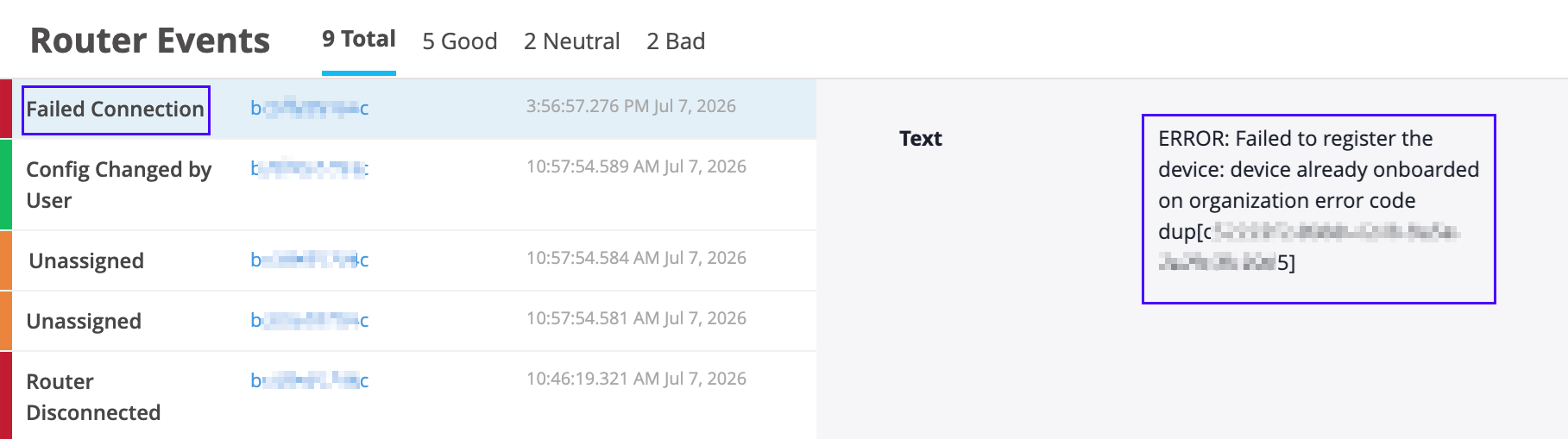
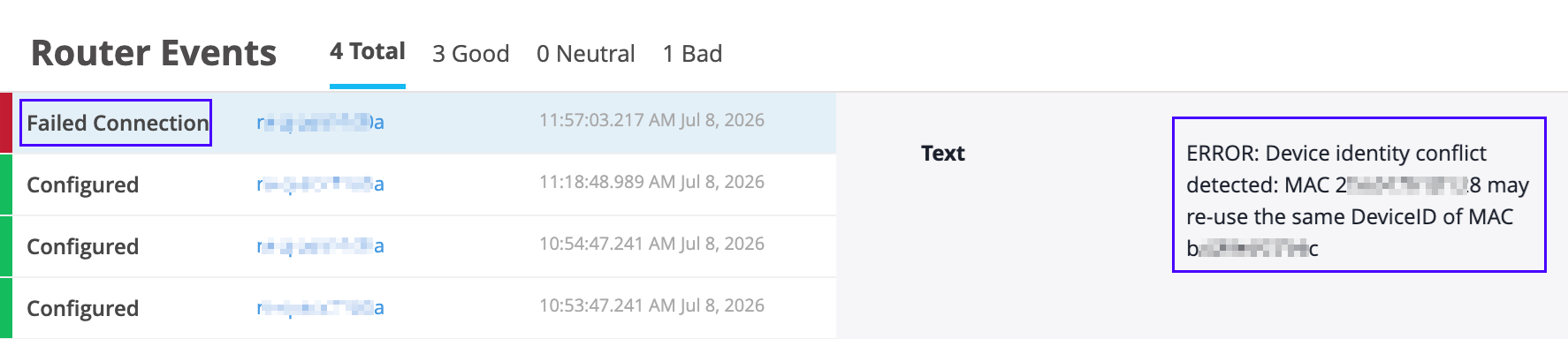
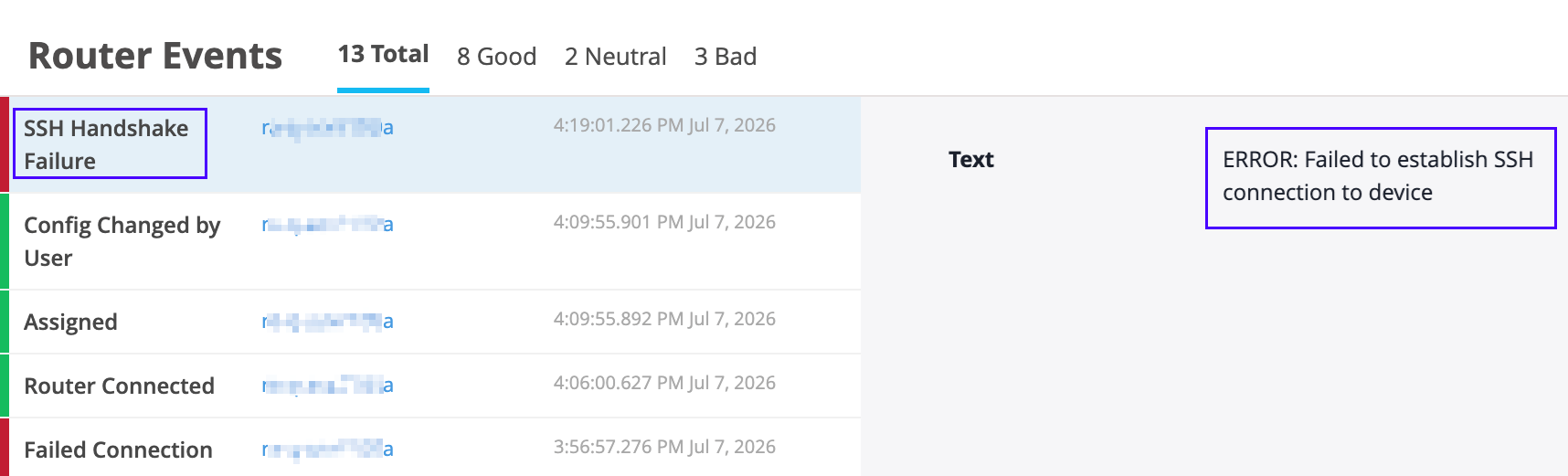
When a device onboarding failure occurs, Juniper Routing Assurance generates an event containing information such as the router's MAC address (when the router identity is not yet available), a description of the failure, the organization name, ID (when applicable), and event timestamps. For example, in Figure 2, a Failed Connection event is generated as the router is already associated with another organization. In Figure 3, a Failed Connection event is generated due to a conflict in device identity. In Figure 4, an SSH Handshake Failure event is generated as the router failed to establish SSH connection with Juniper Routing Assurance.
For guidance on troubleshooting device onboarding and connectivity failure issues, see Troubleshoot Router Connectivity and Onboarding Failures.