
Verify Data Center Assurance Setup
The Apstra Edge device forwards event and anomaly information from the data center to Data Center Assurance. To ensure that Data Center Assurance receives insights and anomaly data from the data center, relevant configurations must be made in Apstra and on the Edge. You can verify these configurations by using:
-
Data Center Assurance Setup Validation Tool—verifies the data center fabric connectivity and the device configurations.
-
Pre-flight Checks—verify the Edge version and blueprint configurations on Apstra.
Data Center Assurance Setup Validation Tool
After the Apstra Edge device has been installed and set up, you can run the Data Center Assurance Setup Validation Tool. This tool performs a series of tests to verify that you have configured the various devices and services of your DC fabric correctly.
For information about the Data Center Assurance Setup Validation Tool, see Download and Run the Data Center Assurance Setup Validation Tool.
Pre-Flight Checks
The pre-flight checks feature verifies whether certain prerequisites and configuration requirements are met and provides actionable guidance on how to resolve potential issues. Executing these checks enables you to validate the environment, identify issues that might affect the performance of Data Center Assurance features, and resolve them.
The pre-flight checks feature helps you verify whether:
-
the blueprints are configured properly.
-
the probes that relay data center events and insights from Apstra Data Center Director to Data Center Assurance are enabled.
-
the Edge device is running the minimum software version required to support the latest Data Center Assurance features.
-
the Edge device is connected to the Apstra Flow Server.
-
the system times on the Apstra Flow Server and Data Center Assurance are in sync.
-
the stream receivers in Apstra are present and connected.
You can run pre-flight checks at the Edge level or for specific blueprints. If you run the pre-flight checks at the blueprint level, tests are run only on the selected blueprints. If you run the pre-flight checks at the Edge level, tests are run on the Edge as well as all the blueprints enabled on the selected device.
The pre-flight checks feature runs the following tests:
| Component | Pre-Flight Test | Description |
|---|---|---|
|
Apstra Edge |
Apstra Flow Server Connection Check |
Checks whether the Apstra Edge device and the Apstra Flow Server are connected. |
|
Edge Version Compatibility Check |
Checks whether the onboarded Apstra Edge is running the minimum required version to support Data Center Assurance features. |
|
|
Stream Receivers Creation Check |
Checks whether the following stream receivers are present and connected:
|
|
|
Syslog Forwarder Health Check |
Checks whether the following requirements are met for syslog messages to be streamed by the network devices to the Apstra Edge:
|
|
|
Time Stamp Check between Apstra Flow Server and Data Center Assurance |
Checks whether the timestamps on the Apstra Flow Server and Data Center Assurance are in sync. |
|
|
vCenter Server Health Status Check |
Checks the health and connectivity status of the vCenter server. |
|
|
Blueprint |
DCA Stream CPU and Memory Utilization Probe |
Checks whether streaming is enabled for disk utilization, CPU utilization, and memory utilization data. |
|
Optical Assurance Probe |
Checks whether the following requirements for the Predictive Analytics feature for Optical Interface Health are met:
|
|
|
SLE Probes |
Checks whether the following probes are enabled on Apstra:
Note:
You can enable any of the following optional probes to receive more insights from Apstra:
When a pre-flight check is run on a blueprint, the SLE Probes section in the Pre-flight Information page displays the list of optional probes that have not been enabled on Apstra. |
|
|
SNMP Configuration Checks for Devices |
Checks whether the SNMP configuration is present on the devices. |
|
|
Syslog Configlet Check |
Checks whether the syslog forwarding configlet has been added to the blueprint on DC Director. Note:
You can add the syslog forwarding configlet by importing the DCA-Syslog-Streaming feature pack from DC Hub on the blueprint. For information about pack installation, see DC Hub Overview. |
Before you perform a pre-flight check, ensure that:
-
the Apstra Edge is registered.
-
the Apstra Edge is connected to the cloud and with the Apstra Controller.
-
any upgrade process on the Apstra Edge is complete.
To run a pre-flight check:
Log in to HPE Mist Networking Data Center Assurance.
Navigate to the DC Edges page.
The onboarded Edges are listed along with their connectivity status, version details, flow server and vCenter information, blueprints, and results from the previous pre-flight check.
Figure 1: Onboarded Apstra Edge Devices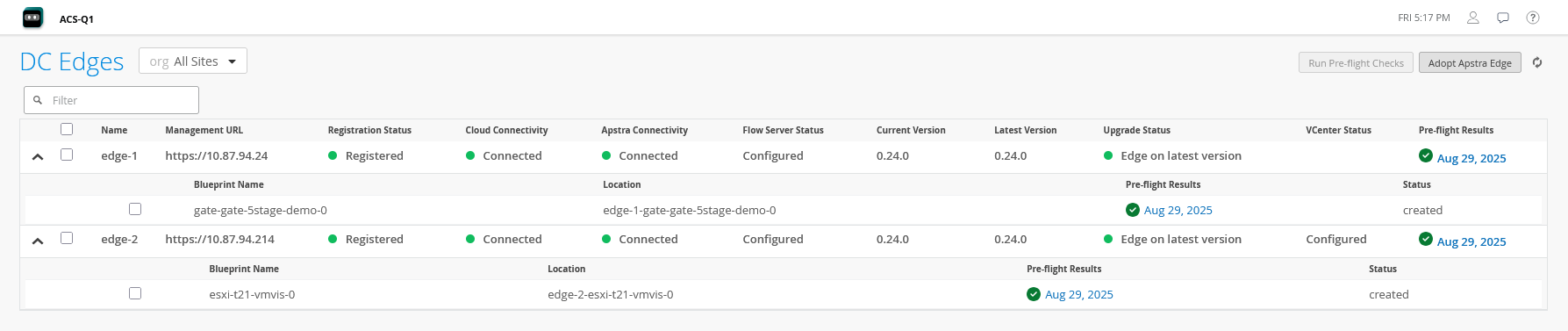
Select the Edge or the blueprint that you want to verify.
Figure 2: Pre-flight Check Selection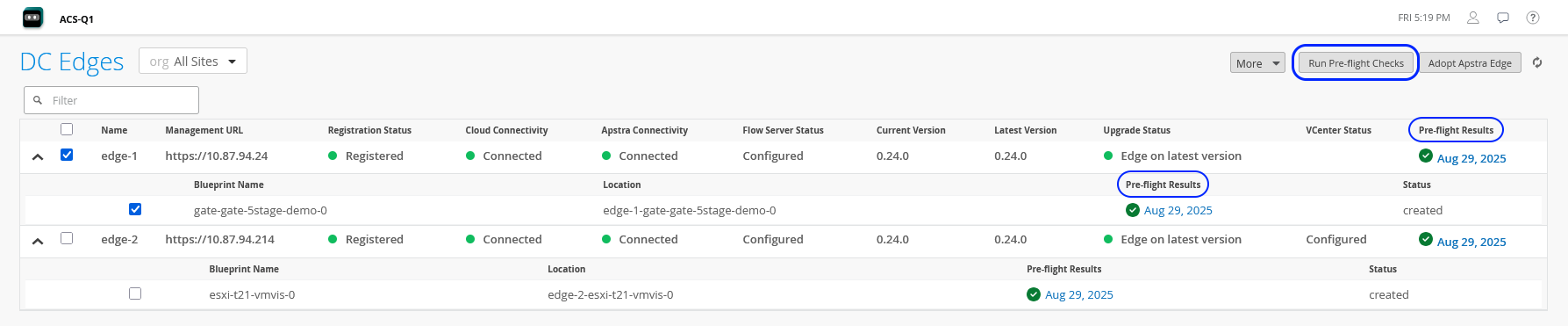
Click Run Pre-flight Checks on the top right of the table.
You can see the status of the check in the Pre-flight Results column.
Click the link in the Pre-flight Results column to view the results. The Pre-flight Information page opens.
This page displays information about whether the device or blueprint passed or failed the tests. Select the failed test to view more information and guidance on how to resolve the issue.
Note:The SLE Probes section in the Pre-flight Information page for a blueprint also displays a list of optional probes that you can enable to receive more detailed insights from Apstra.
Figure 3: Pre-flight Information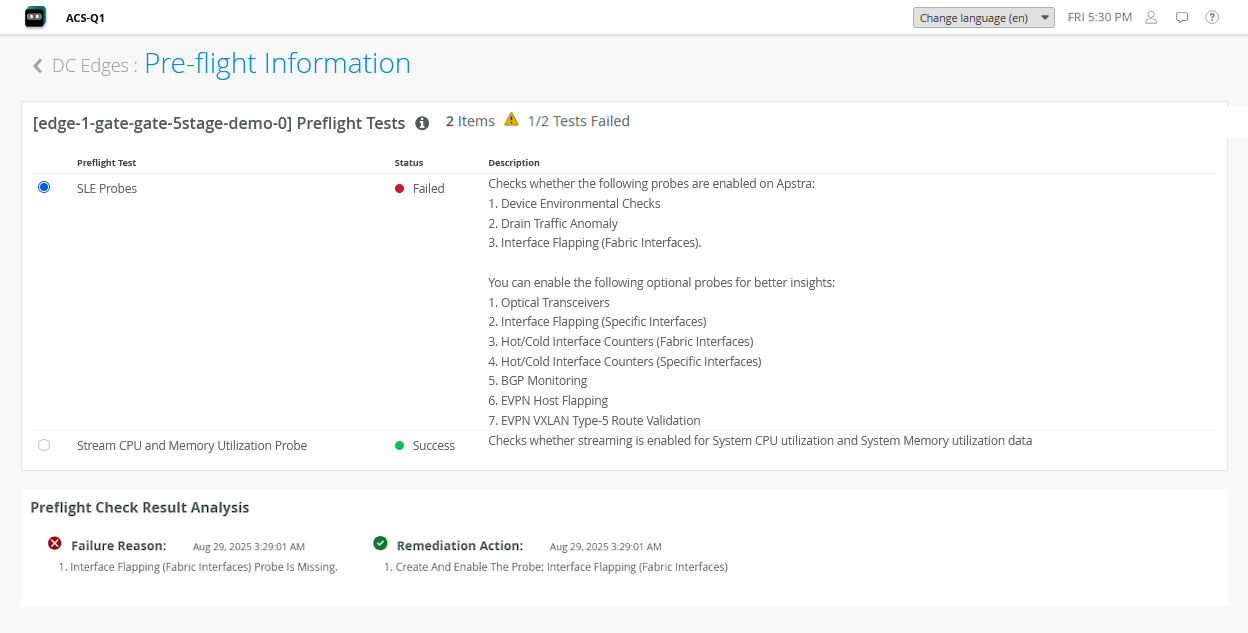 Note:
Note:You can perform pre-flight checks on an Apstra Edge device or on blueprints at any time after the device has been onboarded.