
Optimize Energy Consumption by Shutting Down Unused Line Cards
This topic describes how to optimize energy consumption by identifying and shutting down unused line cards on network devices.
Line cards (also referred to as Flexible PIC Concentrators (FPCs) on Juniper platforms) provide interface density and forwarding capacity to support scalability and redundancy. However, a chassis often contains multiple line cards that carry no traffic while continuing to consume significant power.
The recommendation service analyzes device telemetry to identify unused line cards that can be safely powered down and generate energy optimization recommendations for eligible line cards. You can view the recommendations on the Device Linecard Power Optimization recommendation card.
The Device Linecard Power Optimization recommendation is available only for devices that support multiple linecards.
Currently, the recommendation is supported for the following platforms: PTX10016, PTX 10008, PTX10004, PTX10001-36MR.
Disabling unused line cards provides one of the most impactful opportunities for reducing chassis-level power consumption.
A line card is selected for the Device Linecard Power Optimization recommendation when:
-
All ports mapped to the line card show no traffic activity over a sustained observation window.
- No active production interfaces are mapped to the card.
- Redundancy policies and switchover capacity remain functional after removal.
- No critical services rely on the card.
The Device Linecard Power Optimization recommendation provides a list of unused line cards, historical utilization trends, configlet-based actions to safely take the line card offline, and benefits and risks associated with disabling the line card. It also highlights the potential energy savings achievable by applying the recommendation.
The recommendation service runs once per day and uses the historical forwarding-plane telemetry and device configuration data available at that time. Changes in traffic demand or redundancy configuration are reflected after the next run.
By disabling unused line cards, you can align the active forwarding capacity with actual demand. This helps achieve significant reduction in total chassis power consumption, lower fan speed and cooling overhead, improve overall power efficiency, and reduce operational cost.
To view unused line cards and review the recommended actions:
-
On the Device-Level Sustainability Dashboard, review the Per-Port Peak / Off-Peak
Traffic Monitoring heatmap to understand the device's port activity trends across
line cards.
Figure 1 shows the Per-Port Peak / Off-Peak Traffic heatmap for line card 0. Several cells appear green, indicating active traffic on those ports during the observed 24-hour window. Therefore, this line card is not eligible for shutdown.
Figure 1: Per-Port Peak / Off-Peak Traffic Heatmap for an Active Line Card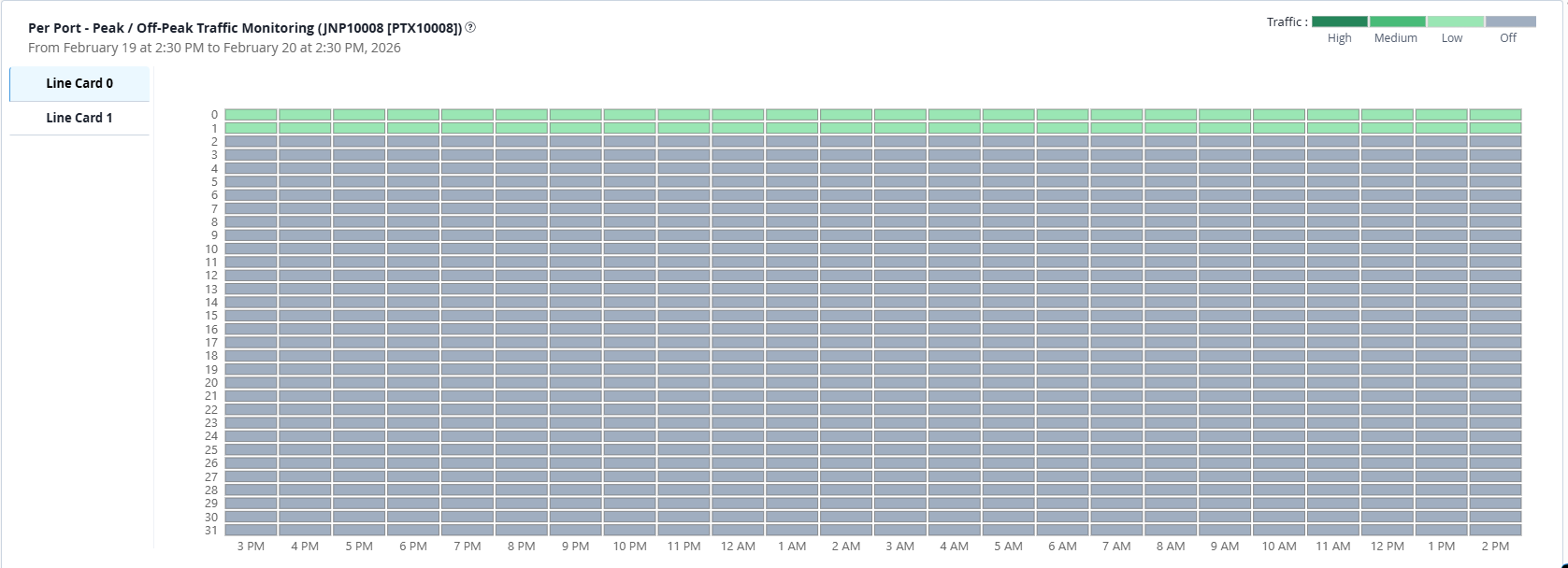 Figure 2 shows the ports associated with line card 1. All cells appear grey, indicating no traffic activity during the observed 24-hour window. This makes the line card eligible for shutdown.Figure 2: Per-Port Peak / Off-Peak Traffic Heatmap for an Unused Line Card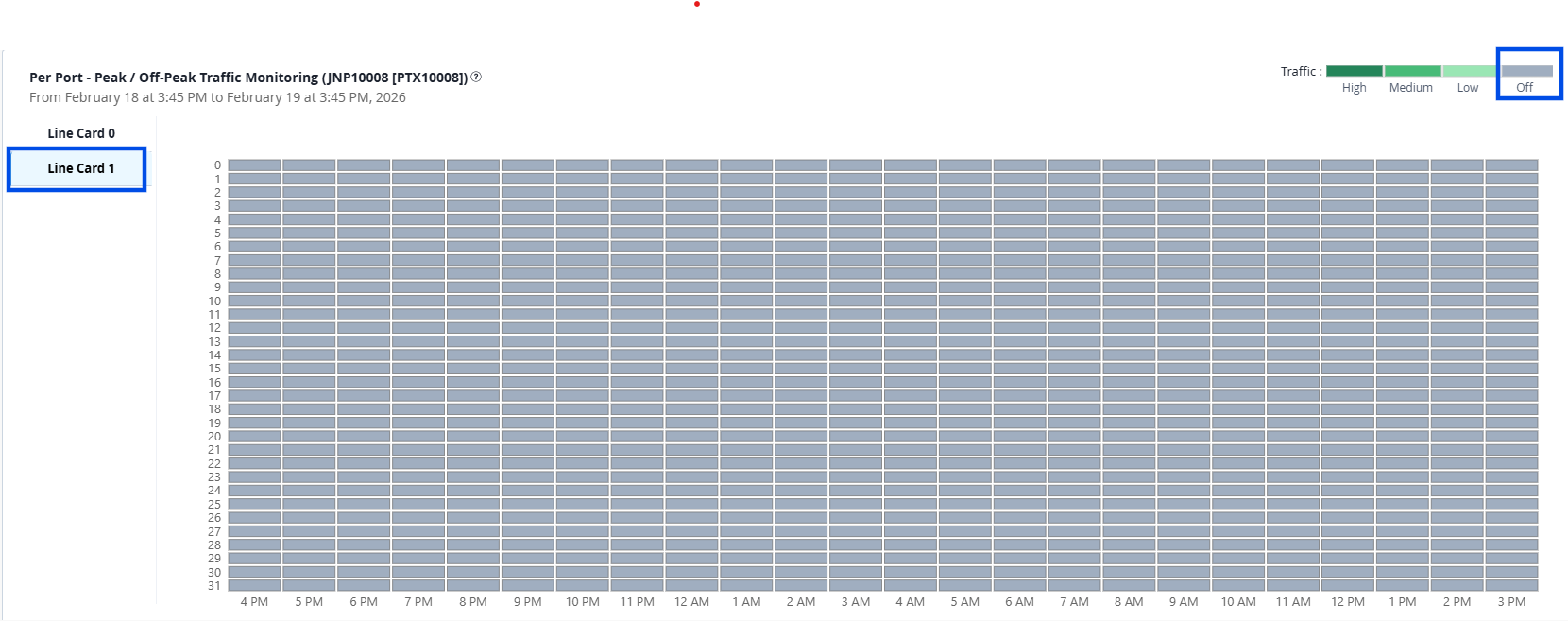
-
Navigate to the Recommendation tab to review available recommendations based on
port activity on the line cards.
The Device Linecard Power Optimization recommendation card appears on top of the page.
The card highlights the recommendation type, the count of line cards identified as unused and safe to disable, and the potential energy savings you can achieve by applying this recommendation.
Note:-
Recommendations are generated only if unused line cards are identified on a device.
-
To generate energy optimization recommendations for unused line cards, atleast 24 hours of data is required.
Click the recommendation card to open the detailed recommendation panel.
Figure 3 shows a sample Device Line Card Power Optimization recommendation card and panel.
Figure 3: Device Line Card Power Optimization Sample Recommendation
The recommendation panel includes the following fields:
Table 1: Field Description Field Description Recommendation Card A high-level description of the recommendation type.
Indicates the type of recommendation, the number of line cards identified for applying the recommendation, and the potential energy savings achievable if the recommendation is applied.
Device FPC Line cards identified as unused and eligible for shutdown.
Select a line card from the drop-down list to view the recommended action.
Description Summary of why the line card is identified as unused and why the action is recommended, referencing energy and traffic data points.
Actions Provides step-by-step guidance and relevant configlet-based actions required to disable the line card without impacting the network traffic. To apply the recommendation, you can either:
-
Use the configlets in Apstra Data Center Director to apply configuration changes to the device. For more information on configlets, see Configlets in the Apstra Data Center Director User Guide.
-
Click Apply available on the recommendation panel to review the list of unused ports, understand the potential savings achievable by applying the recommended action, and deploy the action directly from the dashboard.
Benefits Displays quantified advantages, such as estimated power and cost savings and reduction in GHG emissions. Risks Highlights caveats such as potential dependencies, safety checks, and guardrails to consider before applying the suggested changes. Timestamp Indicates when the recommendation was generated and how long it is valid.
Note: Recommendations are refreshed daily based on the latest device telemetry. -
-
After reviewing the recommendation, you can either apply the recommended action
manually using Apstra configlets or directly apply them with a single click from the
recommendation panel.
To manually apply the recommended action:
Use the configlets in Apstra Data Center Director to apply configuration changes to the device.
Configlets are custom configuration snippets that you can apply on a device through Apstra Data Center Director.
Note:-
Configuration changes made using configlets override Apstra-intended configuration.
-
You may not get warnings for incorrect configurations pushed using configlets. Ensure you test and validate configlets in a dedicated validation environment before deploying them to the production environment.
-
Passwords and other secret keys are not encrypted in configlets.
To apply the recommendation from the Recommendation card:
When you apply a recommendation from the Recommendation panel, a system-initiated deployment job is initiated, where in a preconfigured configlet is automatically deployed on the device through Apstra Data Center Director.
-
Click Apply.
The Confirm Apply Recommendation window appears.
-
Review the following information:
Figure 4: Confirm Apply Recommendation window
-
Device on which the recommendation will be applied.
-
Line cards identified as unused and eligible to disable.
-
Estimated energy savings that can be achieved by disabling the selected unused ports.
-
Summary of the action that will be performed.
-
Cautionary information describing the implications of disabling the selected ports.
-
-
Select the line cards to which you want to apply the recommendation. You can either select individual components or select all components to apply the recommendation.
-
Click Confirm & Apply.
A job is initiated to deploy the preconfigured configlet on the device through Apstra Data Center Director and you are returned to the Recommendation tab. Once a recommendation has been successfully applied, the Apply button is disabled for the recommendation.
-
From the Device PFE drop-down list, select a port for which the recommendation was applied.
A banner appears indicating that the deployment is in progress.
-
For granular, per-port energy optimization, see Optimize Energy Consumption by Disabling Unused Ports.
For forwarding-plane energy optimization, see Optimize Energy Consumption by Shutting Down Unused PFEs.