
Apstra Edge Not Showing as Connected
Problem
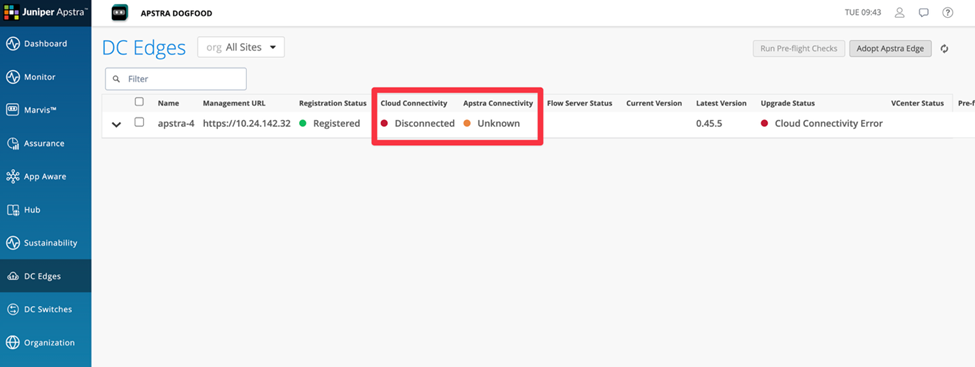
Cloud Connectivity or Apstra Connectivity status shown as Disconnected or Unknown on the DC Edges page.
Figure 1: Apstra Edge Disconnected
Solution
Log into the Apstra VM via SSH and check the Edge logs:
docker logs apstra_edge | tail -n 1000
Next, try testing connectivity from inside the container to the DC Assurance cloud endpoint:
docker exec -it apstra_edge curl -I https://ep-term.ai.juniper.net
Use the following table to identify and resolve the issue:
| Symptom | Likely Cause | Resolution |
|---|---|---|
| Cloud Connectivity: Disconnected | The Apstra Edge container cannot reach ep-term.ai.juniper.net on TCP 443. | Confirm outbound TCP 443 is allowed from the Apstra VM to ep-term.ai.juniper.net. Use FQDN-based firewall rules — AWS S3 IP addresses are dynamic. Test from inside the container: docker exec -it apstra_edge curl -I https://ep-term.ai.juniper.net |
| Apstra Connectivity: Unknown | The Apstra Edge cannot reach or authenticate with the Apstra Controller. | Verify the Management URL, username, and password entered during adoption are correct. Confirm the Apstra user account exists and is active. Navigate to DC Edges > select the Edge > More > Modify Edge to update credentials. |
| Registration Status: Unregistered after installing Edge in Apstra | The registration code was entered incorrectly or has already been used. | Registration keys are one-time use only. Generate a new registration code from DC Edges > select the Edge > More > Get Registration Code, then re-enter it in Apstra under Platform > Apstra Edge. |
| Edge State shows LAUNCHED but Status is not RUNNING | The container failed to start, possibly due to an incorrect registration code or network issue on first boot. | Check the container logs: docker logs apstra_edge | tail -n 200. Look for authentication or connectivity errors. If the container is in a failed state, remove it in Apstra (Platform > Apstra Edge) and relaunch with a fresh registration key. |