Help us improve your experience.

Let us know what you think.

Do you have time for a two-minute survey?


Step 2a Adopt Apstra Edge in DC Assurance

The Apstra Edge is an on-premises component that connects your Apstra Data Center Director environment to DC Assurance. It runs as a container on the Apstra VM and can represent one or multiple blueprints. If your environment includes multiple Apstra VMs, each one will need its own Apstra Edge instance. Apstra Edge maintains connectivity with DC Assurance and forwards data centre events and sFlow data from your Apstra environment to the cloud.

Follow these steps to adopt Apstra Edge:

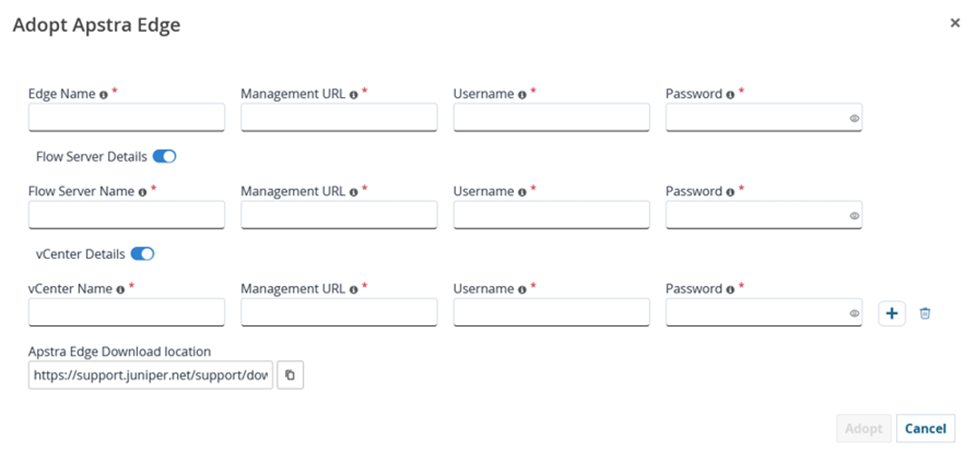
  1. Log into DC Assurance and select your organisation if prompted.
    Figure 1: Log into DC Assurance Log into DC Assurance
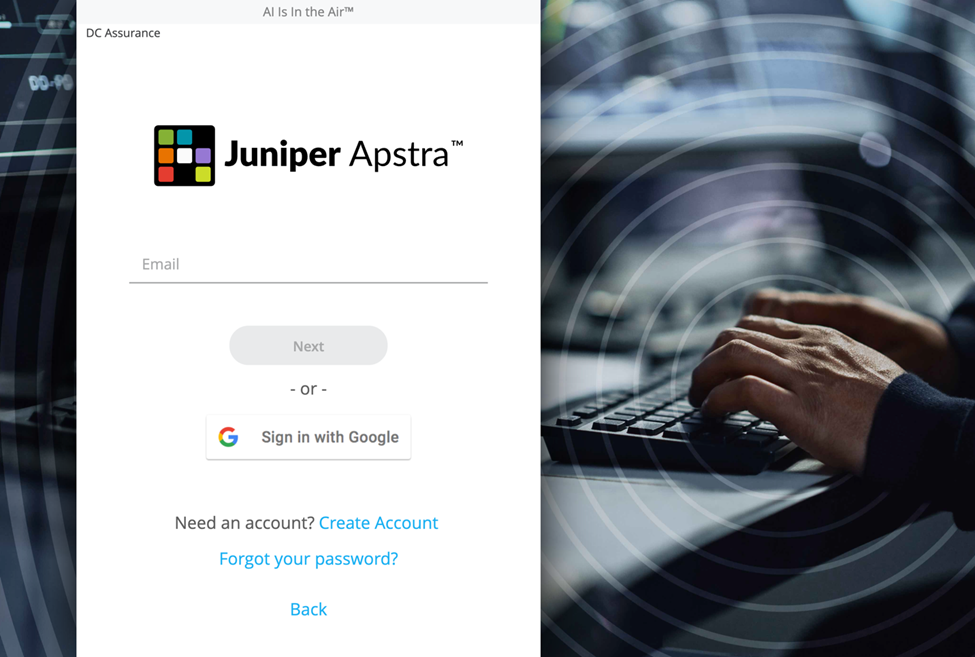
  2. Navigate to the DC Edges page.
  3. Click Adopt Apstra Edge.
    Figure 2: DC Edges Page DC Edges Page
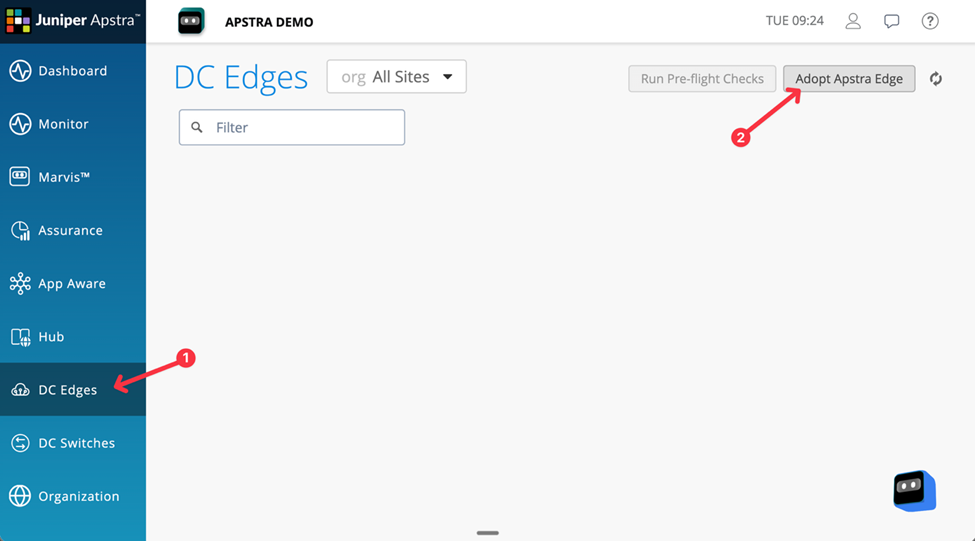
  4. On the Adopt Apstra Edge page, enter the following details:
    1. Edge Name: A name to identify this Apstra Edge instance.
    2. Management URL: The URL of your Apstra Data Center Director instance. For example For example, https://10.28.52.3
    3. Username: The username for logging into Apstra Data Center Director. This is the username that you use to log into the Apstra GUI, not the account used to log into the Apstra VM command line. We recommend that you create a dedicated user account for DC Assurance.
    4. Password: The password to log into Apstra Data Center Director. The password of the chosen account that is used to login to the Apstra GUI.
  5. (Optional) Configure Flow Server Details to collect sFlow data from your Apstra environment:

    After the details for Flow Server Details are configured, you can view information about the data center network topology, hosts and endpoints, services, and anomalies, if any, on the App Aware and the Impact Analysis pages.

    1. Enable the Flow Server Details toggle.
    2. Flow Server Name: A name for the Flow server.
    3. Management URL: The OpenSearch REST API URL in the format https://ip-address:9200 (for example, https://10.28.52.4:9200).
    4. Username and Password: Credentials to log into the Flow server GUI interface, not the Apstra Flow VM command line.
  6. (Optional) Configure vCenter Details to collect information about virtualized environments.

    After the details for vCenter are configured, you can view information about the VM layer on the App Aware, the Impact Analysis, and the Dashboard Topology pages. You can configure parameters for multiple vCenters.

    1. Enable the vCenter Details toggle.
    2. vCenter Name: A unique, user-defined name for the vCenter server.
    3. Management URL: The REST API URL in the format https://ip-address.
    4. Username and Password: Credentials to log into the vCenter server.
    Note: You can configure multiple vCenter servers if your environment spans multiple virtualisation instances.
    Figure 3: Adopt Apstra Edge Adopt Apstra Edge
  7. Click Adopt.

    The Apstra Edge is added to the Inventory page with the status Unregistered. DC Assurance generates a registration code which you will need in the next step.