
Webhook Delivery Events
You can verify the end-to-end connectivity between your organization and a webhook endpoint from the Webhook Deliveries page. When an event occurs, a webhook notification is sent to the configured webhook endpoint.
Use the Webhook Deliveries page to monitor and review the status of the attempted webhook deliveries. See, View Webhooks Delivery Events.
To view webhook delivery events, you must first configure webhooks and select the topics (events) for which you want to receive notifications. The webhook topics that support webhook delivery are Alerts, Audits, Pings, and Device Up/Down.
For more information, see Configure Webhooks to Receive Event Notifications in Third-Party Applications.
If you want to test a webhook but do not have a webhook endpoint available, you can use public webhook receivers that enable you to receive and inspect the incoming webhook messages.
These public sites generate a temporary URL where you can send webhook requests.
Examples include:
Note that these are third-party webhook receiver sites. Exercise caution when sharing sensitive information with these sites.
Make sure to delete any test webhooks from the organization if they are no longer in use. Otherwise, the organization instance will continue to push webhook notifications to the endpoint and the the webhook receiver might blacklist the IP address of the instance.
Once a webhook is configured, you can use the Webhooks Deliveries page to monitor and troubleshoot webhook deliveries. From this page, you can view detailed information about all attempts made by the system to send notification to the configured endpoint. The information includes timestamps, headers, request and response body, HTTP status codes, error messages, and so on.
You can use the Webhooks Deliveries page to:
-
Debug failed webhook attempts
-
Inspect payload content
-
Monitor webhook performance over time
-
Identify authorization failures and rate-limiting issues
-
Search webhook events by topic, error message, or status code
-
Filter webhook events by time interval and delivery status
-
To filter based on time interval you select, click Time Interval (by default it is set to Today). You can choose Last 60 Minutes, Last 24 Hours, Last 7 Days, Custom Date (enter a custom date) Today, Yesterday, This Week, or Custom (enter a custom time range).
To filter based on webhook delivery status, click a status filter.
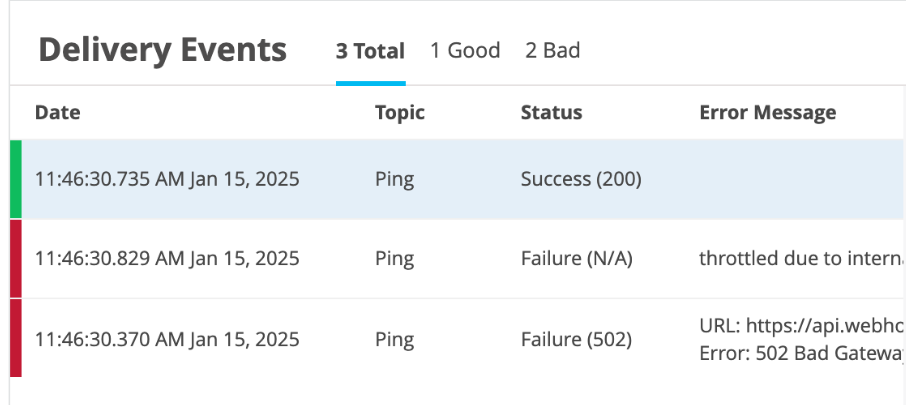
Click Total to view all events, Good to view successfully delivered events, and Bad to view failed to deliver events.
The rows are color-coded to provide a quick visual indicator of the webhook status. A green bar indicates a successful delivery and a red bar indicates a failed delivery.
-