
DC Hub Overview
This page describes how the DC Hub provides a comprehensive platform for the network administrator to discover, install, and manage add-ons to enhance Apstra functionalities.
DC Hub Overview
The DC Hub is a centralized platform within Data Center Assurance that helps you discover, access, and manage add-ons and enhancements for Apstra. These add-ons act as plug-and-play options to add functionality and analytics within Apstra. You can easily browse and install various add-ons directly into your Apstra environment.
The additional configurations that can be deployed in Apstra Data Center Director are available across other repositories such as GitHub. The DC Hub acts as a single platform that provides you with consolidated add-ons containing the configurations required for specific functionalities. The DC Hub enables you to browse, install, and manage these add-ons directly onto your Apstra environment through a standardized process via the Data Center Assurance UI.
The DC Hub provides detailed descriptions, compatibility information, version details, and components for each add-on, allowing you to make informed decisions before installation. This streamlined install process, combined with post-installation guidance, ensures a seamless integration of add-ons into your existing Apstra environment.
The DC Hub currently hosts two types of add-ons:
-
AnalyticsPacks—modules that include specialized dashboards, custom collectors, and probes to provide deeper network insights and monitoring capabilities
-
FeaturePacks—modules that include configuration elements like Configlets and Property Sets that extend existing Apstra features for specialized requirements
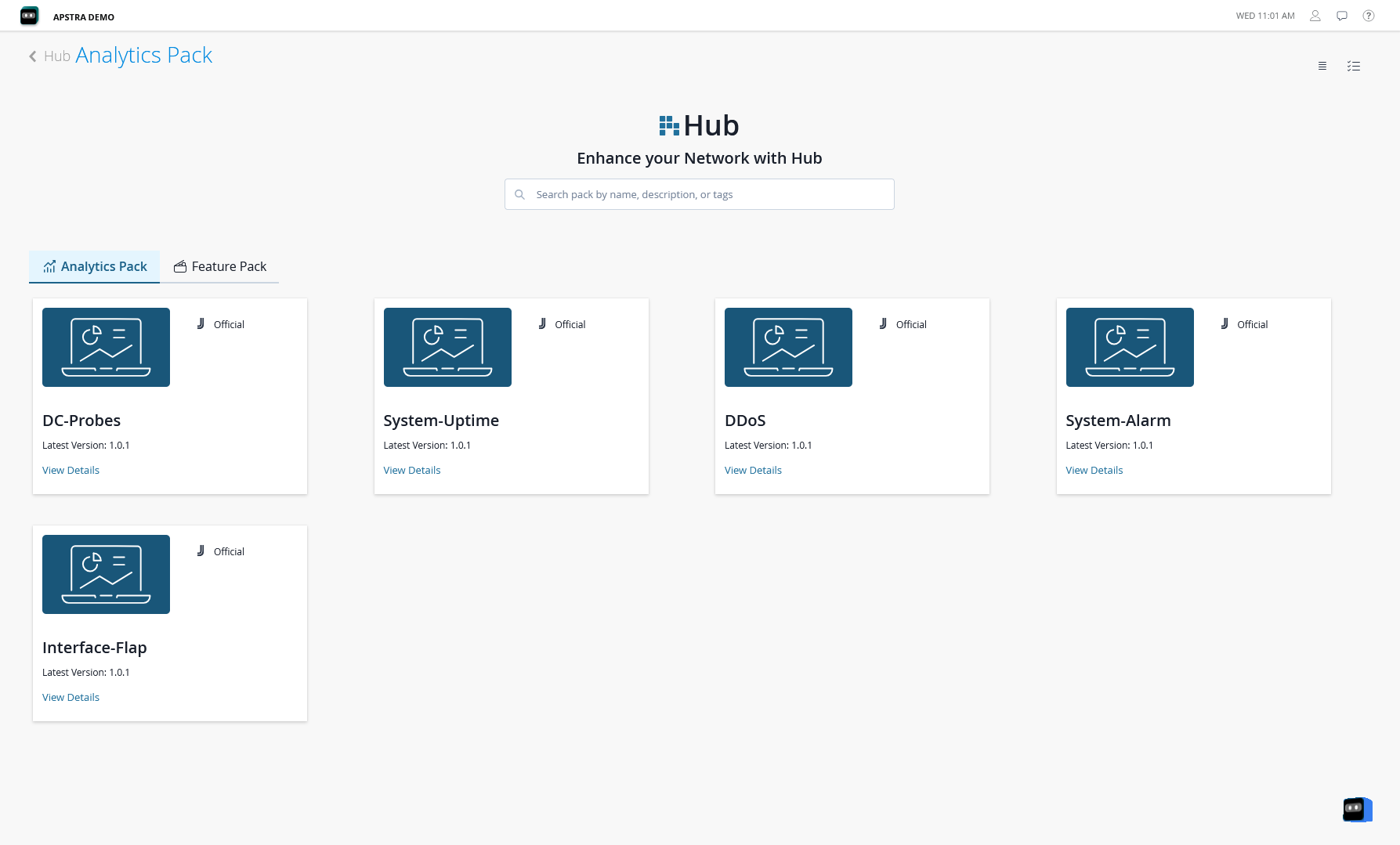
On the Hub, you can select either the Analytics Pack or the Feature Pack tabs to browse through the available add-ons. You can also use the Search bar to find specific add-ons as per your requirements.
You can toggle the display button on the top right of the page to view the available add-ons in list or table format. This page displays the name, version, description, and install status about each add-on. You can also select an add-on to view more details and to install it onto Apstra. The My Activity button takes you to a list of recorded install and uninstall actions performed by you on the Hub.
The add-ons that are developed and published by Juniper are tagged as Juniper Official.
View Add-on Details
Click the View Details link or icon to open the add-on page that provides information such as a brief description of the add-on, compatibility information, publisher’s notes, and so on. You can also view a list of Edges where the add-on has already been installed.
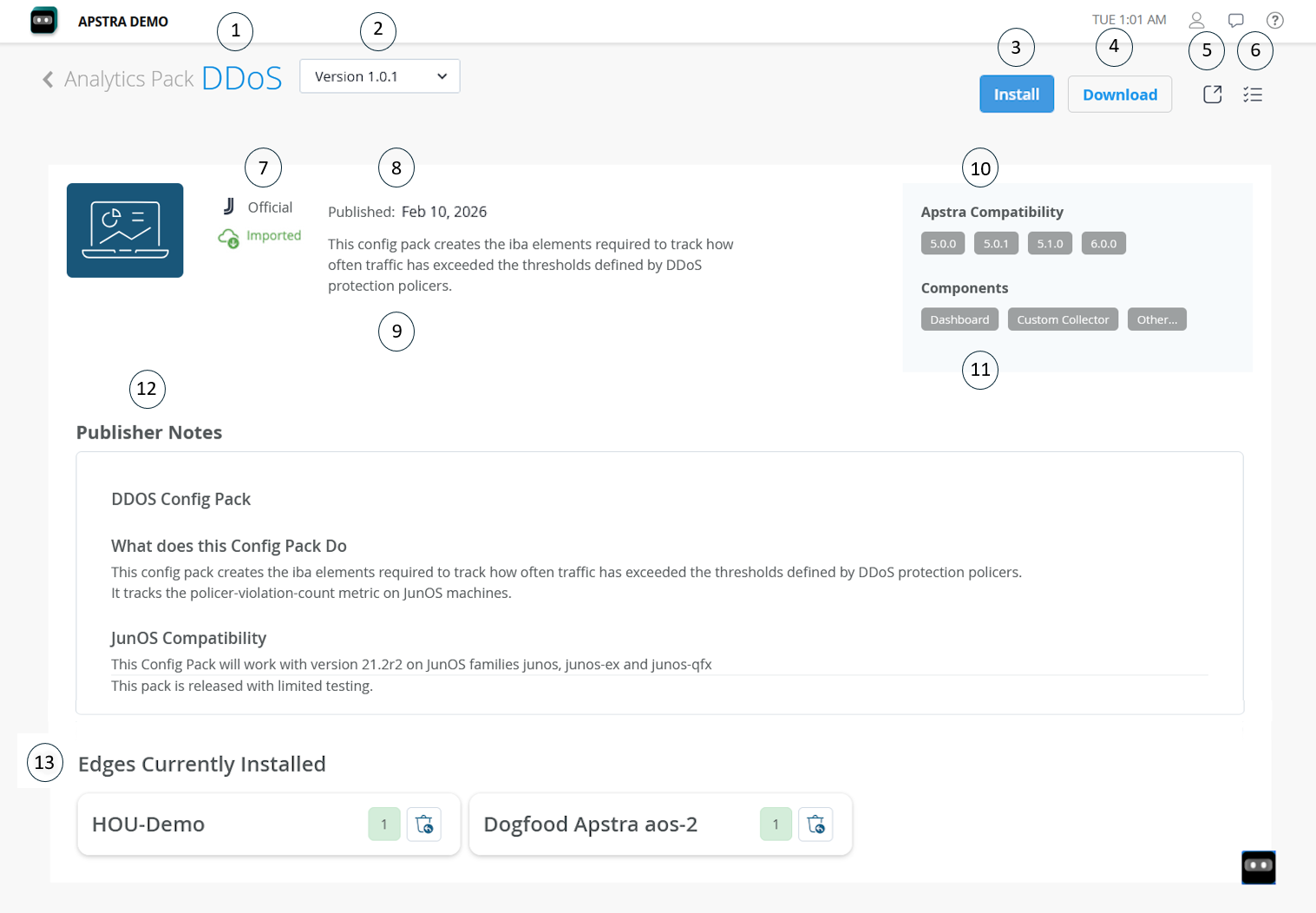
|
Option |
Description |
|---|---|
|
1 |
Name of the add-on. |
|
2 |
Select the version of the add-on. |
|
3 |
Initiate the install process for the add-on. |
|
4 |
Download the add-on to your local device's hard drive. |
|
5 |
Open the repository where the add-on is hosted. |
|
6 |
Go to My Activity page. |
|
7 |
Juniper Official – a tag that indicates that the add-on is developed by HPE Networking. |
|
8 |
Date when the selected version of the add-on was published. |
|
9 |
Description of the add-on. |
|
10 |
List of Data Center Director releases that are supported for the add-on. |
|
11 |
Data Center Director features that will be enhanced on installing the add-on. |
|
12 |
Publisher notes with information about the add-on. |
|
13 |
List of Apstra Edges where the selected version of the add-on is already installed. Click the trash can icon to uninstall the add-on from an instance. |
Install an Add-on
You must be a superuser to install add-ons from the Hub.
To install an add-on onto an Edge or a blueprint, perform the following steps:
Select an add-on from the Hub page and click View Details.
On the <add-on> page, click Install.
The Install Add-on dialog box opens with a list of supported Apstra versions, connected Edges, and their blueprints.
Figure 3: Install Add-on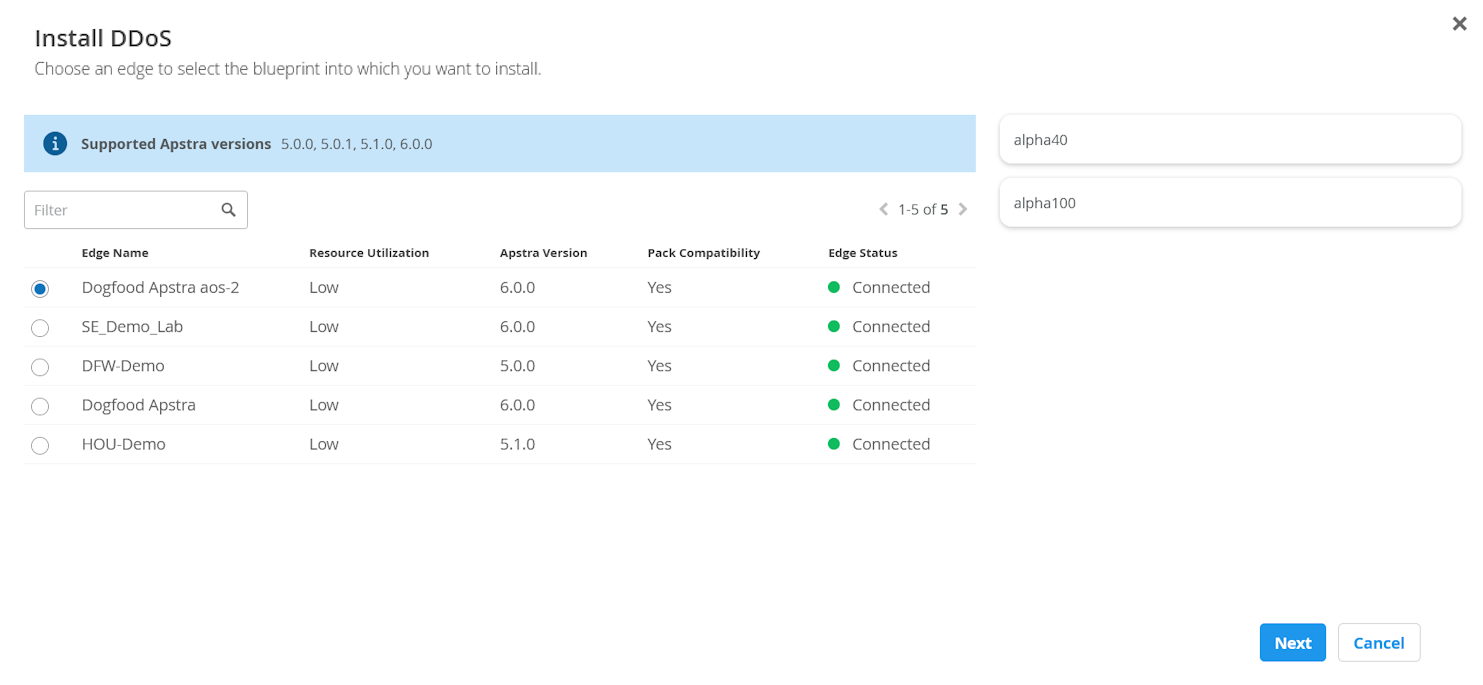
Select the Edge where you want to install the add-on from the list and click Next.
Enter the appropriate details in the publisher-required input parameter fields. These parameters might differ for each add-on.
Note:You can install multiple instances of the same add-on onto a single Edge/blueprint with different input parameters for different requirements. But the identifiers must be unique for each instance of the install. If the identifiers for an install instance is the same as an existing instance, the latest install attempt will fail with an error.
Click Install.
-
For Feature Packs, the installed add-on is found in the Uncommitted tab of the selected blueprint on Data Center Director. As a precaution, you must manually commit the installed changes for the add-on components to be integrated onto the Apstra instance. For more information, see Commit / Revert Changes to Blueprint in the Data Center Director User Guide.
-
If a newer version is available for an add-on that is already installed on an Apstra Edge device, delete the installed add-on and install the latest version on the required Edge.
View My Activity
You can view records of your install and uninstall actions on the Hub. Click the My Activities tab from the Hub homepage or the My Activities icon on the top right of the page. A list of all the add-ons you have installed or uninstalled is displayed along with the add-on versions, blueprints, Edges, and status. You can also view the activity logs for each add-on and download the same in txt format.
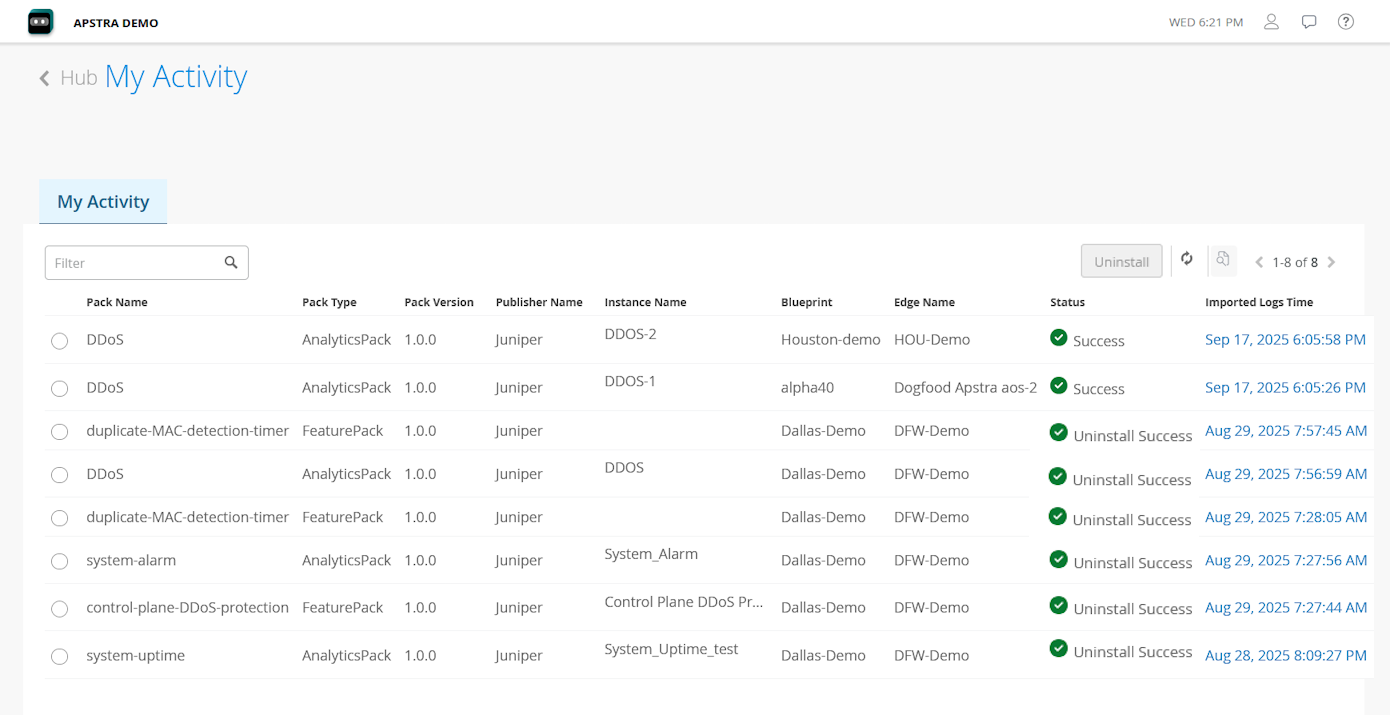
You can also select an add-on and uninstall the instance from Apstra from the My Activity page.
Add-ons for Data Center Assurance Features
HPE Networking publishes a number of add-ons that can be added to Data Center Director for some of the Data Center Assurance features to function optimally. Table 2 lists these packs along with their description.
HPE Networking updates the available packs when new features are introduced on Data Center Assurance. Ensure that you have installed the latest version of the DC Hub packs on your Data Center Director instance.
|
Name |
Type |
Description |
|---|---|---|
|
DC-Probes |
Analytics Pack |
Creates the IBA elements required to collect and stream the following telemetry from Junos devices:
|
|
DCA-Syslog-Streaming |
Feature Pack |
Creates a configlet that configures Junos devices to stream syslog messages to Apstra Edge. Note:
The DCA-Syslog-Streaming pack assigns the UDP port 10514 on Apstra Edge to receive syslog messages from the network devices. We recommend that you do not modify the UDP port number in the streaming configlet that is created on Data Center Director. |
Data Center Assurance displays anomaly data and sends alerts for the following types of probes only:
-
predefined probes on Data Center Director
-
probes installed through DC Hub packs published by HPE Networking
Anomaly data and alerts are not supported for modified or custom probes.
Benefits of DC Hub
DC Hub provides the following benefits:
-
Acts as a single, consolidated platform for add-ons that enhance existing Apstra features.
-
Provides detailed information about available add-ons such as supported versions, components, Apstra version compatibility, and install statuses.
-
Allows network administrators with a streamlined process to browse, install, manage, or uninstall add-ons that improve Apstra functionality.
-
Provides Juniper Official add-ons that optimize Data Center Assurance feature functionality.