
Optimize Energy Consumption by Disabling Unused Ports
This topic describes how to optimize energy consumption by identifying and disabling unused ports on network devices.
Network devices are typically provisioned with a large number of ports to ensure scalability and redundancy. However, many of these ports remain unused for extended periods but still continue to consume baseline power.
The Device Port Power Optimization recommendation list ports that show no signs of operational use and are safe to disable. By disabling these ports, you can reduce the device’s baseline energy consumption, lower operational costs, and reduce GHG emissions.
A port is selected for the Device Port Power Optimization recommendation when:
-
It is administratively enabled (admin-state up) but has no active link (link-state down).
-
A transceiver is inserted but the port does not carry any traffic.
-
The operational state is up but the port shows no Tx/Rx activity.
The Device Port Power Optimization recommendation provides actionable guidance, including the list of unused ports, benefits and risks associated with the optimization action, and the relevant configlet-based actions to safely disable ports and reduce idle power consumption. It also highlights the potential energy savings achievable by applying the recommendation.
The recommendation service runs once per day. Each run uses historical port traffic telemetry and configuration data available at the time. The Recommendation tab displays the most recently generated results for the device.
Changes to port states, traffic patterns, or threshold configurations that occur outside the current run window are reflected in recommendations after the next run.
Use the Per-Port Peak / Off-Peak Traffic Patterns heatmap available on the Device-Level Sustainability Dashboard to view traffic patterns for all ports.
The Recommendation tab appears empty if no safe or meaningful recommendations or power saving actions were identified based on the latest device telemetry.
To view unused ports and review the recommended actions:
-
Navigate to the Recommendation tab.
The Device Port Power Optimization recommendation card appears on the top of the page.
The card highlights the recommendation type, the count of ports identified as unused and safe to disable, and the potential energy savings you can achieve by applying this recommendation.
The recommendation identifies ports that are not actively carrying traffic. The potential savings indicate the estimated amount of energy that can be conserved by disabling unused ports that are not actively carrying traffic and by removing installed optical transceivers that are powered on but not in use.
Note:-
Recommendations are generated only if unused ports are identified on a device.
-
To generate energy optimization recommendations for unused ports atleast 24 hours of data is required.
Click the recommendation card to open the detailed recommendation panel.
Figure 1 shows a sample Device Port Power Optimization recommendation card and panel.
Figure 1: Sample Recommendation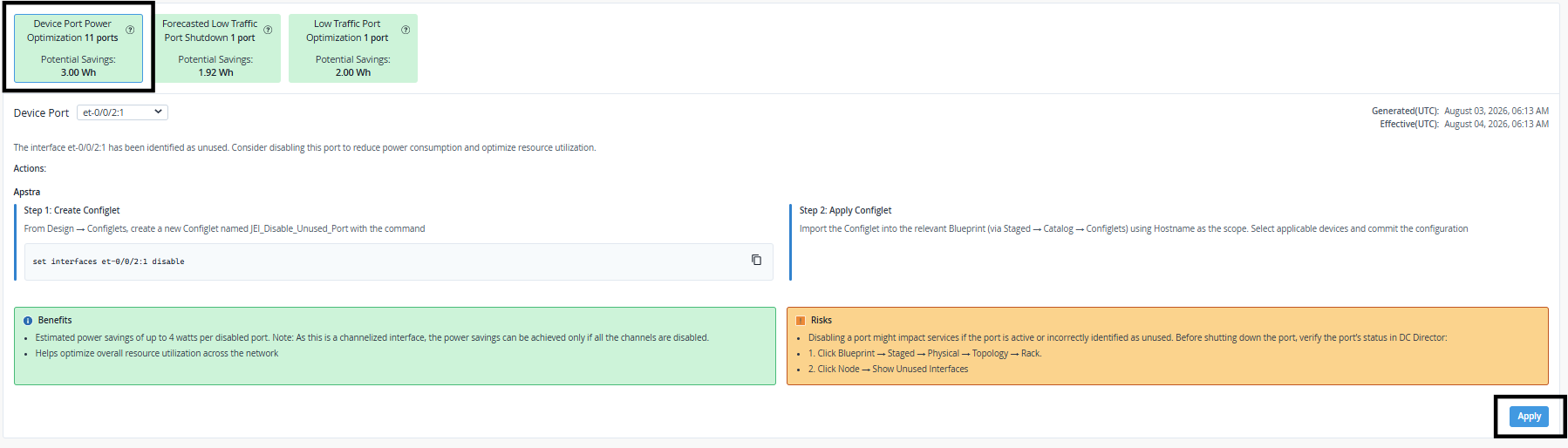
The recommendation includes the following fields:
Table 1: Field Description Field Description Recommendation Card A high-level description of the recommendation type.
Indicates the type of recommendation, the number of ports identified for applying the recommendation, and the potential energy savings achievable if the recommendation is applied.
Device Port Port identified as unused and eligible for disabling.
Use the drop-down to select a port and view its specific recommendation.
Description Summary of why the port is identified as unused and why the action is recommended, referencing energy and traffic data points.
Actions Provides step-by-step guidance and relevant configlet-based actions required to disable the port without impacting the network traffic. Note:You must use the configlets in Apstra Data Center Director to apply configuration changes to the device. For more information on configlets, see Configlets in the Apstra Data Center Director User Guide.
Alternatively, you can click Apply to review the list of unused ports, understand the potential savings achievable by applying the recommended action, and deploy the action directly from the dashboard.
Benefits Displays quantified advantages, such as estimated power and cost savings and reduced GHG emissions. Risks Highlights caveats such as potential dependencies, safety checks, and guardrails to consider before applying the suggested changes. Timestamp Indicates when the recommendation was generated and how long it is valid.
Note: Recommendations are refreshed daily based on the latest device telemetry. -