Help us improve your experience.

Let us know what you think.

Do you have time for a two-minute survey?


Configure Credentials for HPE Networking Apstra Data Center Director ZTP Server GUI

You'll need to create a user for accessing the Apstra DC Director ZTP server GUI. (Different credentials are used for the Apstra DC Director server GUI and the Apstra DC Director ZTP server GUI.) You 'll use these credentials to connect to Apstra DC Director's API.

  1. From the latest web browser version of Google Chrome or Mozilla FireFox, enter the URL https://<apstra_ztp_server_ip> where <apstra_ztp_server_ip> is the IP address of the Apstra DC Director ZTP server (or a DNS name that resolves to the IP address of the Apstra DC Director ZTP server).
  2. If a security warning appears, click Advanced and Proceed to the site. The warning occurs because the SSL certificate that was generated during installation is self-signed, and you didn't replace it with a signed one when you installed the software. We recommend, for security reasons, that you replace the SSL certificate.
  3. If this is the first time you're logging in, enter username admin and password admin (the default password). You must update the default Apstra DC Director ZTP GUI password. (The only user that's supported in the Apstra DC Director ZTP GUI is admin.) You can also change the password any time after this initial update.

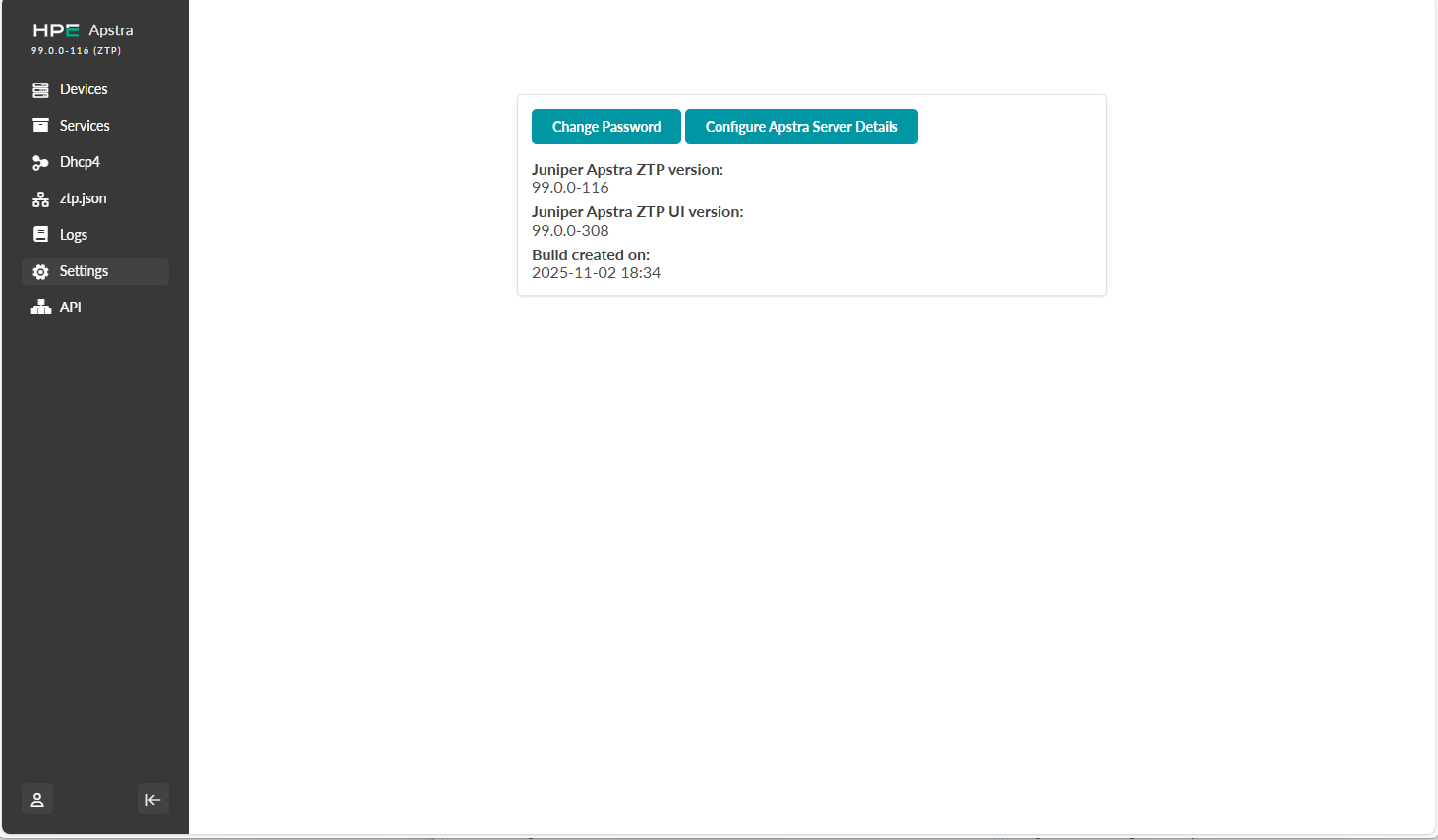
    If this is not the first time you're logging in to the ZTP GUI, log in, then in the left navigation menu, click Settings, then click Change Password, as shown below.

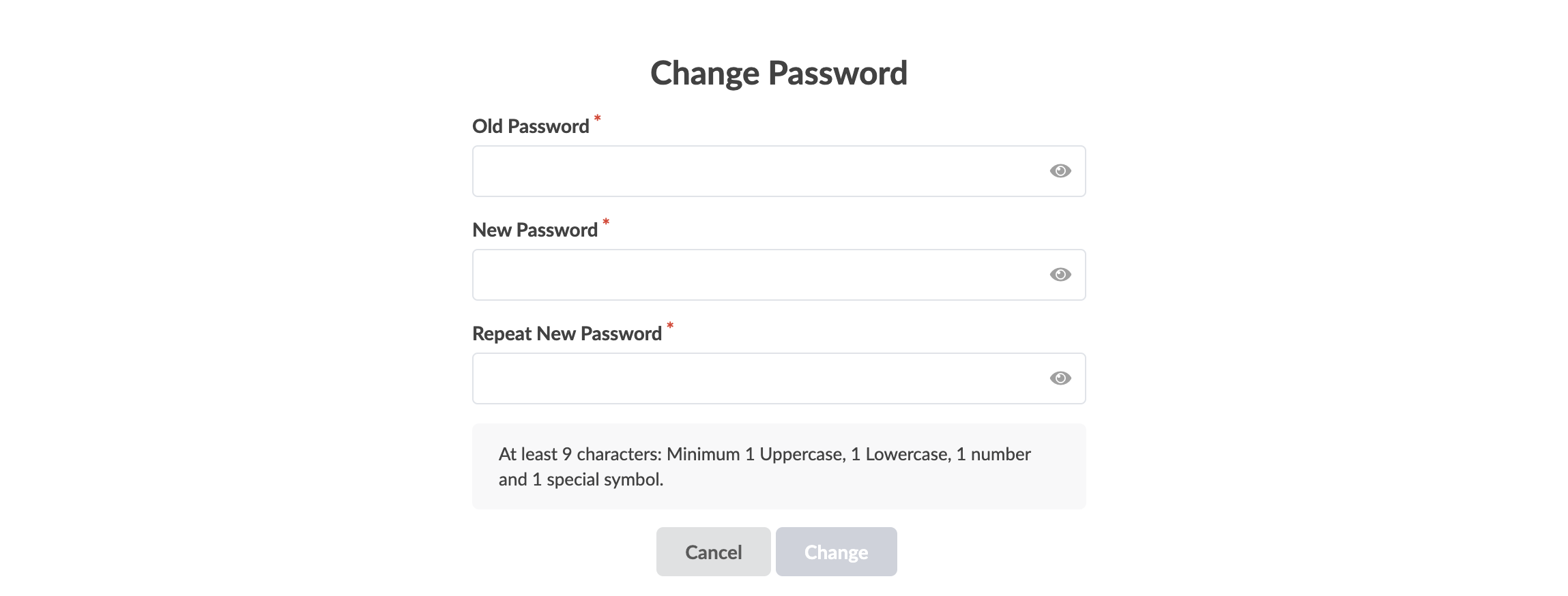
  4. In the Change Password dialog that opens, change the password to one that meets complexity requirements, then click Change.
    You're automatically logged out.

Next Step: Configure Apstra DC Director server connection details.