
Configure Apstra Data Center Director Server Connection Details
Before configuring Apstra DC Director server details, we
recommend that you create a user profile on the Apstra DC Director server for the sole purpose
of interacting with Apstra DC Director ZTP.
You'll need to specify the Apstra DC Director server IP address that communicates with ZTP devices and the Apstra DC Director ZTP server. The Apstra DC Director ZTP server and the devices to be onboarded with ZTP connect to the Apstra DC Director server API, for logging and device system agent creation.
-
If this is the first time you're logging in after changing the default password, you're
presented with a 3-step wizard. Step 1 of the wizard is to configure Apstra DC Director
server details. The wizard runs only the first time you log in with the new password; It
won't appear again. (You can skip this step and come back later to complete this
configuration.)
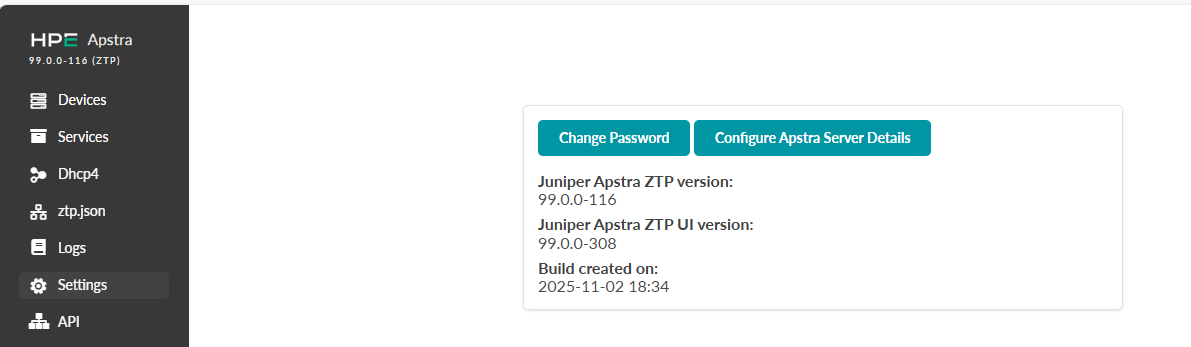
If you're not using the wizard, then from the left navigation menu of the Apstra DC Director ZTP GUI, click Settings, then click Configure Apstra Server Details, as shown below.
-
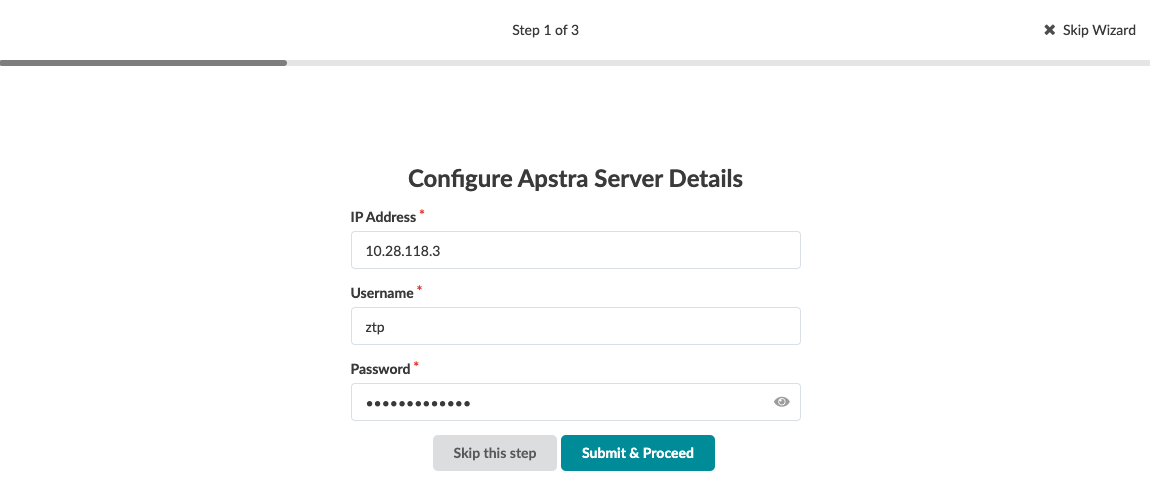
Enter the Apstra DC Director server IP address that will communicate with ZTP devices
and the Apstra DC Director ZTP server.
Next Step: Configure DHCP Server for Apstra DC Director
ZTP.