
Check ZTP Status of Devices and Services
Devices
To check the ZTP status of devices, from the left navigation menu of the HPE Networking Apstra Data Center Director GUI, navigate to Devices > ZTP Status > Devices.
Starting in Apstra DC Director 6.2, you can access the Apstra DC Director ZTP server GUI from within the Apstra DC Director server GUI,
Click the IP address to access the ZTP server GUI,
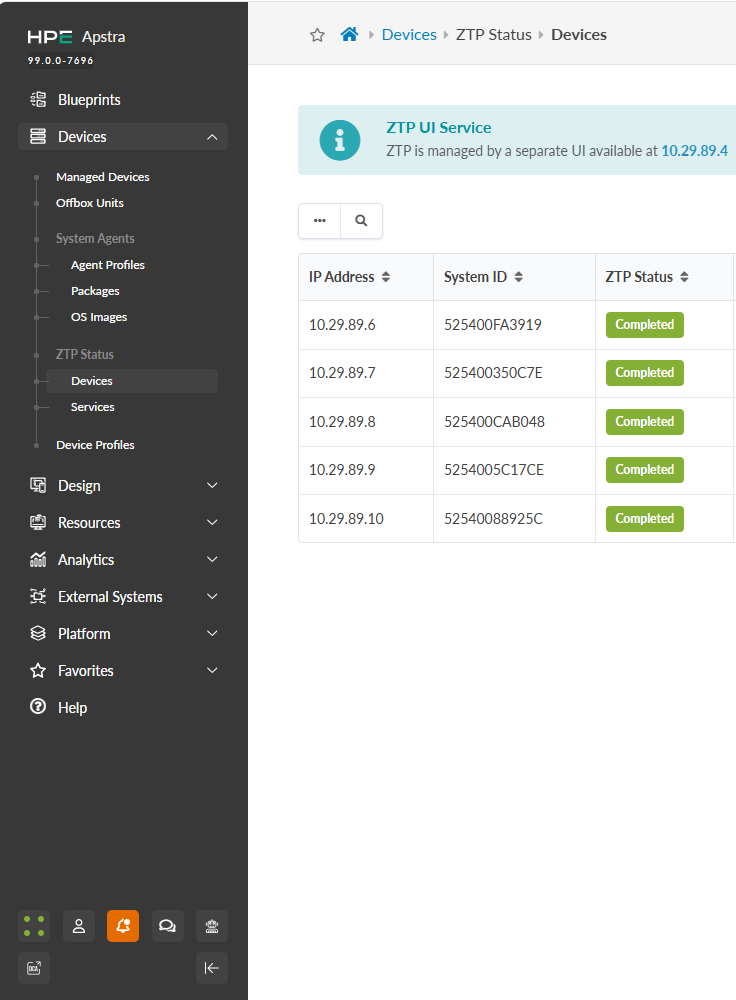
Click Devices to view the devices.
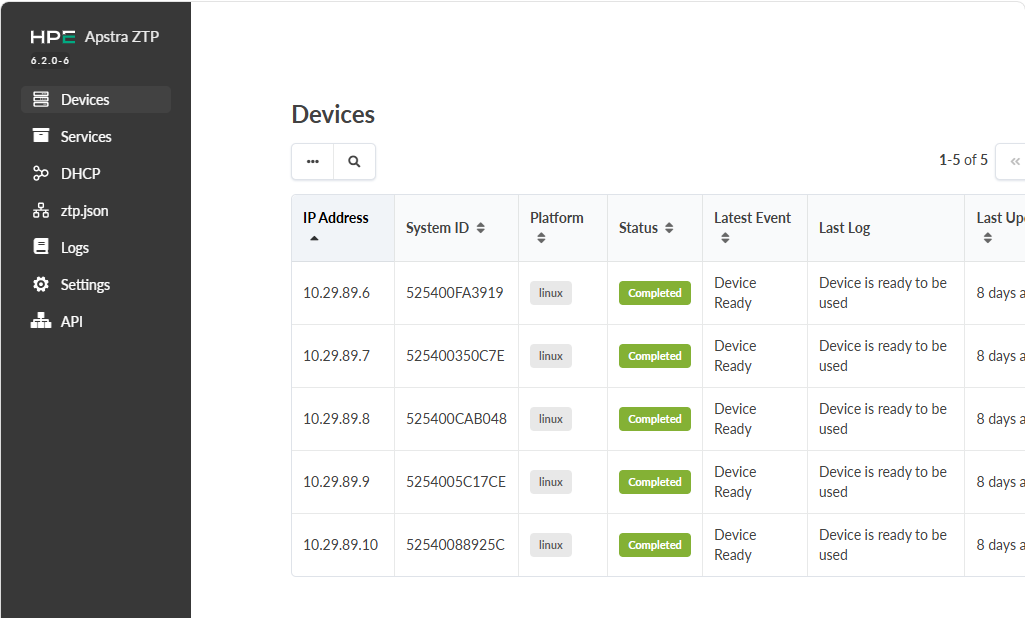
Each device interacting with DHCP and ZTP is listed along with its system ID (serial number), if known, ZTP status (where it is in the onboarding process), the latest ZTP event, and when the device status was last updated.
To see the full DHCP and ZTP log file for a device, click the Show Log button (eye icon) in the Actions panel.
If you don't need to see the logs for a device anymore in the Apstra DC Director GUI, click
the Delete button in the Actions panel. Log files for all
processes are retained in the /containers_data/logs directory.
root@apstra-ztp:/containers_data/logs# ls -l
total 7132
-rw-r--r-- 1 root root 6351759 Oct 28 17:47 debug.log
drwxr-xr-x 2 root root    4096 Oct 27 19:20 devices
-rw------- 1 root root       0 Oct 23 20:02 dhcpd.leases
-rw-r--r-- 1 root root  926980 Oct 28 17:39 info.log
-rw------- 1 root root      58 Oct 23 20:02 README
-rw------- 1 root root     469 Oct 27 02:13 rsyslog.log
root@apstra-ztp:/containers_data/logs# tail info.log
2020-10-28 17:16:38,786     root.status    INFO Incoming: dhcpd dhcpd[18]: DHCPACK on 192.168.59.9 to 04:f8:f8:6b:36:91 via eth0
2020-10-28 17:18:04,299     root.status    INFO Incoming: dhcpd dhcpd[18]: DHCPREQUEST for 192.168.59.9 from 04:f8:f8:6b:36:91 via eth0
2020-10-28 17:18:04,300     root.status    INFO Incoming: dhcpd dhcpd[18]: DHCPACK on 192.168.59.9 to 04:f8:f8:6b:36:91 via eth0
2020-10-28 17:19:29,250     root.status    INFO Incoming: dhcpd : -- MARK --
2020-10-28 17:19:29,442     root.status   ERROR Failed to update status of all containers: /api/ztp/service 404 b'{"errors":"Resource not found"}'
2020-10-28 17:33:29,353     root.status    INFO Incoming: tftp : -- MARK --
2020-10-28 17:33:29,538     root.status   ERROR Failed to update status of all containers: /api/ztp/service 404 b'{"errors":"Resource not found"}'
2020-10-28 17:33:34,768     root.status    INFO Incoming: status : -- MARK --
2020-10-28 17:39:29,349     root.status    INFO Incoming: dhcpd : -- MARK --
2020-10-28 17:39:29,539     root.status   ERROR Failed to update status of all containers: /api/ztp/service 404 b'{"errors":"Resource not found"}'
root@apstra-ztp:/containers_data/logs#
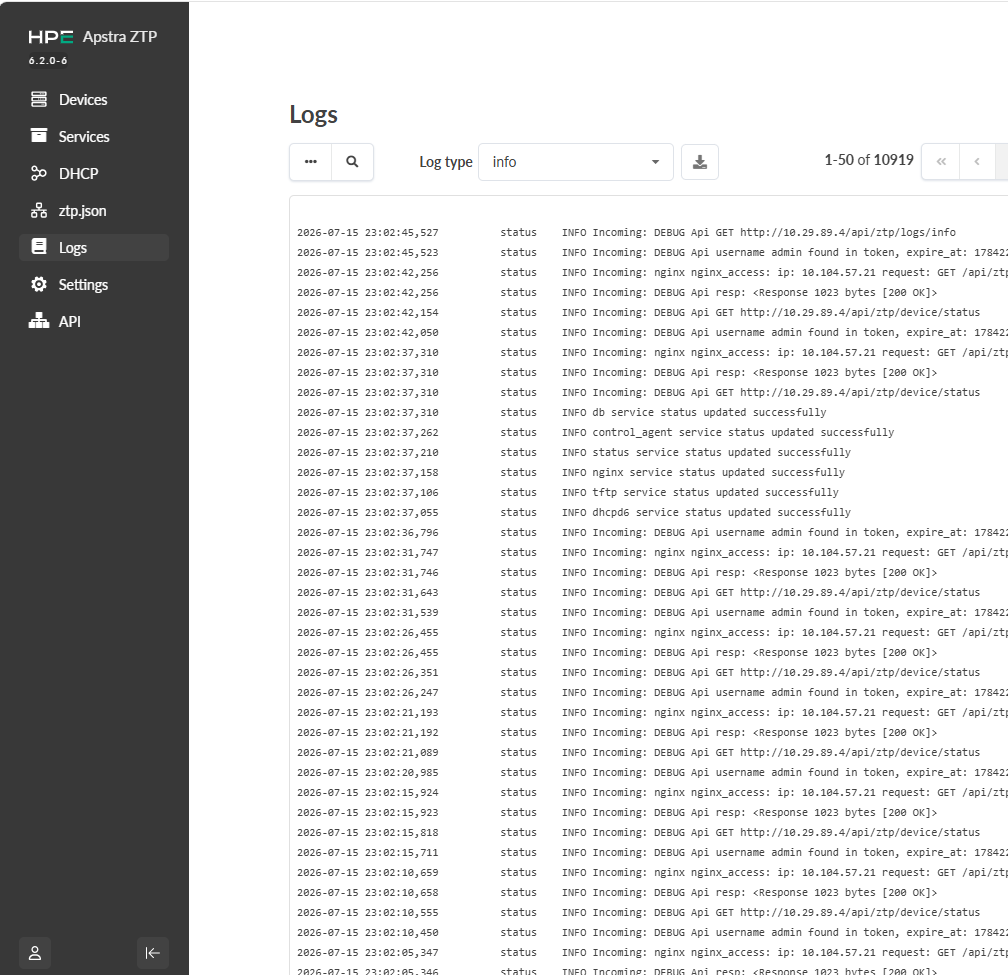
To see the full DHCP and ZTP log file for a device, from the left navigation menu of the Apstra DC Director ZTP server GUI, click Logs.
Services
To check the ZTP status of services, from the left navigation menu of the Apstra DC Director GUI, navigate to Devices > ZTP Status > Services.
Starting in Apstra DC Director 6.2, you can also access the Apstra DC Director ZTP GUI from within the Apstra DC Director server GUI,
Click the IP address to access the Apstra DC Director ZTP server UI.
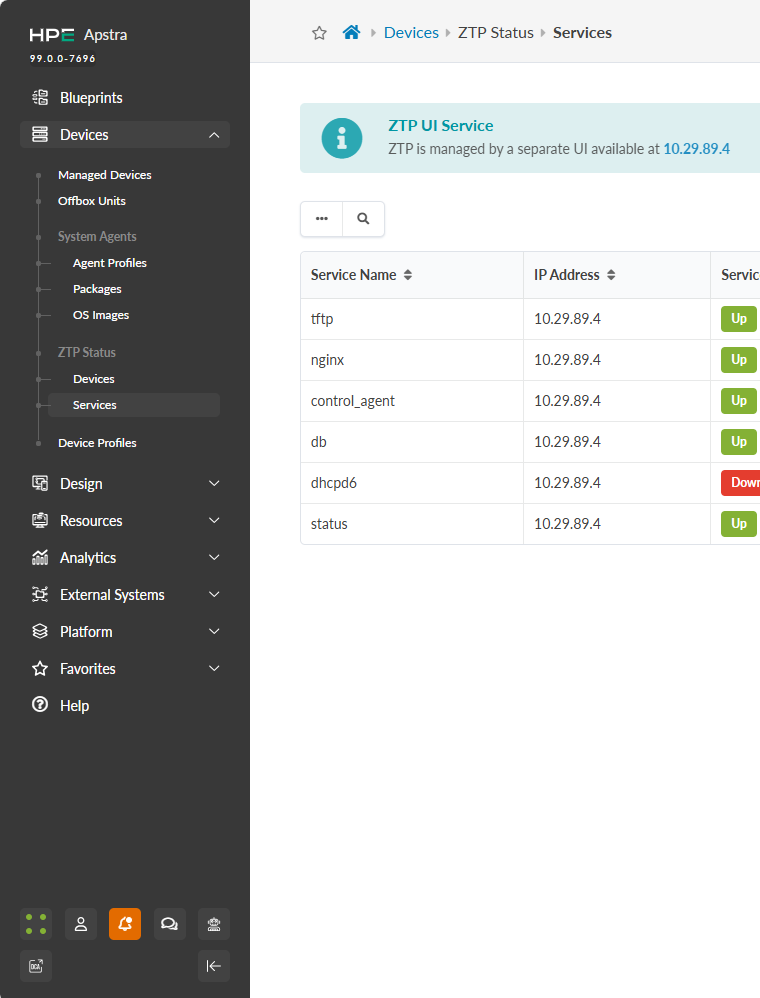
To check the ZTP status of services, from the left navigation menu of the Apstra DC Director ZTP server GUI, navigate to Services.
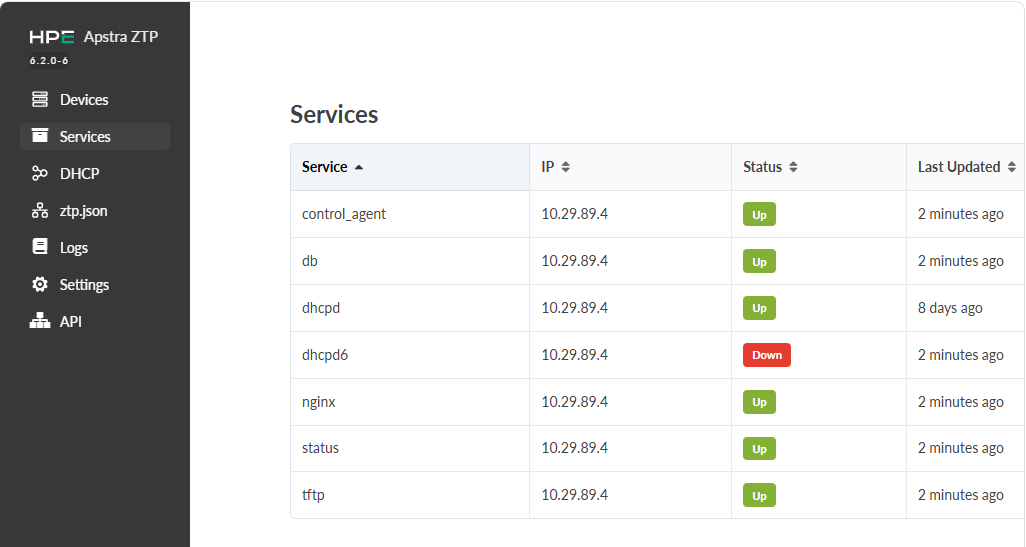
Each service name includes its Docker IP address, service status and when the service status was last updated.