Create and Import a Global Property Set
Follow these steps to create and import a Global Property Set. Apstra ConnectorOps uses this Property Set as input to render SRX configurations.
You must define a Property Set with input information for ConnectorOps to automate configuration generation to the SRXs. ConnectorOps uses this Property Set as the data source for configuration rendering and to establish connectivity between devices.
You must configure a Property Set with the "connector_ops_config" prefix. Create the Property Set at the global scope, then import it into the revelant Blueprint.
The Property Set contains an "SRXSetGroups" field. This field contains one or more SRX configuration groups. Each group represents a logical grouping of SRX devices with similar configuration settings. Each group must include the following:
-
"SRX_details": A list of the SRX devices in the group. Each entry must define:
- "managementIP": The management IP address of the SRX.
- "name": The device identifier. This must match the system name defined in the Blueprint.
- "username": The username ConnectorOps uses to connect to the SRX.
-
"commitConfig": A Boolean flag (true, false). If set to “true”, ConnectorOps pushes the configuration and commits it on the SRX. If set to “false”, ConnectorOps saves the config file on the SRX but doesn’t commit, so that you can review the file before committing. The config file is saved with the following file name:
co-<blueprint_name>-<device_name>_config_<timestamp>.txt.The config files are located in
/var/tmp.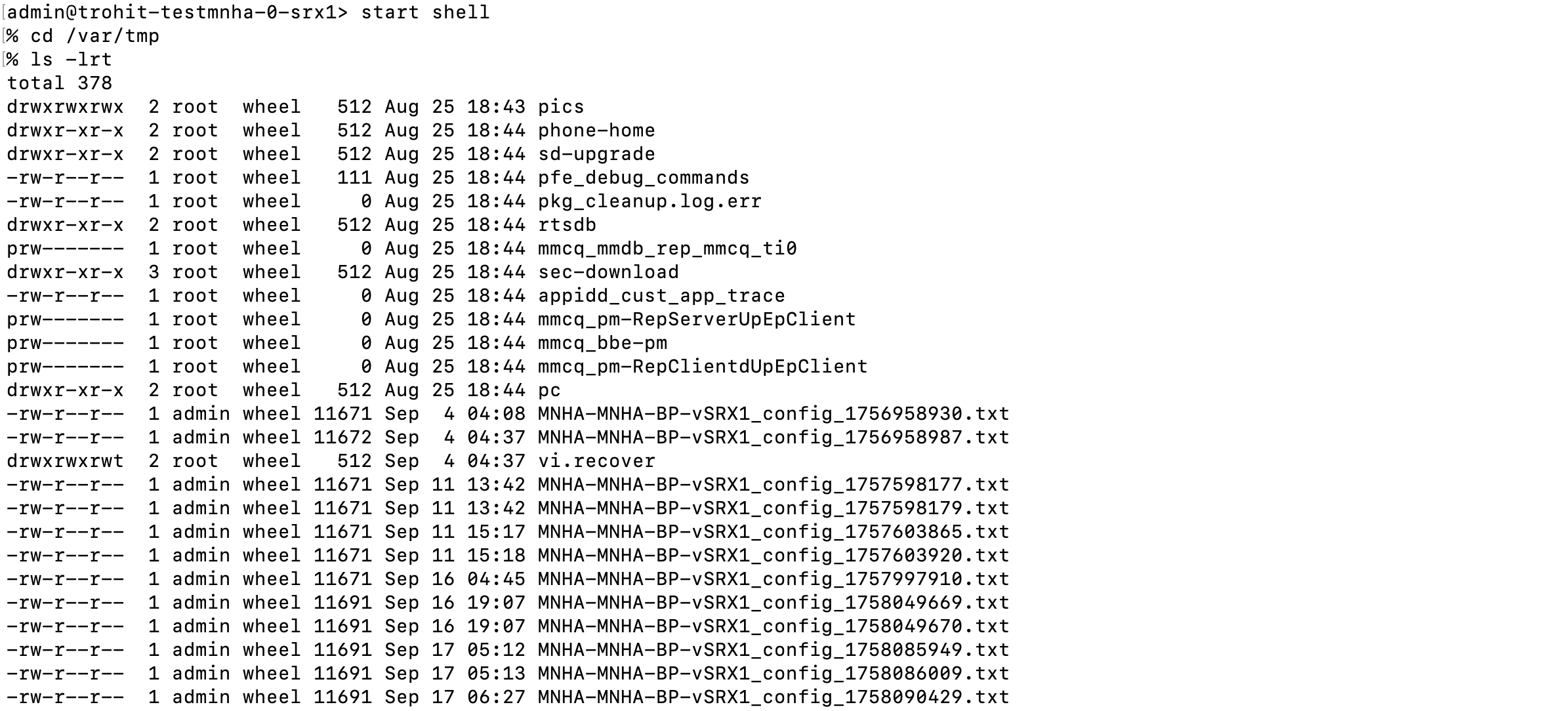
-
"sharedLoopbackIP": Shared loopback IP address between peer SRX.
-
"vrf": VRF assignment details for route leaking and policy configuration. Contains one or more VRF group definitions. Each VRF group must contain a "name" and an optional "advertise_routes" list of routes to advertise.
For successful authentication, the username in the Property Set must match the username associated with the SSH public key on the SRX. SRX passwords are no longer included in the Property Set.
The following is an example Property Set:
{
  "SRXSetGroups": {
    "connector_ops_config-static-cops-04-0-deployment-1": {
      "SRX_details": [
        {
          "managementIP": "<management-ip>",
          "name": "<srx1-name>",
          "username": "<srx1-username>"
        },
        {
          "managementIP": "<management-ip>",
          "name": "<srx2-name>",
          "username": "<srx1-username>"
        }
      ],
      "commitConfig": true,
      "sharedLoopbackIP": "<loopback-ip>",
      "vrf": {
        "animals": [
          {
            "name": "cats"
          },
          {
            "name": "dogs"
          }
        ],
        "color": [
          {
            "advertise_routes": [
              "<advertise-routes-list>"
            ],
            "name": "green"
          },
          {
            "advertise_routes": [
              "<advertise-routes-list>"
            ],
            "name": "red"
          }
        ]
      }
    }
  }
} For managementIP, specify the SRX management address as either an IP or
hostname. If SSH access uses a non-default port, specify it as host:port
(for example, 192.0.2.1:2222). ConnectorOps uses port 22 by default if no
port is provided.
-
Select the Property Set you created from the dropdown, and click Import Property
Set.
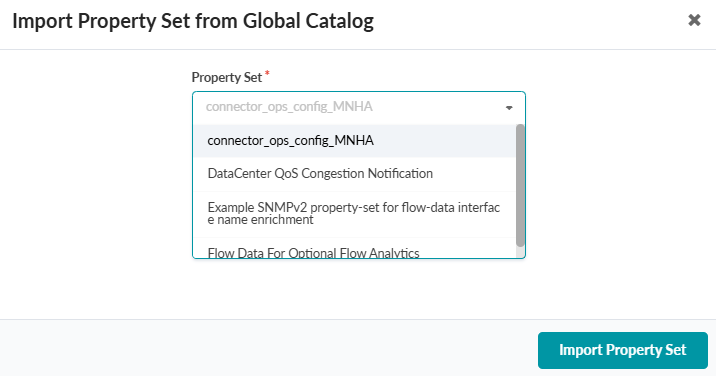 This triggers an event, and ConnectorOps uses the Property Set as input to generate the configuration.
 -
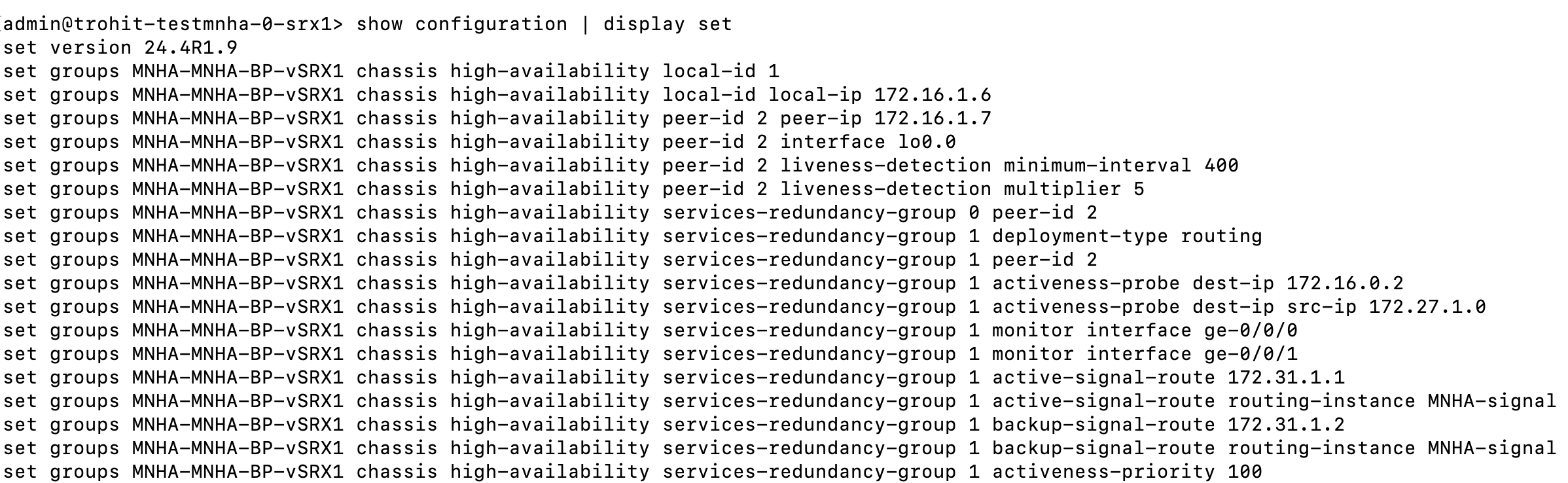
(Optional) Log into your SRX and verify that the custom configs showing Group names
that match the generated configs are present.
The group names should match the name of the Global Configlet.
show configuration | display set