
Out-of-Band Agents
Introduction
Installing system agents on GPU hosts typically requires storing credentials in Apstra. Managing sudo credentials presents a challenge for organizations that don’t allow storing device credentials in external systems. Apstra 6.1 addresses this by enabling out of band (OOB) device agent installation. OOB installation changes the typical agent installation flow. In 6.1, GPU servers establish secure connectivity to Apstra without requiring credentials to be stored in Apstra. As a result, credential management overhead is reduced, and your organization’s zero trust security policies are maintained.
Out-of-Band Agents on GPU Hosts
With OOB agent installation in 6.1, the process of agent installation is handled by the administrator, not Apstra. Instead of Apstra pushing the agent to the server, the administrator copies the aos_device_agent.run file to the GPU host and executes it locally with out-of-band parameters. The device agent then uses the configuration stored in aos.conf to establish connectivity to the Apstra Server. Apstra is unaware of any credentials.
Once the device agent is installed, it operates in telemetry only mode. In this mode the agents do not change any configuration but collect various telemetry data to report it back to AOS. On the Apstra side, the system agent must be configured as onbox with the operation mode set to telemetry only. When both sides are configured correctly and the management IP on the system agent matches the IP reported by the device
Because OOB agents only collect telemetry, they have fewer capabilities than traditional system agent installations. For example in the Apstra UI, buttons like “reboot” and “install” are grayed out for because job execution is not supported in this mode. The “delete action remains available so you can delete the system agent when needed. As such, OOB agents provide visibility into your devices without having the ability to make changes to the host system, and no credentials are stored in Apstra.
Changing between installation types is supported in both directions. You can change from a traditional system agent-based installation to OOB by rerunning the device agent on compute with OOB parameters.
To change from an OOB agent to a system agent:
Delete the previously installed system agent that was supporting the OOB device.
Delete/purge the AOS service on the device agent.
systemctl stop aos
dpkg --purge --force-all aos-device-agent
rm -fr /etc/aos /var/log/aos
Create a new onbox system agent with credentials and configure the job that should run when the agent is created. When you use the API, this is controlled by the
job_on_createfield in the system agent payload.
API Changes for Out-of-Band Agents in Apstra 6.1
OOB agents reuse the existing Apstra APIs but add new fields and behaviors so Apstra can distinguish them from traditional agents.
System Agent
/api/system-agents/<agent-id> response
The system agent details response now includes:
config.allowed_job_typesin [‘config’]: This list is empty for OOB agents.device_agent_install_typein [‘status’]: Indicates how the device agent was installed. Available values aresystemAgentandoutOfBand.- Note that this is the primary field you can use when you want to show the install type in the Managed Devices page or filter agents based on installation method.
-
device_agent_install_typein [‘device_facts’]: Indicates if the device agent install type issystemAgentoroutOfBand. On UI, this could be displayed in a new column against the device on device management page.
System Details
/api/systems/<system_id> response
The system details response now includes:
-
facts.device_agent_install_type: Indicates whether the device attached to this system was installed assystemAgentoroutOfBand.
All System agent job APIs, such as the following return status "409" when both of the following are true:
-
The system agent type is onbox
The associated device agent install type is
outOfBand
- /api/system-agents/<agent-id>/check
-
/api/system-agents/<agent-id>/install
-
/api/system-agents/<agent-id>/reboot
This behavior prevents jobs from running for OOB agents.
Install an Out-of-Band Agent
Installing an OOB agent involves two procedures that can be completed in either order. The first step occurs on the GPU host where you run the installer. The second step occurs in Apstra when you create a system agent. You must complete Both steps before Apstra receives telemetry from the device.
To run the installer on the GPU host:
After the device agent is running on the GPU host, you must create a system agent in Apstra so that Apstra knows to accept connections from this device. You can do this through the Apstra UI or via the API.
Create a System Agent for the Out-of-Band Agent in Apstra
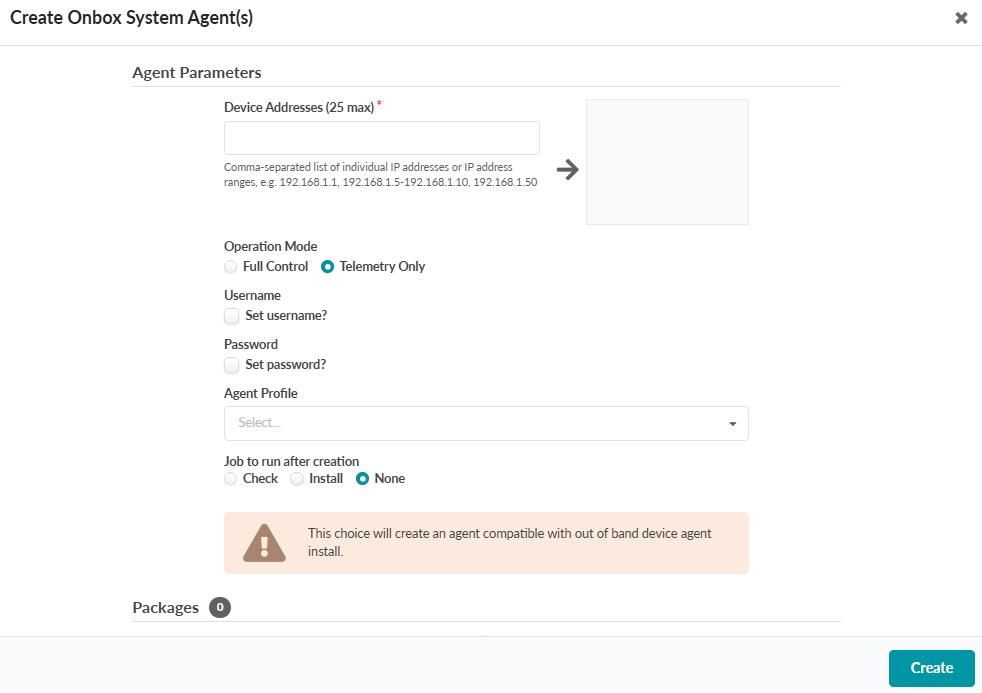
To Create a System Agent for the Out-of-Band Agent:
-
Fill in the following information:
Note: The credentials, Agent Profile, and Packages options should be left blank.
-
Agent Parameters:
-
Device Addresses: Enter the IP(s) of the GPU hosts
-
Operation Mode: Telemetry Only
-
Job to run after creation: None
-
-
Troubleshooting and Validation
After installing your OOB agent, you can use the following checks to validate that agents are active in Apstra and streaming telemetry.
Check that the agent shows a Job Status of “INIT” in Devices > Managed Devices.
Confirm that the agent shows:
Operation Mode in Telemetry Only.
Device Agent Install Type as Out of Band.
3. Check the Telemetry tab of the GPU host in Apstra and verify that telemetry like interface statistics or LLDP information is present.
4. Confirm aos.conf settings:
-
On the GPU host, open the aos.conf file and verify that:
-
`device_info.device_agent_install_type` is set to `outOfBand`.
-
`controller.metadb` points to the correct Apstra IP and port.
-
`controller.interface` matches the interface that reaches Apstra.
-