
Upgrade Device NOS
Upgrade the network operating systems (NOS) of your managed network devices from the GUI.
We highly recommend that you become familiar with this procedure before beginning the upgrade process.
NOS Upgrade Overview
You can upgrade a device NOS from the GUI with a few steps. If you've defined your own device profiles, you may need to update them first. You'll register the new OS image that you obtained from the vendor, then click a button to start the upgrade. The upgrade tasks and other requirements are taken care of and pristine config is updated.
For information about supported upgrade paths, see NOS Upgrade Paths in the References section.
Predefined device profiles with supported OS versions are included in the product. When you upgrade the server, device profiles with the OS versions that are supported in the new version are also updated. You can then upgrade the NOS to one of the newly supported versions.
However, device profiles that you've created (cloned) yourself, are not managed, so when you upgrade the server those device profiles aren't automatically updated with newly supported versions. You'll need to follow a few extra steps to add them as described in the next section.
Before beginning the process, make sure of the following:
- Make sure that you understand the device configuration lifecycle and that you're comfortable with managing deploy modes.
- Make sure that the software is managing the device you're upgrading. Navigate to Devices > Managed Devices and confirm that your device is in the table and that it is acknowledged (with a green check mark).
- Before upgrading NOS, delete any device AAA/TACACS+ configlets from the blueprint. After the upgrade is complete, you can reapply them.
- Make sure that the Admin state of the device is set to normal. Navigate to Devices > Managed Devices, click on the Management IP of the device to confirm the admin state. (Do NOT set the Admin state to MAINT/DECOMM or the device could enter an unrecoverable state.)
-
Make sure the deploy mode of the device is set to Drain.
- Make sure that the version specified is the same on both the server and the device. If they are different, you can't upgrade the device. If you attempt to upgrade with different versions, you will not receive a warning; the task status remains in the IN PROGRESS state indefinitely.
You have the option of grouping devices together so that you can upgrade them at the same time. This is called an upgrade group. Upgrade groups provide a bit more structure versus upgrading devices in a standalone ad hoc manner.
Upgrade Groups
An upgrade group allows you to group devices together so that you can upgrade them at the same time. This allows you to organize your upgrades in advance of the actual upgrade.
For example, if your network provides redundancy such as dual homing, you may want to upgrade your devices in such a manner that you don't leave any attached device isolated from the network. You can accomplish this by assigning devices to the same or to a different group as desired and then upgrading each group separately. This provides more structure to your upgrade process and lowers the risk of errors when compared to standalone ad hoc upgrades. An added benefit of using upgrade groups is that you can see the consequences or impacts of an upgrade prior to upgrading. See View Impact Report for more information.
There is no restriction on what devices you place into what group. They can all be homogenous devices upgrading to the same OS version or they can be different devices from different vendors upgrading to different OS versions. You have the same flexibility with upgrade groups as you do for standalone upgrades (without a group). An upgrade group simply helps with the planning, organization, and execution of your upgrades.
An upgrade group must have at least one member. If you remove the last remaining member from an upgrade group, the upgrade group is automatically deleted.
A device belongs to exactly one upgrade group at any given time. You can quickly see which group a device belongs to from the Upgrade Group column in the Managed Devices window. You can sort and filter device entries based on the Upgrade Group. By default, all new devices belong to the default group.
- Default Group
- Create an Upgrade Group
- Edit an Upgrade Group
- Assign a Device to an Upgrade Group
- View Impact Report
Default Group
The default group is simply a group with the name default. All acknowledged devices initially belong to this group. The purpose of the default group is to provide a home for devices not explicitly assigned to a group.
Although not technically accurate, a convenient way of looking at the default group is that it's the group that contains unassigned devices. Once you explicitly assign a device to a group, it's moved from the default group to the assigned group. You can also move a device back to the default group at any time, which is akin to unassigning a device from a group.
The default group has the following properties:
-
The name of the group is default.
-
If you rename the default group, then the default group temporarily disappears.
-
All new devices are initially assigned to the default group once acknowledged. If there is no group called default (see previous bullet), then the default group is automatically created and the new device is assigned to that group.
-
You can move devices to and from the default group as you do for other groups.
-
For convenience, we provide a UI shortcut to move a device back to the default group.
Create an Upgrade Group
Use this procedure to create an upgrade group.
Edit an Upgrade Group
Use this procedure to change the name of an upgrade group or change its members.
-
Edit the group.
-
Click the Edit Group icon for the group
you want to edit.
Figure 1: Edit Group IconThe Modify Upgrade Group window containing the following information appears:
-
the Group Name
-
the list of devices that are part of the group
-
the list of devices that can be assigned to this group
-
-
Click the Edit Group icon for the group
you want to edit.
Assign a Device to an Upgrade Group
Use this procedure to assign a device to a different upgrade group from the upgrade group where the device currently belongs.
-
Click the Assign Upgrade Group icon to bring up
the Assign to Upgrade Group window.
Figure 2: Assign Upgrade Group Icon
The Assign to Upgrade Group window contains the following information:
-
the list of device(s) that you've selected
-
a field for you to enter the Upgrade Group where you want to assign the selected devices
-
a list of devices that currently belong to the upgrade group you enter
-
View Impact Report
An added benefit of using upgrade groups is that you can assess the impact of the upgrade prior to upgrading. The impact report for an upgrade group includes:
-
identifying single-homed servers connected to a leaf switch being upgraded
-
identifying dual-homed servers connected to a leaf switch pair being upgraded
-
identifying single-homed servers connected to an access switch being upgraded
-
identifying single-homed servers connected to an access switch that is connected to a leaf switch being upgraded
-
identifying dual-homed servers or access switches connected to a leaf switch pair where one switch is being upgraded while the other is in drain mode.
Figure 3 shows an example of a report:
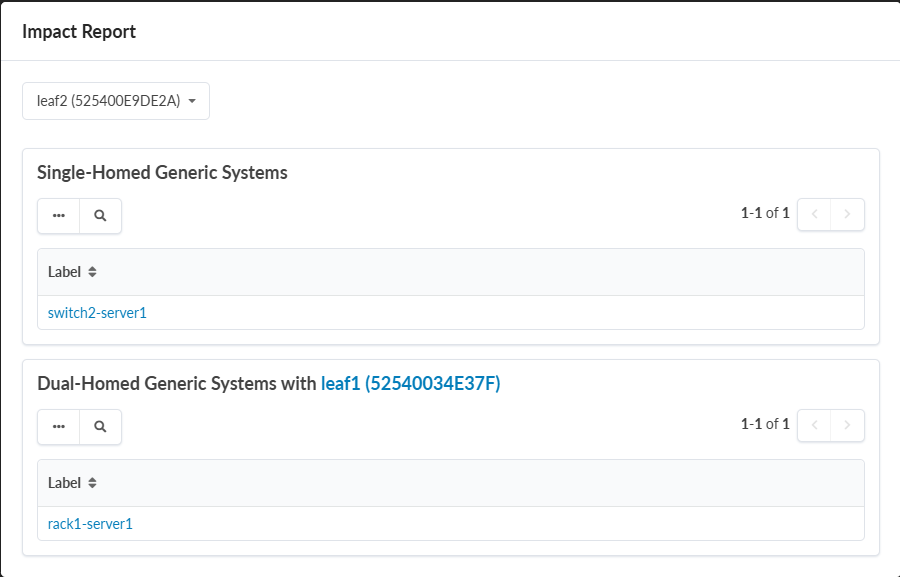
The subject of the above report is leaf2. The report
indicates that:
-
the
switch2-server1system is single-homed toleaf2, which means that upgradingleaf2will isolateswitch2-server1 -
the
rack1-server1system is dual-homed to bothleaf1andleaf2, which means upgradingleaf2will not isolaterack1-server1as long asleaf1is up and running
You can view the impact report from various windows:
-
From the Upgrade Groups window, click the Impact
Report icon for the selected group.
Figure 4: Impact Report Icon
-
From the Modify Upgrade Group window, click Impact
Report.
The Impact column for the devices in the group is populated with either a green no impact
 icon or a red impact
 icon.
icon. Click the red impact
icon to get more
information on the impact. -
From the Assign to Upgrade Group window, click Impact
Report.
The Impact column for the devices in the group is populated with either a green no impact
icon or a red impact
icon. Click the red impact
icon to get more
information on the impact. -
From the Copy OS Images to Devices in
<Upgrade-Group> window, look at the Impact
column.
The Impact column for the devices in the group is populated with either a green no impact
icon or a red impact
icon. Click the red impact
icon to get more
information on the impact. -
From the Upgrade Devices in <Upgrade-Group>
window, look at the Impact column.
The Impact column for the devices in the group is populated with either a green no impact
icon or a red impact
icon. Click the red impact
icon to get more
information on the impact.
Update User-defined Device Profiles
Make sure that your devices are in the appropriate states for upgrading as described in the overview above.
If you've created (cloned) your own device profiles, you'll need to manually specify OS versions in the device profile and the blueprint that uses that device profile. (If your devices use predefined device profiles, then proceed to the next section to register the new OS image.)
-
From the left navigation menu, navigate to Platform >
Developers > GraphQL Explorer and find the ID for the
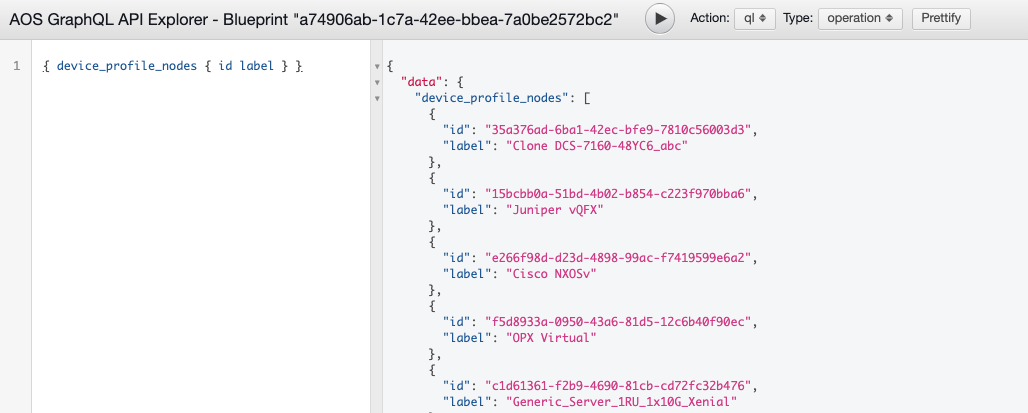
device profile. You can find it with the query variables {
device_profile_nodes { id label } }
In this example, the "id" for the label "Clone DCS-7160-48YC6_abc" is "35a376ad-6ba1-42ec-bfe9-7810c56003d3".
Register / Upload OS Image
Obtain the OS image from the device vendor.
CAUTION:Make sure to select a compatible device operating system image for the device that you're upgrading. If you use an incompatible image and the upgrade fails, the deployment lock is not released automatically, even if you recover the device. To release the deployment lock and activate the device again, remove the device assignment from the blueprint, decommission and normalize the device (from Devices > Managed Devices), then reassign the device to the blueprint. For assistance, contact Juniper Support.
From the left navigation menu, navigate to Devices > System Agents > OS Images and click Register OS Image (top-right).
You can see how much space is left for uploading new NOS images.
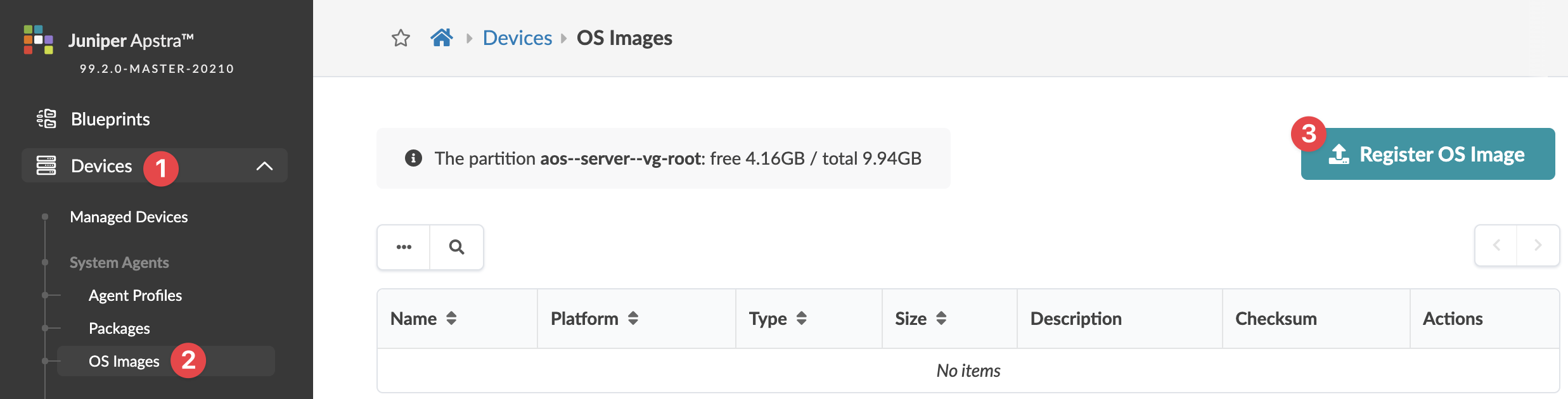
The Register Device OS Image dialog opens; if the partition has under 5GB of free space a warning appears.
Select the platform from the drop-down list (EOS, NXOS, SONIC, JUNOS) and enter a description.
Either upload the image directly to the server or provide a URL download link pointing to an image file on an accessible HTTP server (described in sections below).
Method One: Upload Image
Select Upload Image, then either click Choose File and navigate to the image on your computer, or drag and drop the image from your computer into the dialog window and click Open.
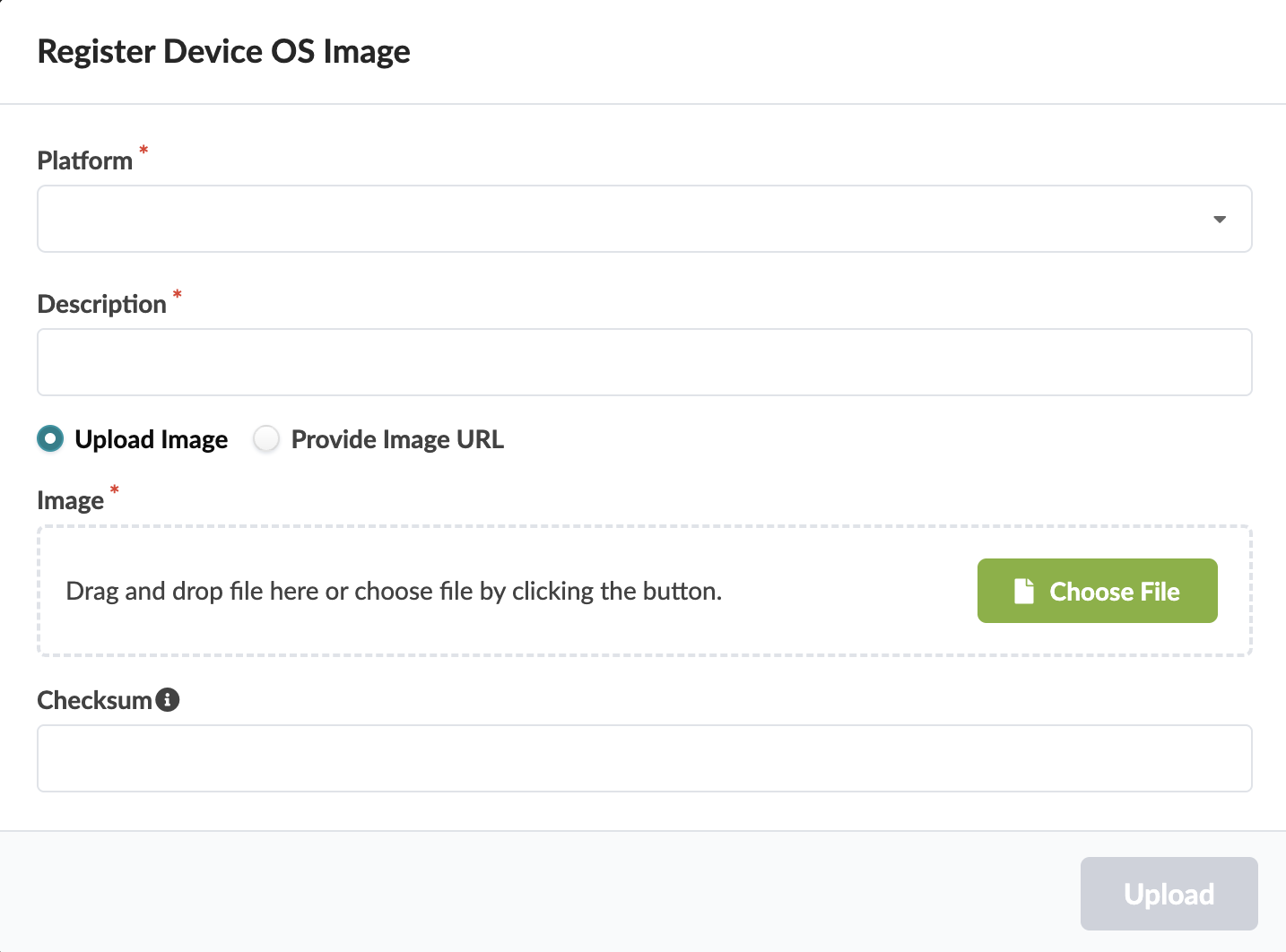
Add a checksum (optional) (described in section below).
Click Upload.
The software validates that the software package is validated for is supported by the switch OS. If it isn't supported (because the file extension is wrong, for example), then the upload fails immediately, before uploading begins.
The software validates the (optional) checksum. If it can't be verified, the upload process fails immediately, before uploading begins.
If all validation passes, the image is uploaded and appears in the table view.
Method Two: Provide Image URL
If another HTTP server is accessible to the devices being upgraded via their network management port, you can register the OS Image instead of uploading it. HTTP and HTTPS URLs are supported. (FTP, SFTP, SCP and others are not supported.)
Select Provide Image URL.
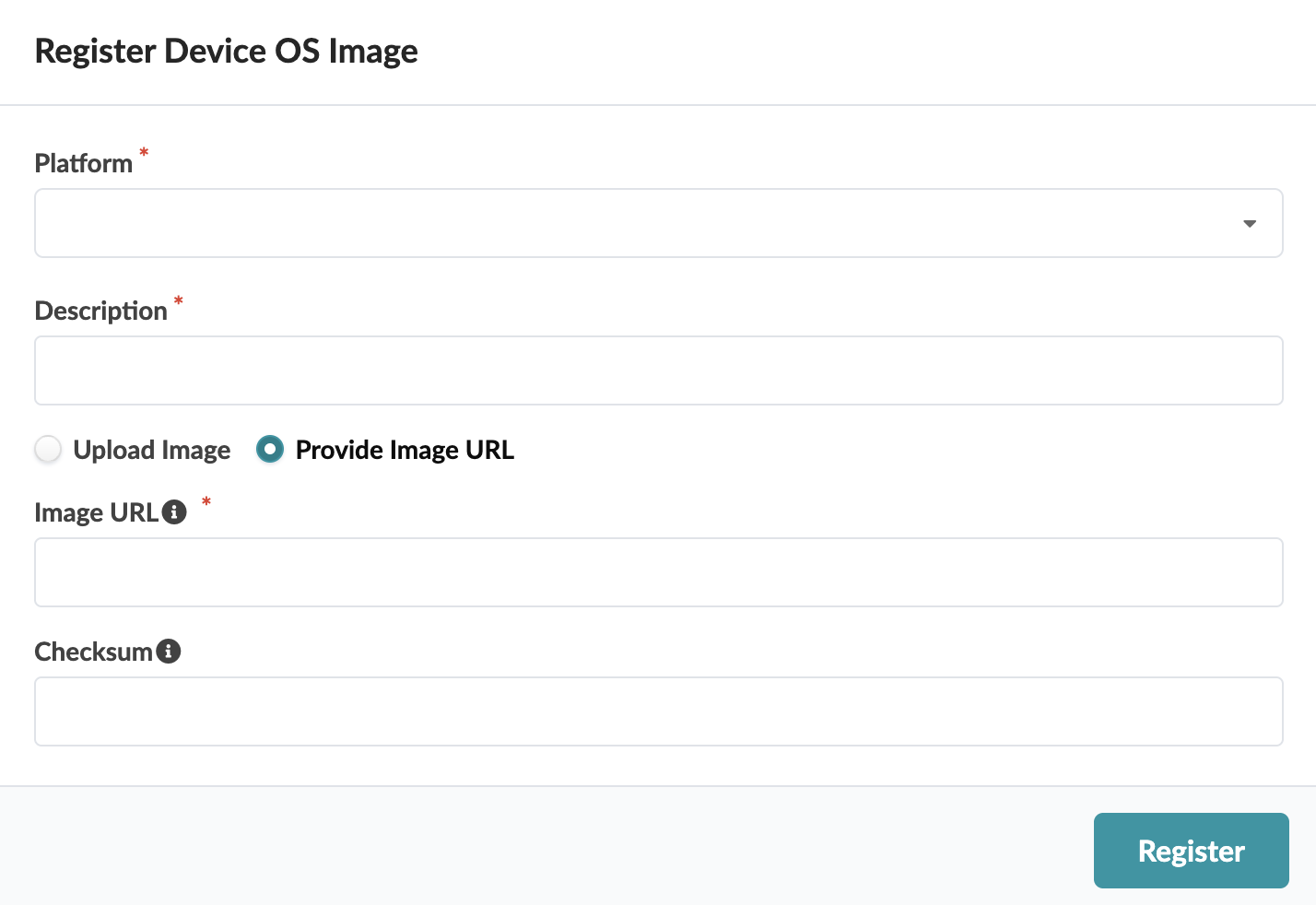
Enter the URL that points to the image on the other server.
Add a checksum (optional) (described in the section below).
Click Register.
The software validates the (optional) checksum. If it can't be verified, the process stops.
If validation passes, the image appears in the table view.
Add Checksum (Optional)
The platform determines the type of checksum that's used:
- Juniper Junos - MD5 (32 characters) or SHA256 (64 characters)
- Enterprise SONiC - MD5 (32 characters)
- Cisco NX-OS - SHA512 (128 characters)
- Arista EOS - SHA512 (128 characters)
If the device vendor provides a checksum file, we recommend that you download the file and copy it to the Checksum field. If a checksum file is not available, you can generate a checksum with the Linux md5sum or shasum commands, as applicable, or with equivalent programs.
$ shasum -a 512 EOS-4.20.11M.swi
dbfd28d3597777a6ee5946b52277205fc714e11ab992574b7ef1156ffcd6e379979979f8c009f665fc21212e4d38d1794a412d79bab149f859aa72be417c0975  EOS-4.20.11M.swi
$
Copy / Download Image to Device (Optional)
You have the option of downloading the new OS image onto the device prior to upgrading. This gives you more flexibility and control as you can download the OS images anytime at your convenience without being constrained to an upgrade window.
If you choose not to download the OS image separately, then the OS image is downloaded automatically as part of the regular NOS upgrade workflow. This results in a longer upgrade time but might be more convenient in certain situations.
Before you download, ensure you've registered your OS image with a checksum as described in Add Checksum (Optional).
-
Download the OS images.
You can either download the images to selected devices or you can download images to all devices in an upgrade group.
-
Follow this step if you're downloading OS images to selected
devices (without upgrade groups),
-
Select the target device(s), and click the Copy OS Image icon.
Figure 5: Copy OS Image Icon Note: The devices that you select must have the same device profiles. The same OS image will be downloaded to all selected devices.
 -
In the resulting Copy Image to Selected Devices window, select the desired image from the OS Image drop-down list and click Copy Image to Selected Devices.
-
-
Follow this step if you're downloading OS images to all devices in
an upgrade group.
-
Click the Upgrade Groups tab to bring up the Upgrade Groups window.
-
Click the Copy Images to Devices icon in the upgrade group that you want to upgrade.
Figure 6: Copy Images to Devices Icon
-
In the resulting Copy OS Images to Devices in <Upgrade-Group> window, select the desired image from the Target Version drop-down list for each device.
-
Optionally, check the impact of upgrading the devices in this group. See step 4 in View Impact Report for more information.
-
Click Copy.
-
The download starts and the image is pre-staged to the appropriate directory on the device (Table 1).Table 1: Staging Directory Equipment Vendor Staging Directory Arista One of:
/mnt/flash/staging
/mnt/usb1/staging
/mnt/drive/staging
Cisco /bootflash/staging Juniper /var/tmp/staging SONiC /tmp/staging Each device can hold only one pre-staged image. Downloading and pre-staging an image onto a device that already has an existing pre-staged image will overwrite the existing pre-staged image.
Note:The pre-staged image is automatically deleted after a successful NOS upgrade.
You can also manually erase a pre-staged image by selecting Erase downloaded image(s) in the OS Image drop-down list.
You can monitor the copy status from the Active Jobs section at the bottom of the page.
-
Follow this step if you're downloading OS images to selected
devices (without upgrade groups),
Keep Interfaces Up (Optional)
Early in the upgrade process, device configuration is rolled back to its pristine state and interfaces are automatically disabled. After NOS is upgraded the devices have a new pristine configuration and interfaces remain disabled. When you reboot devices, rendered configuration is pushed to the device and interfaces are enabled.
Interfaces remain disabled before the intended configuration is pushed to prevent traffic blackholing. To keep interfaces enabled during upgrade, you can change the default setting as follows:
-
From the left navigation menu of the GUI, navigate to Devices >
Managed Devices, click Advanced Settings
 The Advanced Settings dialog opens.
 -
Select the Skip Shutting Down Interfaces During Upgrade check box,
then click Update.
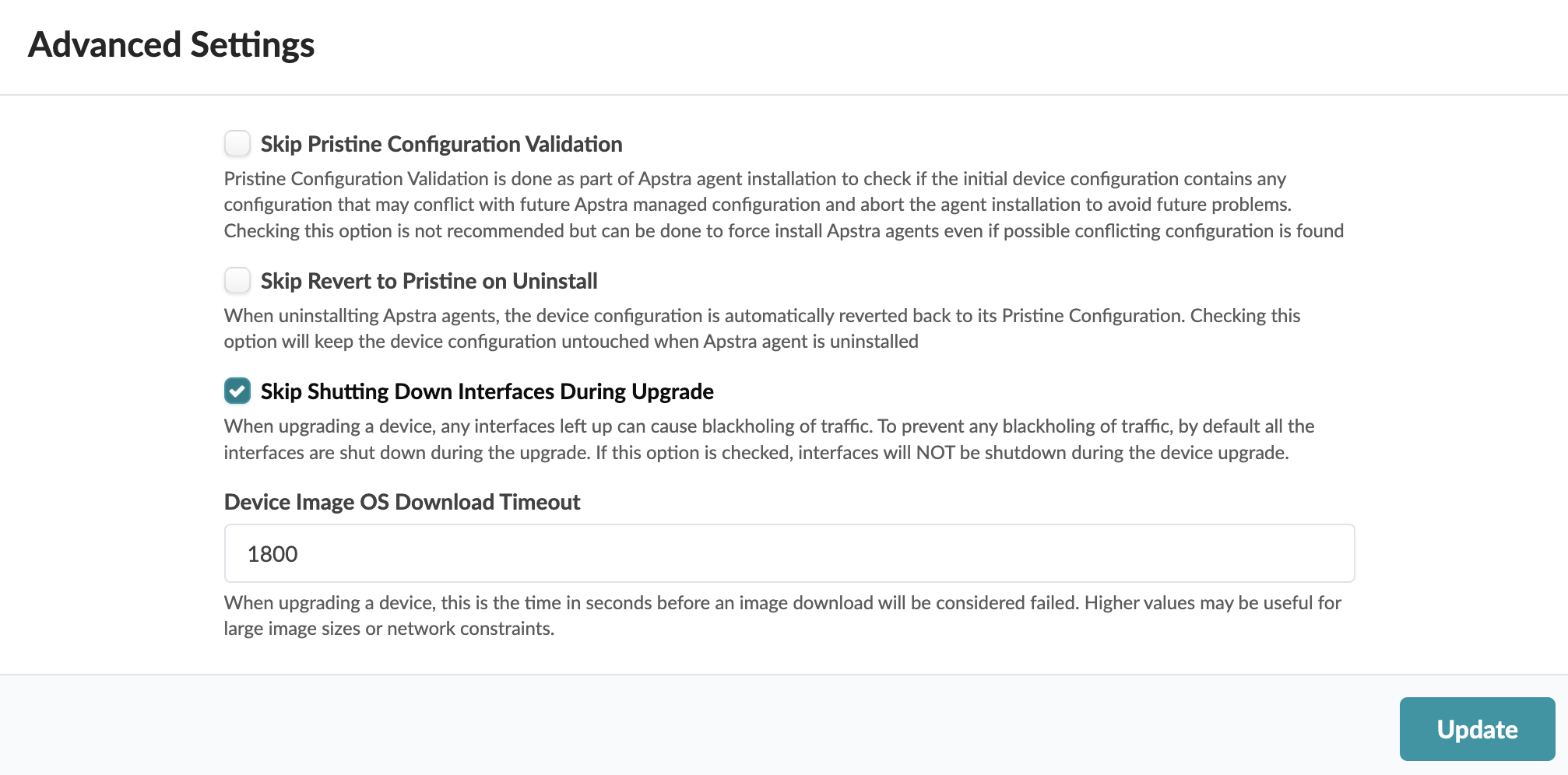 The setting is saved and you're returned to the Managed Devices page.
Set Image Download Timeout (Optional)
When the connection between the controller and the device (on different networks) experiences slower performance, it can lead to timeouts. You can set (increase) the timeout value for image downloads, as follows:
-
From the left navigation menu of the GUI, navigate to Devices >
Managed Devices, click Advanced Settings
The Advanced Settings dialog opens.
-
Enter a value up to 2700 (45 minutes) in the Device Image OS Download
Timeout field, then click Update.
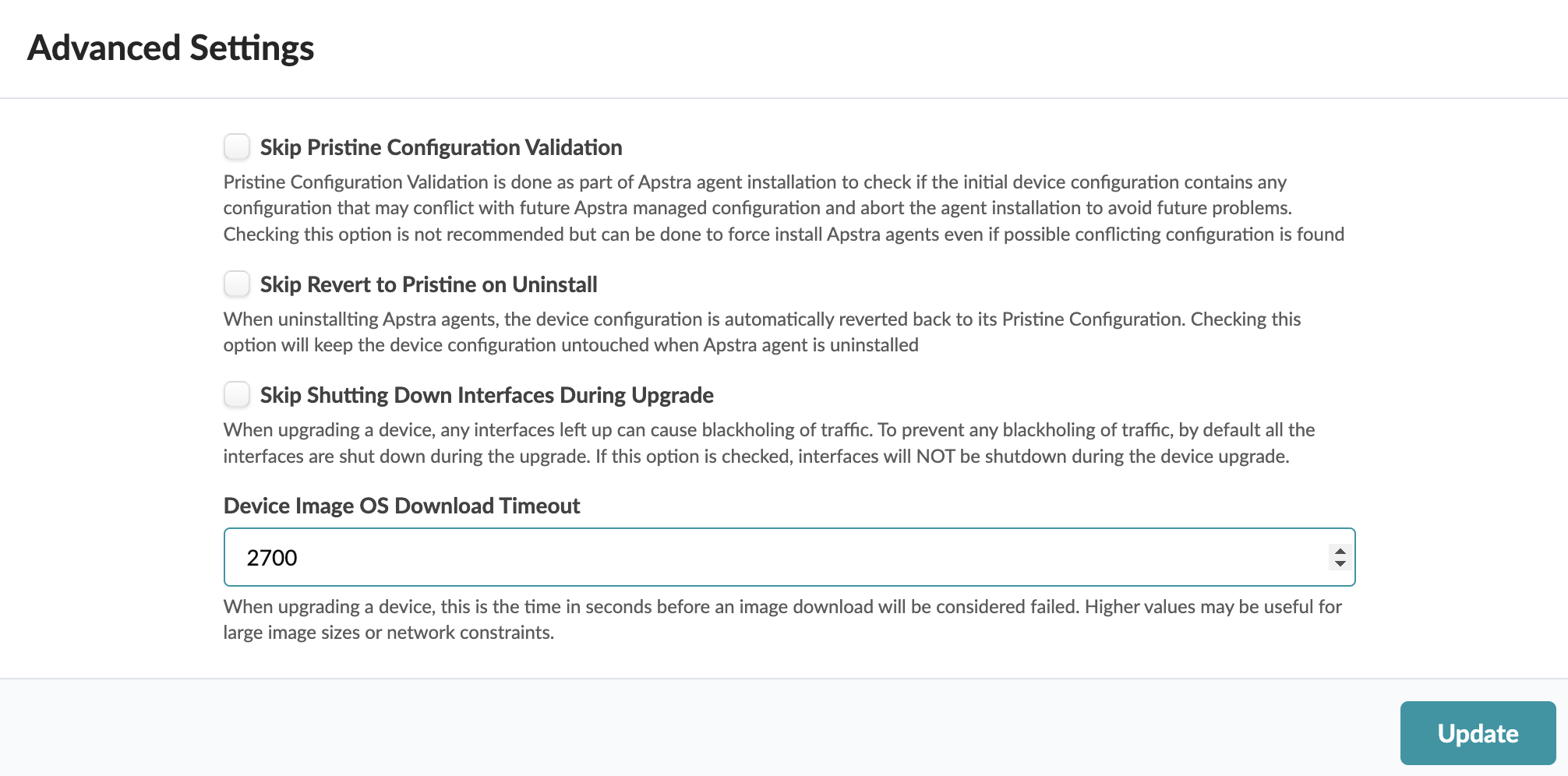 The setting is saved and you're returned to the Managed Devices page.
Upgrade OS Image
Use this procedure to upgrade devices in a standalone manner or to upgrade devices in an upgrade group.
Make sure that your devices are in the appropriate states for upgrading as described in the overview above, and that if your device profiles are user-defined that you've updated them accordingly.
-
If you're upgrading devices in a standalone manner (without an upgrade
group), then perform the following steps:
-
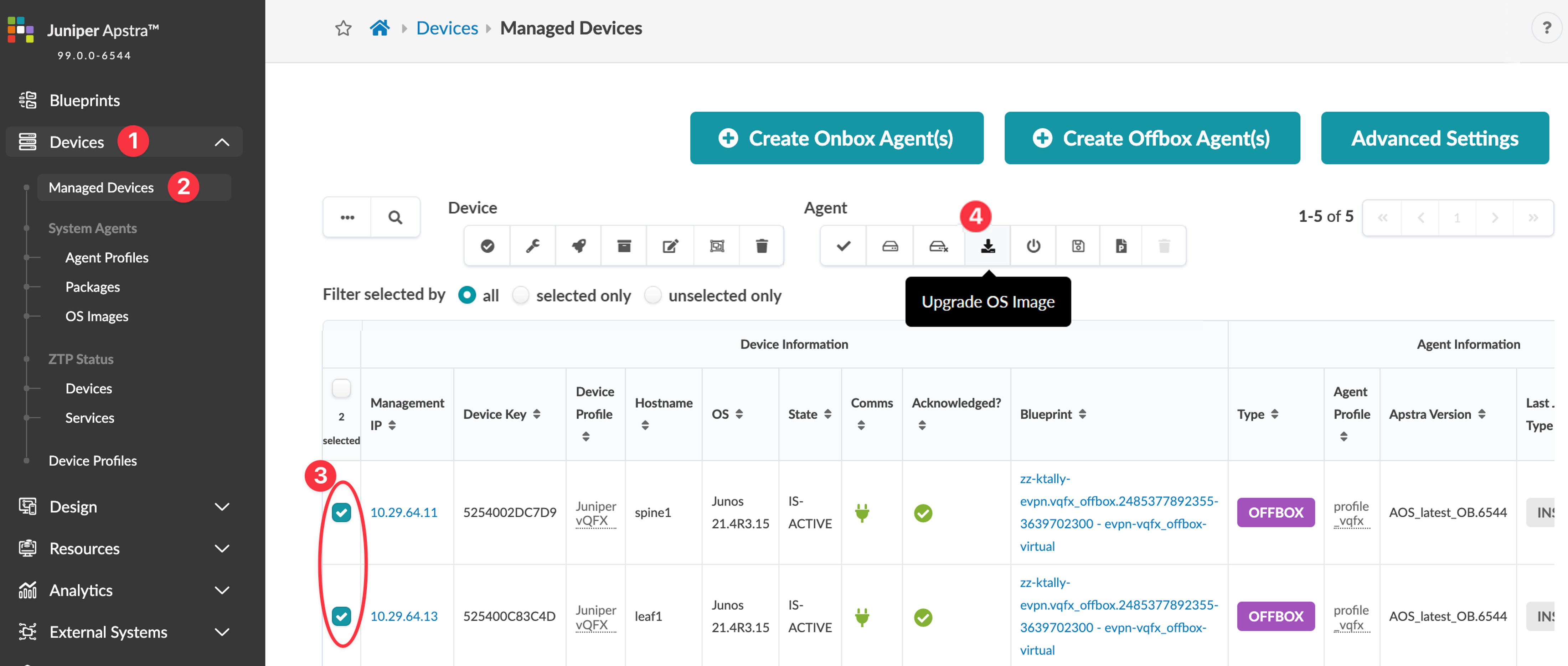
From the left navigation menu, navigate to Devices >
Managed Devices, and select the check box(es) for
the device(s) to upgrade. (If you have many devices, use the query
function to filter selections.) All selected devices must be of the
same type, and they must be upgraded to the same image and version.
To search for specific devices (such as for all EOS devices) click
the Search button (magnifying glass) and
enter a query.
-
From the left navigation menu, navigate to Devices >
Managed Devices, and select the check box(es) for
the device(s) to upgrade. (If you have many devices, use the query
function to filter selections.) All selected devices must be of the
same type, and they must be upgraded to the same image and version.
To search for specific devices (such as for all EOS devices) click
the Search button (magnifying glass) and
enter a query.
-
If you're upgrading devices in an upgrade group, then perform the following
steps:
-
Click the Upgrade Group icon to bring up the
Upgrade Devices in <Upgrade-Group> window
for the group you want to upgrade.
Figure 7: Upgrade Group IconThe Upgrade Devices in <Upgrade-Group> window contains the list of devices in the group.
-
Click the Upgrade Group icon to bring up the
Upgrade Devices in <Upgrade-Group> window
for the group you want to upgrade.
- If the job fails for any device, click the agent to view errors. You can also click the Show Log button to view the detailed Ansible job. If an upgrade fails, you must manually resolve the issue causing the failure. For example, with a checksum error, you must either correct the invalid checksum or register a new OS image with a correct checksum, then repeat the upgrade process.
- If the checksum is correct and no other failures occur, the job state for that device changes to SUCCESS and the device reboots.
- When a device has rebooted with the new image and has reestablished its agent connection with the controller, the upgrade is complete for that device. The Managed Devices page displays the new OS version.