
Reboot Agent
Reboot device system agents using the GUI.
You can reboot device agents directly from the GUI (as of Apstra version 6.1) instead of using the CLI.
Reboot One Device Agent
-
From the left navigation menu, navigate to Devices >Managed
Devices, click the three dots in the Actions column (right
side) for the device that you want to reboot, then in the
Agent menu, click the Reboot button.
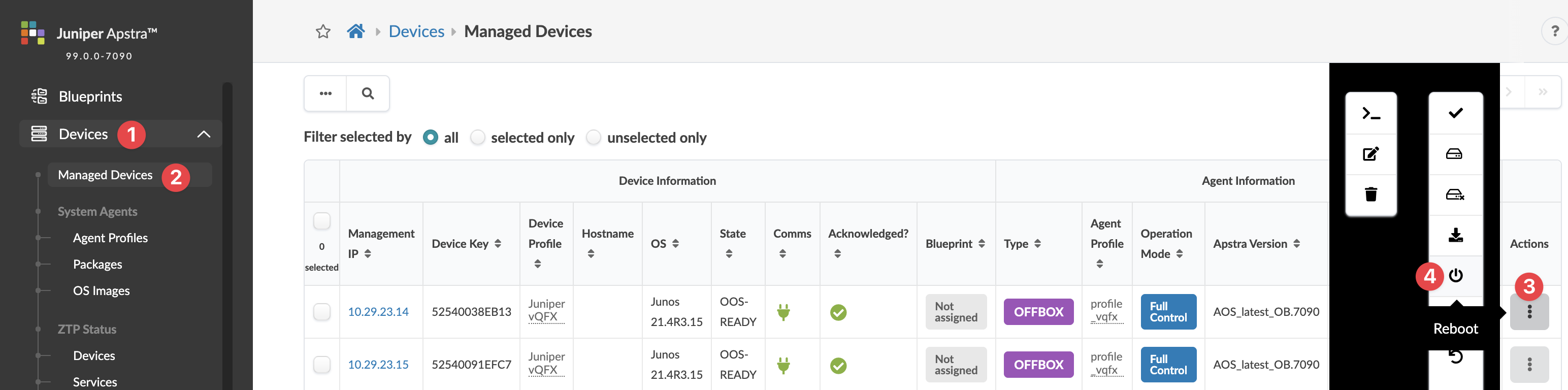 The Reboot dialog opens.
 -
Click Reboot.
The dialog closes and the agent reboot process begins. System agent reboots may take as long as 10 - 15 minutes. During that time, the agent Job State shows as IN PROGRESS.
To show/hide task details during reboot click Active Jobs (bottom left).
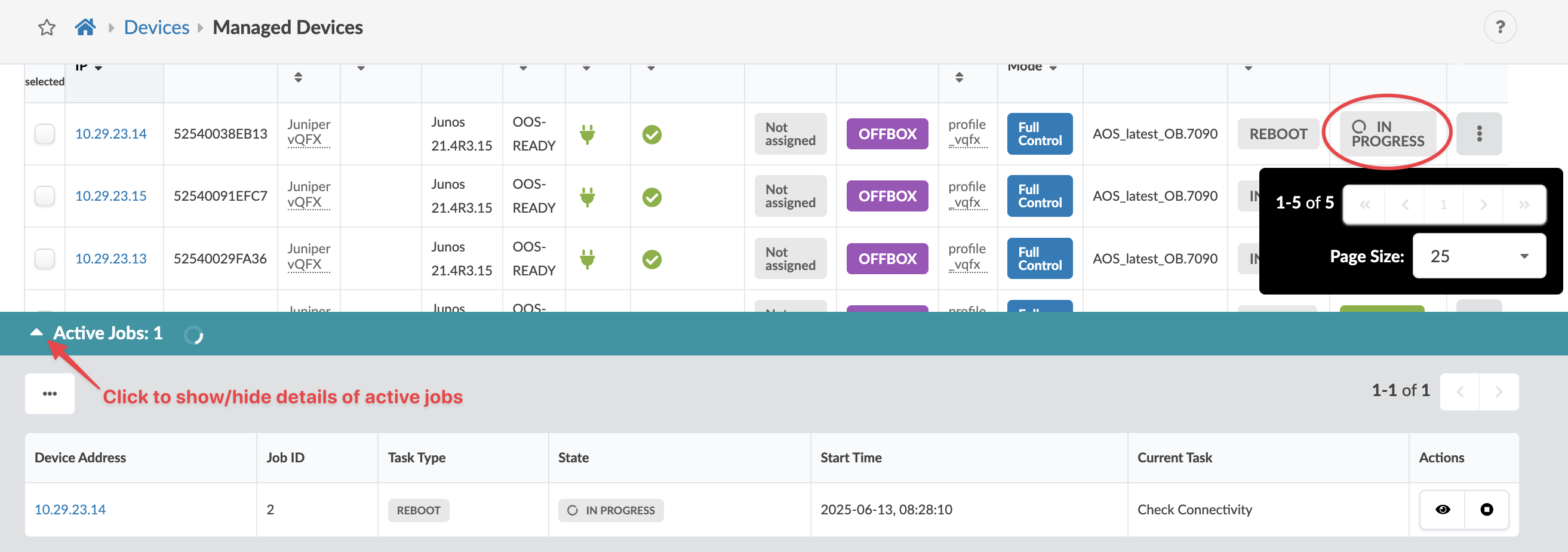
When the reboot is complete the state changes to SUCCESS and the Last Job Type for that agent shows as REBOOT.

Reboot One or More Device Agents
-
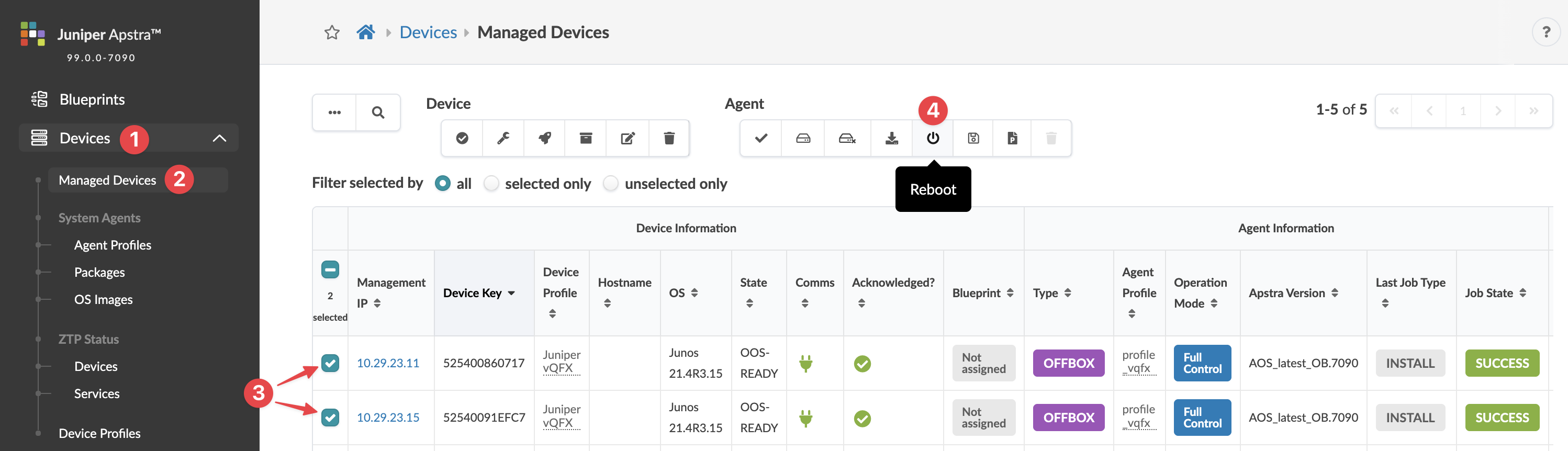
From the left navigation menu, navigate to Devices > Managed
Devices, select the check boxes in the table for the device(s) to
reboot, then click the Reboot button in the Agent menu that
appears above the table
.
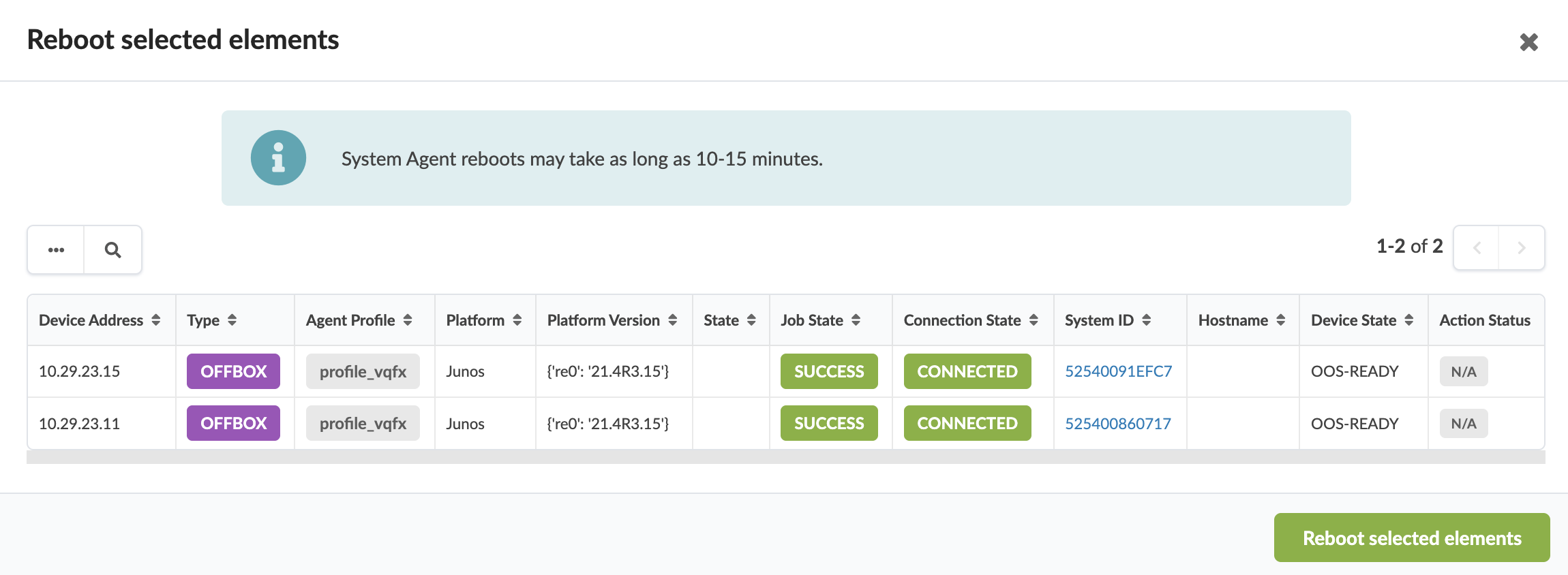
The Reboot selected elements dialog opens showing selected agent details.
When the reboot is complete the state changes to SUCCESS and the last job type for that agent shows as REBOOT.