
In-Place and VM-to-VM ZTP Upgrade
Download the Apstra ZTP Upgrade Installer
Before you can perform either an in-place upgrade or VM-to-VM upgrade, locate and download the Apstra ZTP Upgrade Installer.
Navigate to https://support.juniper.net/support/downloads/?p=apstra.
In the All Products edit box, enter Juniper Apstra Data Center Director.
Select 6.1.0 from the Version drop-down window.
Navigate to the Application Tools table and scroll down to the Apstra ZTP Upgrade Installer row.
Download the Apstra ZTP Upgrade Installer in the Downloads column.
In-Place Upgrade
This section describes what happens before, during, and after an in-place upgrade. An in-place upgrade occurs on the VM that is currently running.
To initiate an in-place upgrade, issue the sudo bash apstra-ztp.run
command on your VM.
- Pre-Upgrade Validation
- Perform an In-Place Upgrade
- Forcing an Upgrade to the Same Version of ZTP
- Restoring/Backing Up the State of a VM after a Failed Upgrade
Pre-Upgrade Validation
When you start the installation, the installer performs the following pre-checks:
-
Verifies the Ubuntu version
-
Verifies the Docker version
-
Verifies that the upgrade path is supported
The current version of Apstra needs to be version 5.0.0 or later in order to upgrade to 6.1.0.
-
Verifies the device ZTP state
If you want to only perform these pre-validation checks, you can append the --dry-run
precondition flag to the sudo bash apstra-ztp.run command--for example,
sudo bash apstra-ztp.run --dry-run
Perform an In-Place Upgrade
Follow these steps to perform an in-place upgrade.
Issue the
sudo bash /opt/apstra_ztp/apstra-ztp.runcommand. As you can see, ZTP requires these versions--docker-ce:5:27.5.1-1~ubuntu.22.04~jammy--for a successful installation.
You need to download and install these versions manually.
To upgrade the Docker version, issue the
opt-get updatecommand. This command locates and downloads the Ubuntu and Docker updates.
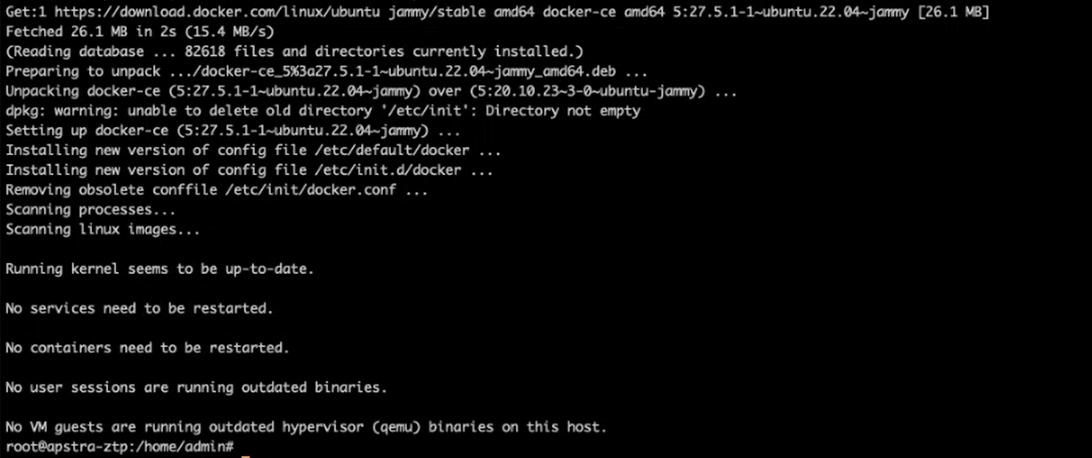
The new versions of Docker and Ubuntu have been installed.
Now you can issue the
sudo bash /opt/apstra_ztp/apstra-ztp.runcommand to continue with the upgrade. After you complete the upgrade, you will see a screen similar to this one.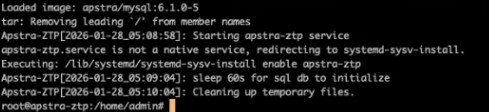
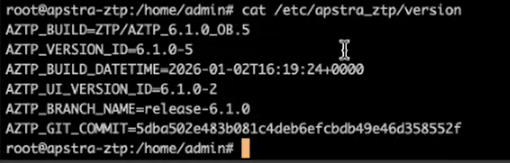
To verify the version of ZTP, issue the cat /etc/apstra_ztp/version command.
Forcing an Upgrade to the Same Version of ZTP
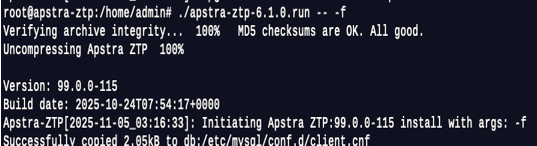
There might be situations where you want to upgrade to the same version of ZTP that is already installed on your ZTP server. In this scenario, you will need to "force" the upgrade.
If you want to force the upgrade, append the -f option to the /apstra-ztp-6.1.0.run --command.
For example:
Restoring/Backing Up the State of a VM after a Failed Upgrade
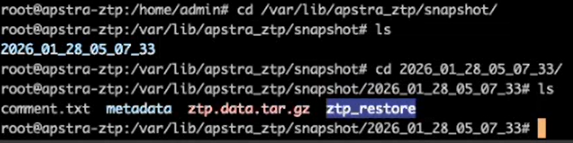
After the system performs its pre-upgrade checks and before the ZTP upgrade starts, the ZTP installer takes a snapshot of the existing state of the VM. You can find the snapshot at the /var/lib/apstra_ztp/snapshot directory.
To restore the VM to its pre-upgrade state, issue the ztp_restore command.
VM-to-VM ZTP Upgrade
This section describes what happens during a VM-to-VM upgrade, as well as the steps you need to take to perform a VM-to-VM ZTP upgrade.
You can perform a VM-to-VM upgrade from Apstra 5.0.0 and later to Apstra 6.1.0.
You need to have a VM with 6.1 installed.. From this device, you can import the details of the VM that is running an earlier version of Apstra and upgrade that VM to 6.1.0.
To initiate a VM-to-VM upgrade, issue the ztp_import_state command on the
VM that is running 6.1.0.
During the upgrade, the ztp_import_state command performs the following
tasks:
-
Stops running the
apstra-ztpservice. -
Copies the configuration files from the old VM to the new VM.
-
Updates the ZTP server IP address in the configuration files on the new VM.
-
Copies the secret key from the old VM.
-
Imports the database from the old VM.
-
Starts new Apstra ZTP service on the new VM.
Pre-Upgrade Validation
When you start the installation, the following pre-checks are performed:
-
Verifies that the upgrade path is supported.
The current version of Apstra needs to be version 5.0.0 or later in order to upgrade to 6.1.0.
-
Checks resource utlization.
-
Checks the state of ZTP on a device.
Performing a VM-to-VM ZTP Upgrade
Follow these steps to perform a VM-to-VM ZTP upgrade.
Issue the
ztp_import_statecommand on the VM that is running 6.1.0.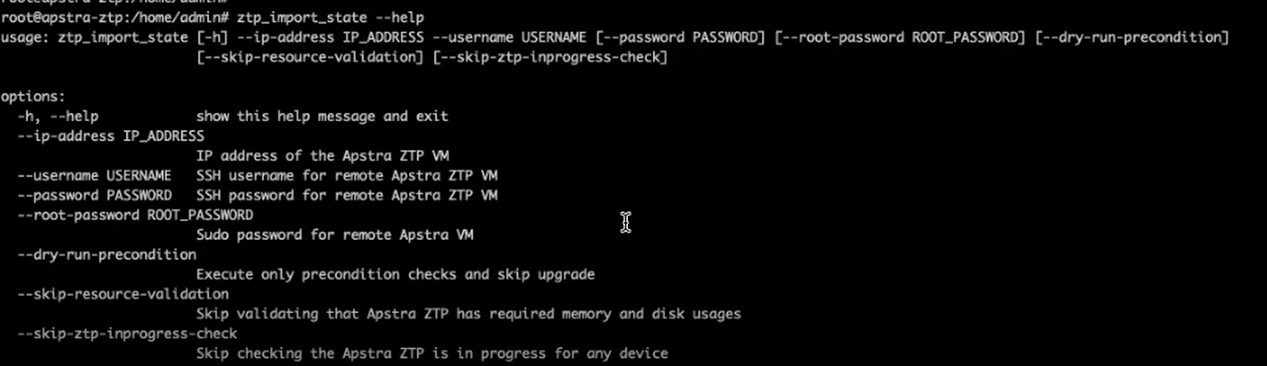
You need to append the following flags to the
ztp_import_statecommand to import the IP address, username, password, and root password from the VM that is running a previous version of Apstra.--ip address
--username
--password
--root-password
You can optionally append the following flags to the
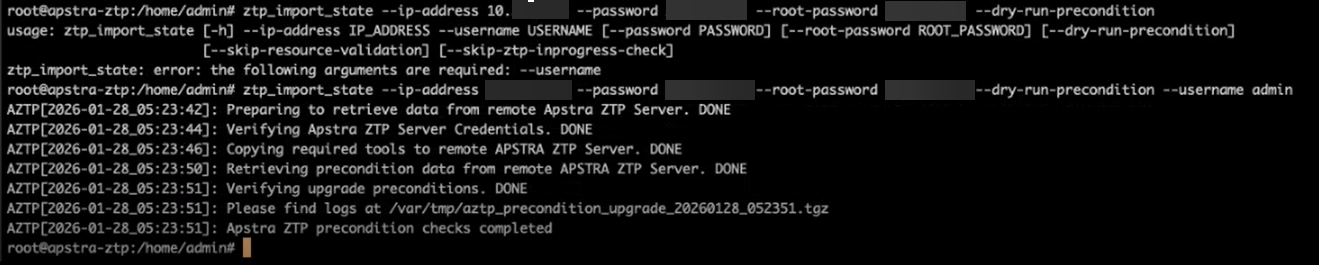
ztp_import_statecommand to perform other tasks.--dry-run-precondition
Executes only precondition checks and skips the upgrade process.
For example:
--skip-resource-validation
Skips validating that ZTP has the required memory and disk usage for an upgrade.
--skip-ztp-inprogress-check
Skips checking that ZTP is in progress on any device.
Restoring/Backing Up the State of a VM after a Failed Upgrade
After the system performs its pre-upgrade checks and before the ZTP upgrade starts, the ZTP installer takes a snapshot of the existing state of the VM. You can find the snapshot at the /var/lib/apstra_ztp/snapshot directory.
To restore the VM to its pre-upgrade state, issue the ztp_restore command.
Rollback the New VM to its Pre-Upgrade State
You can rollback the new VM you just upgraded to its pre-upgrade state. If there have been any changes on the new VM, they are not rolled back to the old VM.
To rollback the new VM to its pre-upgrade state, perform the following steps:
Stop the Apstra ZTP service on new VM by issuing the following commands:
-
- sudo systemctl stop apstra-ztp.service
- sudo systemctl disable apstra-ztp.service
Start the Apstra ZTP service on the old VM by running following commands:
- sudo systemctl enable apstra-ztp.service
- sudo systemctl start apstra-ztp.service